iPhone X Interconnect Cable Replacement
This cable's essential purpose is establishing a connection between the main cellular antenna and the logic board.main cellular antenna to the logic board . Malfunctions within this cable may manifest as diminished network signal strength, call interruptions, failure to establish connections with 3G or 4G networks, or a complete inability to access the internet.
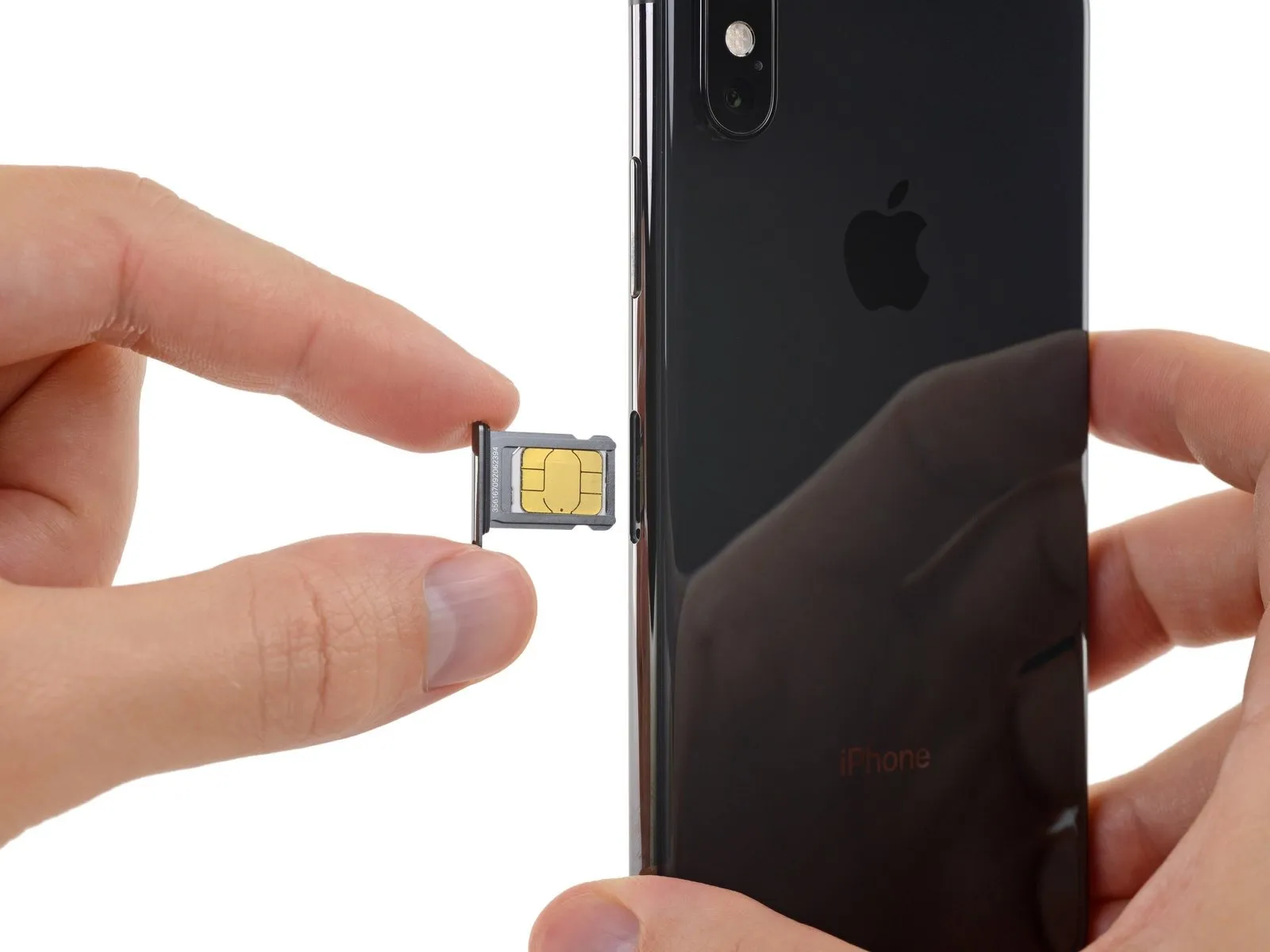
Step 1 | SIM Card


Step 2

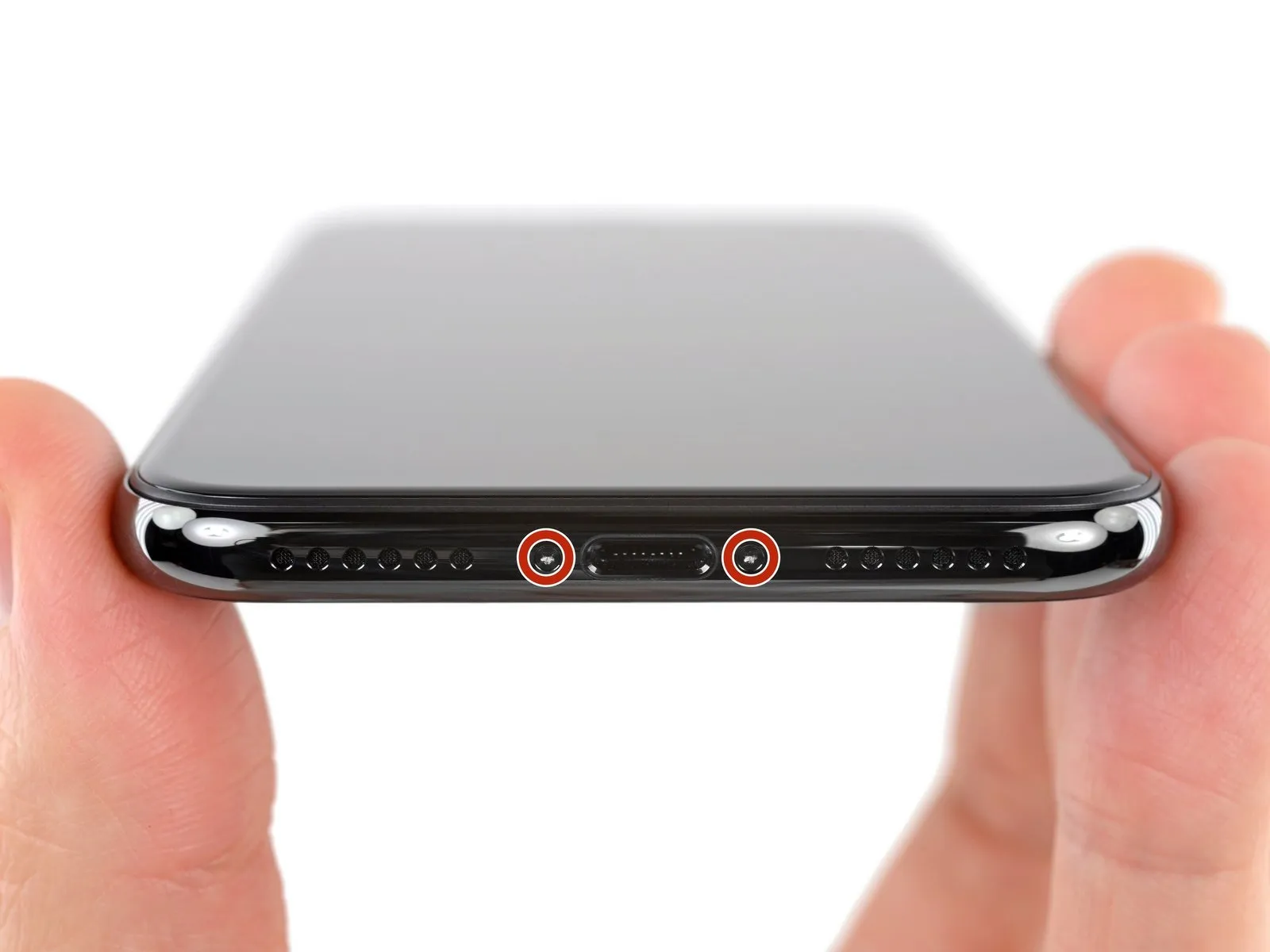
Step 3 | Pentalobe Screws
Step 4 | Mark your opening picks


- Using a permanent marker, indicate a point precisely 3 millimeters from the tip of the separation tool to establish a depth reference.
- For enhanced precision, consider marking the other corners of the separation tool with varying measurements to account for different opening sizes.
- As an alternative method, affix a coin to the separation tool, positioning it 3 millimeters from the tip to serve as a visual guide.
Step 5 | Tape over any cracks


- Apply multiple layers of transparent packing tape across the iPhone's screen surface, ensuring complete coverage of the entire front face.
- Always utilize eye protection, specifically safety glasses, to guard against any dislodged glass fragments that may become airborne during the repair process.
- Should the suction cup fail to maintain adhesion during subsequent procedures, create a handle by folding a robust tape, like duct tape, and employ this to gently separate the screen.
- As a last resort, secure the suction cup to the screen’s surface using superglue to facilitate lifting.
Step 6 | Anti-Clamp instructions


- Detailed instructions regarding the Anti-Clamp's operation are available in a separate, dedicated guide.
- To release the Anti-Clamp's gripping arms, retract the blue handle towards the rear.
- Carefully position the arms across either the left or right side of your iPhone.
- Place the suction cups in close proximity to the lower edge of the iPhone, ensuring one is situated on the front surface and the other on the rear.
- Apply pressure by compressing the cups together to establish a secure suction on the intended surface.
- Should the iPhone's surface prove excessively slick, hindering the Anti-Clamp's ability to maintain a grip, applying adhesive tape can provide a more textured interface.
Step 7


- Rotate the handle a full 360 degrees, or continue until the suction cups begin to deform.
- Maintain the parallel positioning of the suction cups; should they deviate from their alignment, slightly release the suction cups and readjust the arms.
Step 8


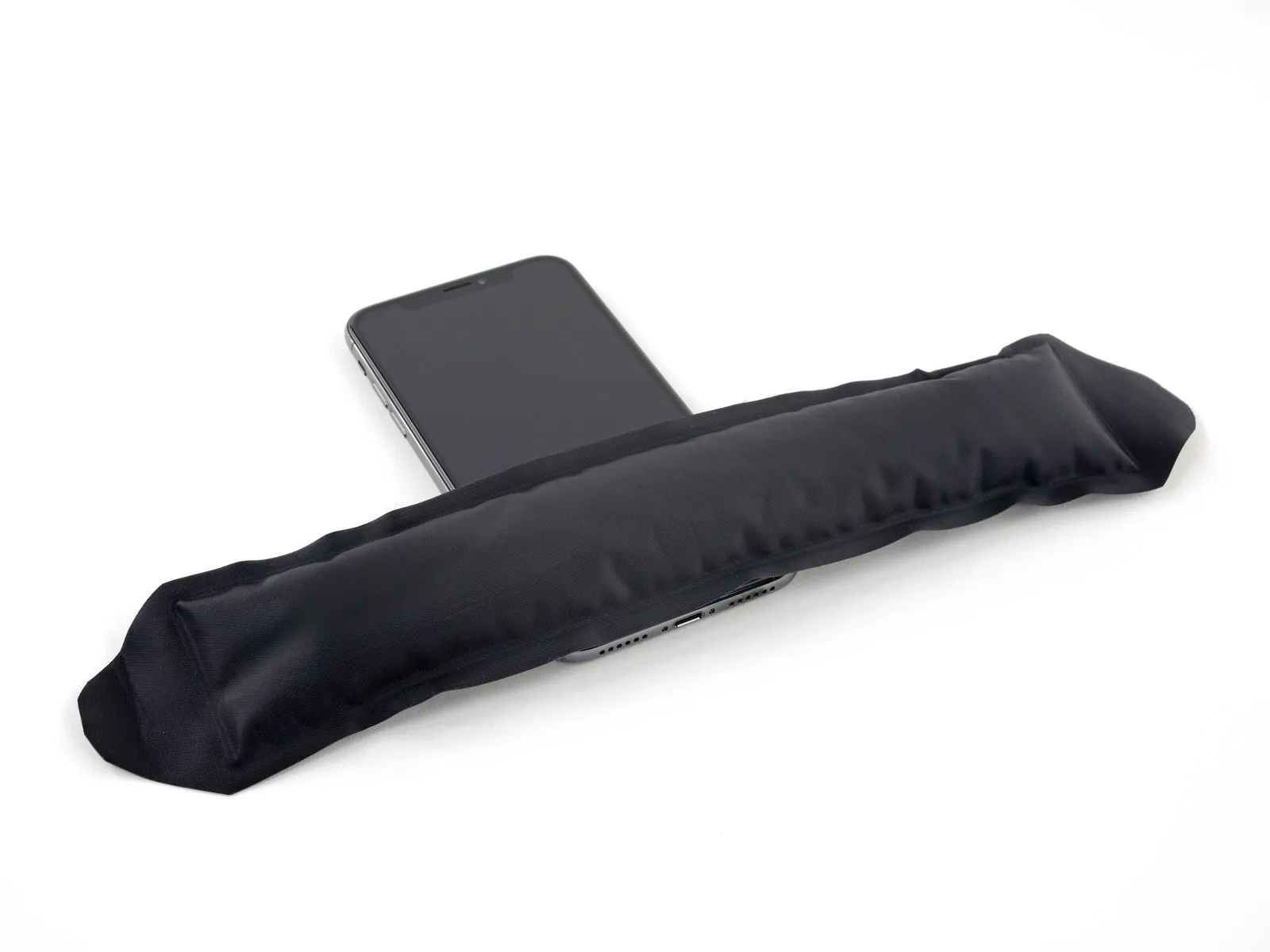
- Alternative heat sources, such as a hair dryer, heat gun, or hot plate, are permissible; however, excessive heat poses a risk of display or internal battery damage, necessitating cautious operation.
- Position the iOpener so that it rests along the lower edge of the iPhone’s casing.
- Allow a period of sixty seconds to elapse, enabling the adhesive to loosen and establish a separation.
- Introduce an opening pick beneath the display and the surrounding plastic frame, ensuring it does not contact the screen's surface directly.
- Should the Anti-Clamp fail to generate an adequate separation, increase the heat applied to the region and rotate the handle by ninety degrees.
- Avoid incremental rotations exceeding ninety degrees, and observe a sixty-second interval between each adjustment; rely on the Anti-Clamp’s pressure and time to achieve separation.
Step 9
- Employ a hairdryer, heat gun, or iOpener, directing it towards the lower edge of the iPhone for approximately one minute to warm the underlying adhesive.
- Excessive heat application with a hairdryer or heat gun carries the risk of screen damage, so avoid overheating.
Step 10
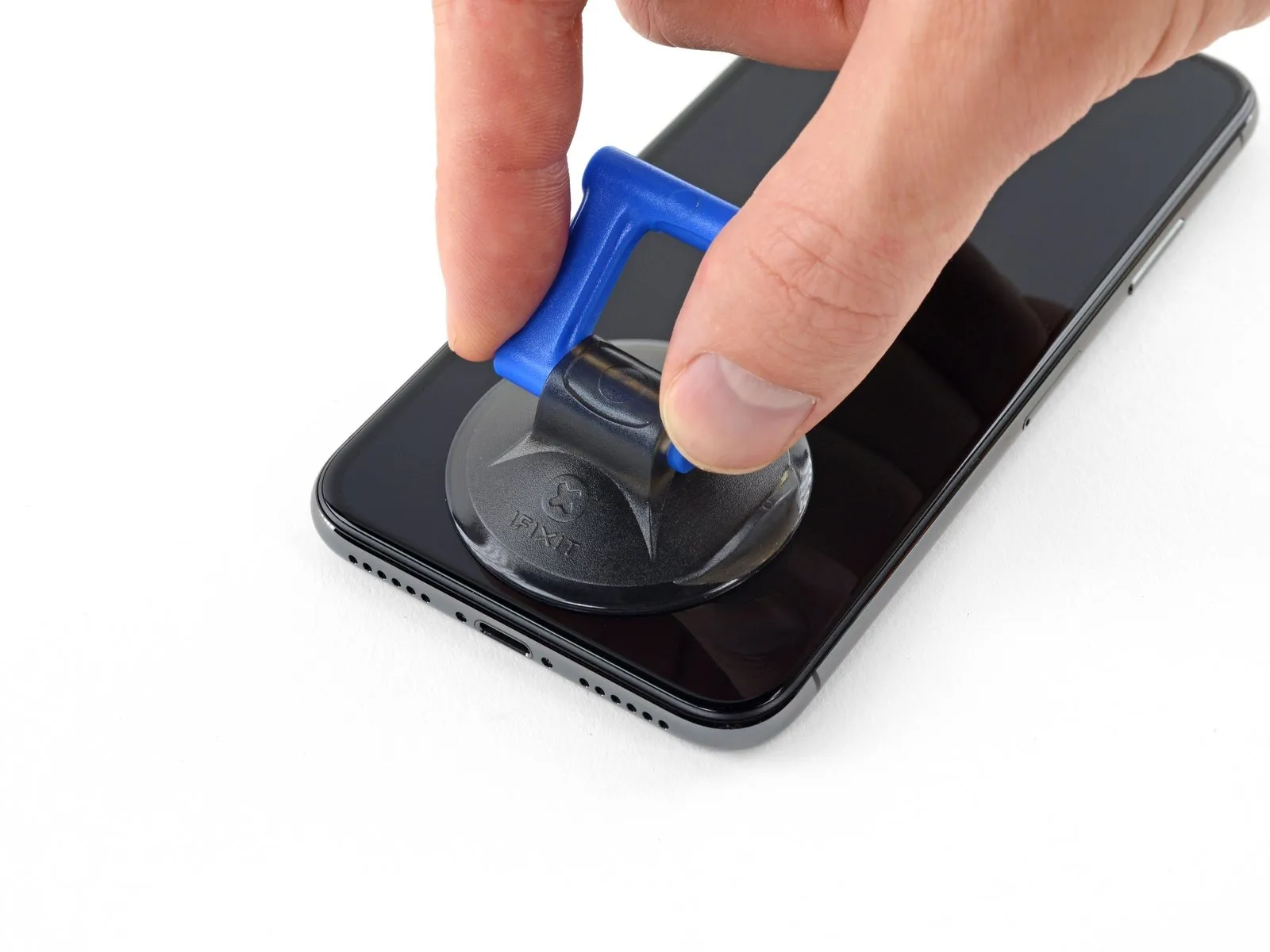
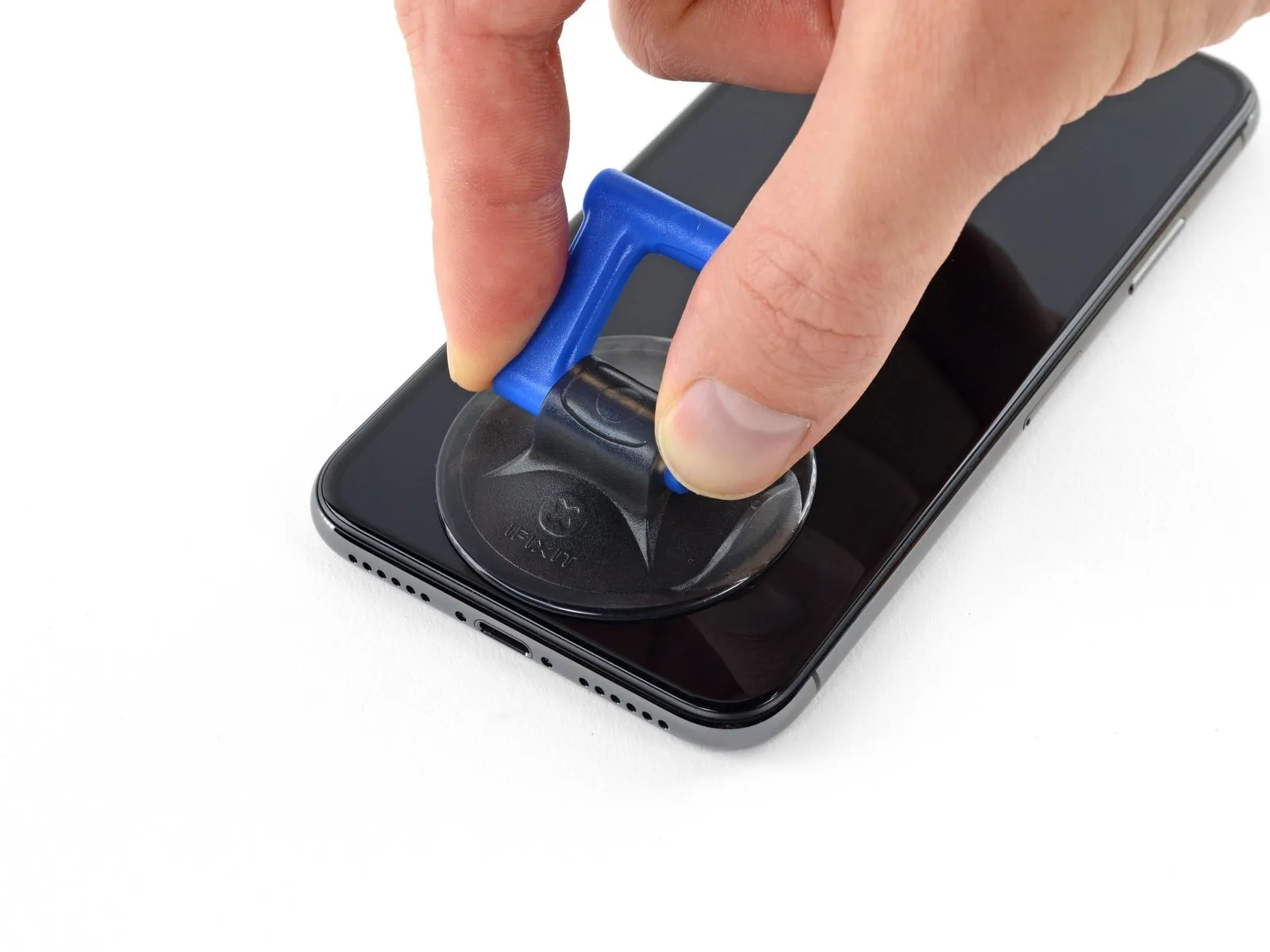
Step 11
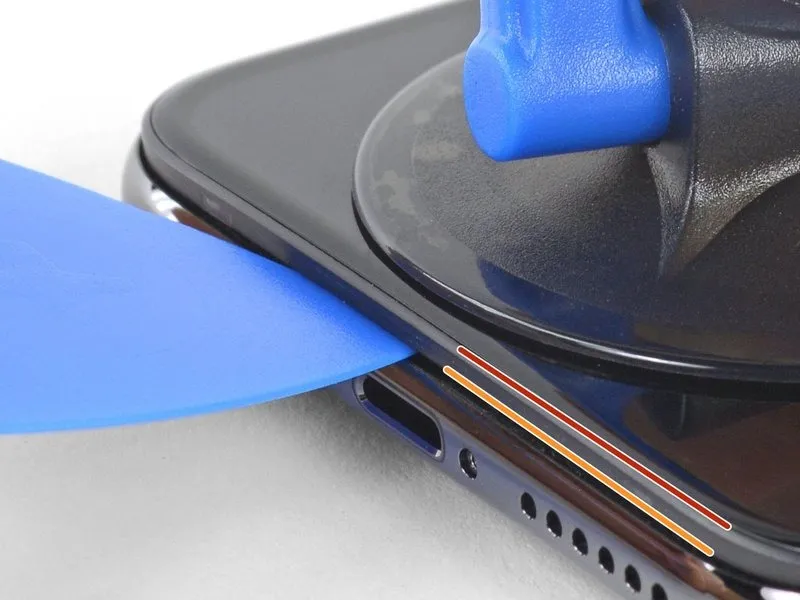
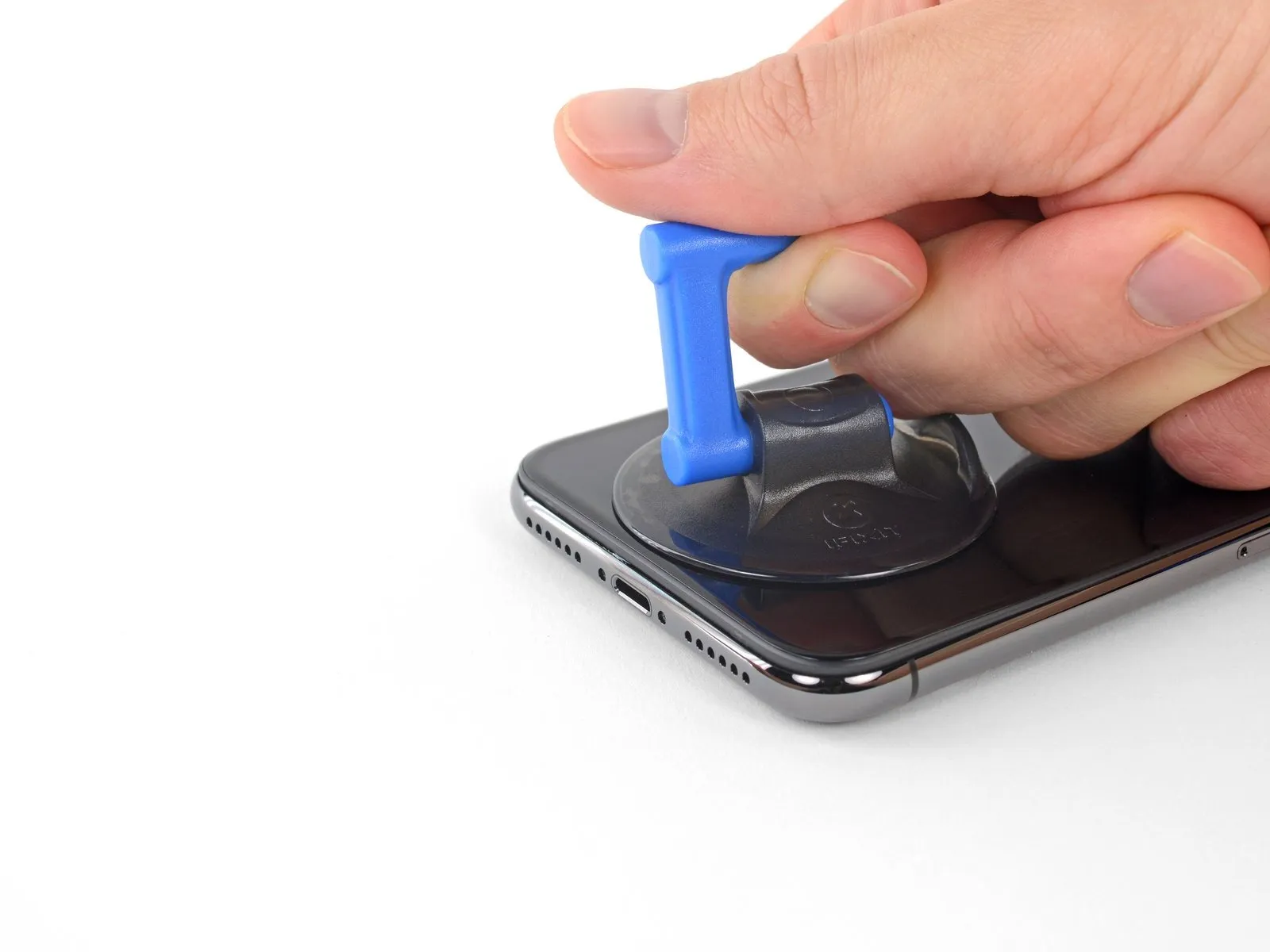
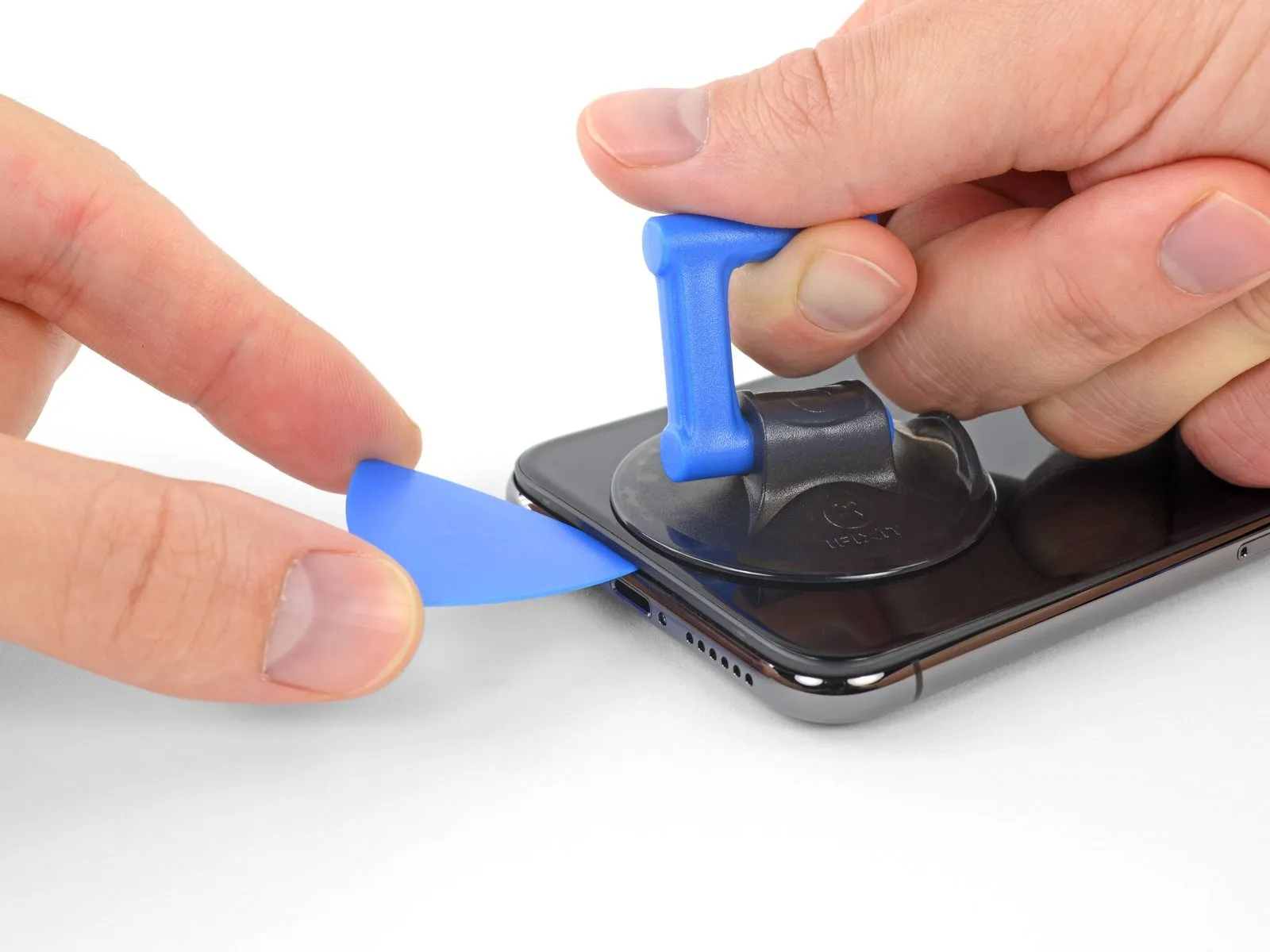
- Maintain consistent, strong upward force on the suction cup to generate a small separation between the display assembly and the device's surrounding structure.
- Carefully position an opening tool into the space formed beneath the screen's decorative plastic trim, ensuring it does not contact the display surface itself.
- Because the waterproof sealant securing the display is exceptionally robust, a considerable amount of force may be required to initially create this separation; should you encounter difficulty, apply additional heat and gently oscillate the display upward and downward to reduce the adhesive's strength until a sufficient gap is achieved for tool insertion.
Step 12
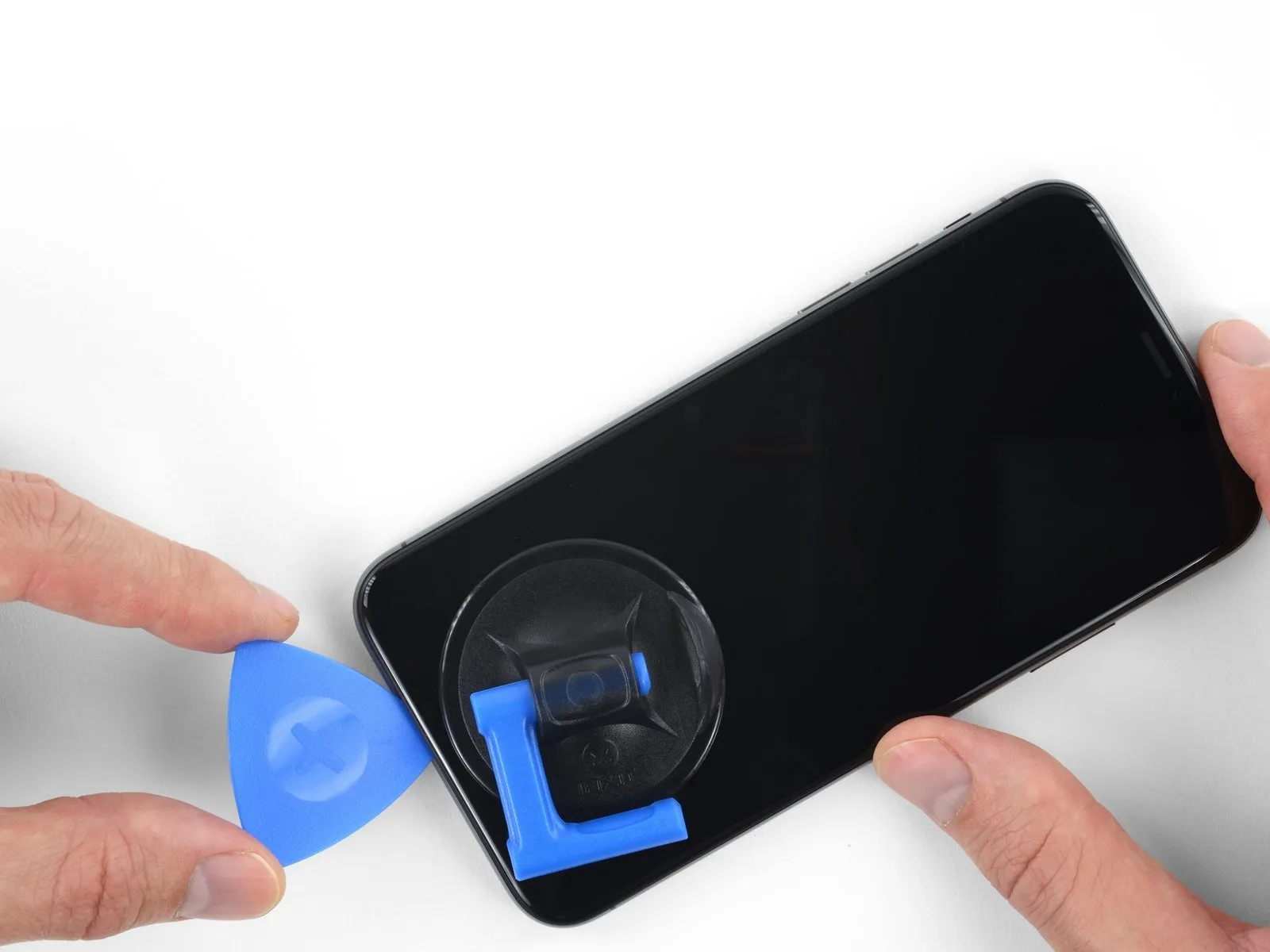
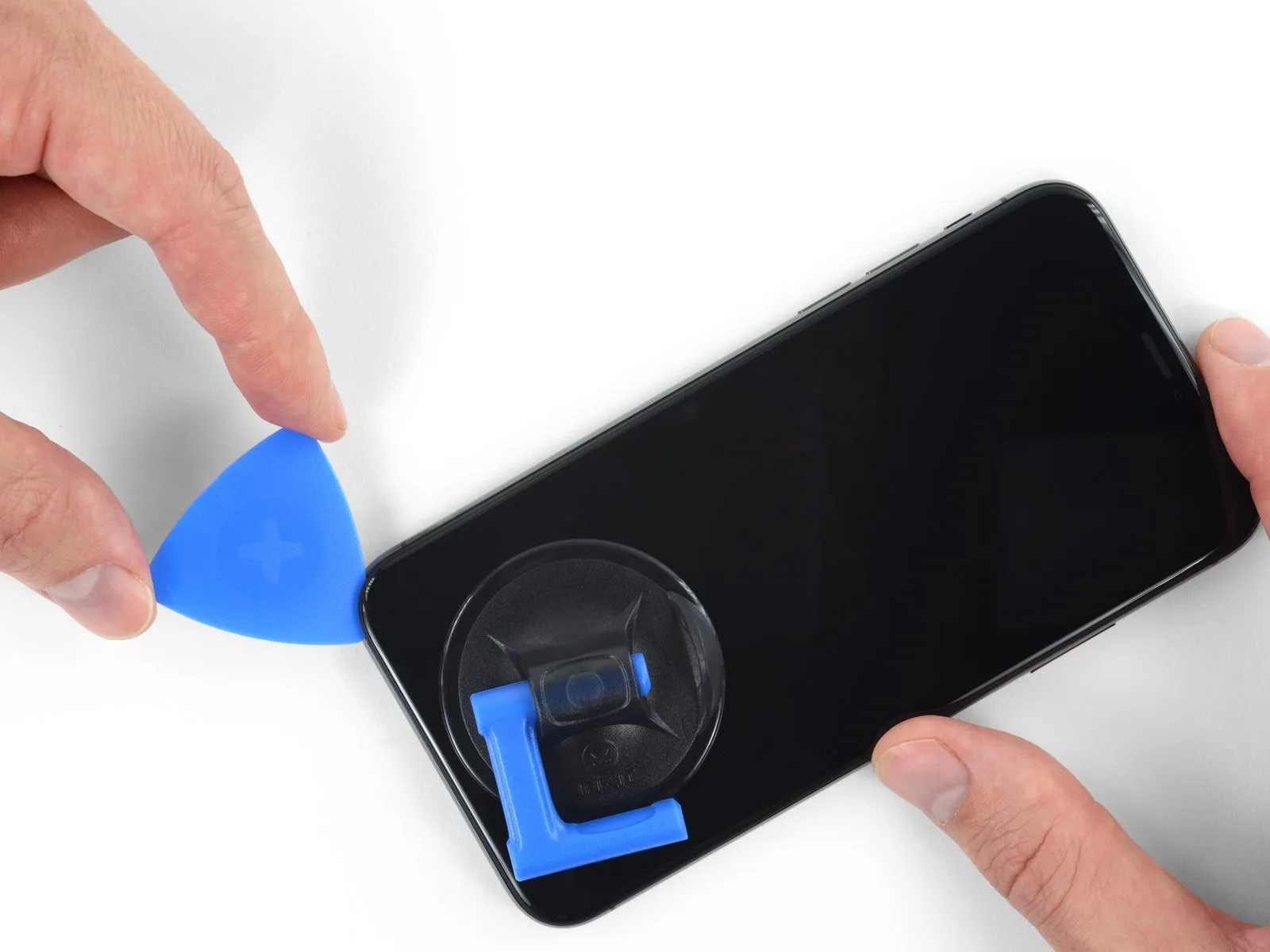
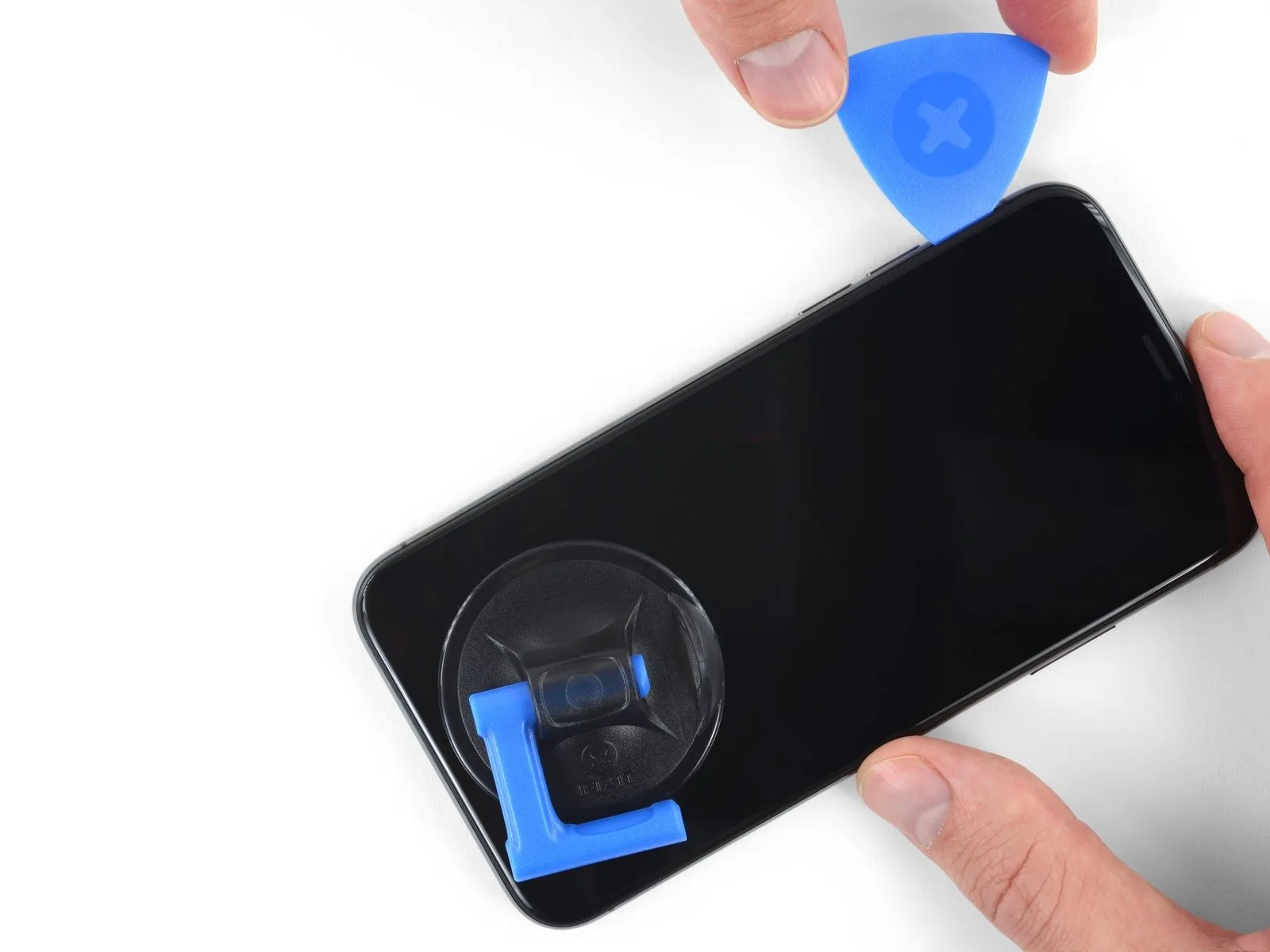
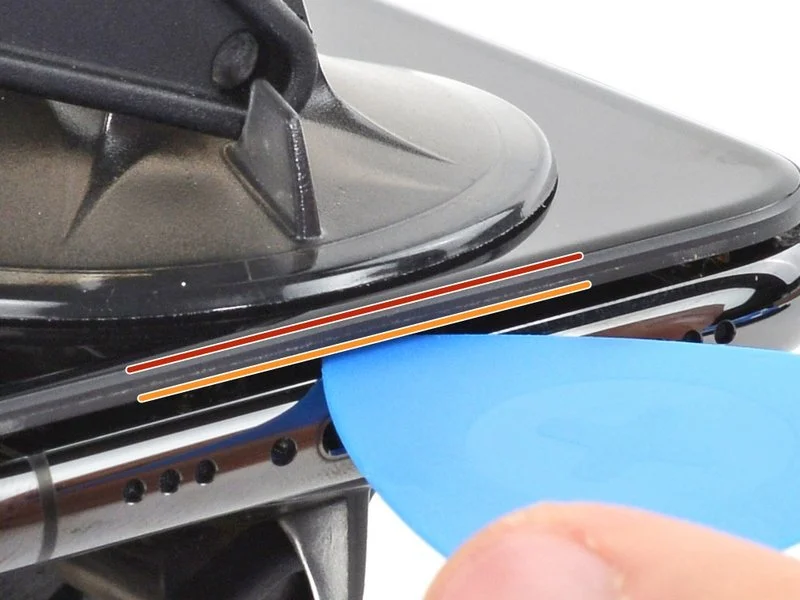
- Employ the opening pick, carefully maneuvering it along the bottom-left periphery of the iPhone and upward along the left side, to sever the adhesive securing the display assembly.
- Exercise caution to limit pick insertion depth to a maximum of 3 millimeters, preventing potential harm to underlying internal elements.
Step 13 | Screen information
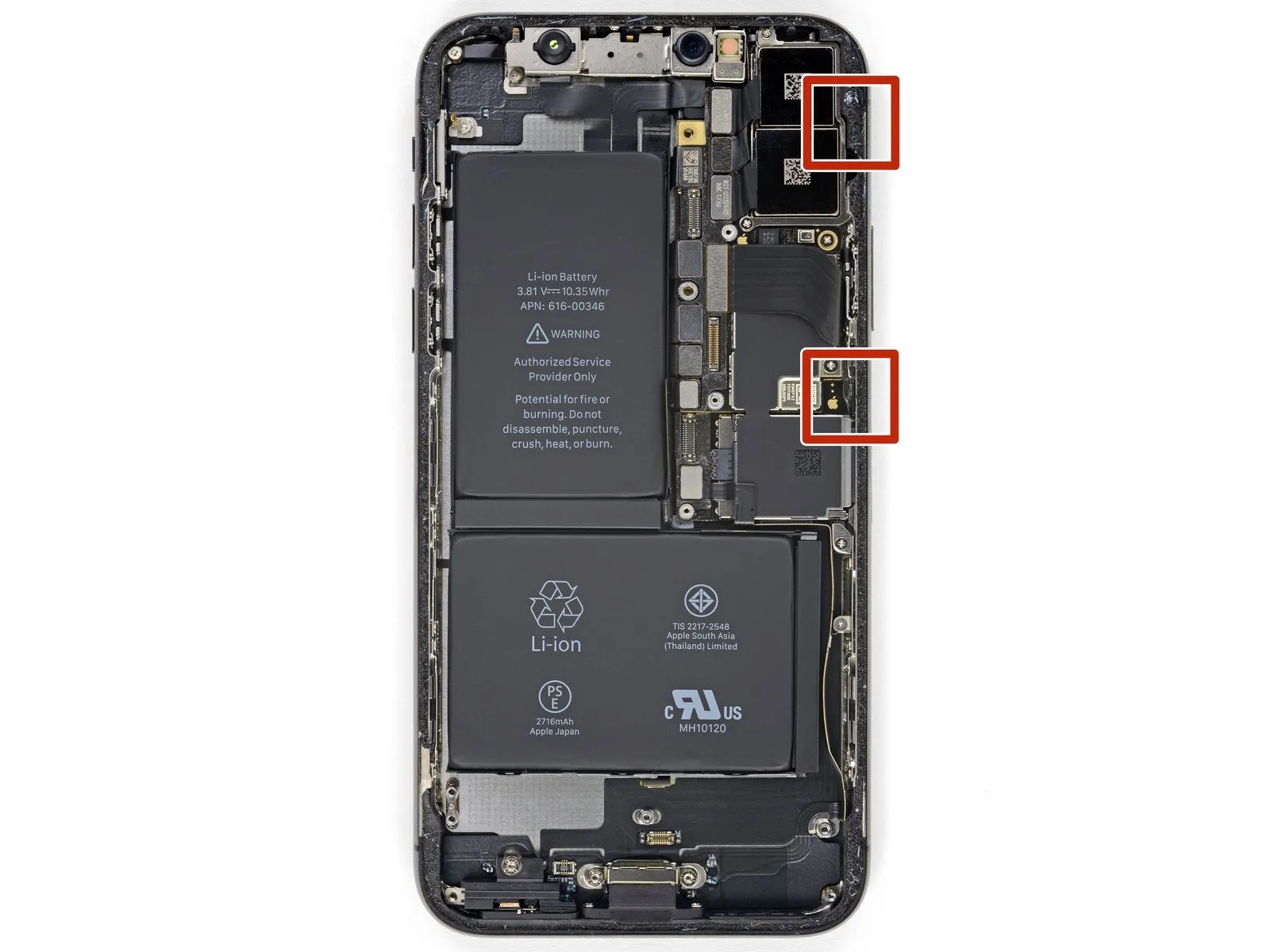
- Fragile wiring is situated along the right-hand side of the iPhone; avoid inserting any tools in this area to prevent potential cable damage.
Step 14
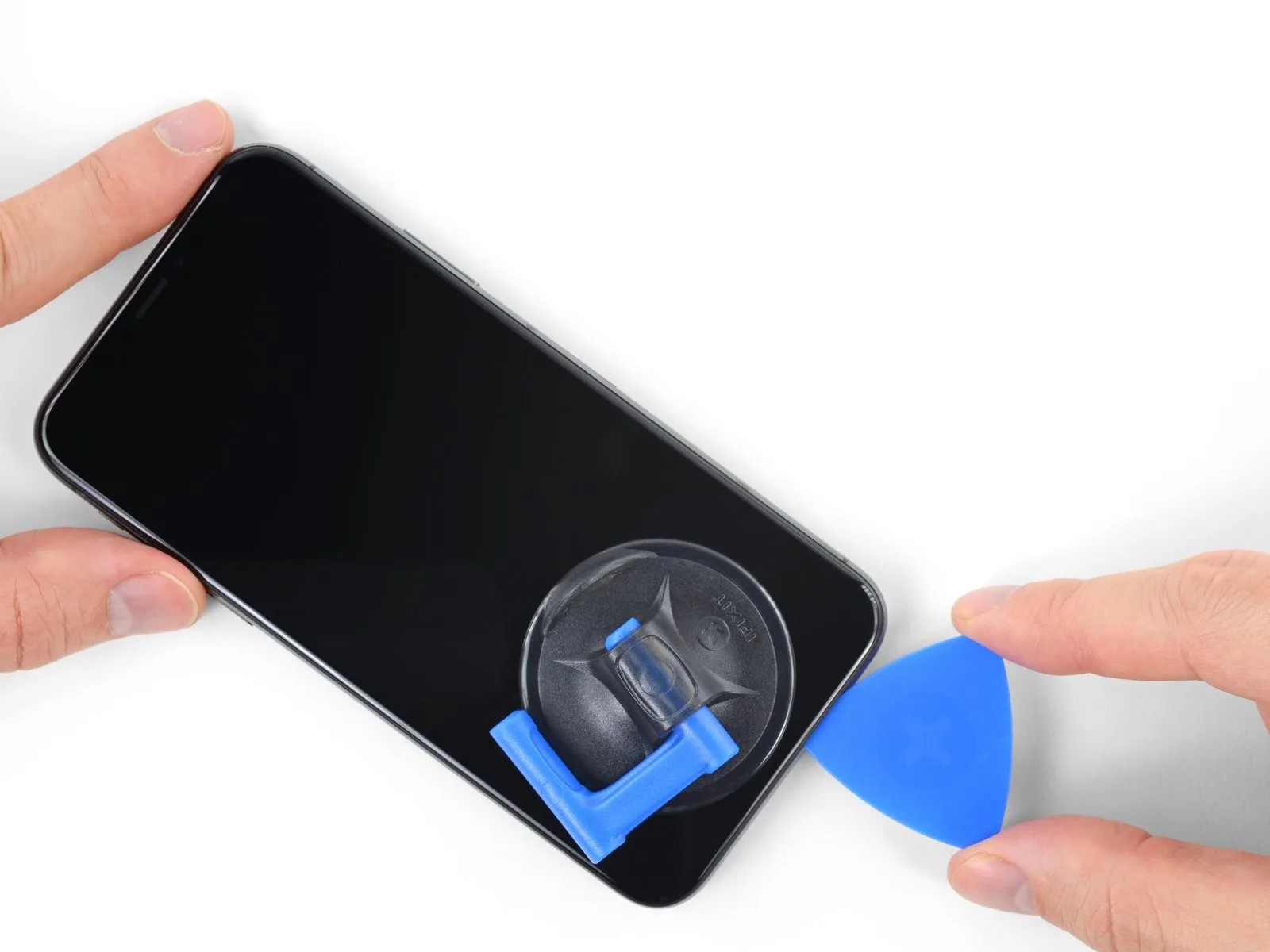
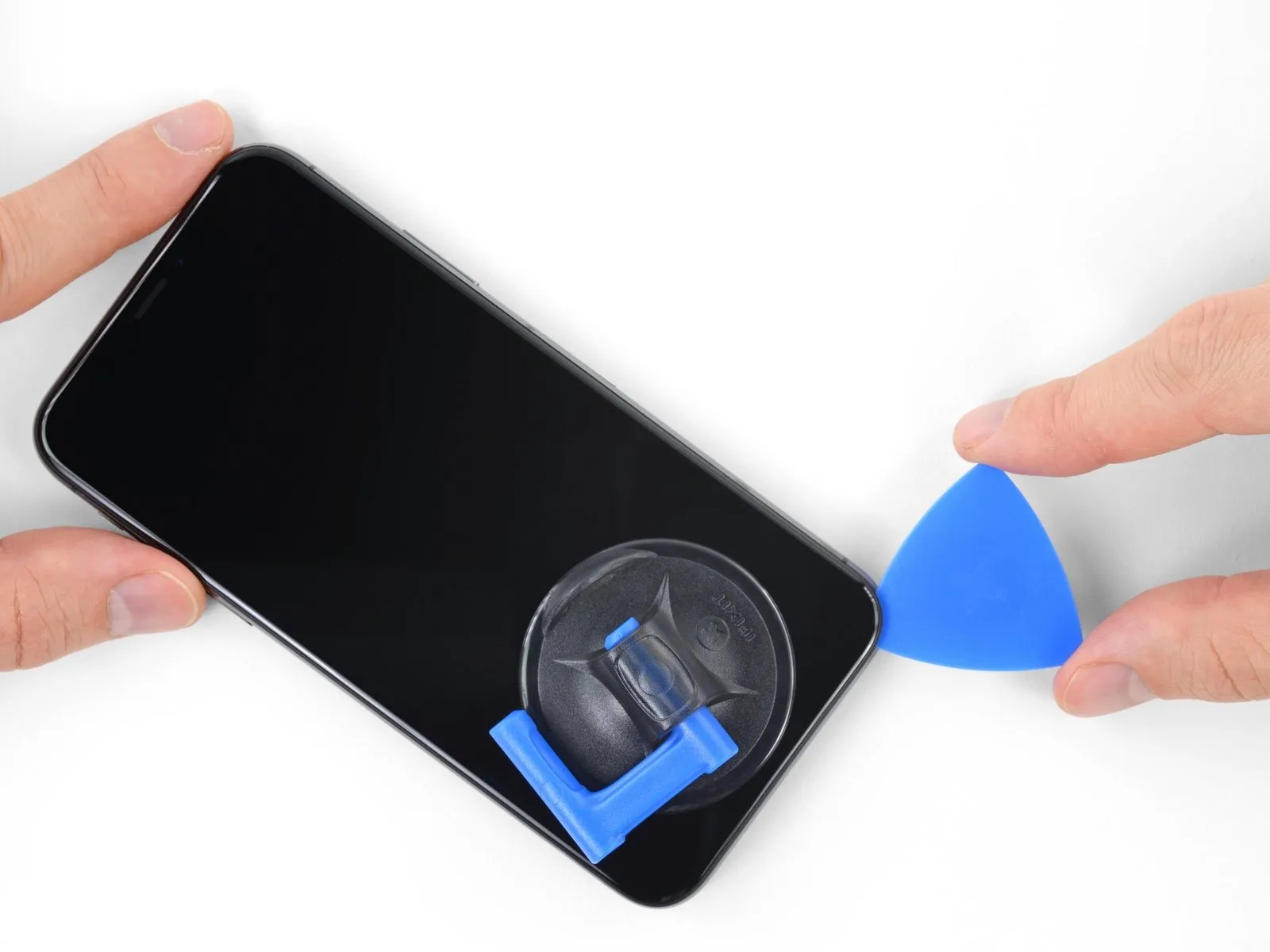
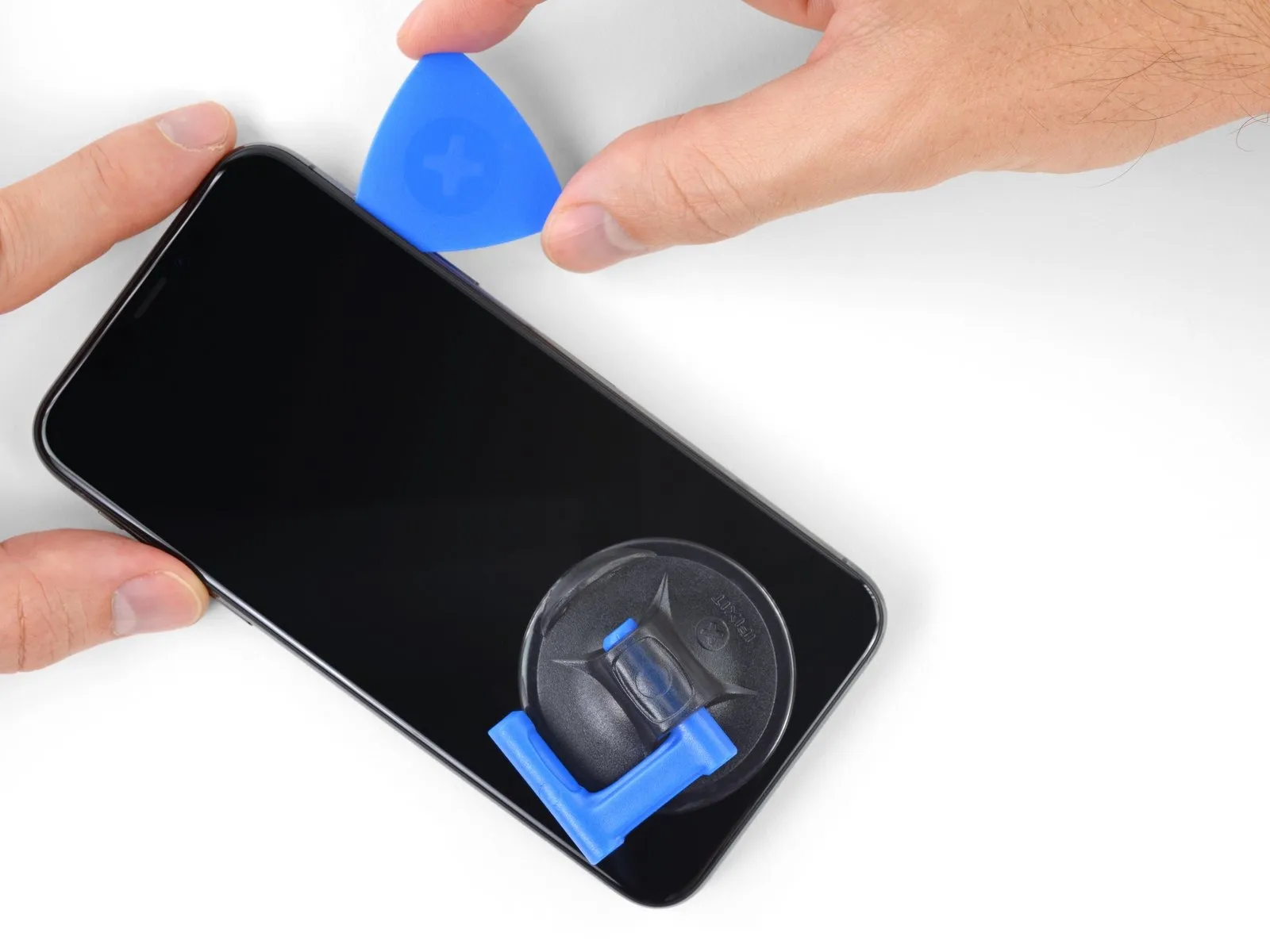
- To proceed with separating the adhesive, re-position your opening tool at the lower boundary of the iPhone's display and advance it upwards along the right-hand side.
Ensure the tool's insertion depth remains under 3 millimeters to prevent potential harm to the delicate display cable connections.
Step 15
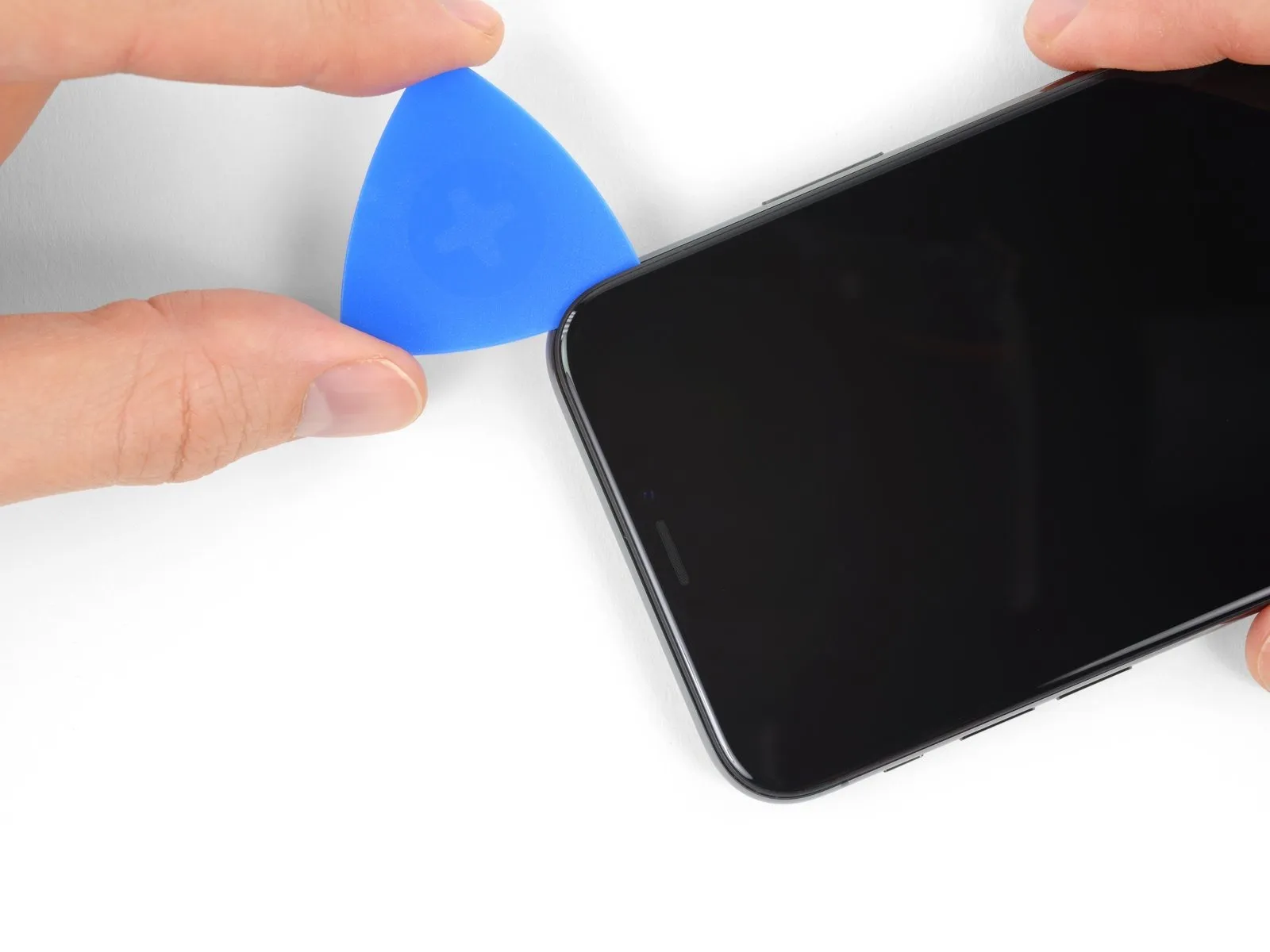
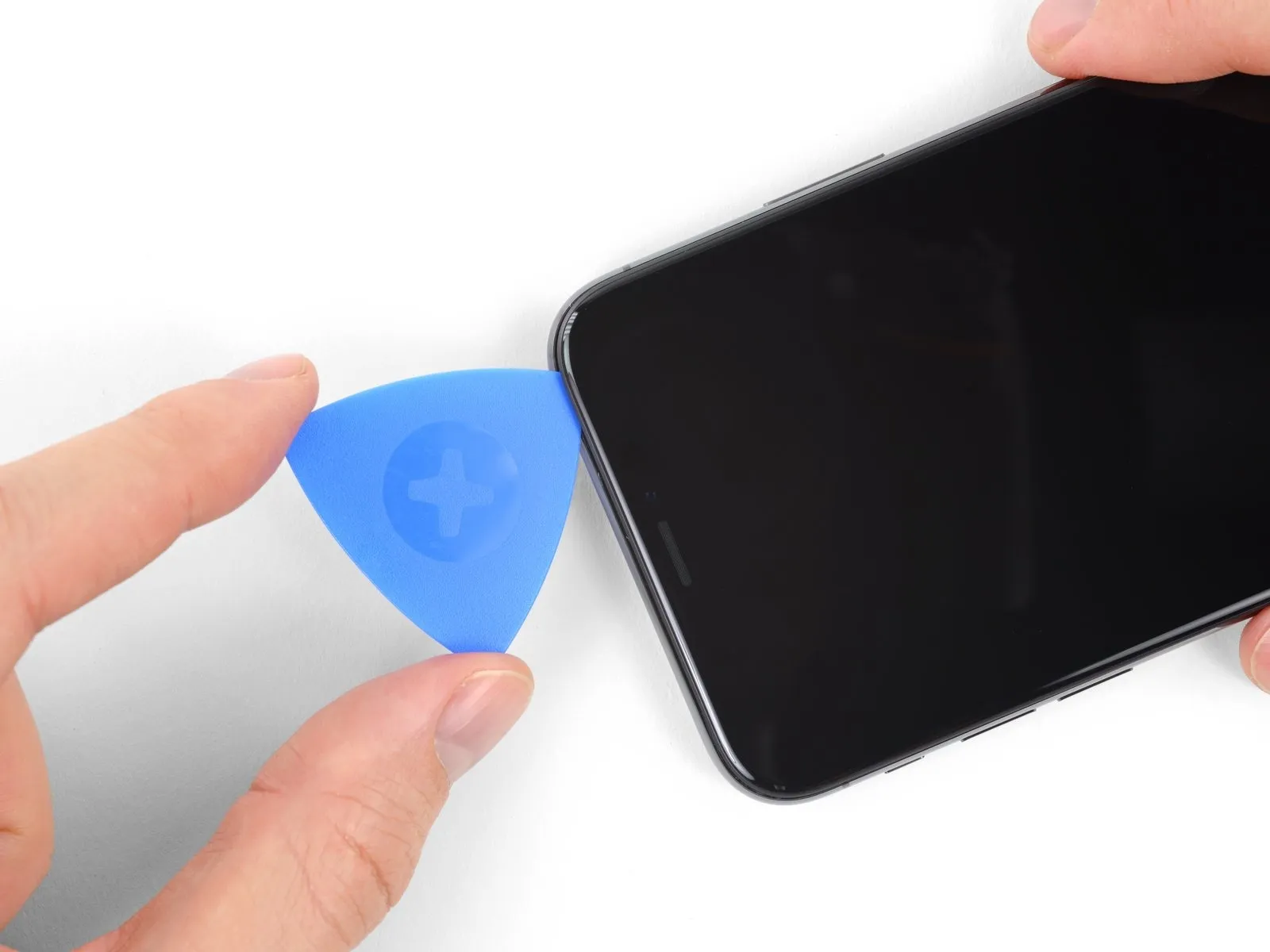
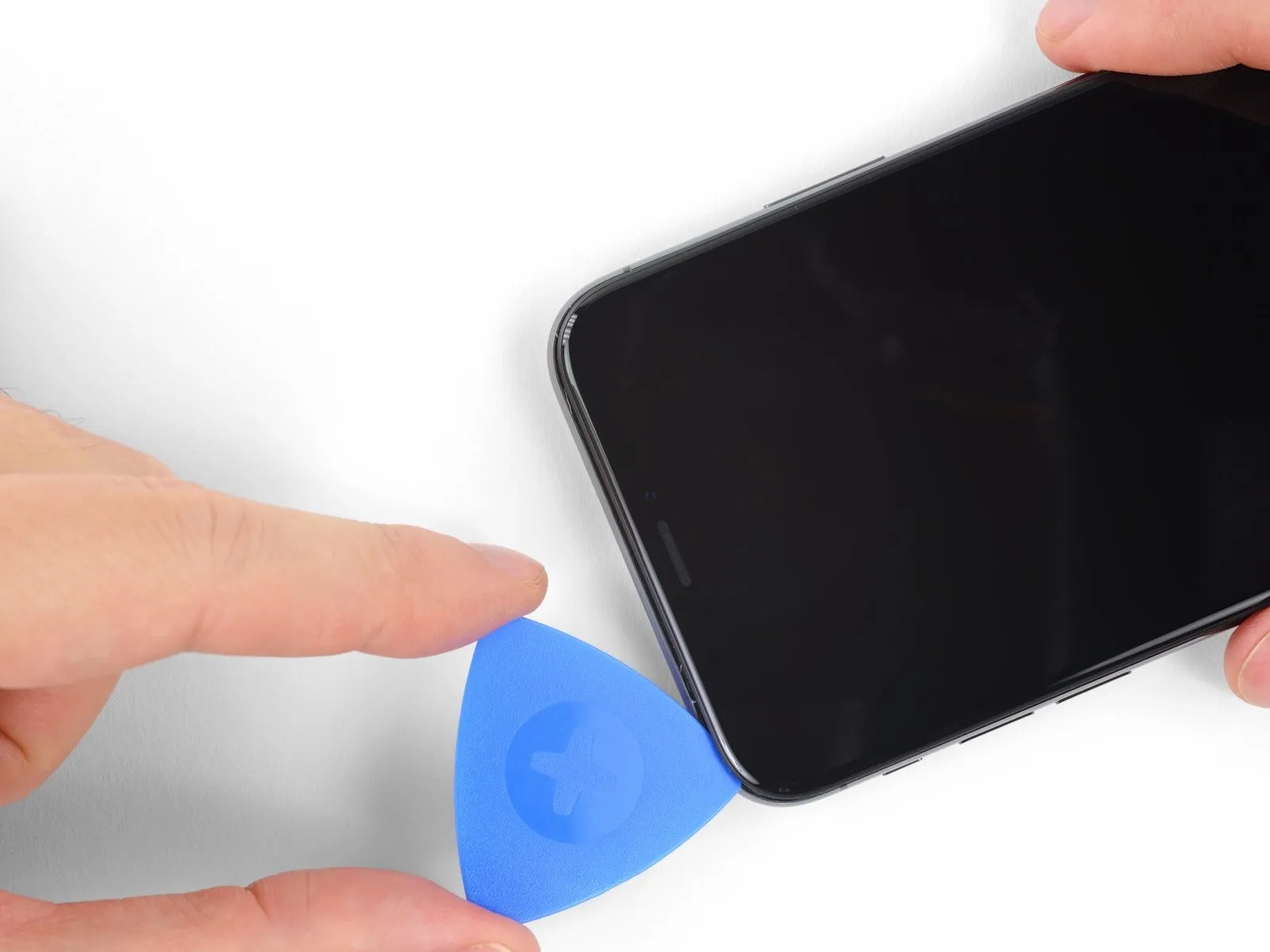
- Adhesive and securing clips hold the upper boundary of the display in place.
Employ the opening tool to move along the upper corner of the display, applying slight downward pressure through gentle manipulation towards the Lightning connector.
Excessive force will cause the clips to fracture; therefore, proceed with caution and deliberate care. - Limit the pick's insertion depth to a maximum of 3 millimeters to prevent potential harm to the front panel sensor assembly.
Continue the tool's movement to the opposing corner to sever any residual adhesive that is holding the display.
Step 16
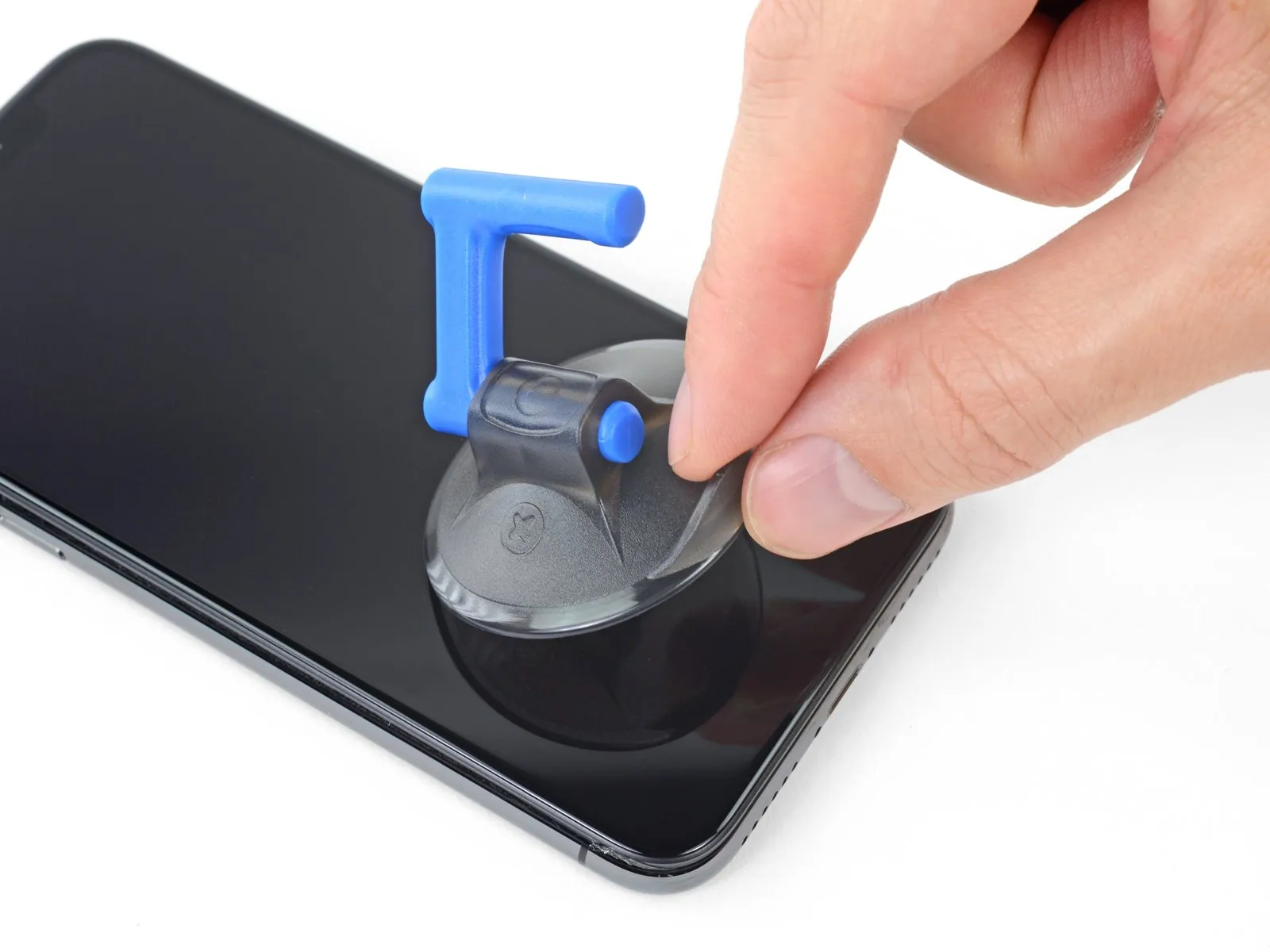
- To detach the suction cup from the front panel, grasp the tiny projection located on its surface and apply traction.
Step 17
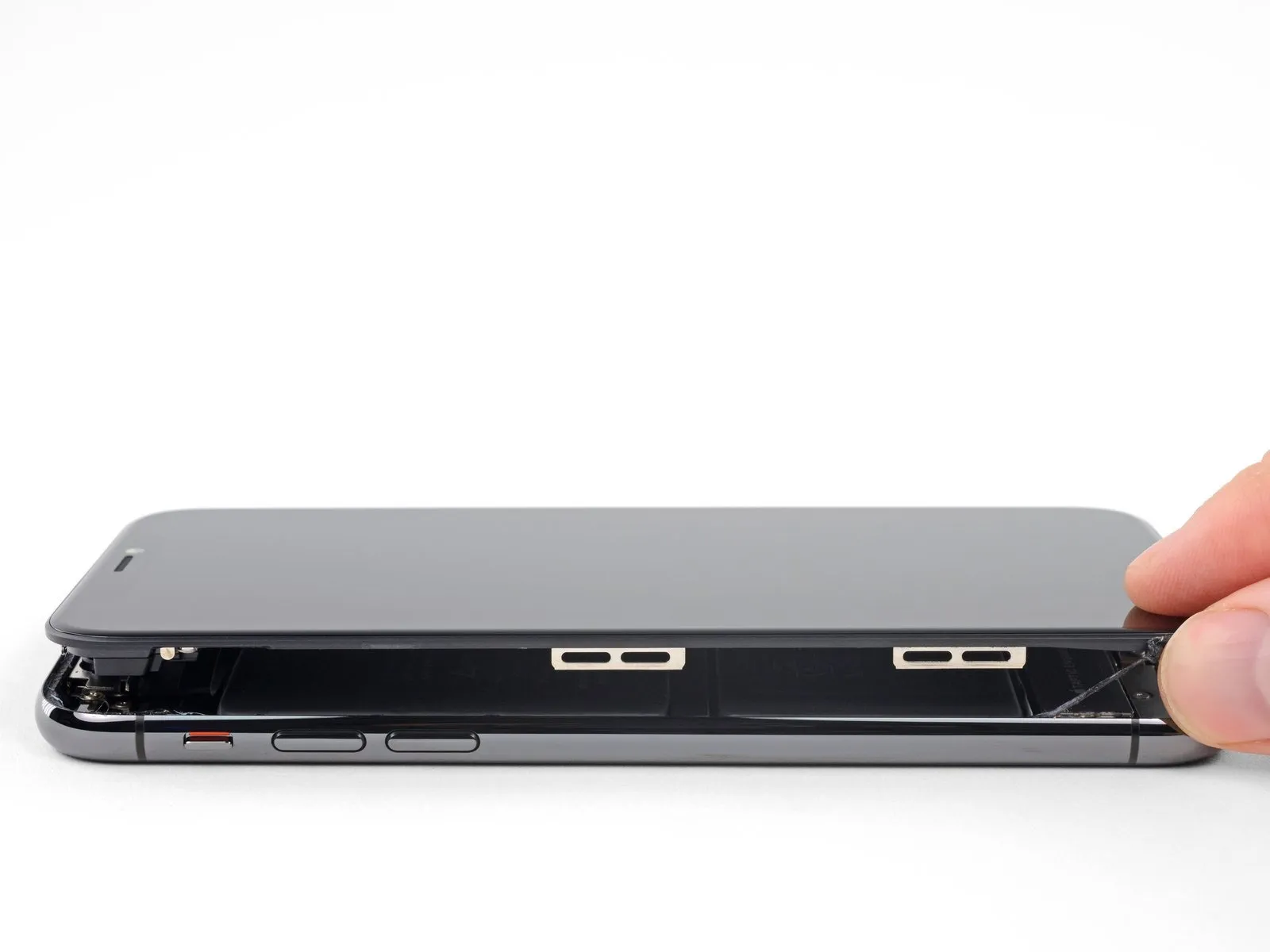
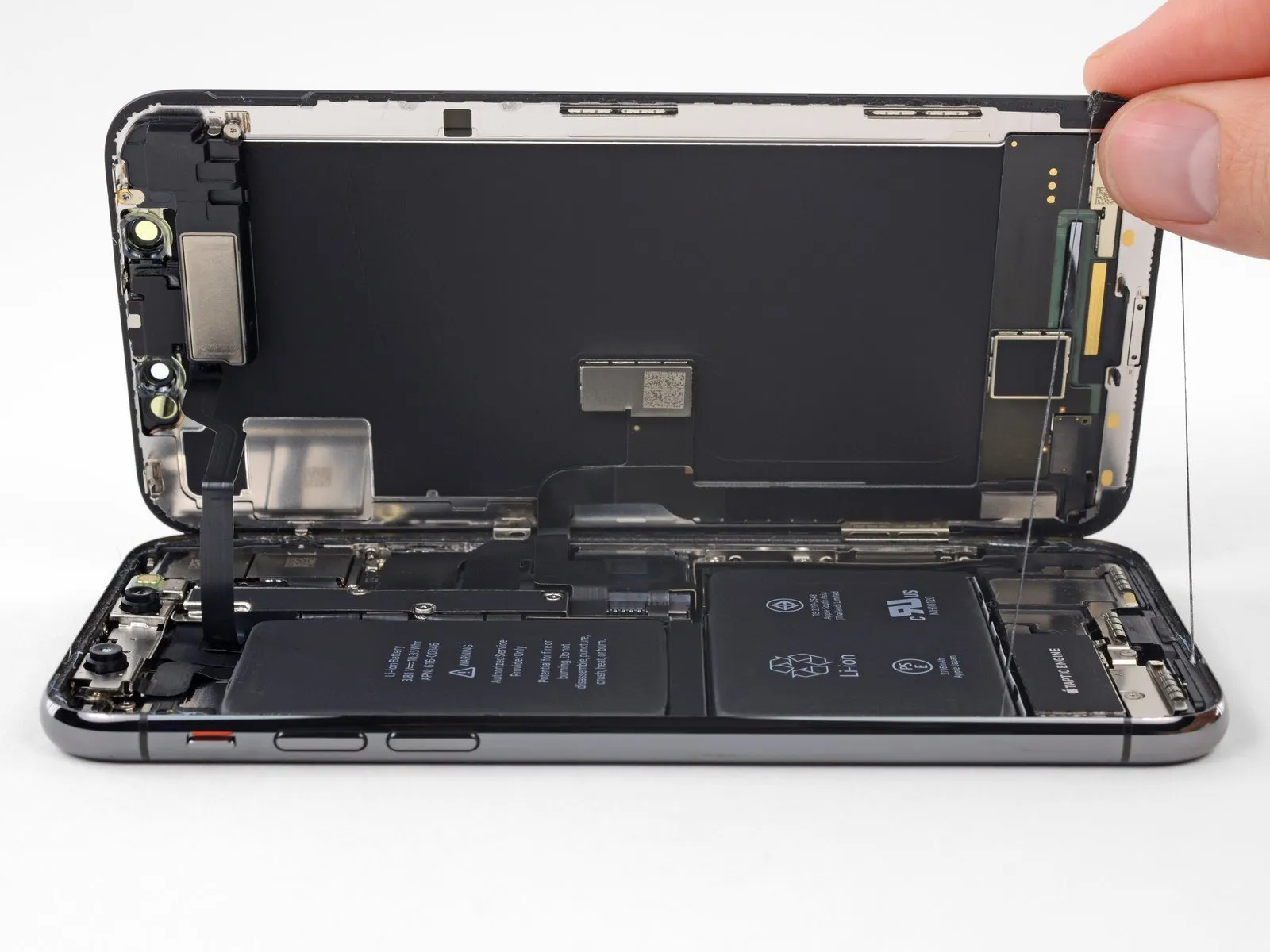
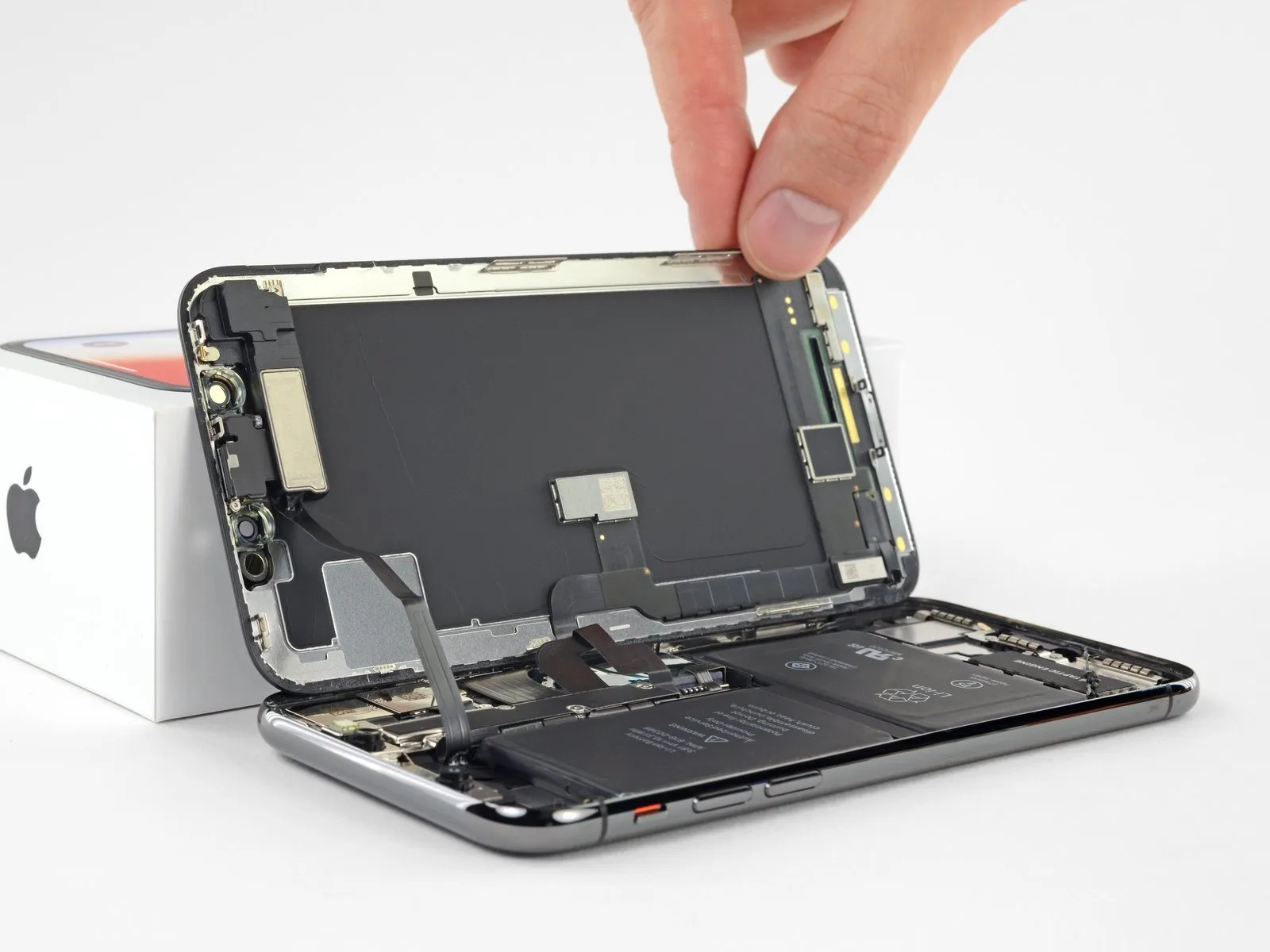
- To access the internal components of the iPhone, initiate the opening process by pivoting the display upwards from the left side, mimicking the action of opening a book's cover.
- Refrain from completely detaching the display assembly at this stage, because multiple delicate ribbon cables remain connected to the iPhone's main circuit board.
- Confirm, as illustrated in the provided visual guide, that the frame is disengaged along with the display and avoids becoming lodged within the iPhone's chassis.
- Secure the display in an upright position using a support to prevent it from shifting during the repair procedure.
- When reassembling the device, position the display, ensuring the retaining clips along the upper edge are properly aligned, and then gently apply pressure to the top edge before securing the remainder of the display. Should the display not seat easily, inspect the condition of the clips surrounding the display's border to verify they are free from deformation.
Step 18 | Display Assembly
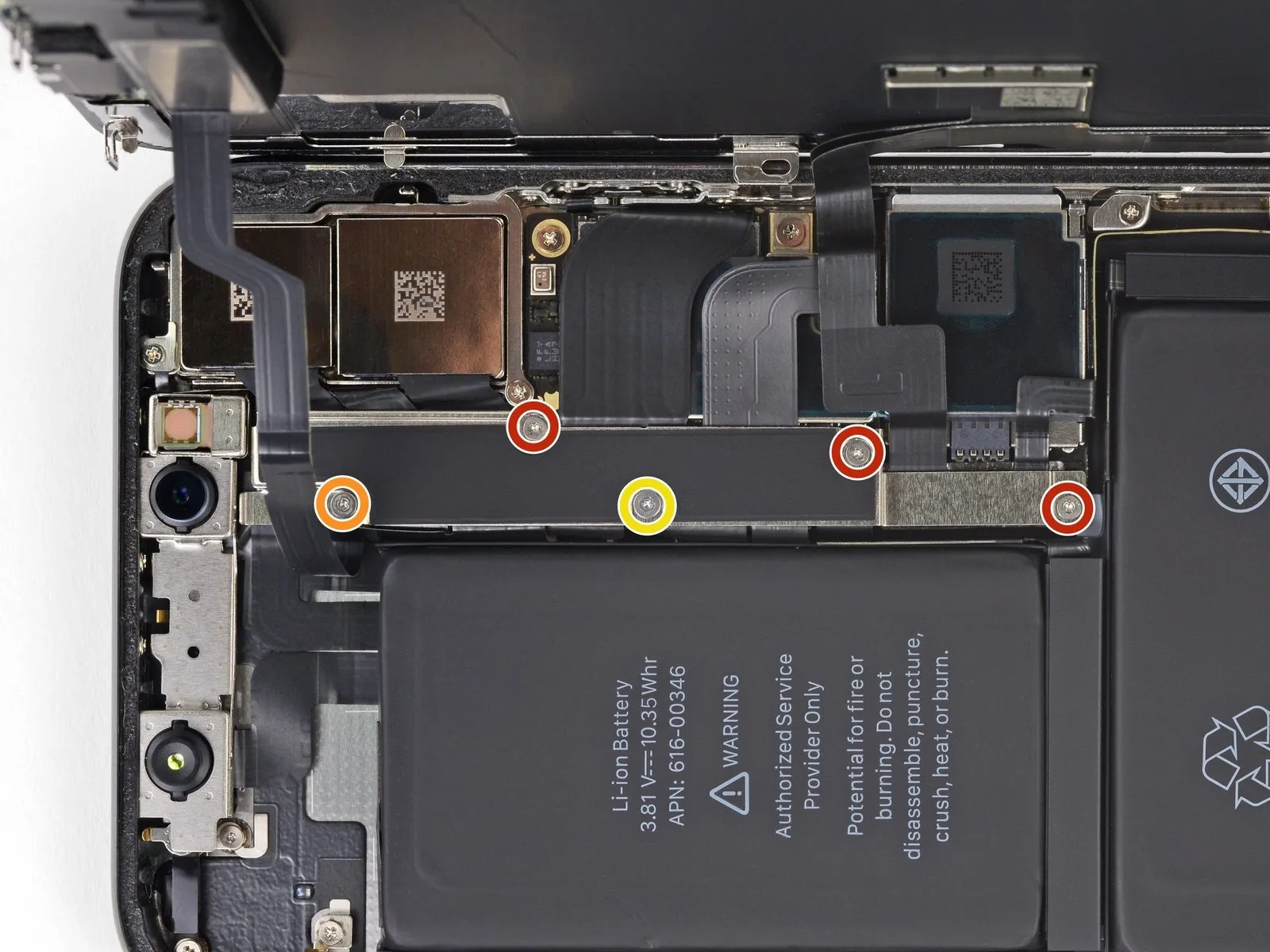
- To detach the logic board connector bracket, first extract the five Y000 screws that hold it in place, noting the varying lengths of each fastener.
Specifically, three screws measure 1.1 millimeters in length.
A single screw is 3.1 millimeters long.
Additionally, one screw has a length of 3.7 millimeters.
During the entire repair process, meticulously organize and document the location of each screw, ensuring they are reinstalled in their original positions to prevent potential damage to your iPhone.
Step 19
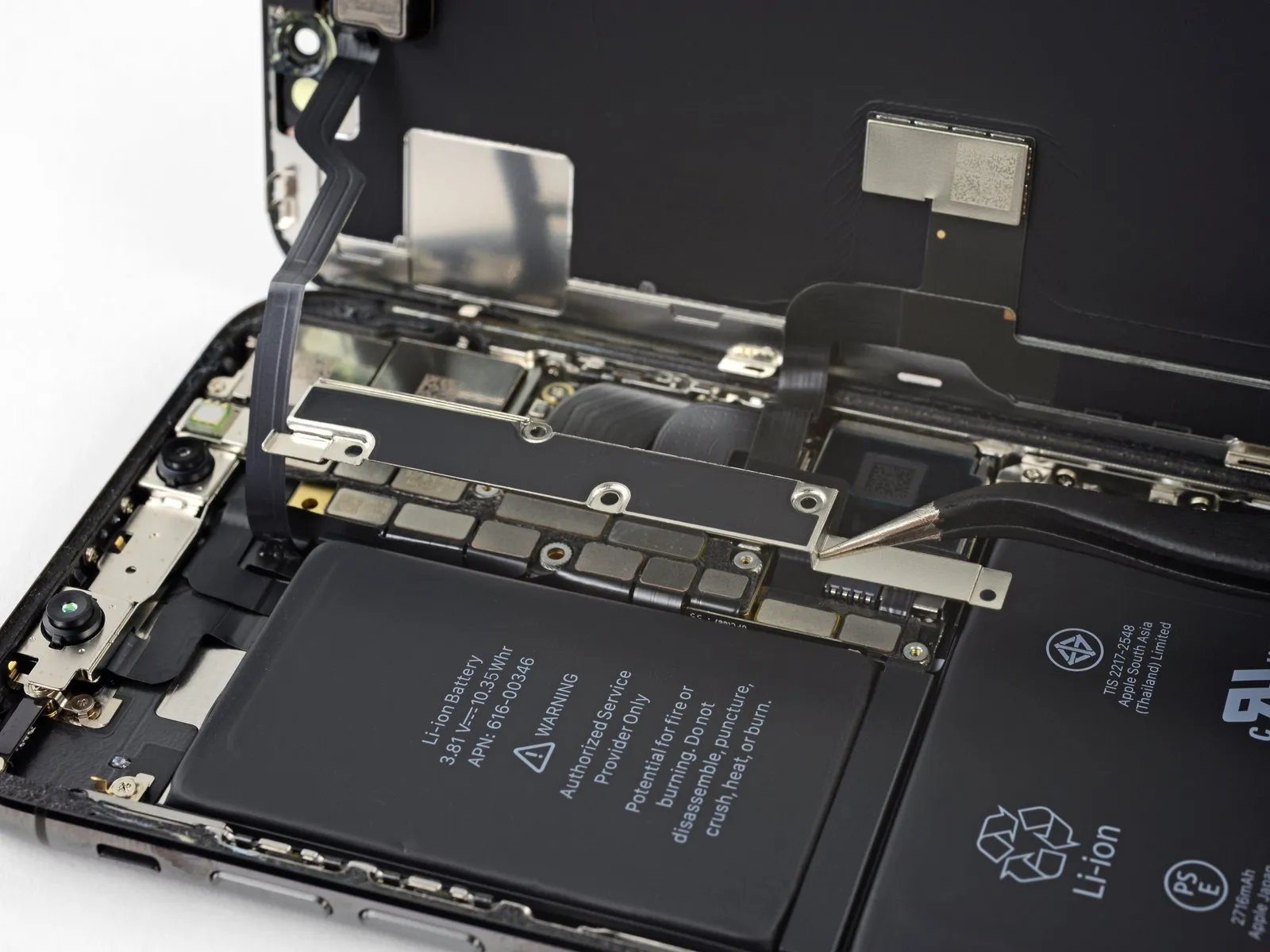
- Detach the bracket from the device.
The bracket could be subtly affixed; employ a careful, yet resolute upward motion to disengage it.
As you put the iPhone back together, it's advisable to activate the device and verify all operational capabilities prior to securing the display. Ensure the iPhone is fully powered off before proceeding with the remaining repair steps.
Step 20
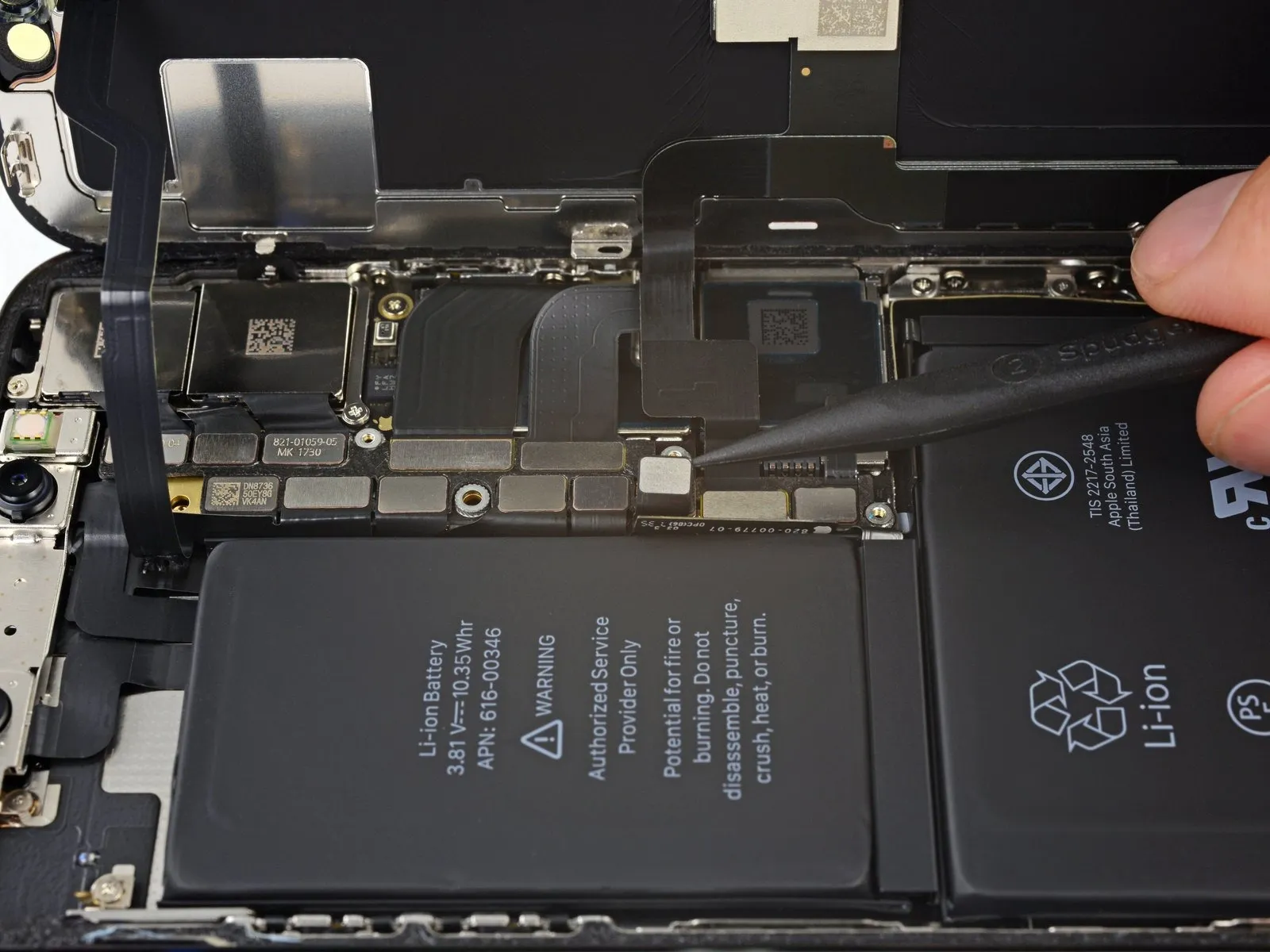
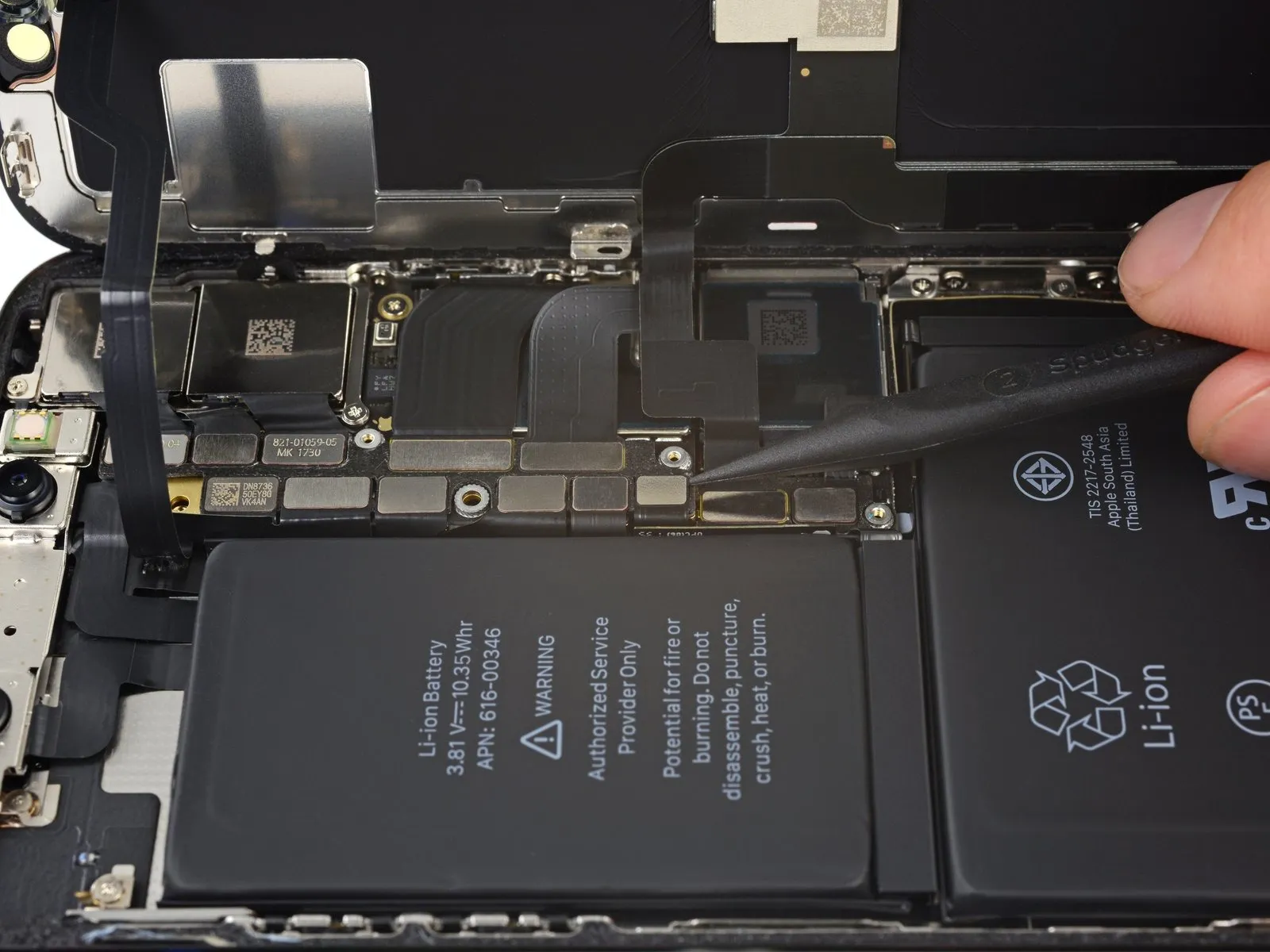
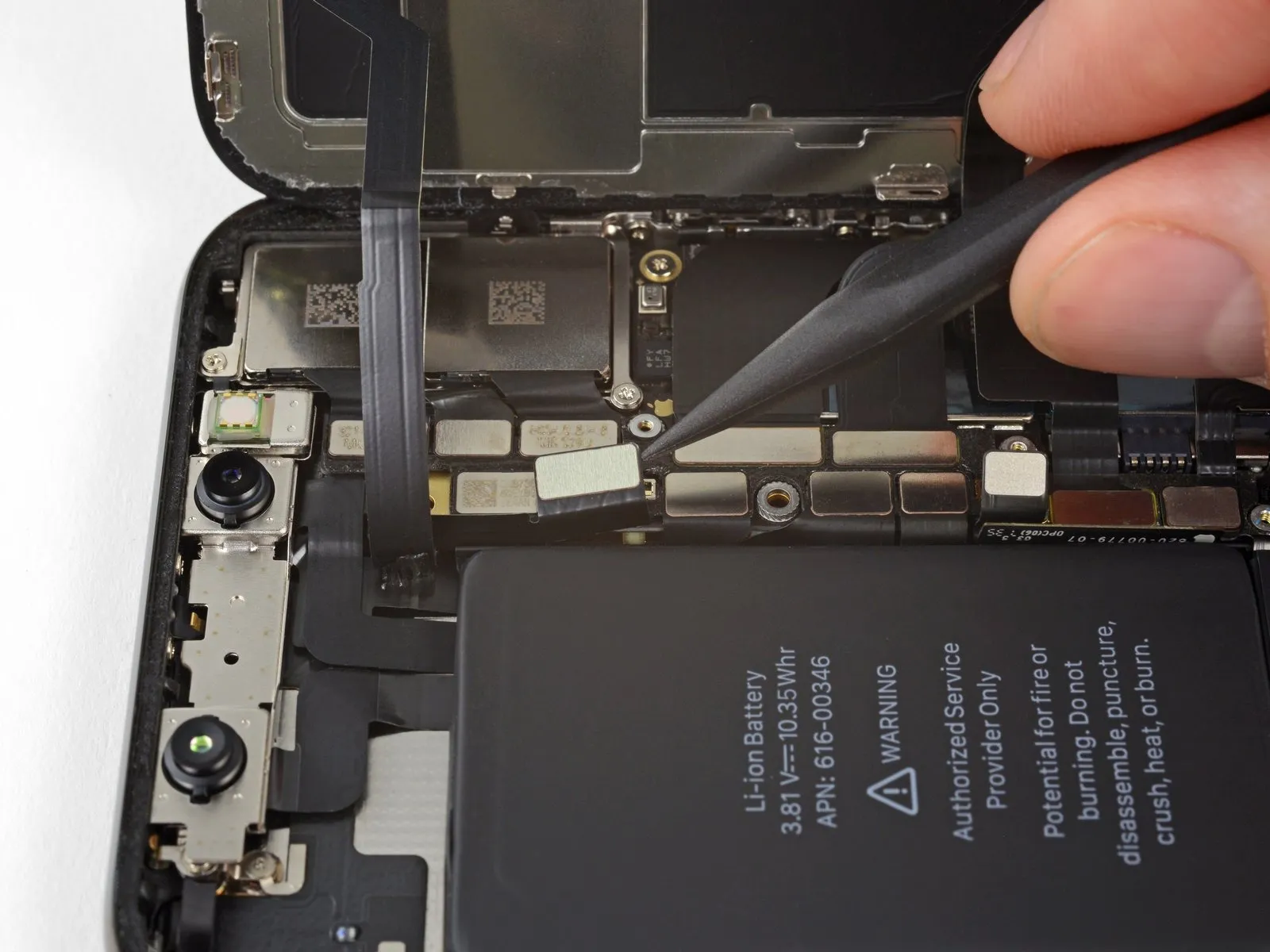
- Employing the tip of a spudger or a pristine fingernail, carefully lift the battery connector away from its corresponding receptacle on the logic board.
Exercise caution to avoid harming the black silicone seals that encircle this connector and others on the board, as they offer supplemental defense against water and dust penetration.
Slightly deflect the connector outward from the logic board to ensure it remains disconnected and prevents unintended power delivery to the device during the repair process.
Step 21
Step 22
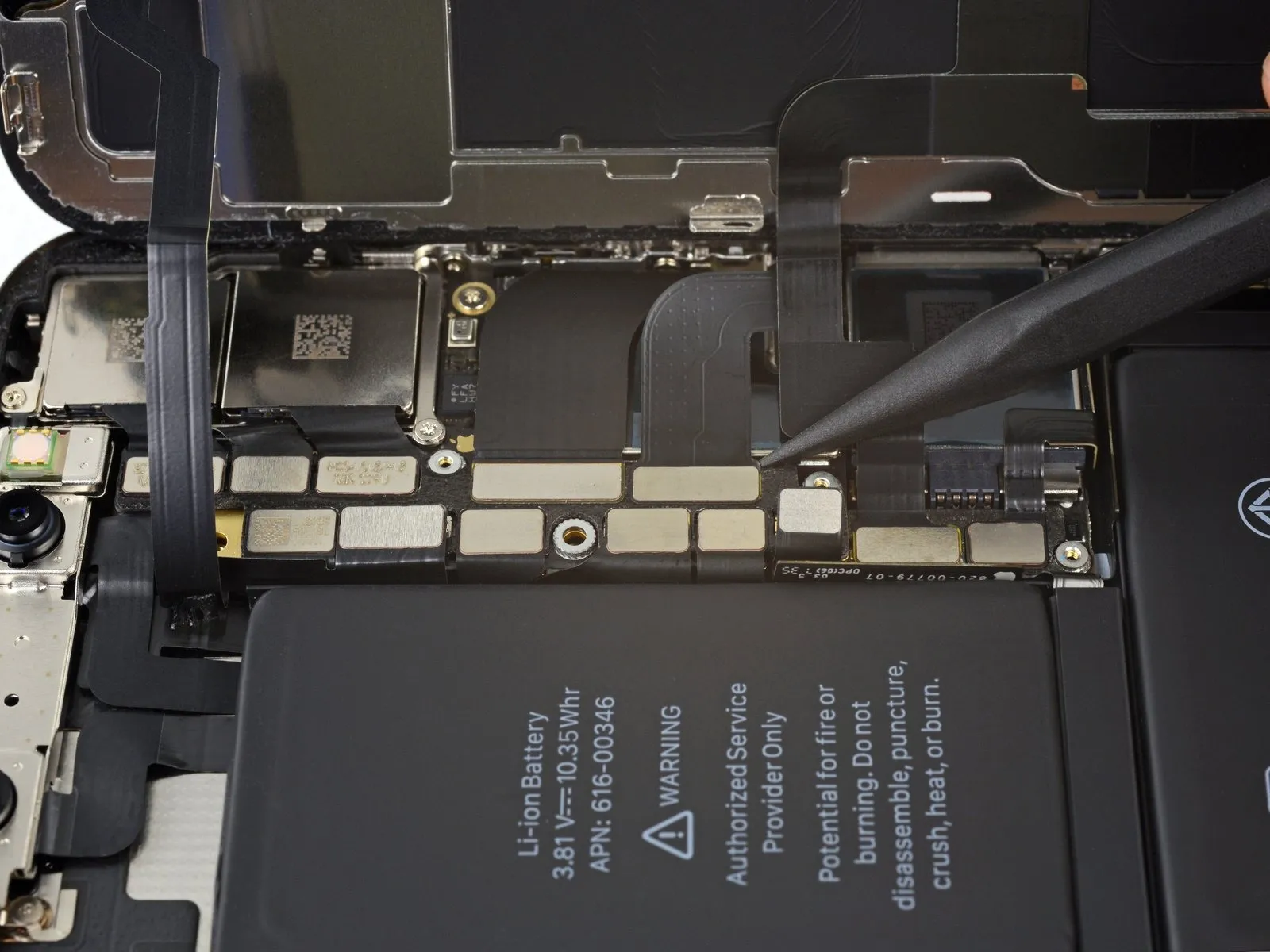
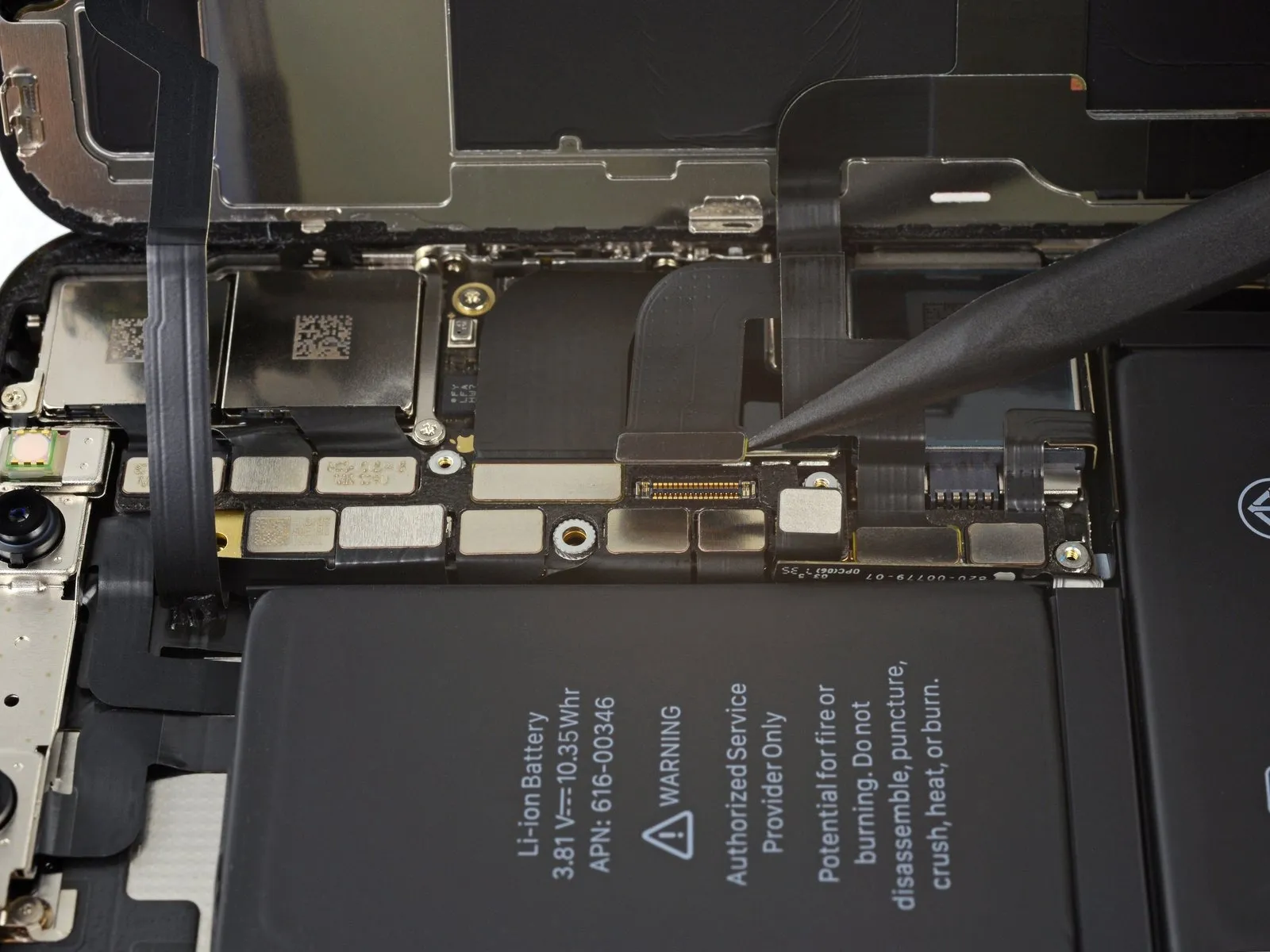
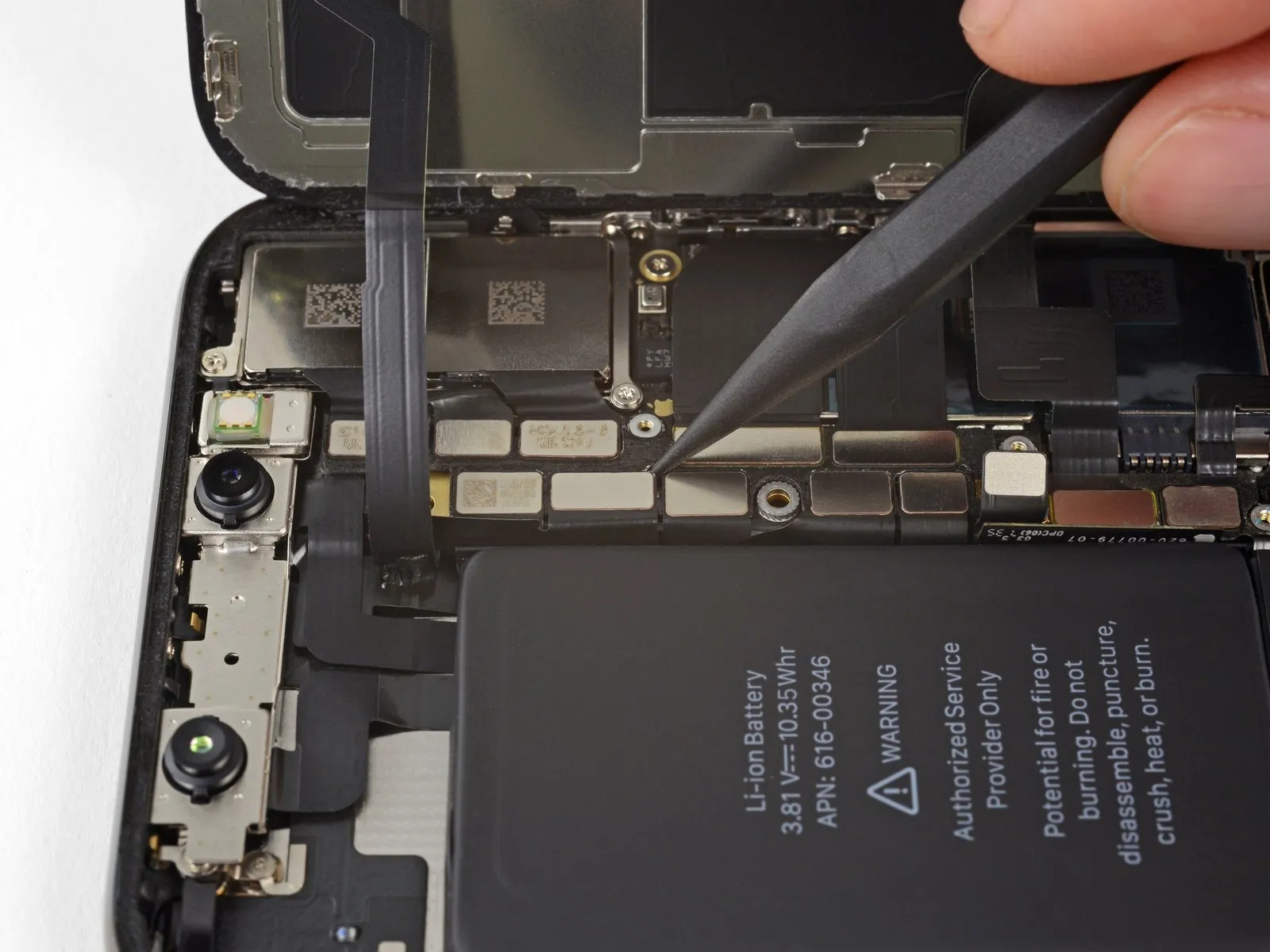
- Employ the tip of a spudgeror a fingernailfor separating the OLED panel cable connector.
- To secure the connector, apply pressure in this manner: initially, precisely align the connector and depress one edge until a distinct click is heard, subsequently repeating the process on the opposing side. Avoid applying pressure to the central portion; misalignment can result in pin deformation, potentially leading to irreversible damage.
Step 23
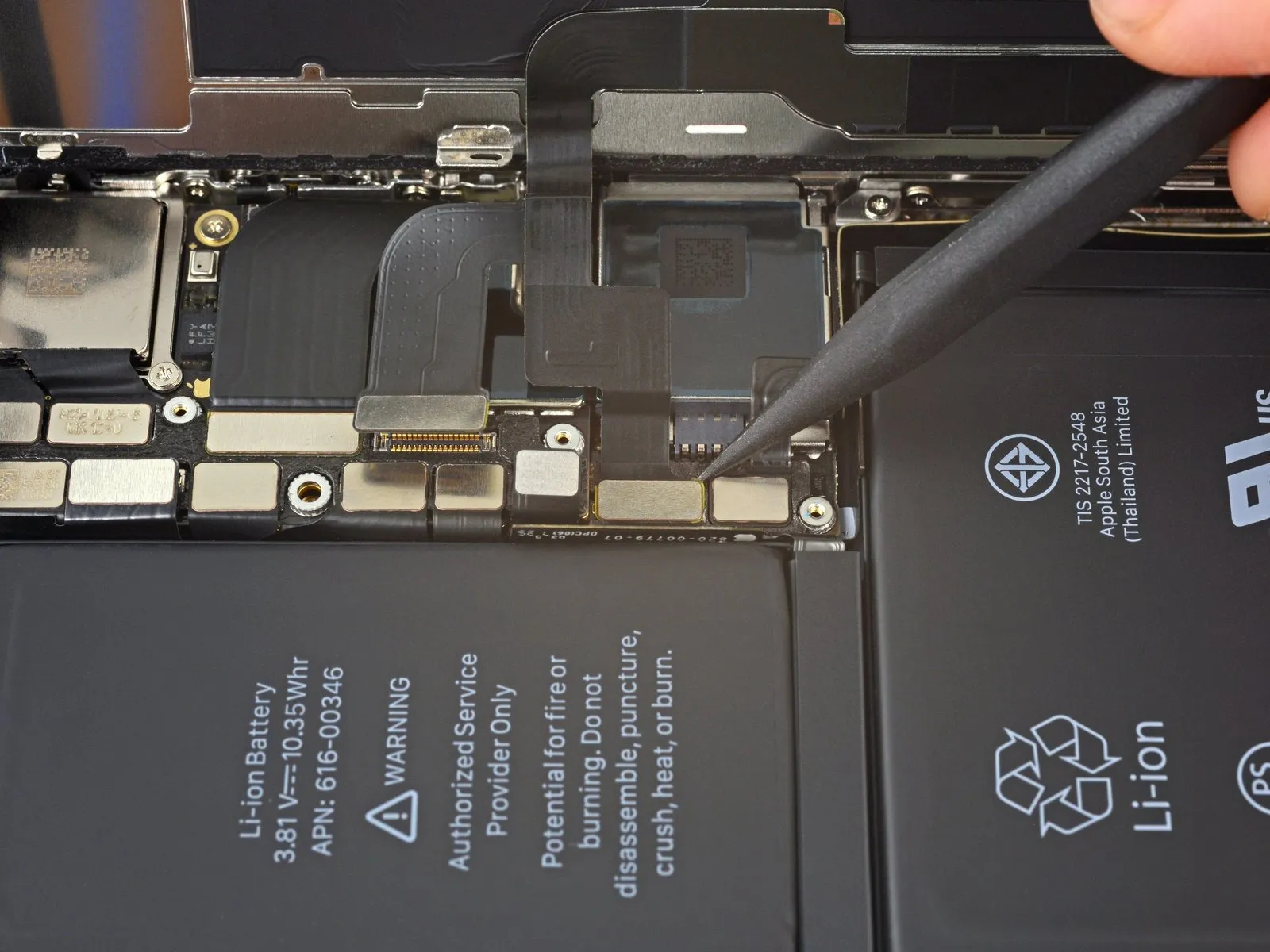
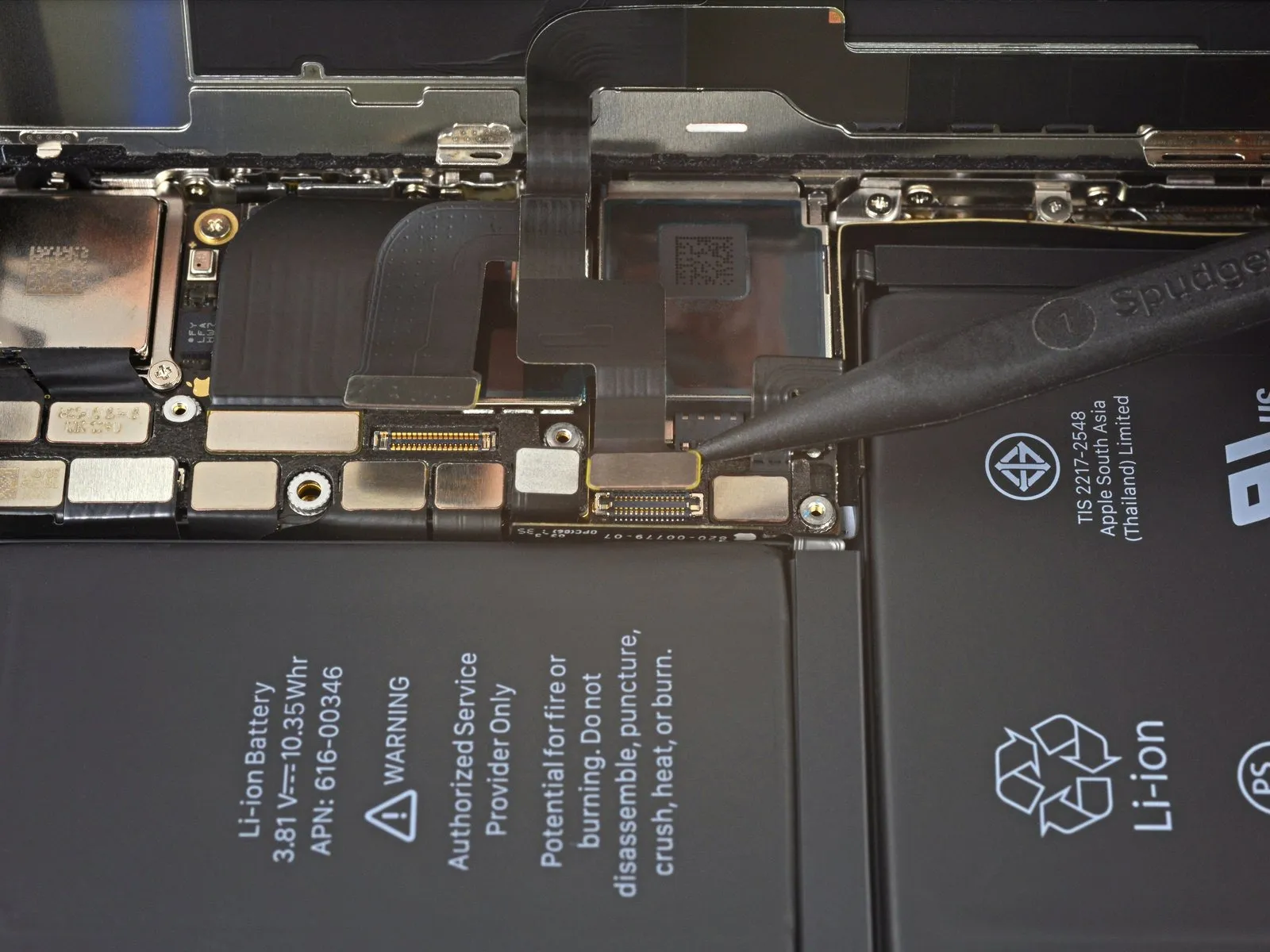
- Employ the tip of a spudgerto carefully lift the digitizer cable connector from its receptacle.
- Due to the connector's deeply set position, reattachment can be challenging; proceed deliberately, ensuring precise alignment before applying gentle fingertip pressure to secure it – initially one side, then the other, observing an audible click confirming its engagement.
- Should any area of the screen exhibit unresponsive touch functionality following the repair, initially detach the battery, then reposition this connector, verifying a complete click and confirming the absence of dust or any other impediment within the socket.
Step 24
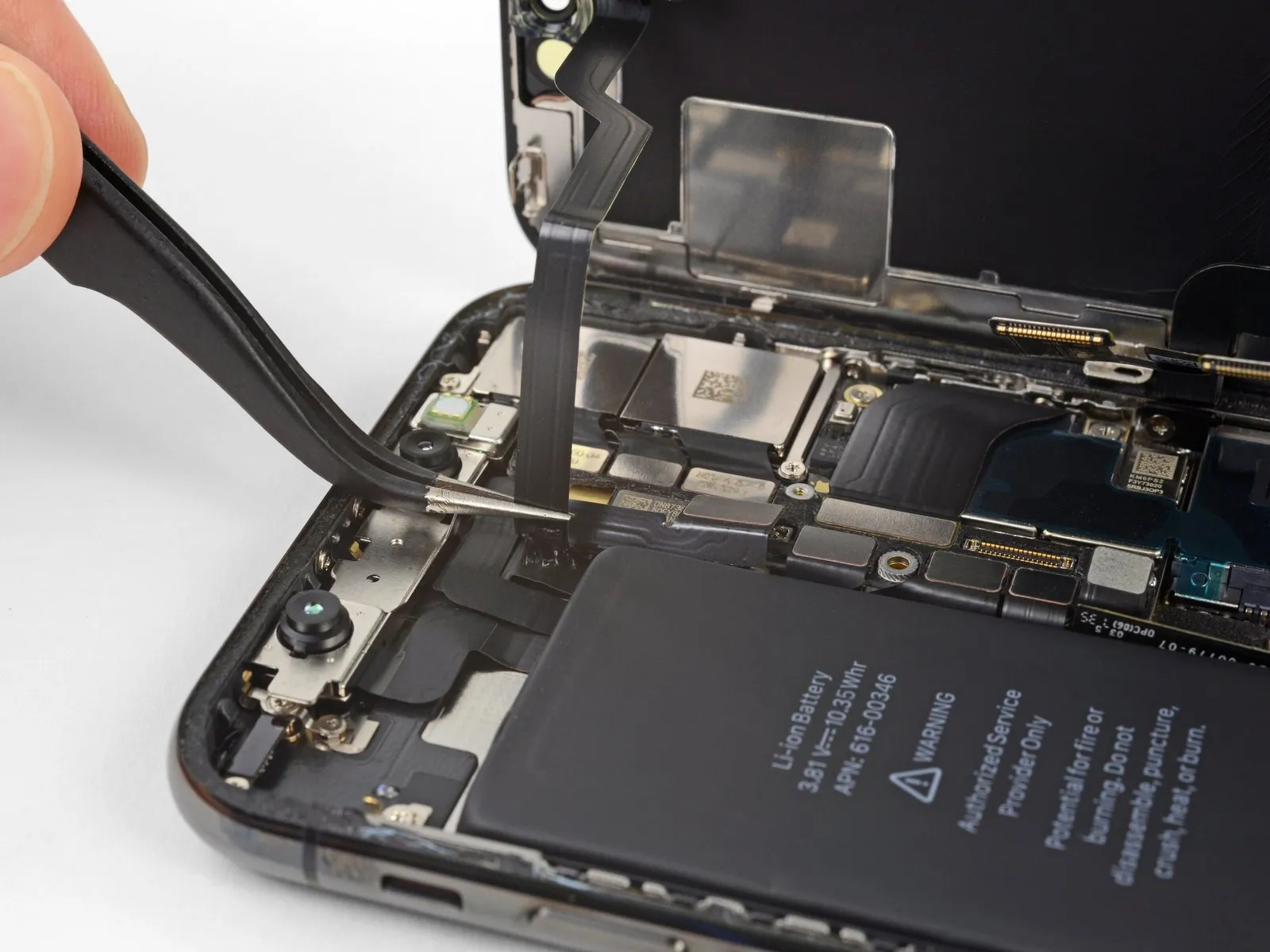
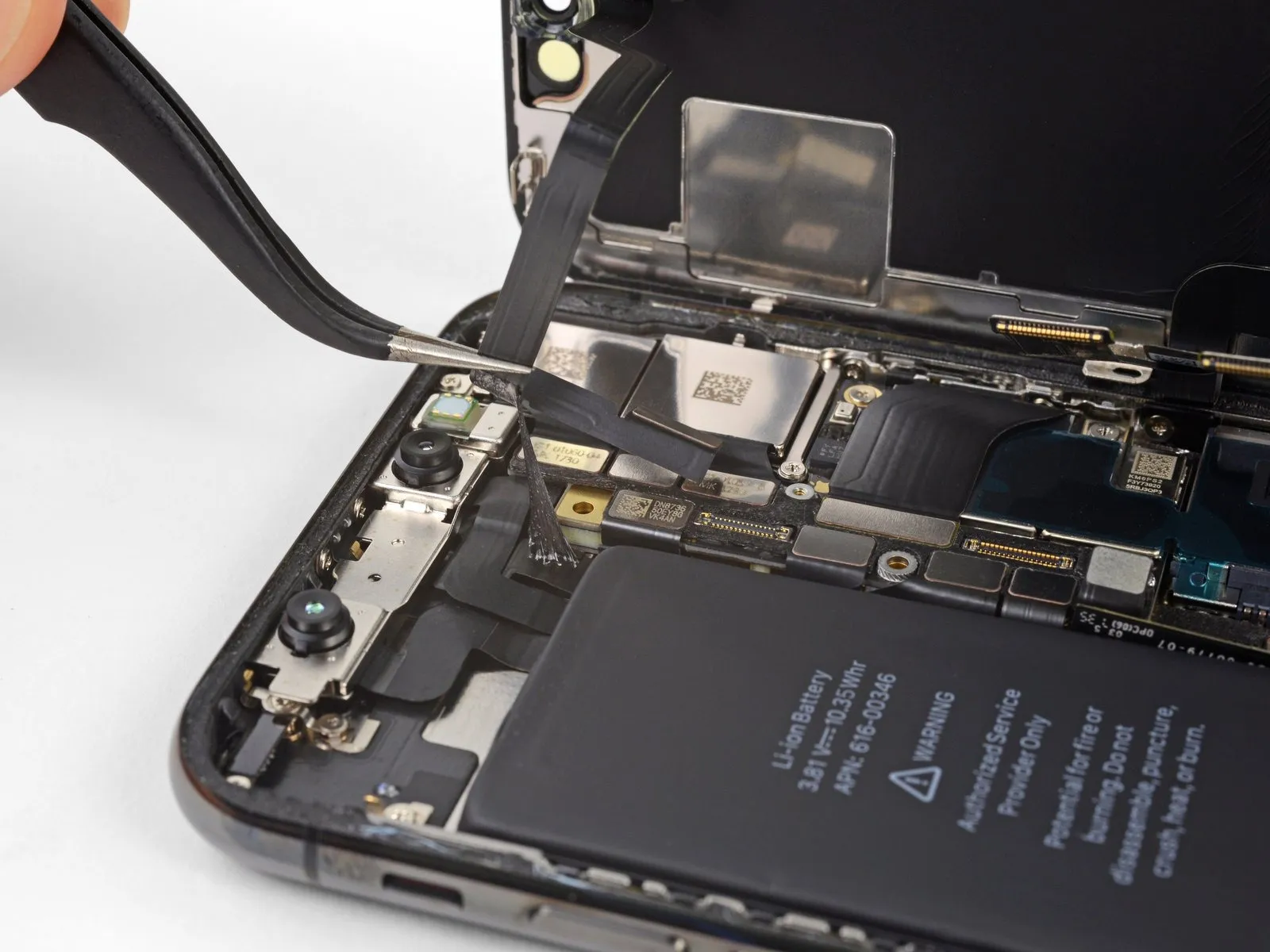
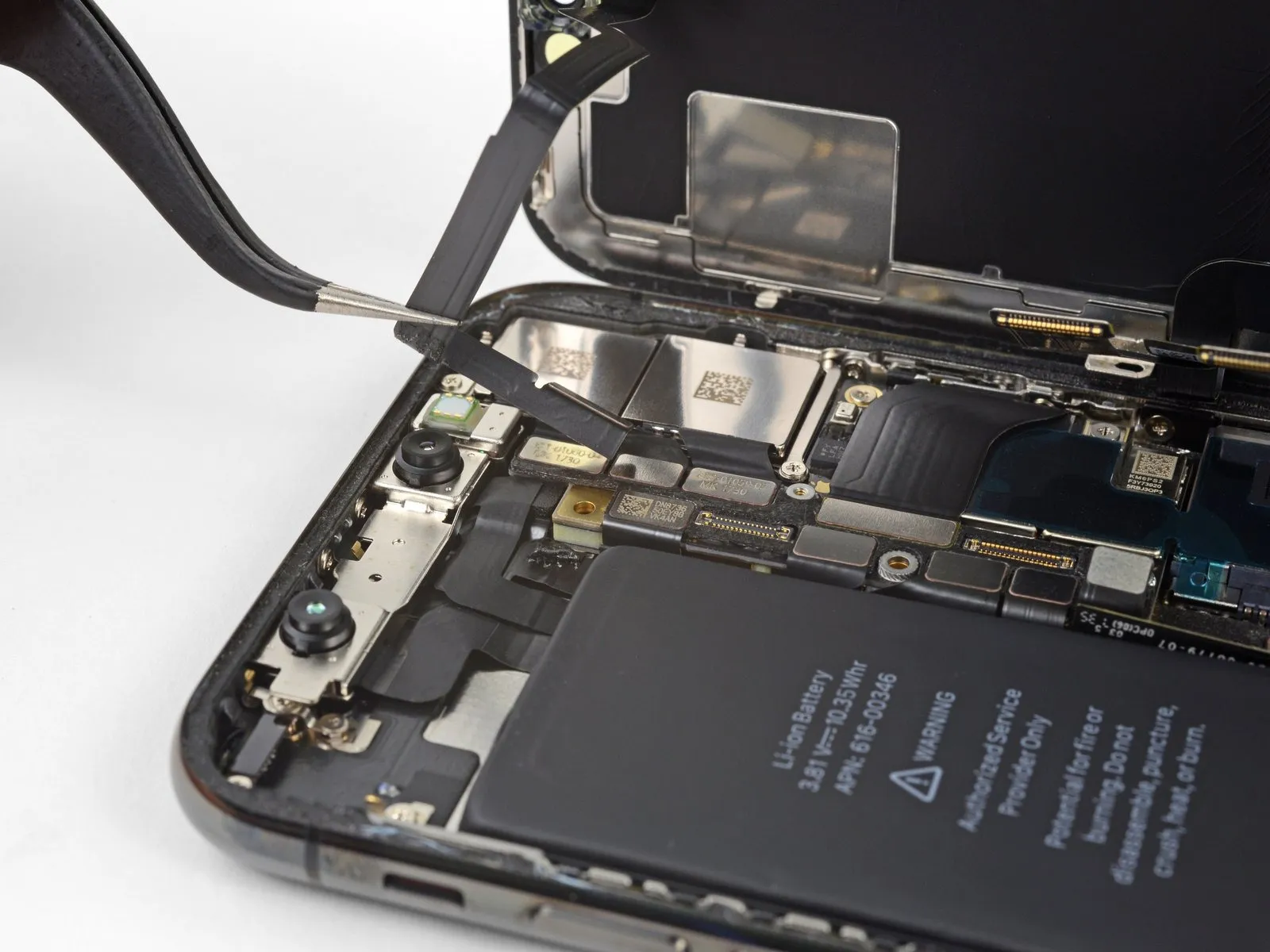
A small amount of adhesive secures the front panel sensor assembly flex cable to its location.
Gently raise the cable, ensuring the adhesive bond releases completely.
Step 25
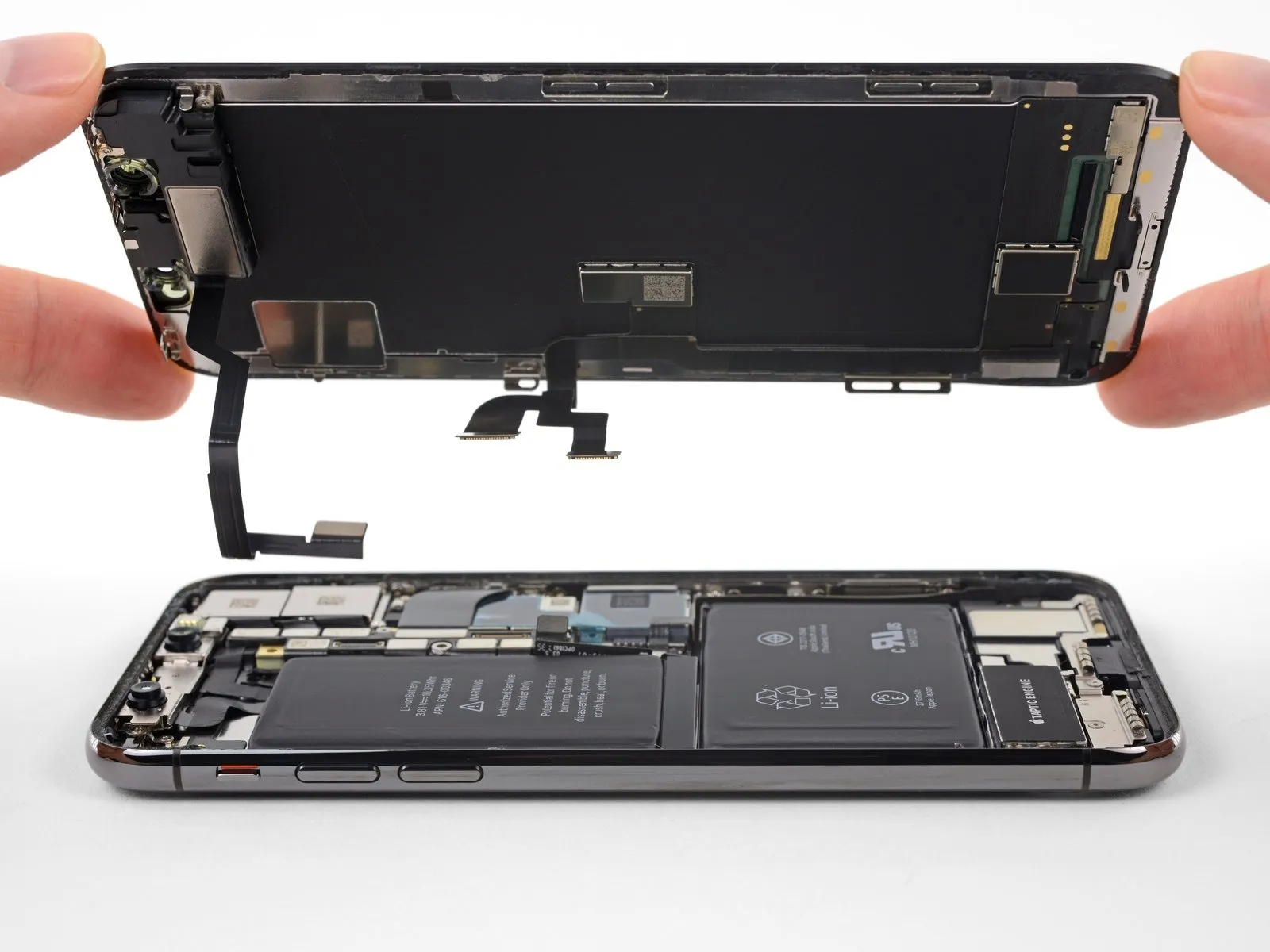
- Detach the display unit from the device.
- When putting the device back together, halt at this stage should you desire to substitute the waterproof sealant that borders the display's perimeter.
Step 26 | Lower Speaker
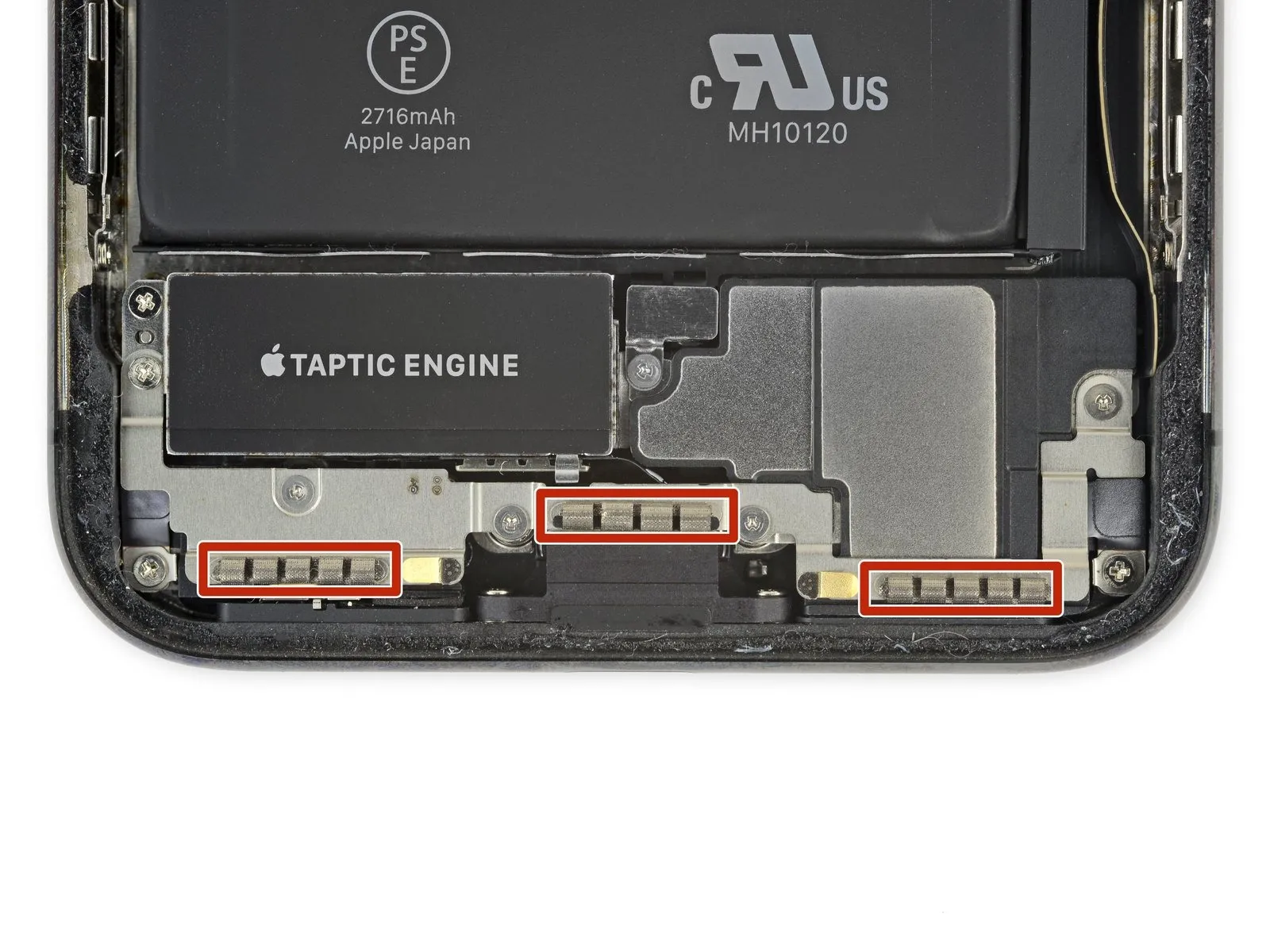
- Exercise caution to avoid contact with the three rows of grounding contacts located close to the base of the iPhone.
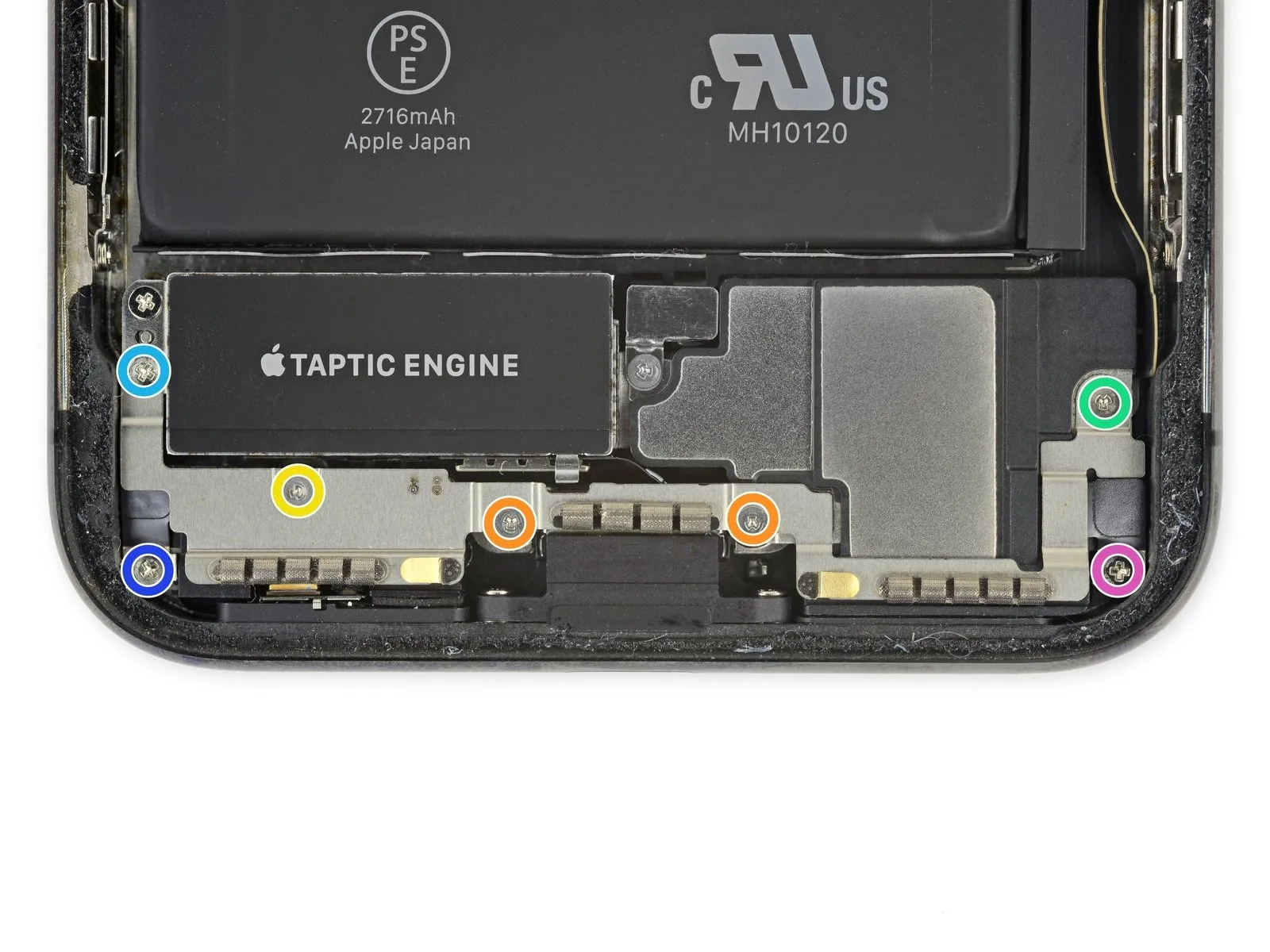
- Detach the bracket situated beneath the Taptic Engine and speaker by unscrewing the seven fasteners it holds in place.
- Two screws of the Y000 type, measuring 1.9 mm in length.
- A single Y000 screw with a length of 1.2 mm.
- A single Y000 screw, 1.6 mm in length.
- A Phillips-head screw, 2.4 mm in diameter.
- A Phillips-head screw, 1.7 mm in diameter.
- A Phillips-head screw, 1.5 mm in diameter.
Step 27
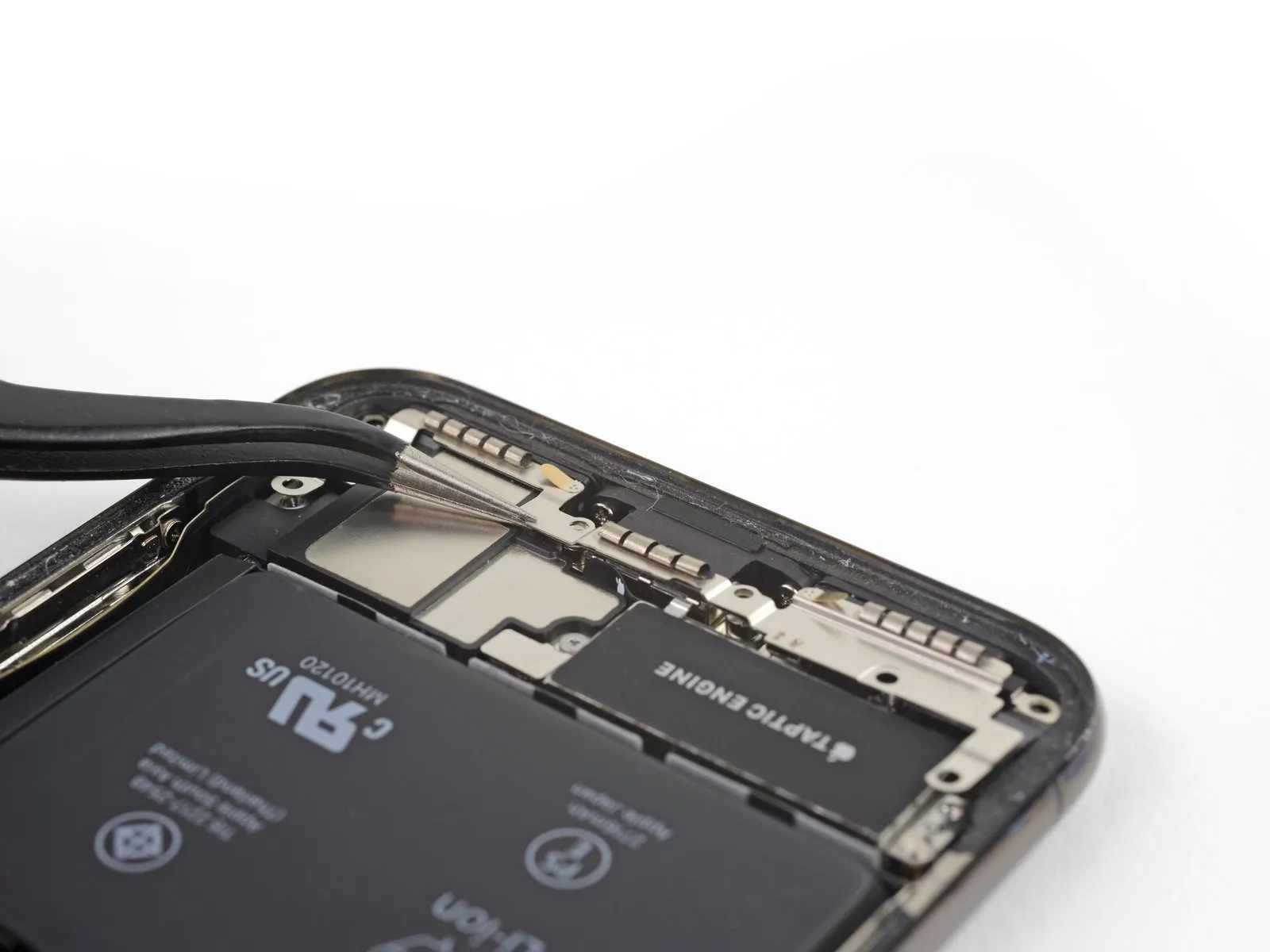
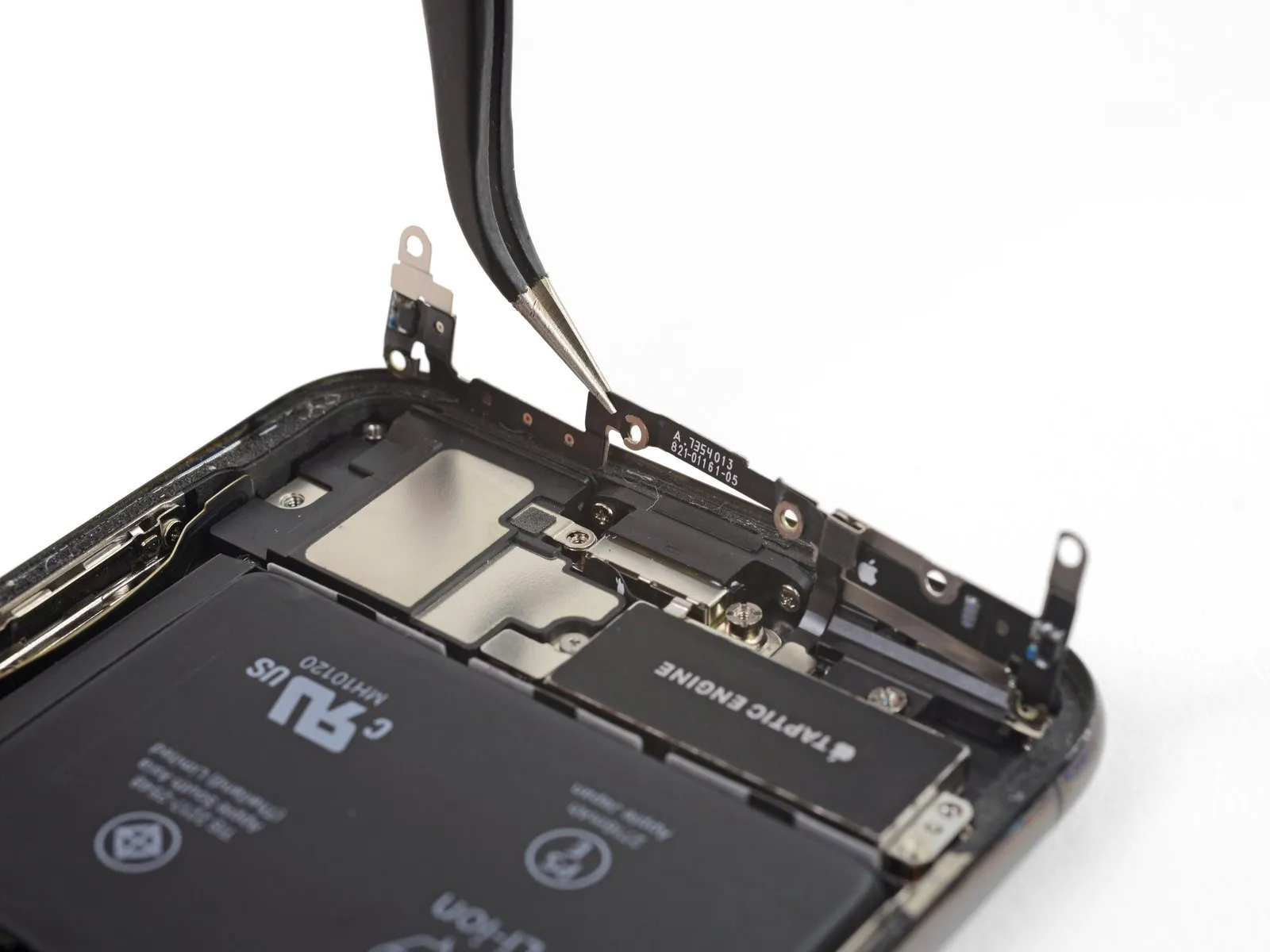
- To begin, elevate the mounting bracket, starting from the side closest to the battery.
- Avoid complete removal at this stage, because a short, flexible cable maintains its connection.
Step 28
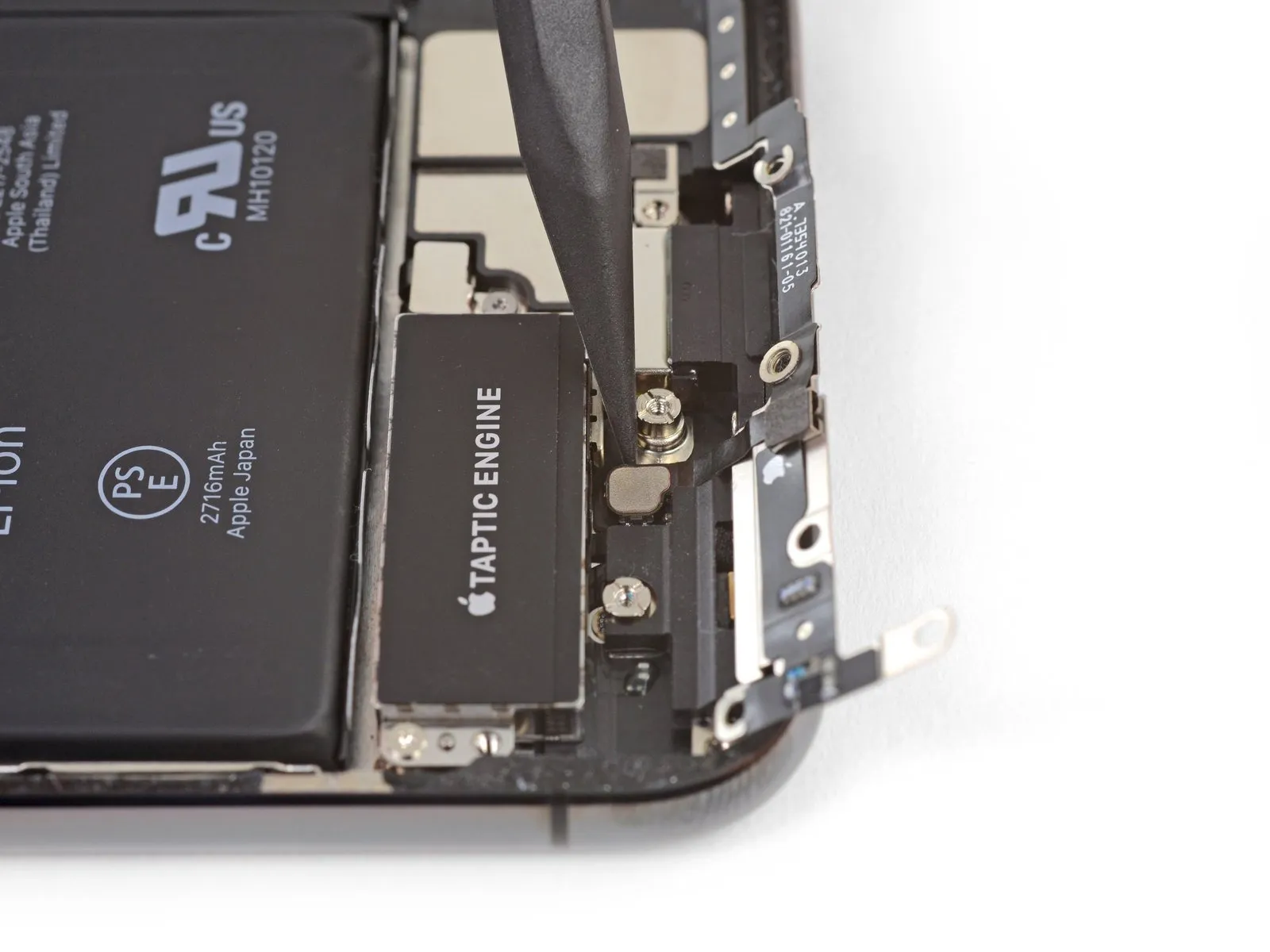
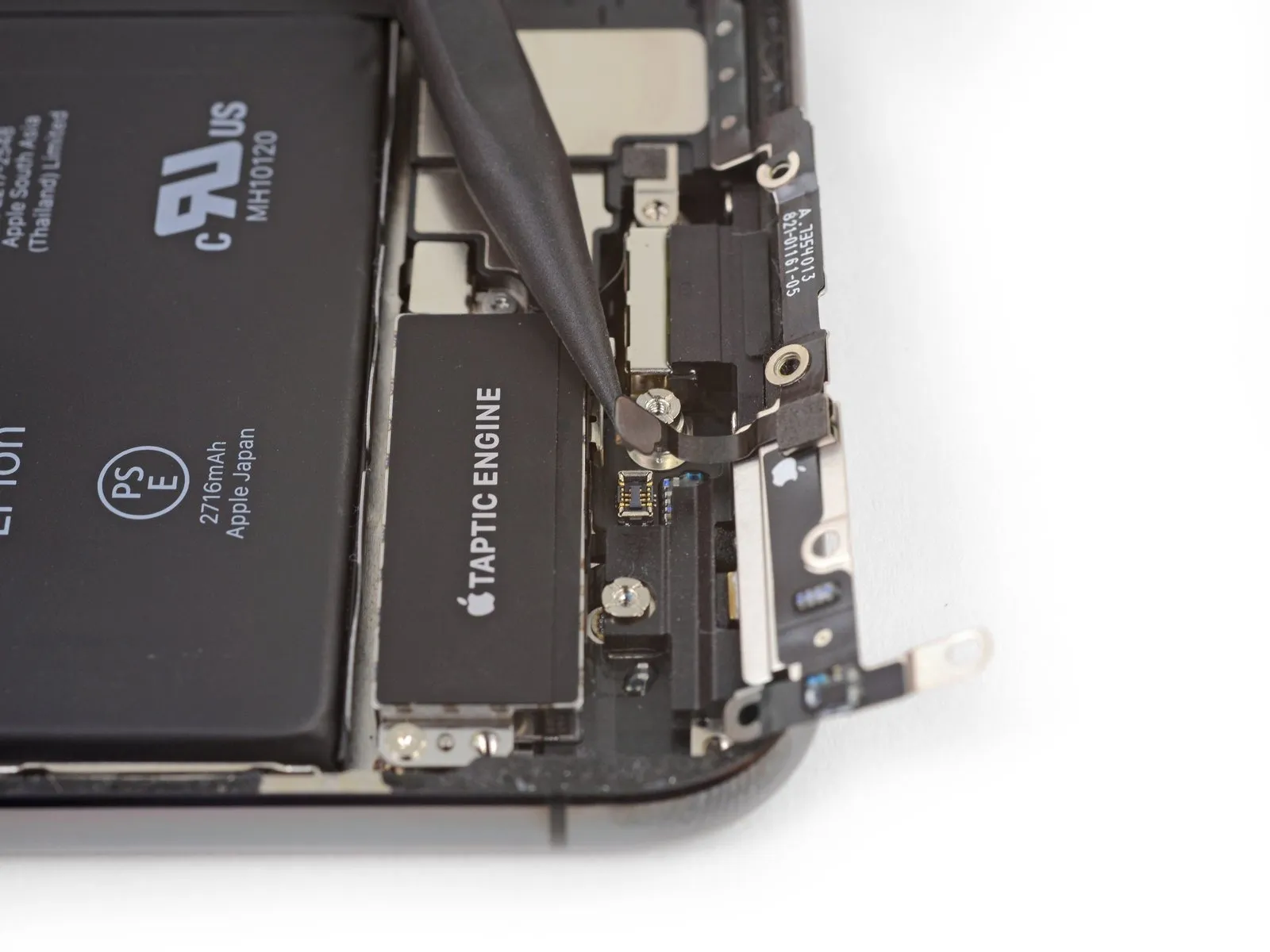
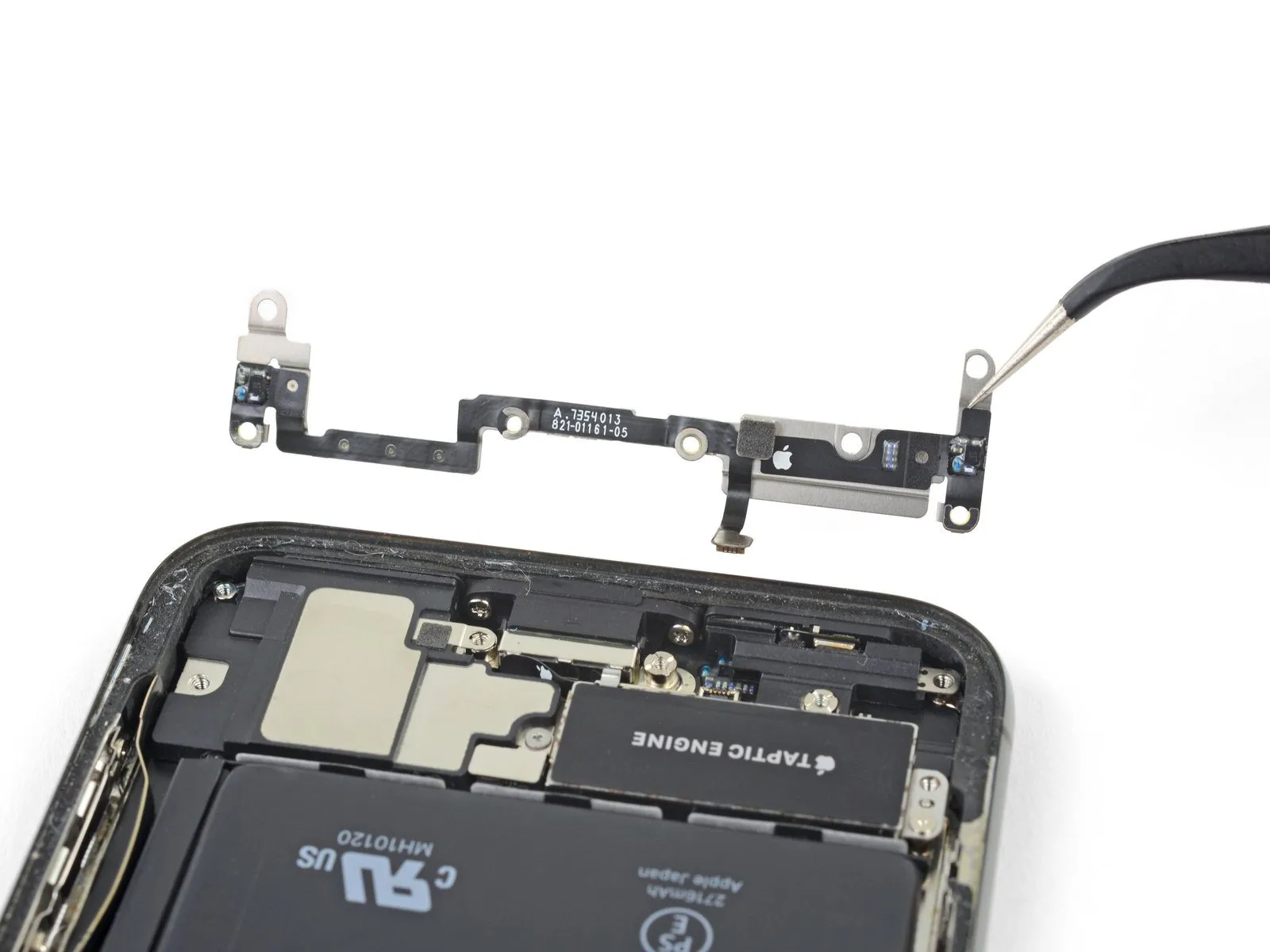
- To prevent interference, secure the bracket aside, then utilize the tip of a spudger to carefully lift and detach the flex cable situated below.
Step 29
Step 30
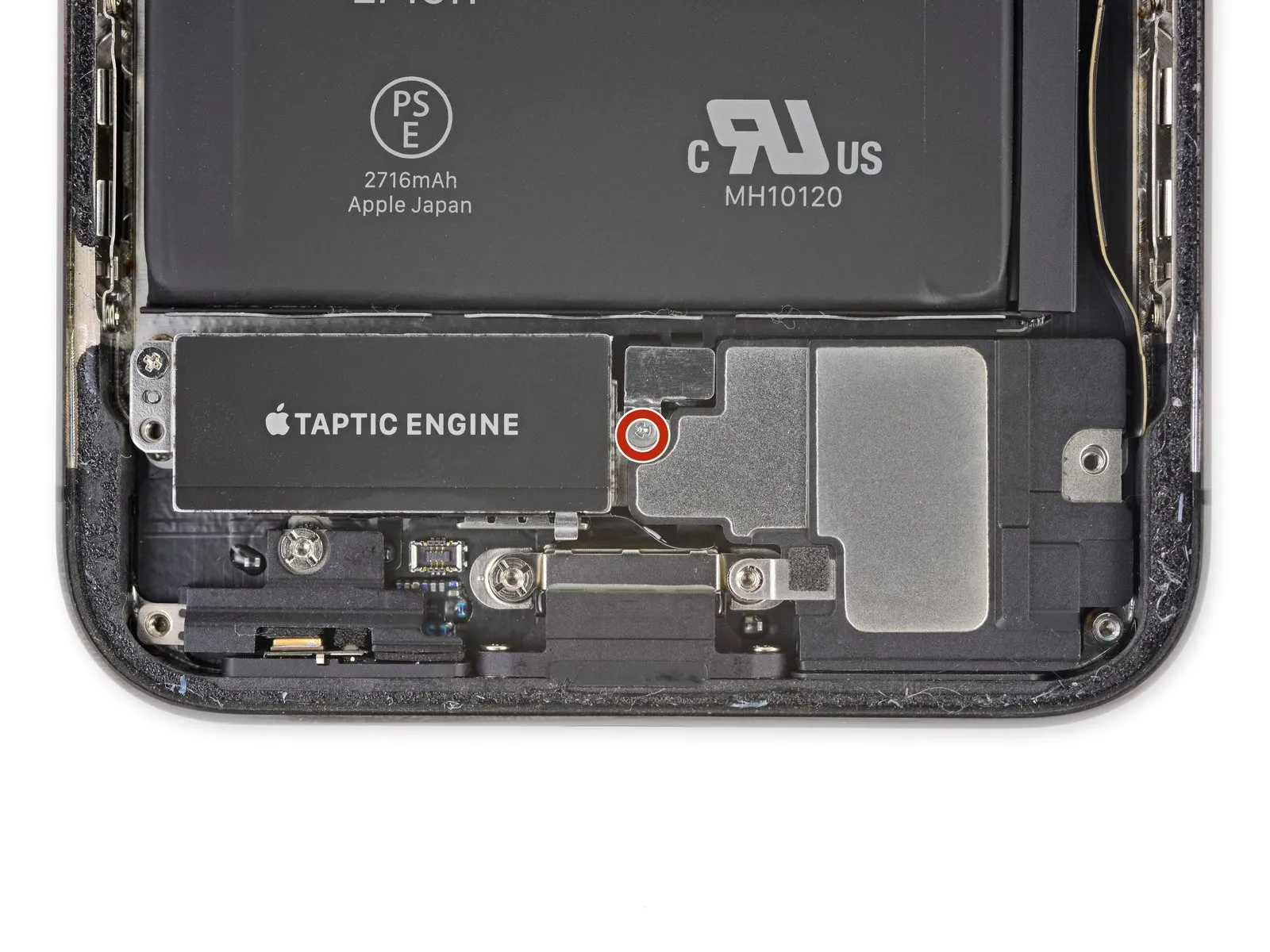
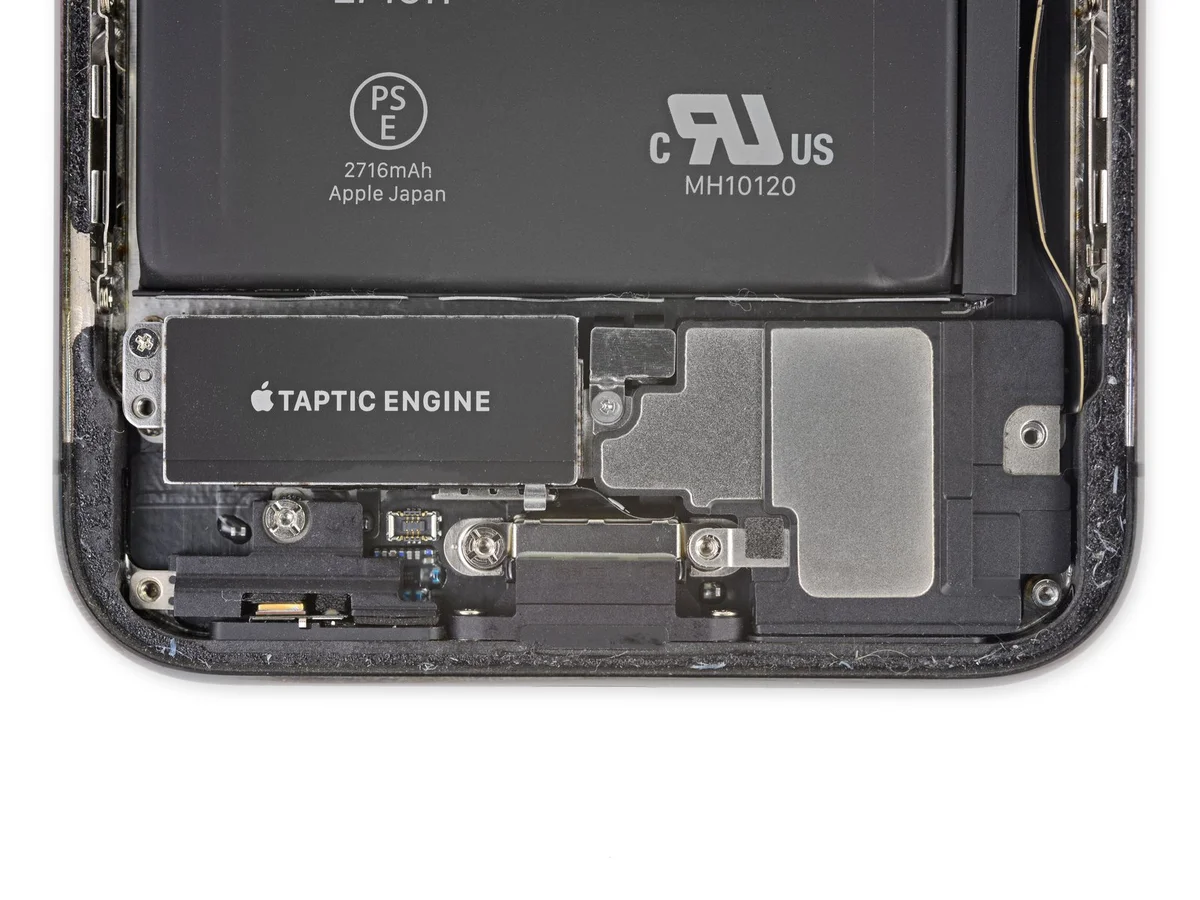
- Detach the speaker connector cover by eliminating the 2.1 mm Y000 screw that holds it in place.The 2.1 mm Y000 screw is the fastener that must be removed.The speaker connector cover is affixed with a screw and its removal is the next step.
Step 31
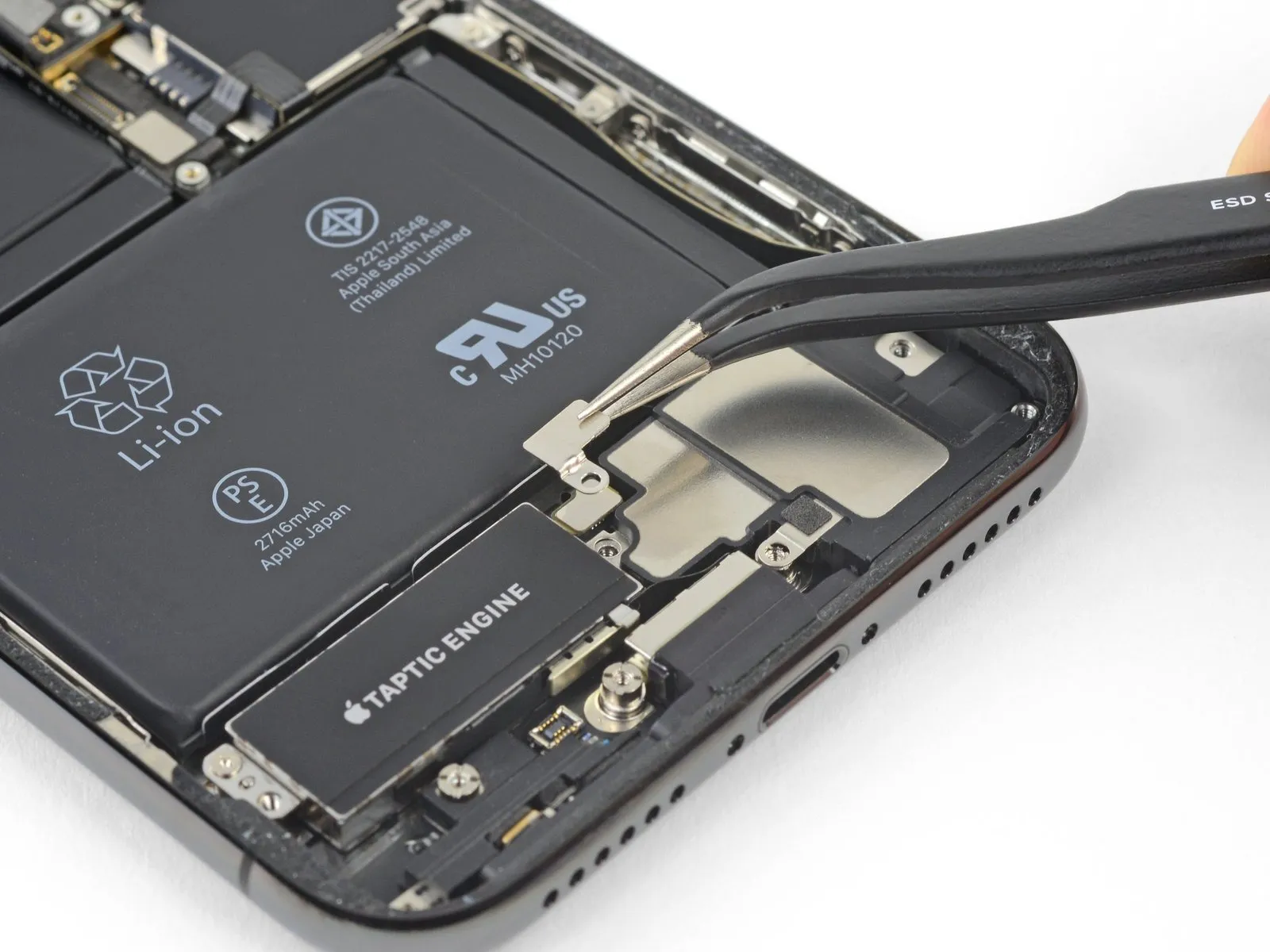
Step 32
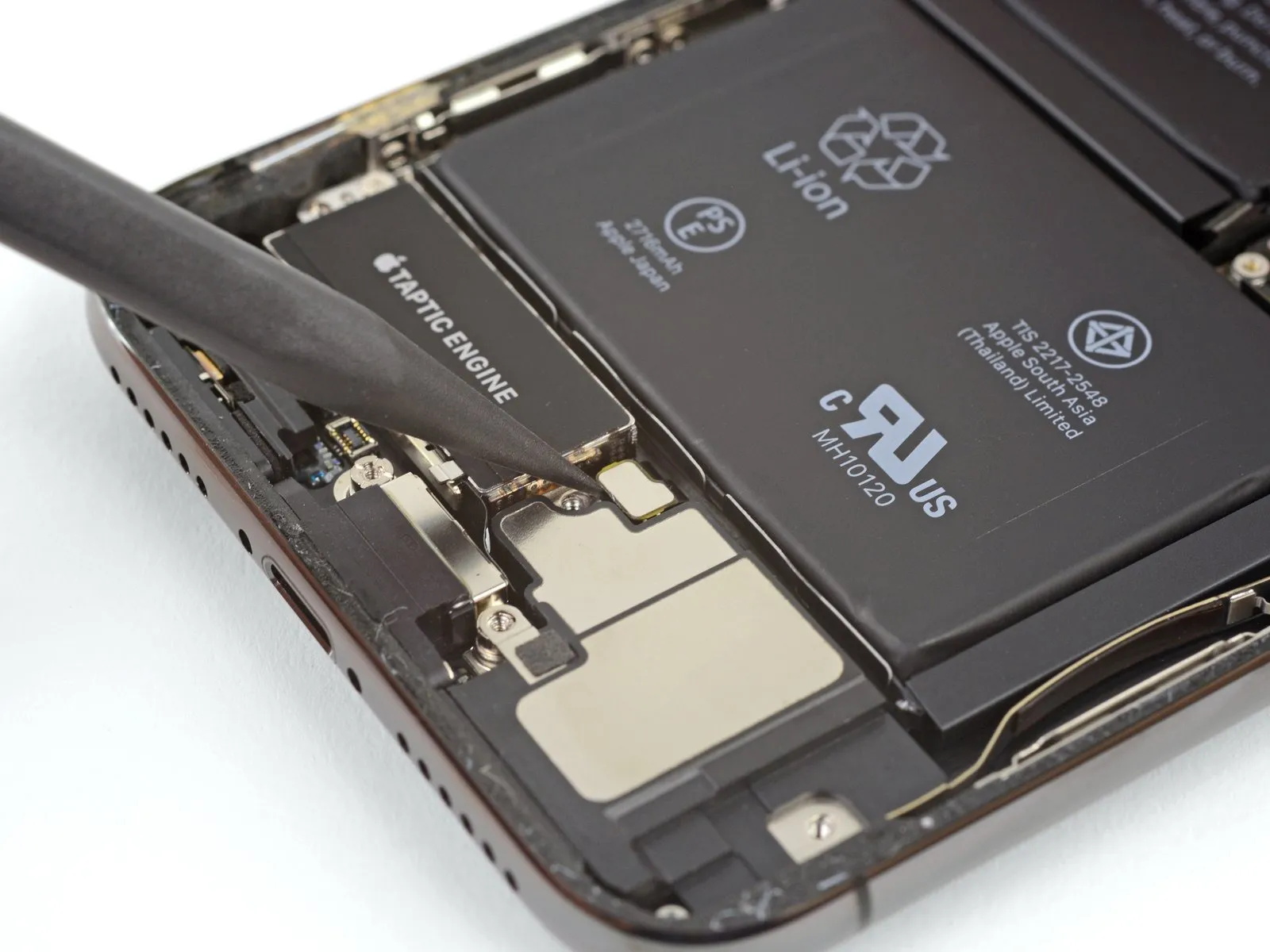
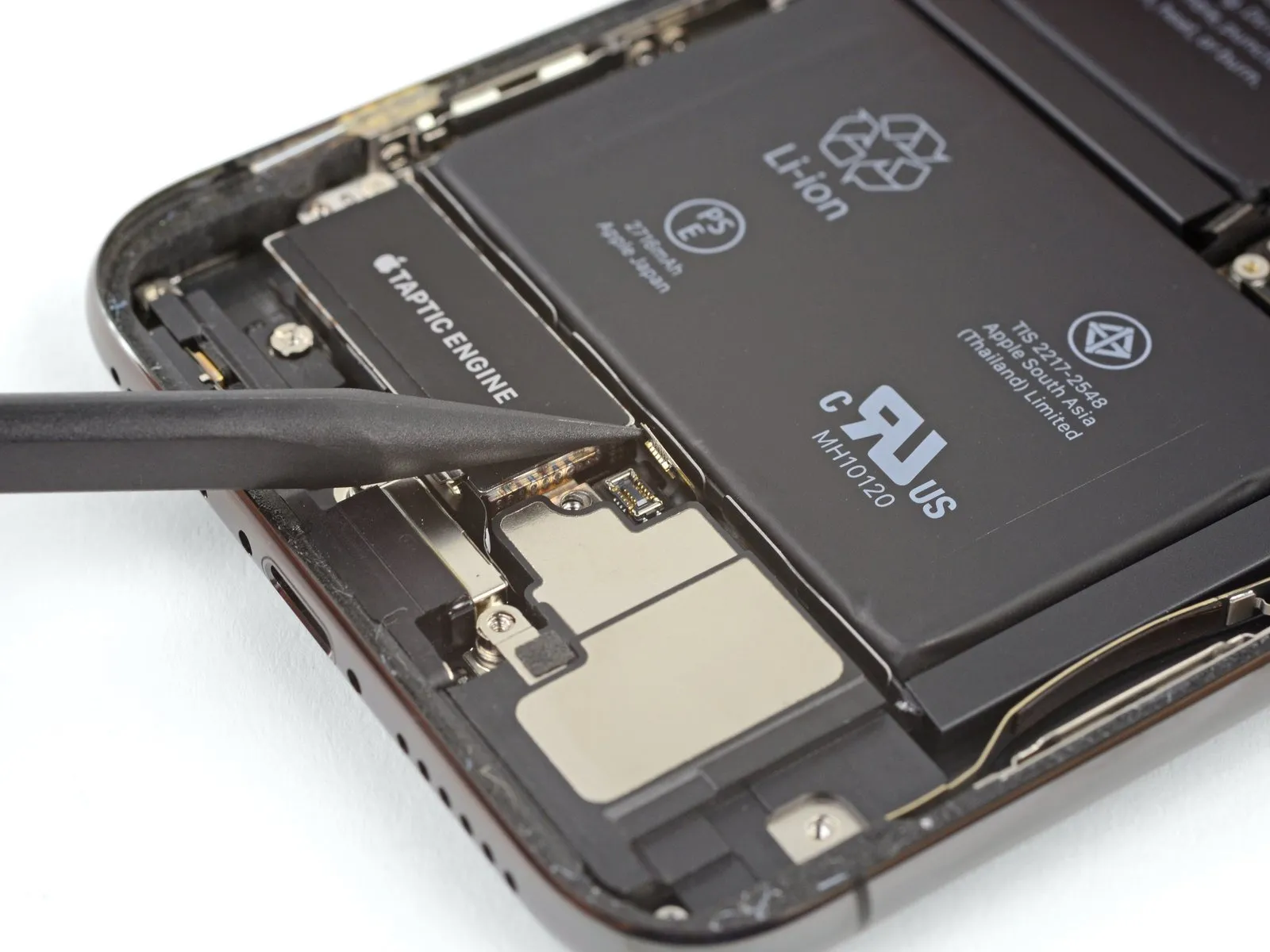
- Employ the pointed end of a spudgerto carefully lift and detach the speaker's electrical connector.
Step 33
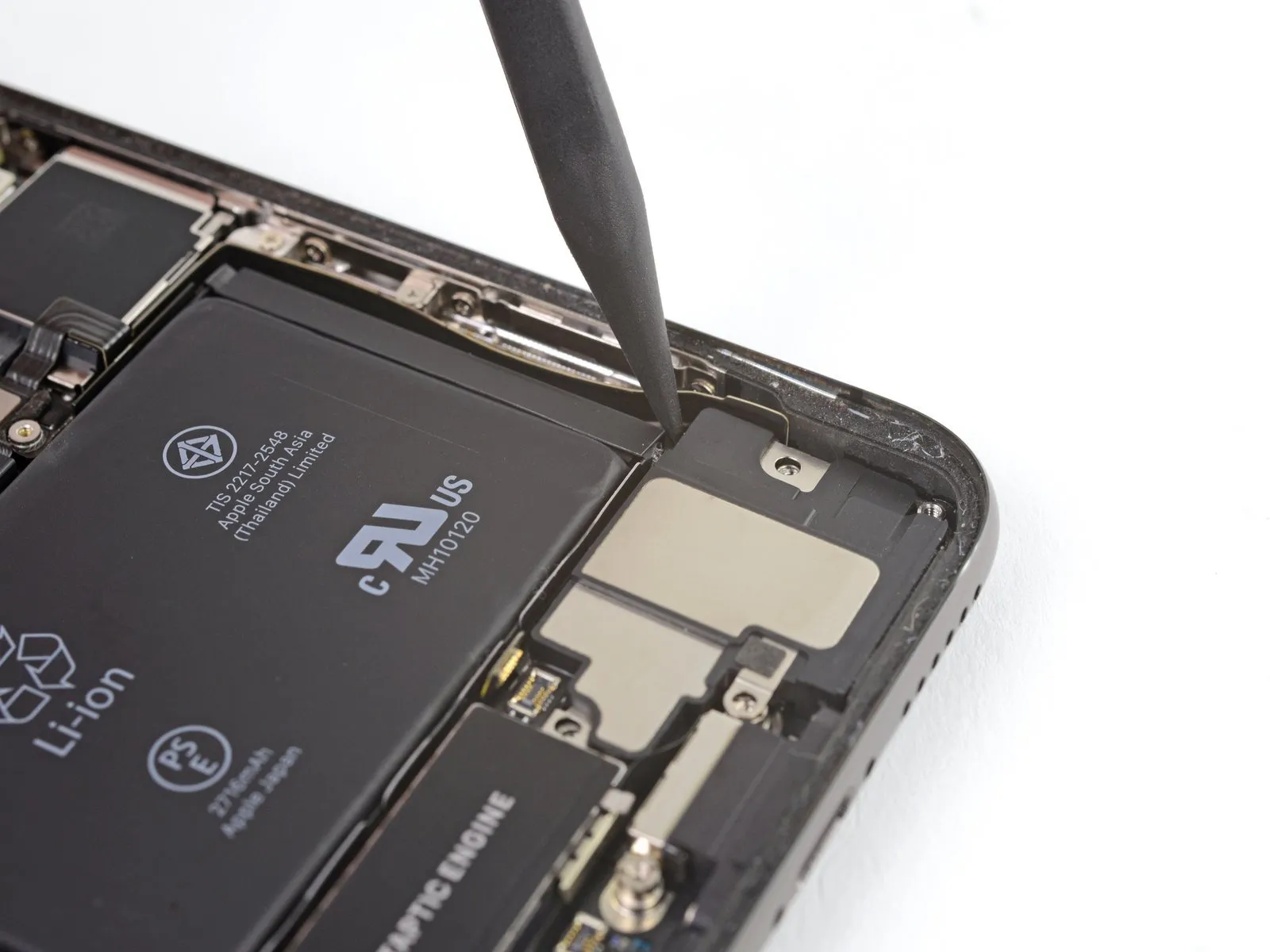
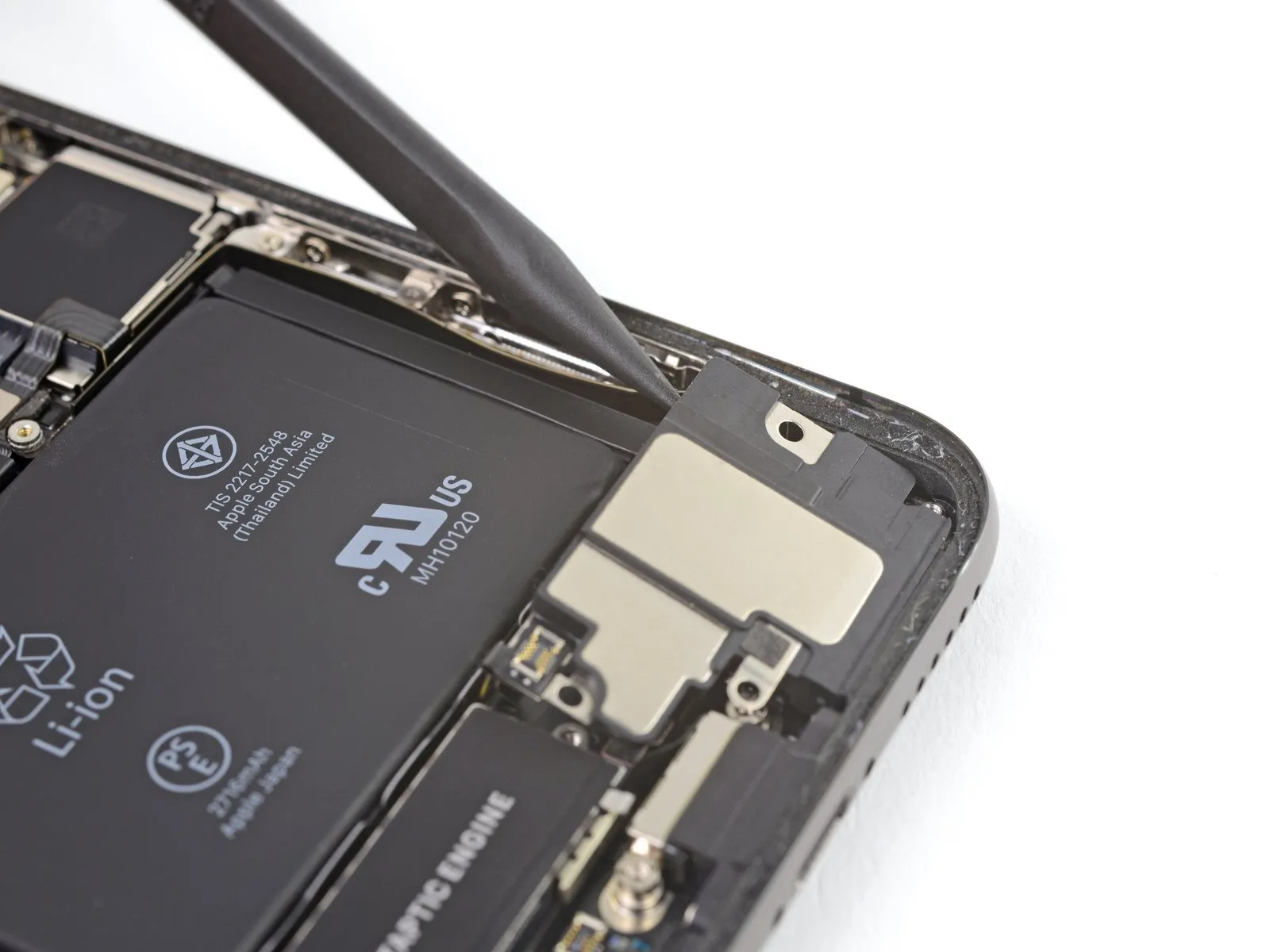
Exercise caution while separating the speaker from the device, preventing harm to the flex cable that was recently detached; if needed, secure the cable to the side to facilitate speaker removal.
- Position a spudger beneath the upper border of the speaker, situated close to the iPhone's casing.
- Apply a delicate upward force and elevate the speaker's upper edge.
During the speaker's reinstallation, verify the flex cable's alignment and confirm it remains free from entrapment beneath the speaker.
Step 34
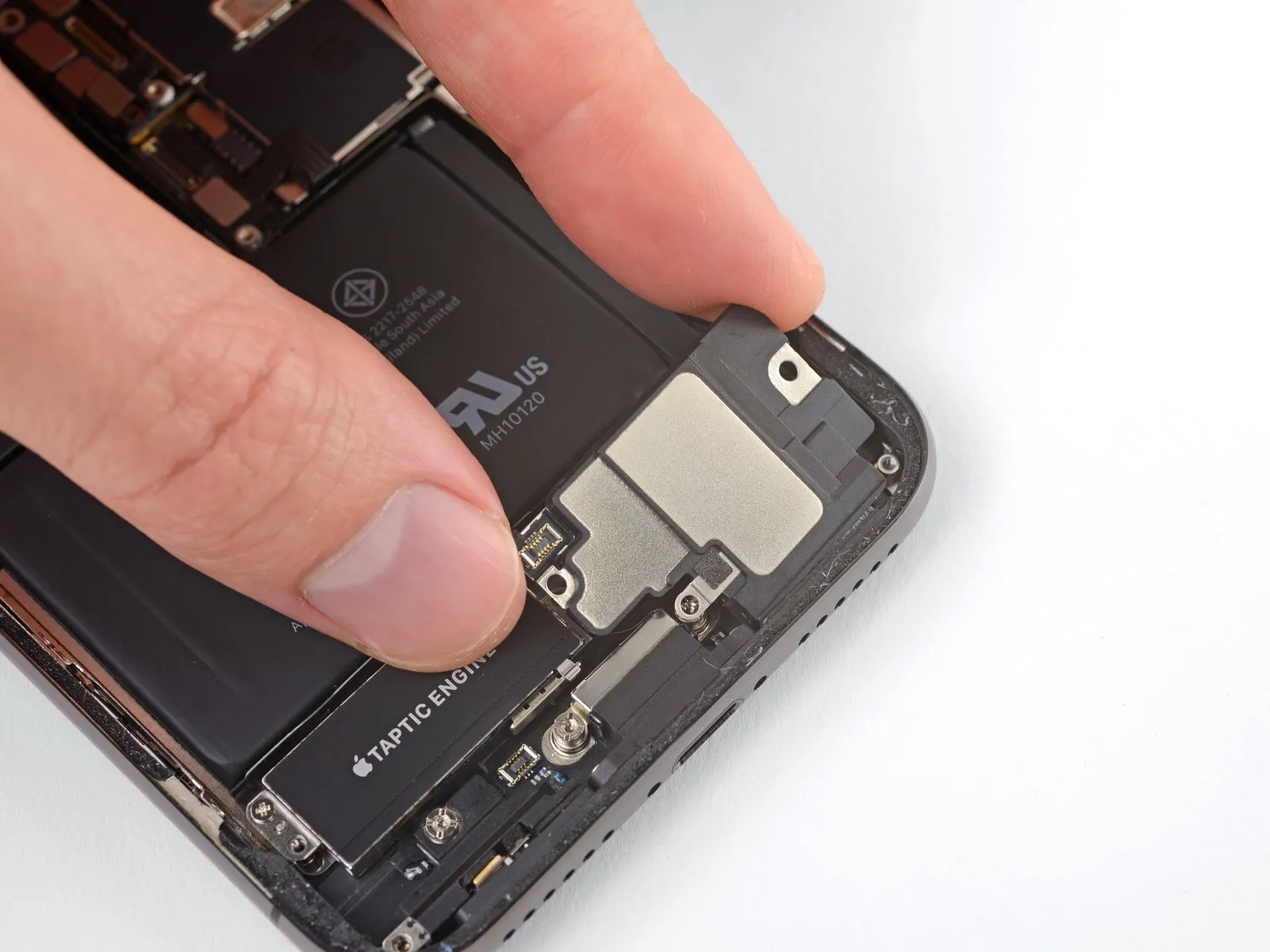
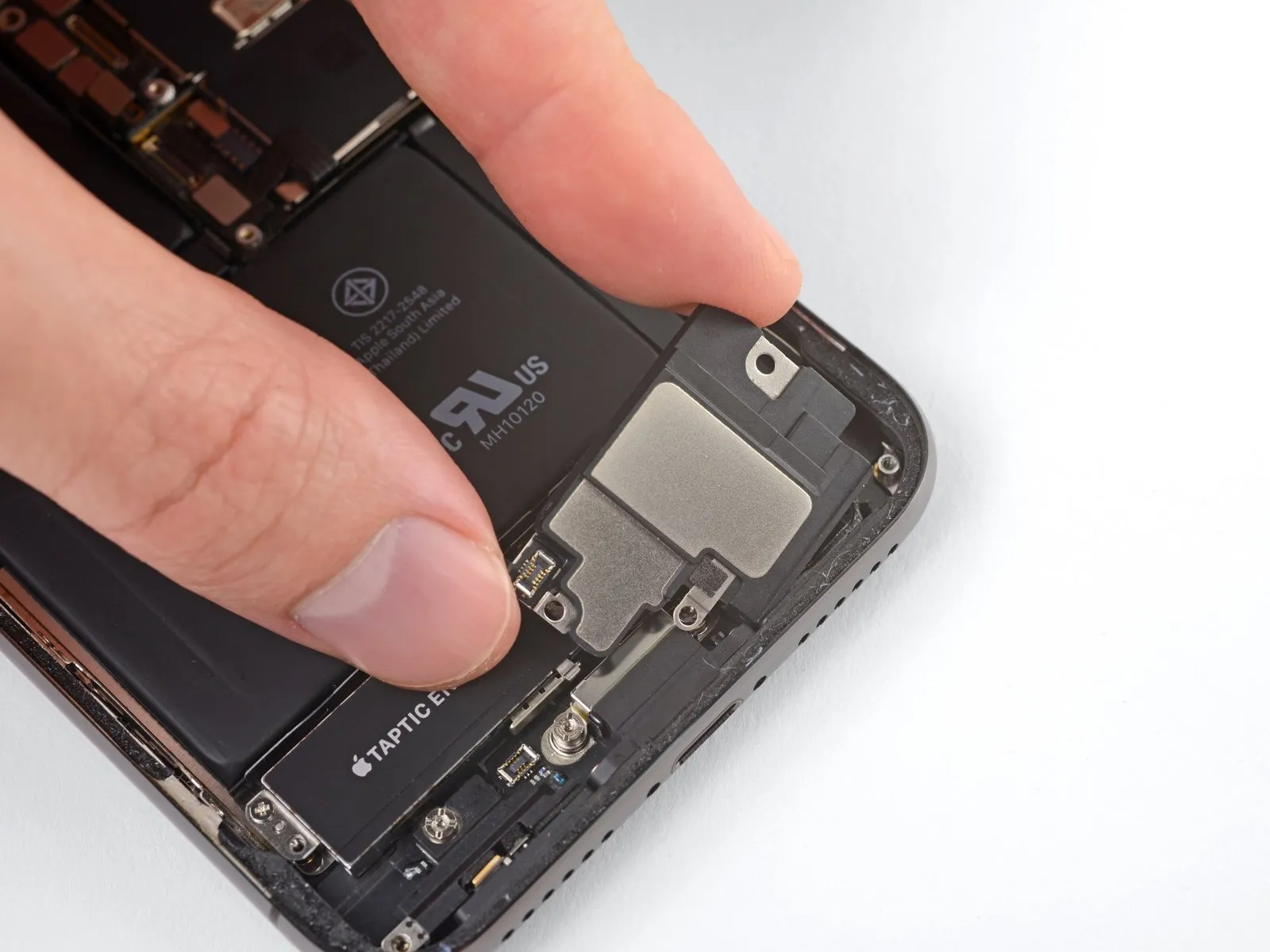
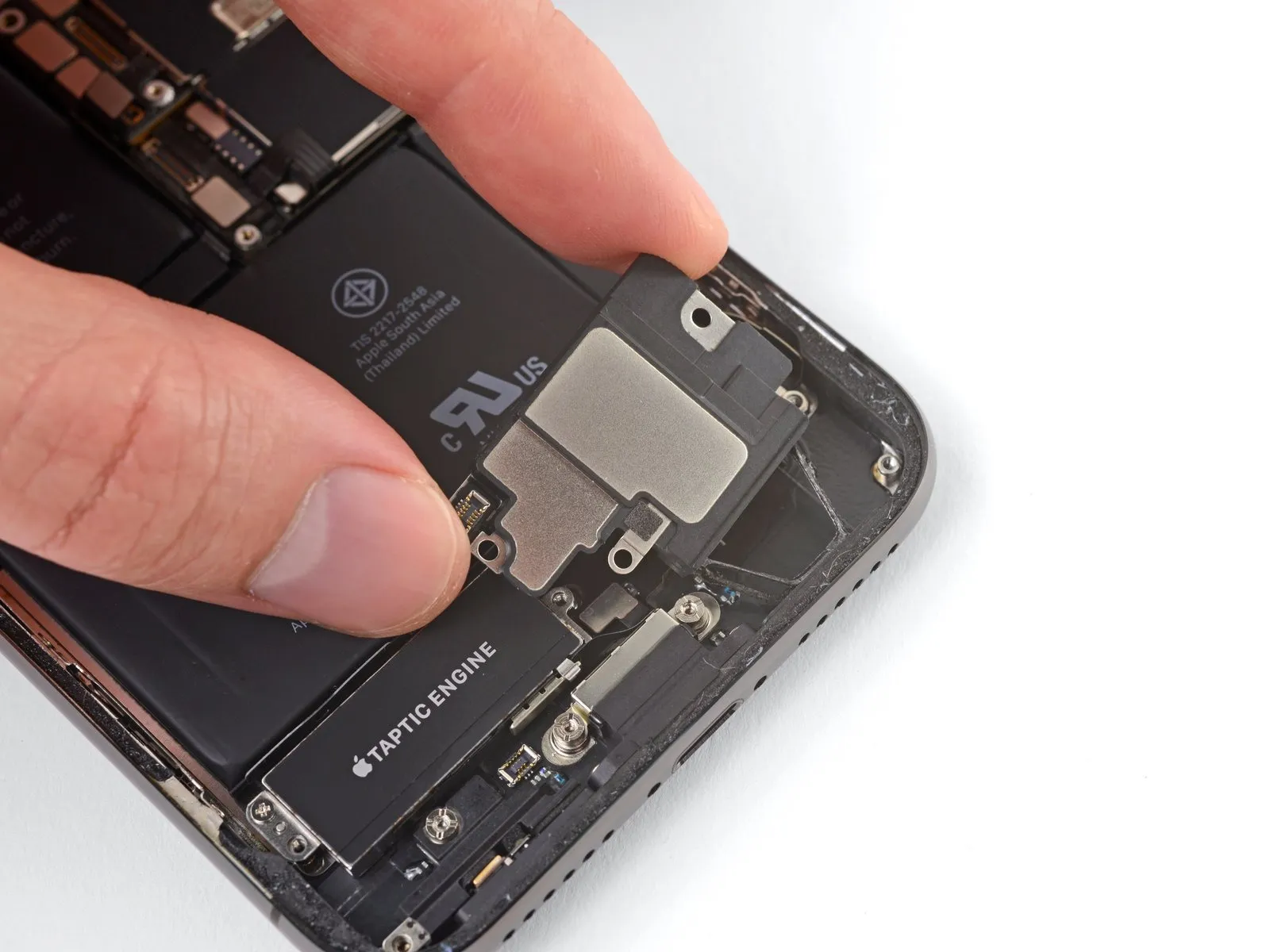
Grasp the speaker assembly using its lateral edges, gently oscillating it to disengage the adhesive that bonds it to the iPhone's lower perimeter.
- Continue moving the speaker outward from the iPhone's base until the adhesive gasket, which provides a seal, fully detaches.
Step 35
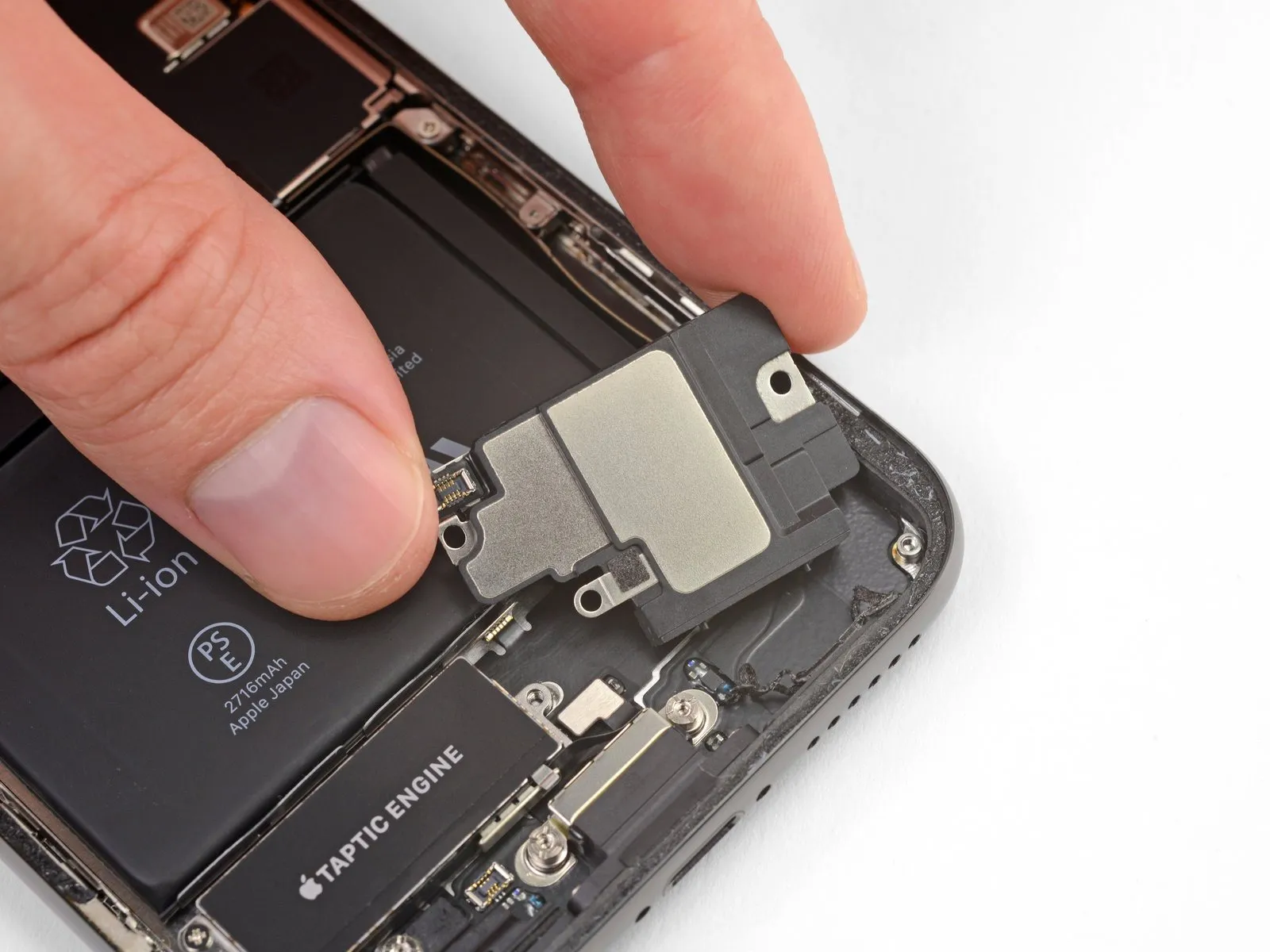
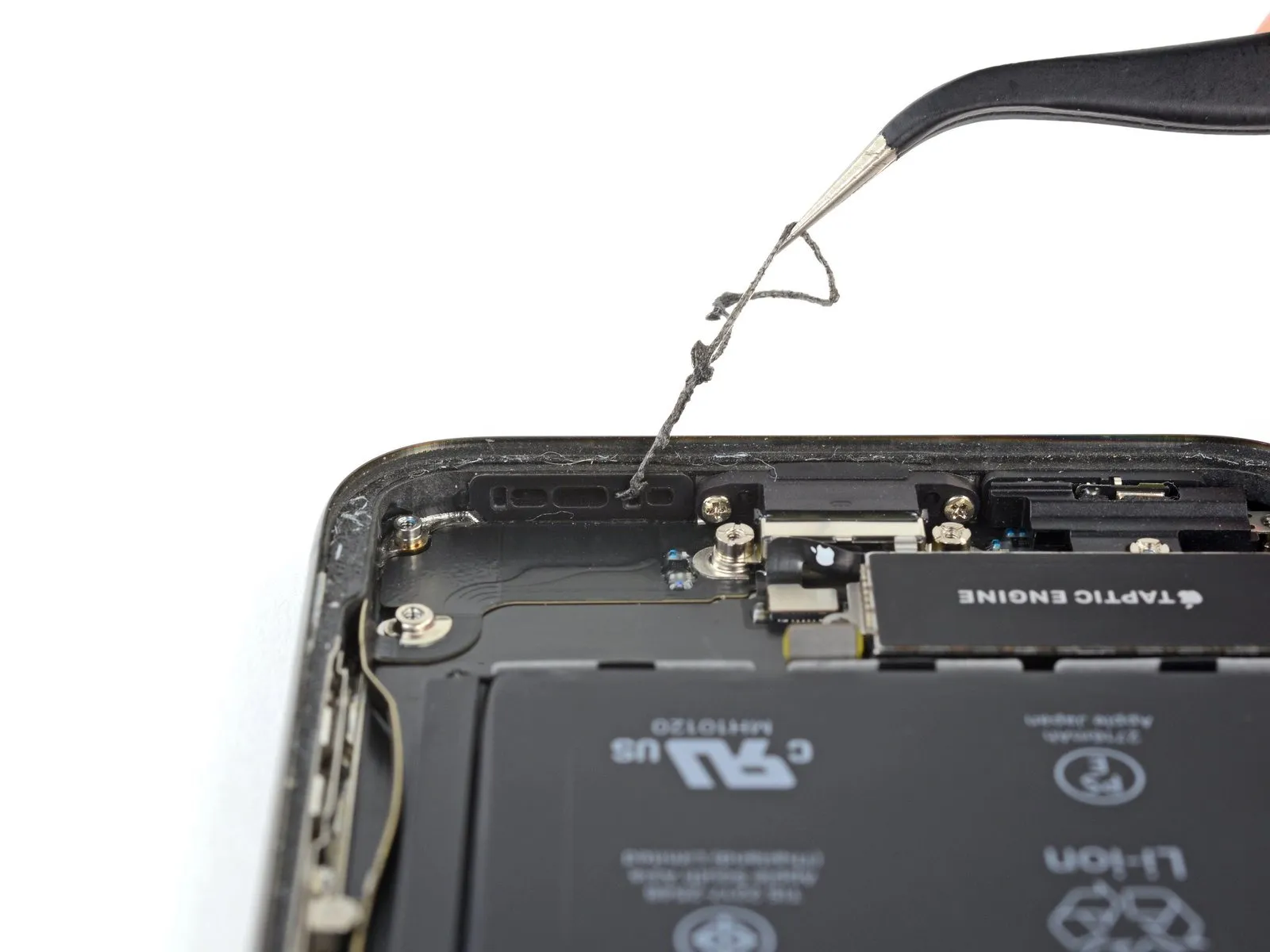
Detach the speaker component.
Step 36 | Replace the speaker gasket
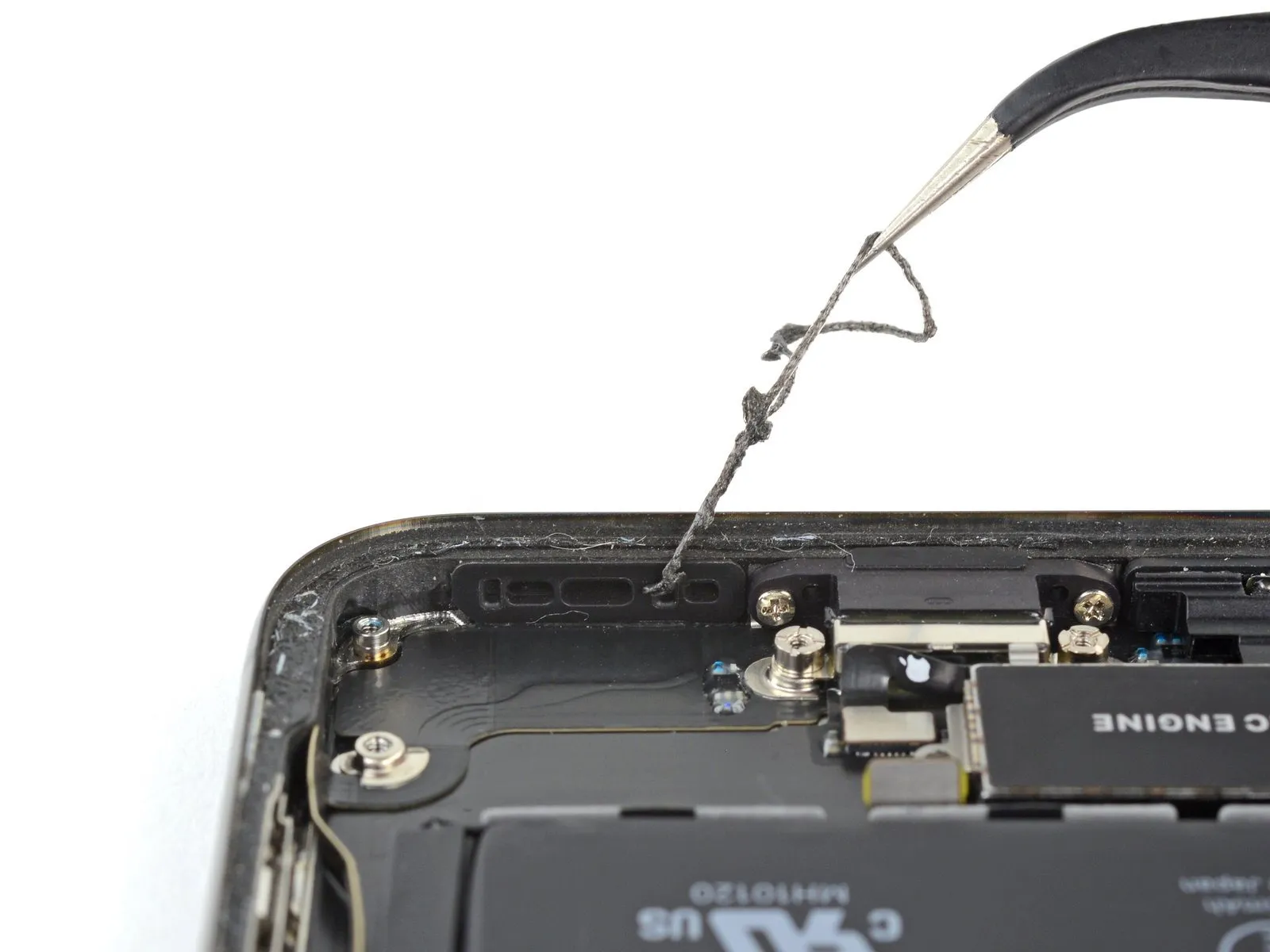
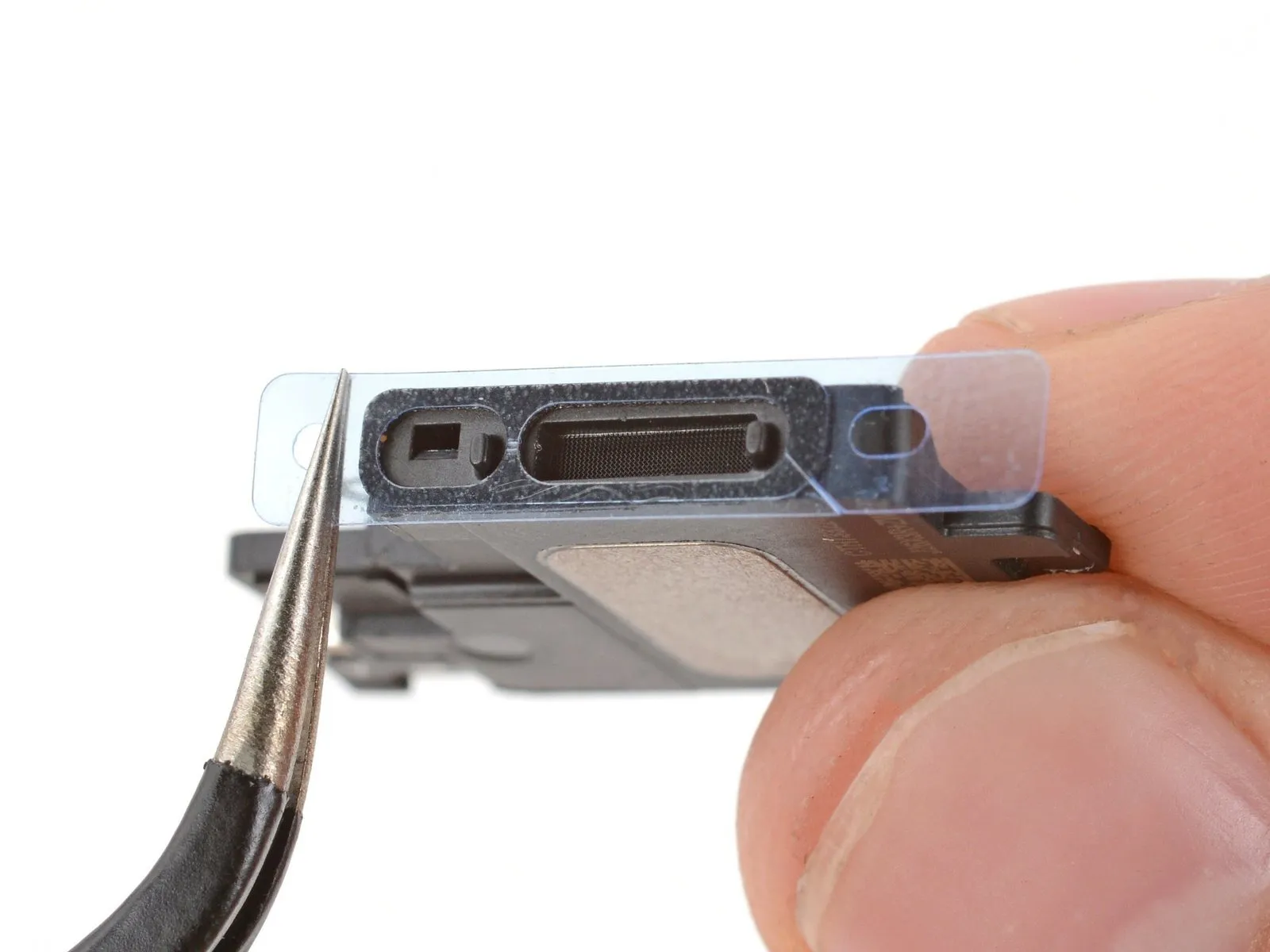
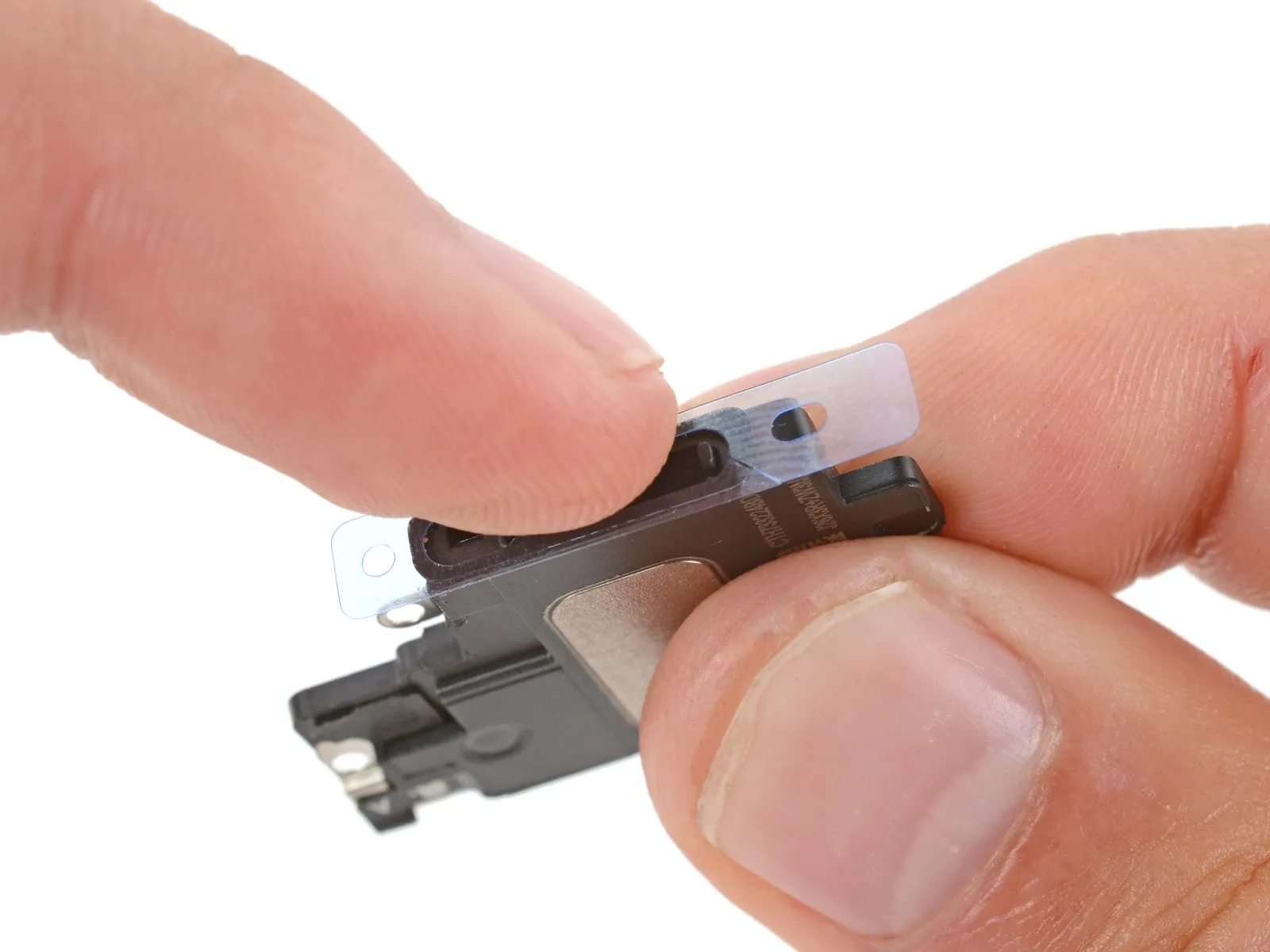
Because the speaker's gasket is a single-use component, adhere to the following procedures when reassembling to ensure proper replacement.
- Employing tweezers, detach and eliminate all remnants of the previous gasket material from both the frame and the speaker itself.
- Thoroughly cleanse any remaining adhesive from the frame and speaker surfaces utilizing a microfiber cloth dampened with isopropyl alcohol.
- Prior to installing the replacement gasket, ascertain its correct positioning on the speaker's underside; the substantial aperture must correspond with the speaker grille's mesh pattern.
- Extract the larger, transparent protective liner from the gasket and, with tweezers, meticulously position it onto the speaker's bottom surface, taking care to only handle the liner's peripheral regions to prevent contact with the adhesive.
- To guarantee adhesion, firmly apply pressure to the gasket using your fingers or a spudger, ensuring it is properly seated.
- Discard the remaining liner and reinstall the speaker, verifying that the speaker connector is not trapped beneath the assembly.
Step 37 | Taptic Engine
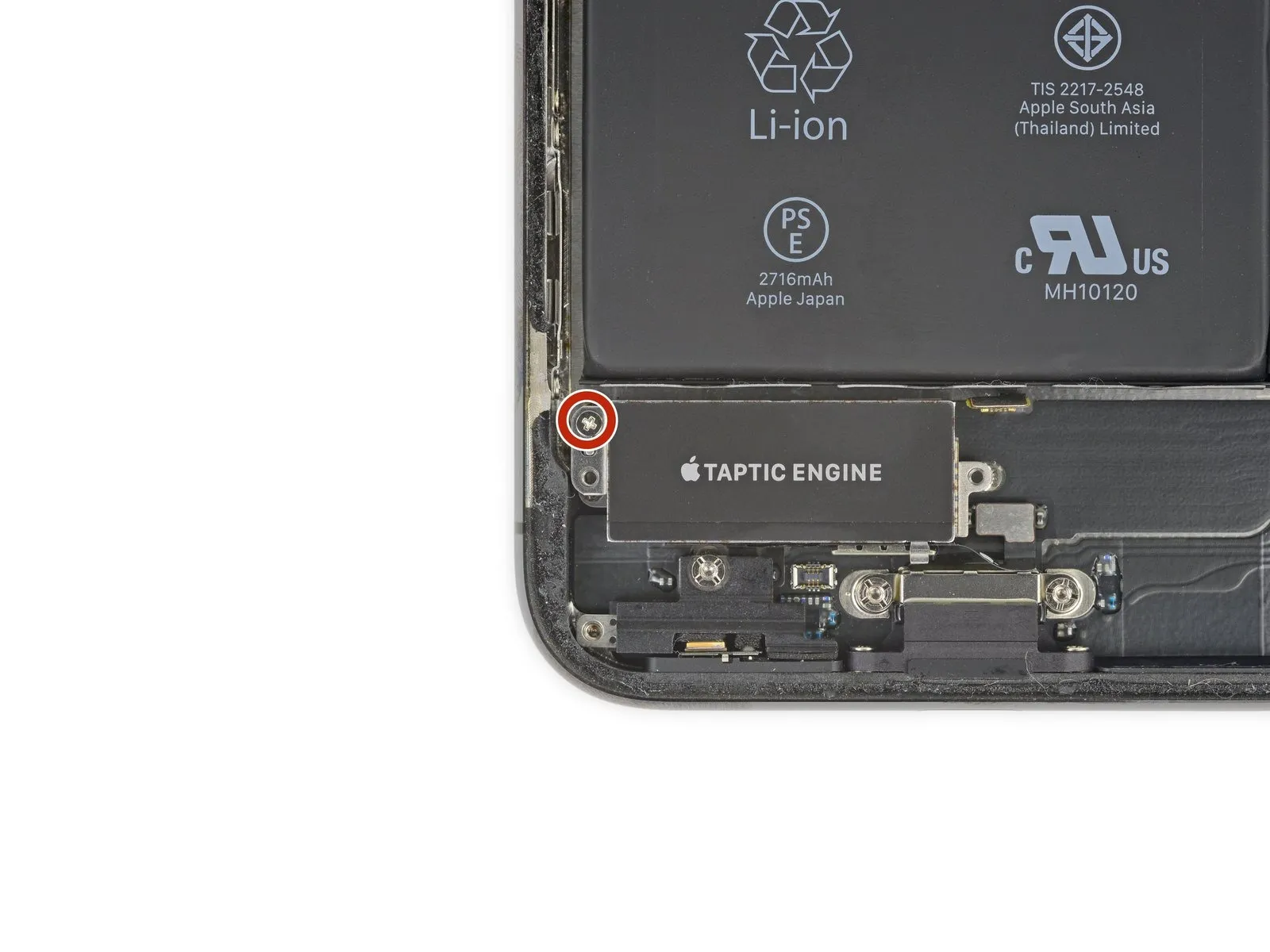
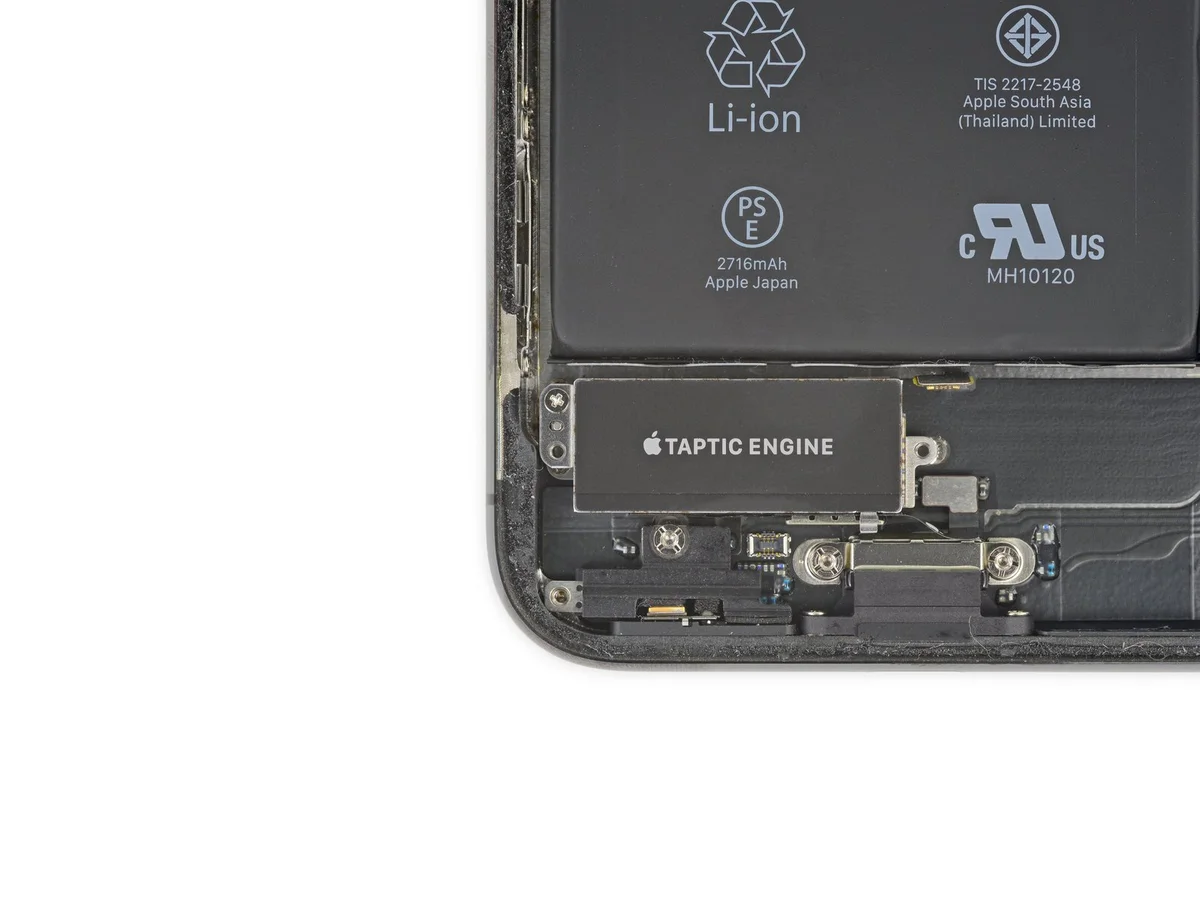
- To detach the component, eliminate the 2.3-millimeter Phillips screwwhich holds the Taptic Engine in place.
Step 38
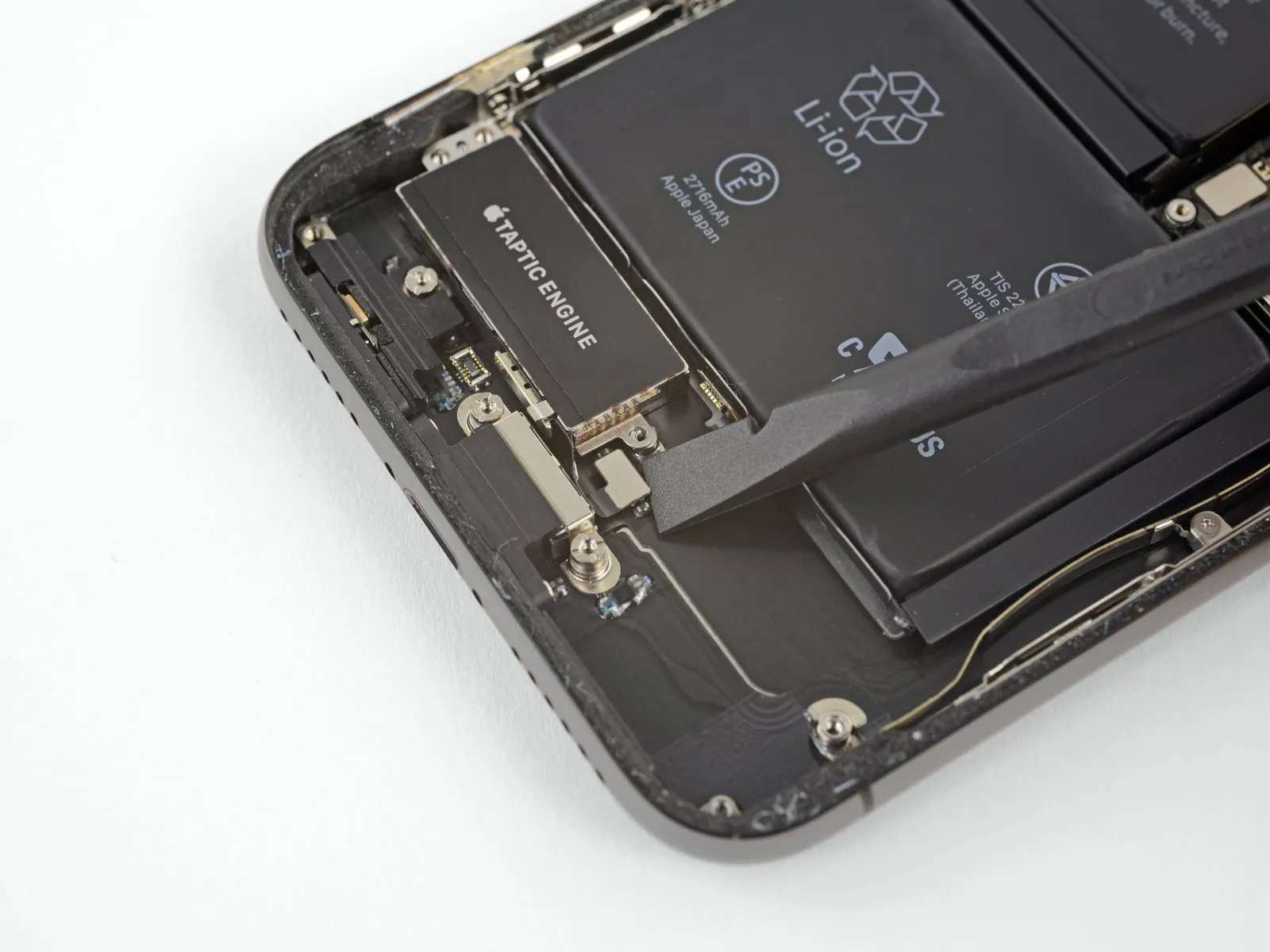
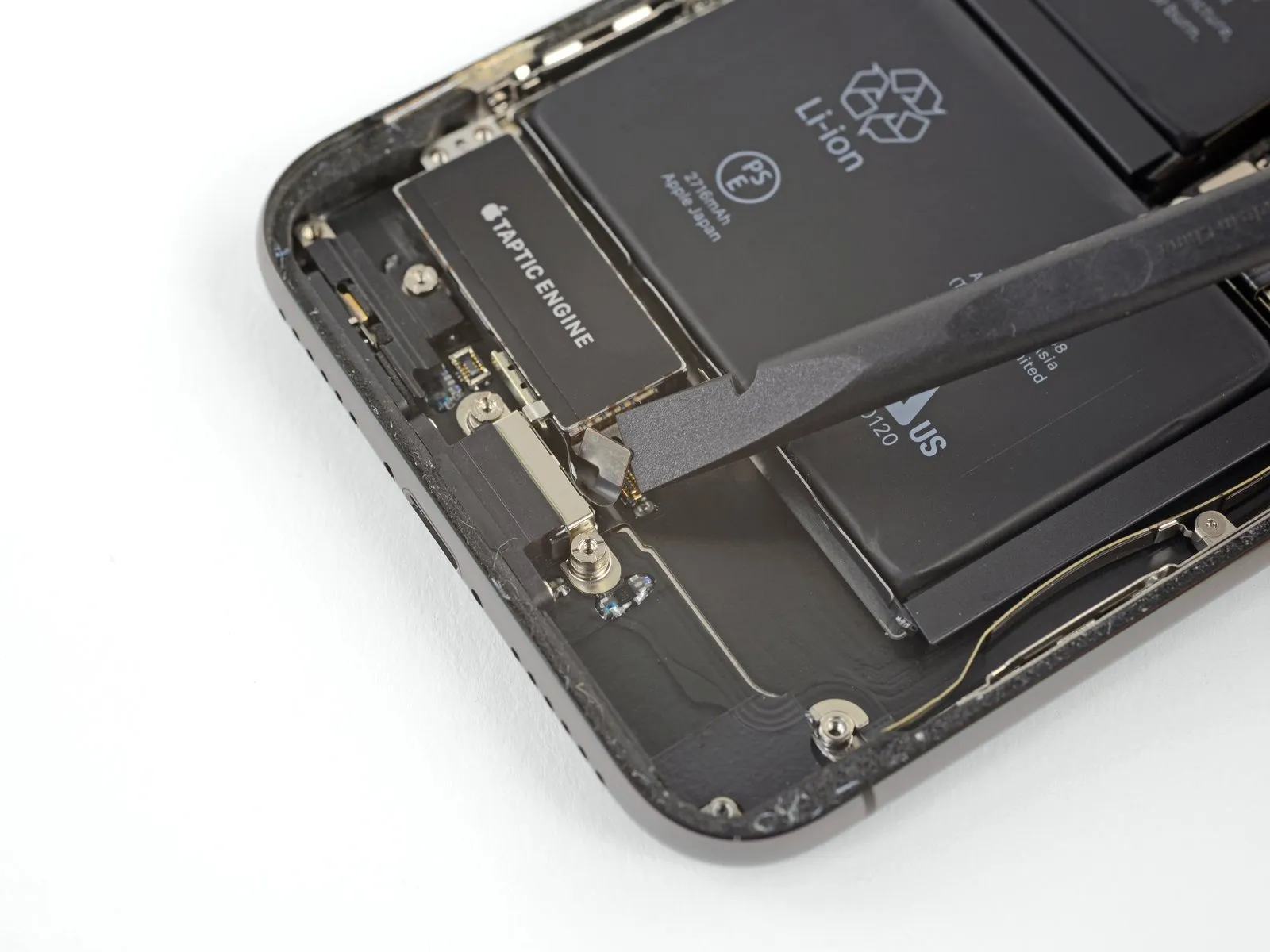
- Employ a spudger to release the Taptic Engine flex cable, carefully separating it from its connector by applying upward pressure.
Step 39
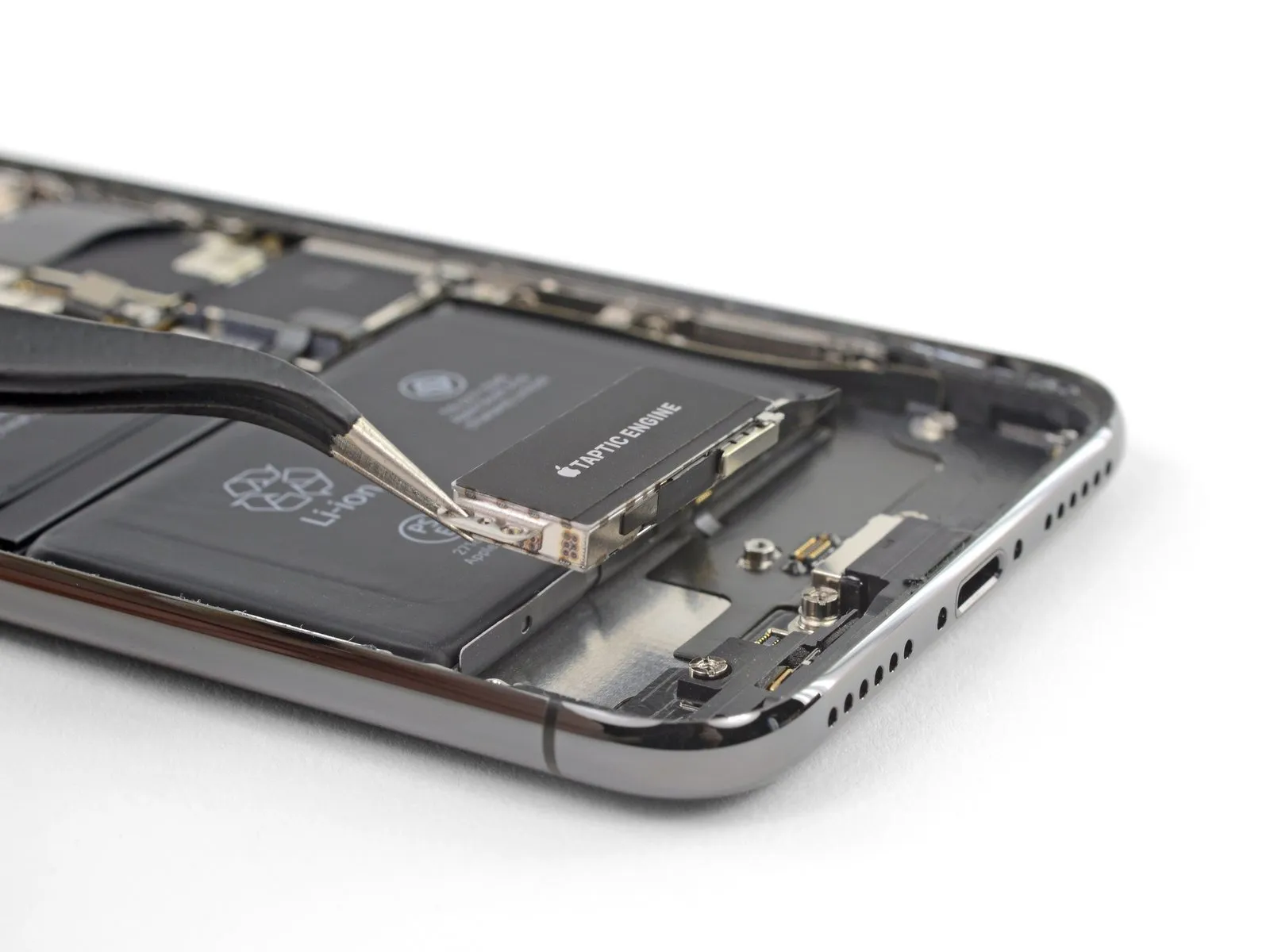
- Carefully detach the Taptic Engine component.
Step 40 | Battery
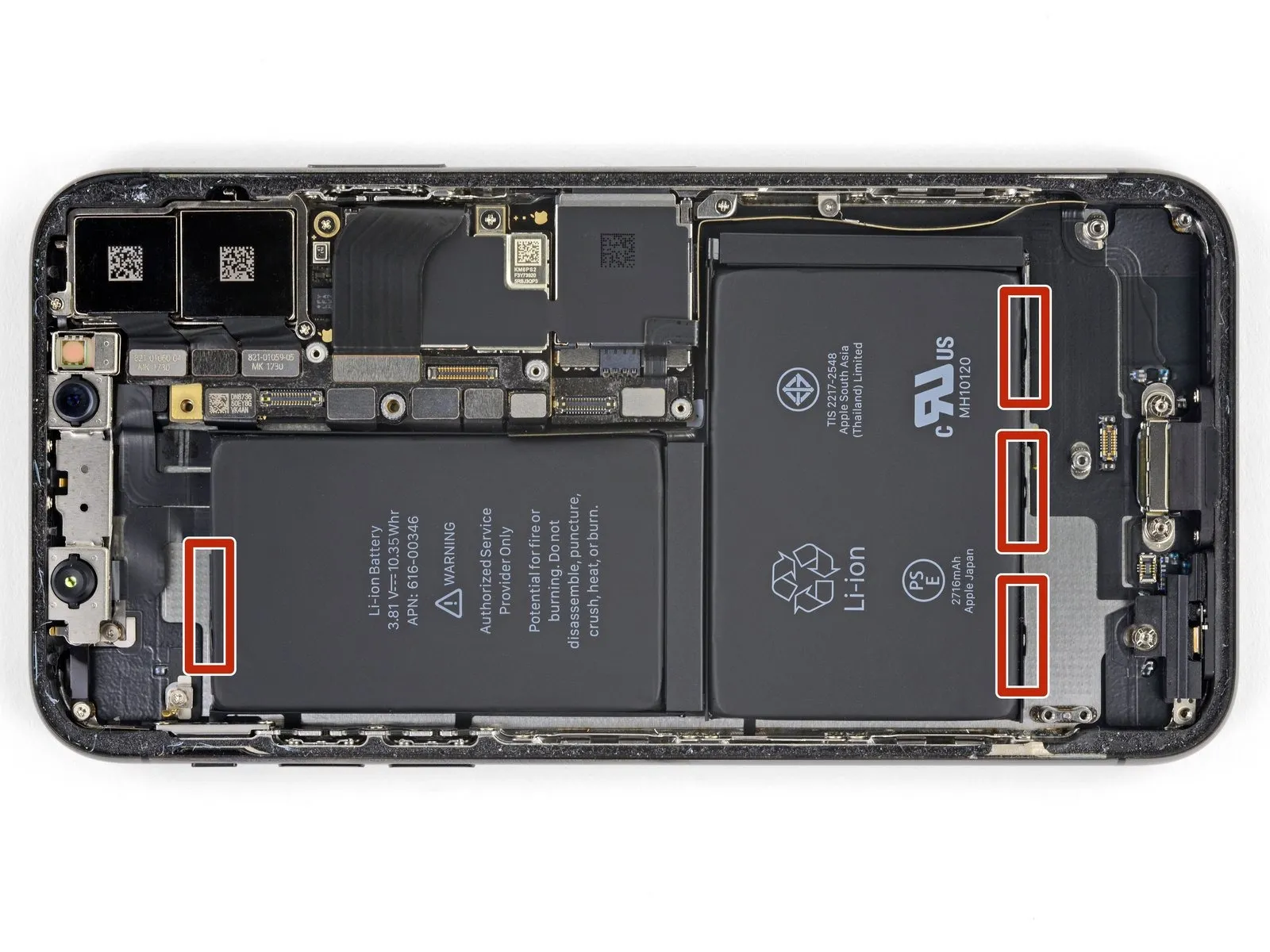
Four strips of stretch-release adhesive fasten the iPhone X's battery to the back cover; a single strip secures the upper cell, while three secure the lower portion. A small, black pull-tab, lightly bonded to the battery's side edge, extends from the end of each adhesive strip.
Step 41
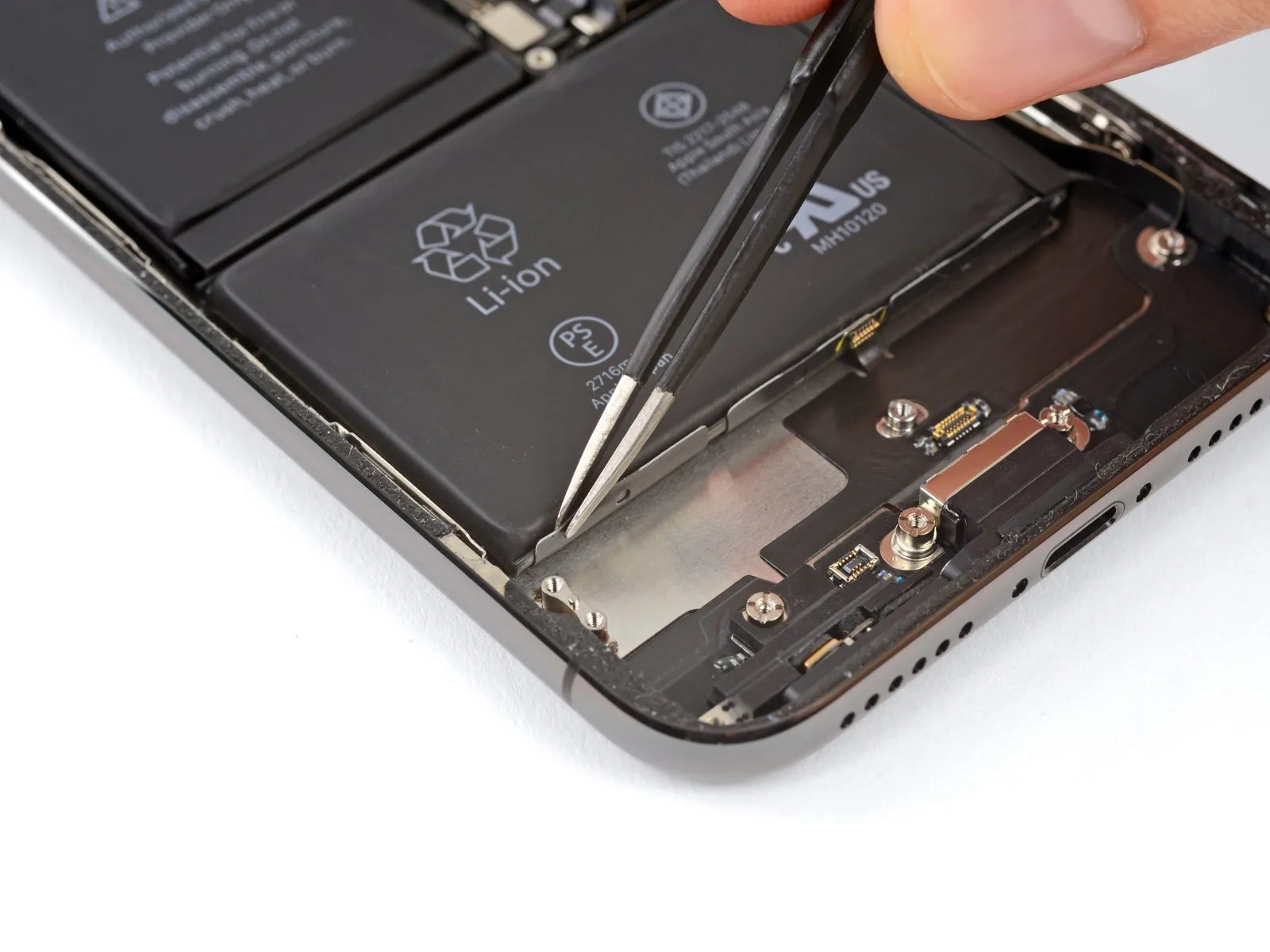
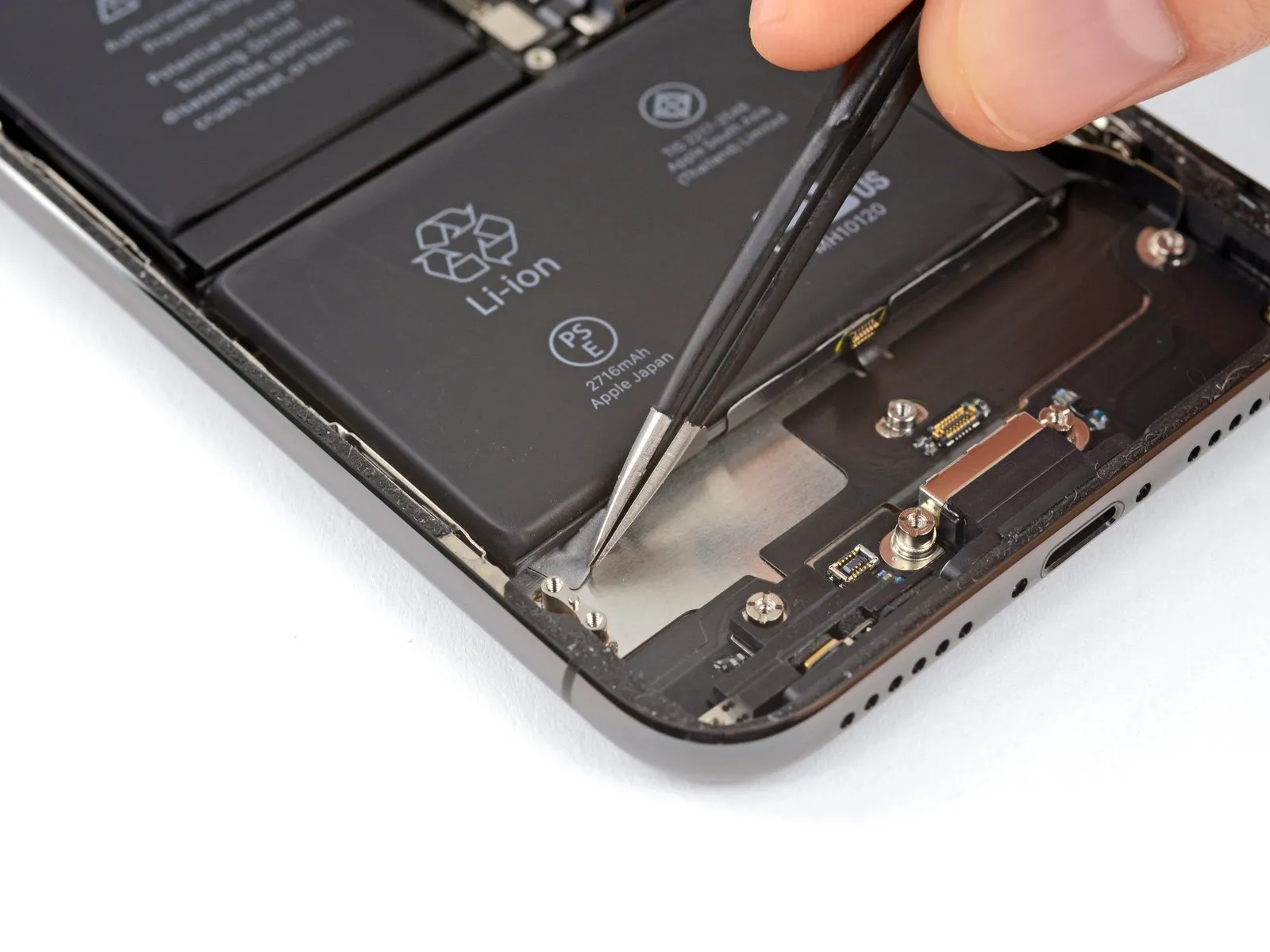
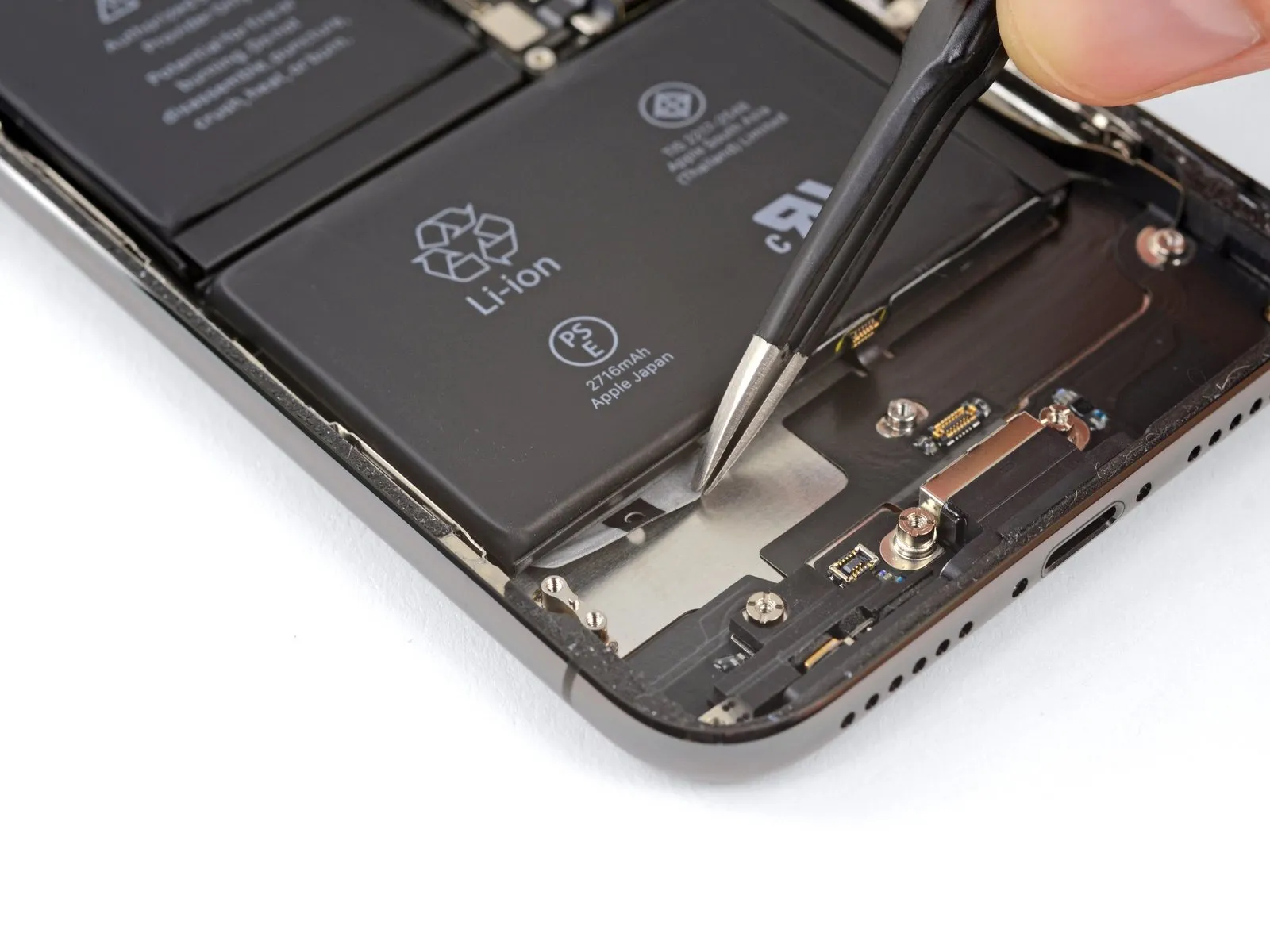
- Detach the initial battery adhesive tab from the battery's lower border.
- If grasping the tab proves difficult, utilize a tool to pass through the small loop situated centrally on each tab.
- Exercise caution to prevent puncturing the battery with any pointed instruments, as damage could result in the release of hazardous substances or ignition.
Step 42
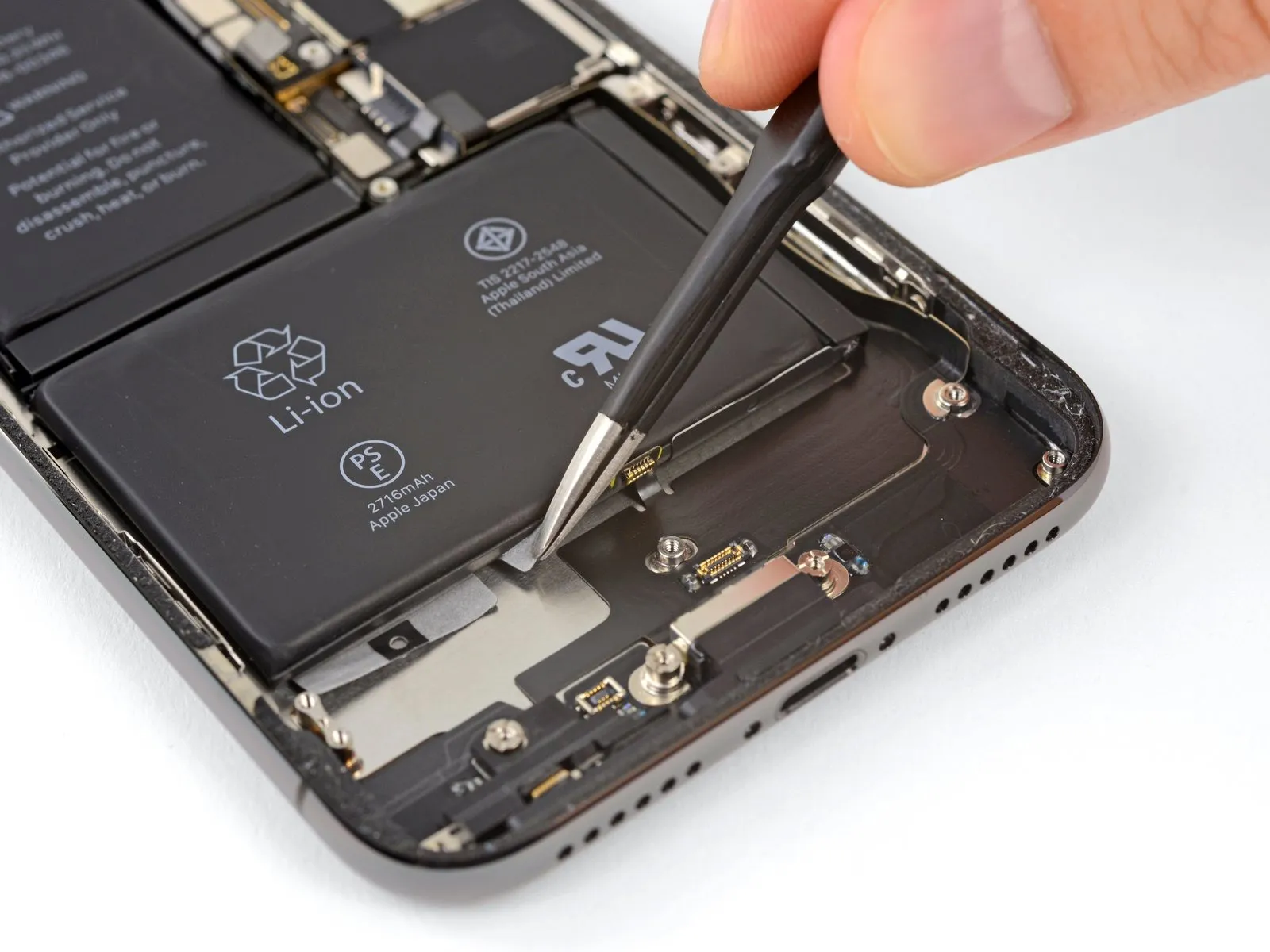
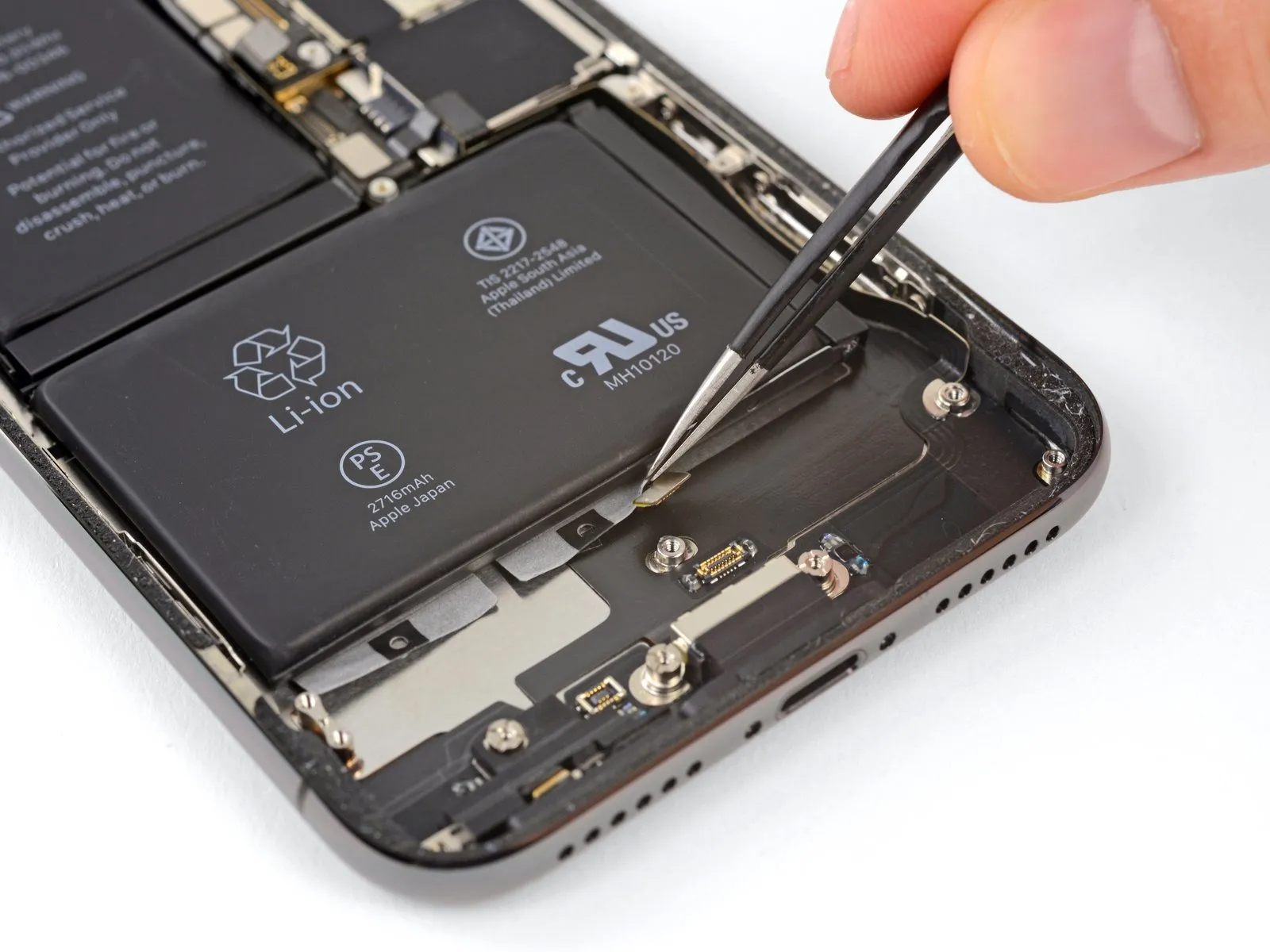
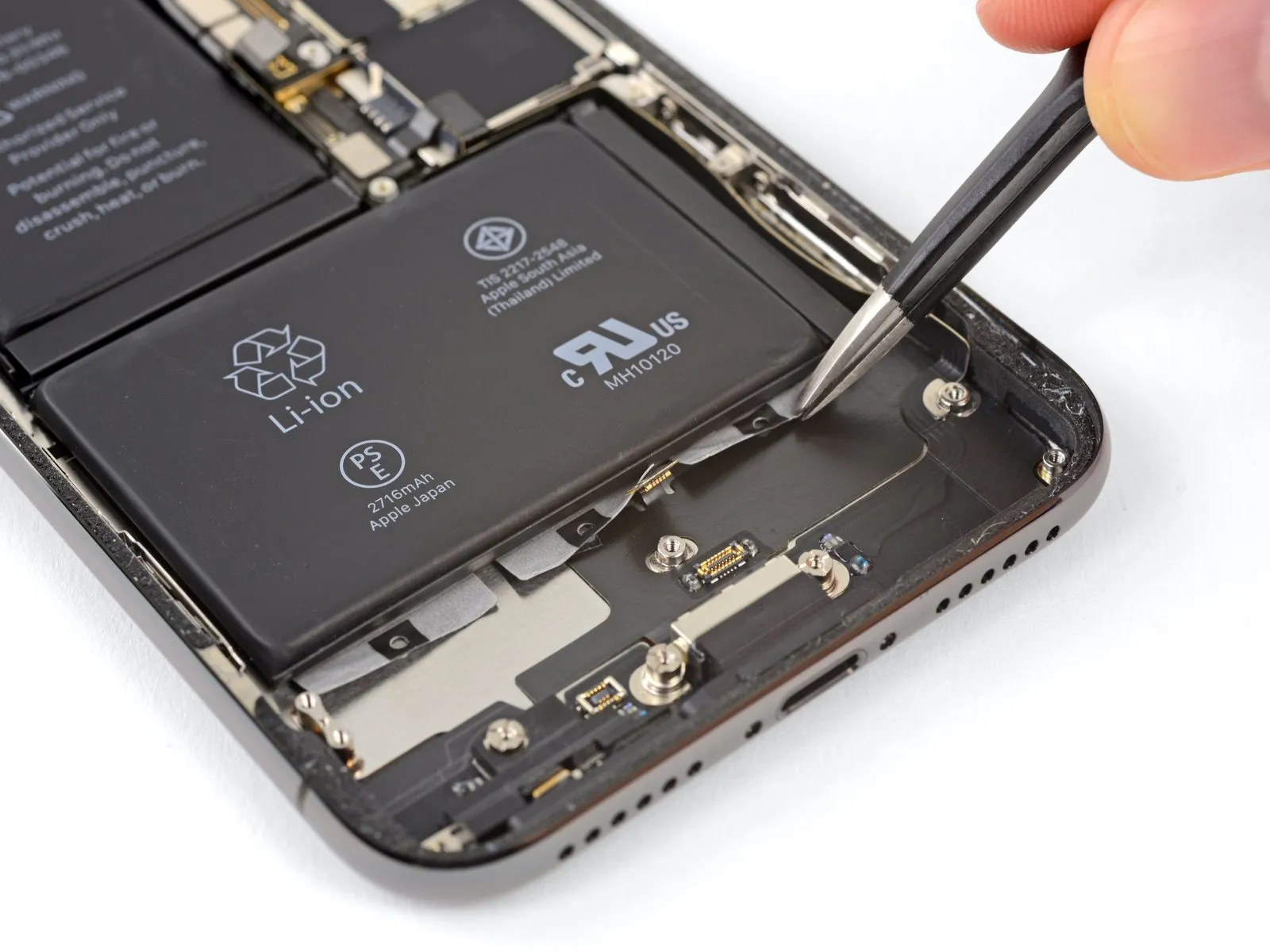
- To detach the remaining two adhesive strips, perform the preceding procedure once more, ensuring they are released from the battery's lower border.
- Exercise caution to prevent any harm to the speaker cable connector, which is situated immediately beneath the central adhesive tab.
Step 43
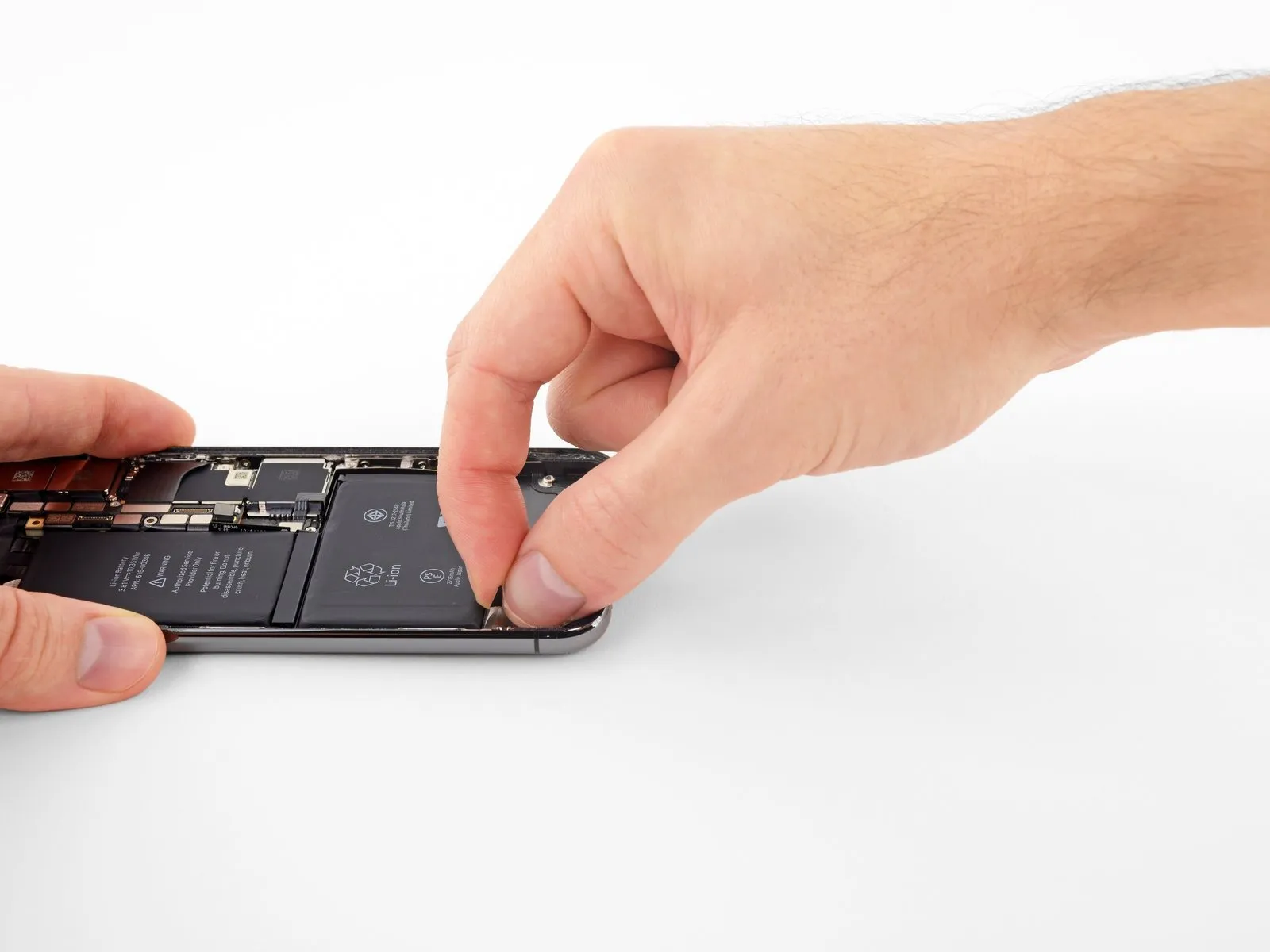
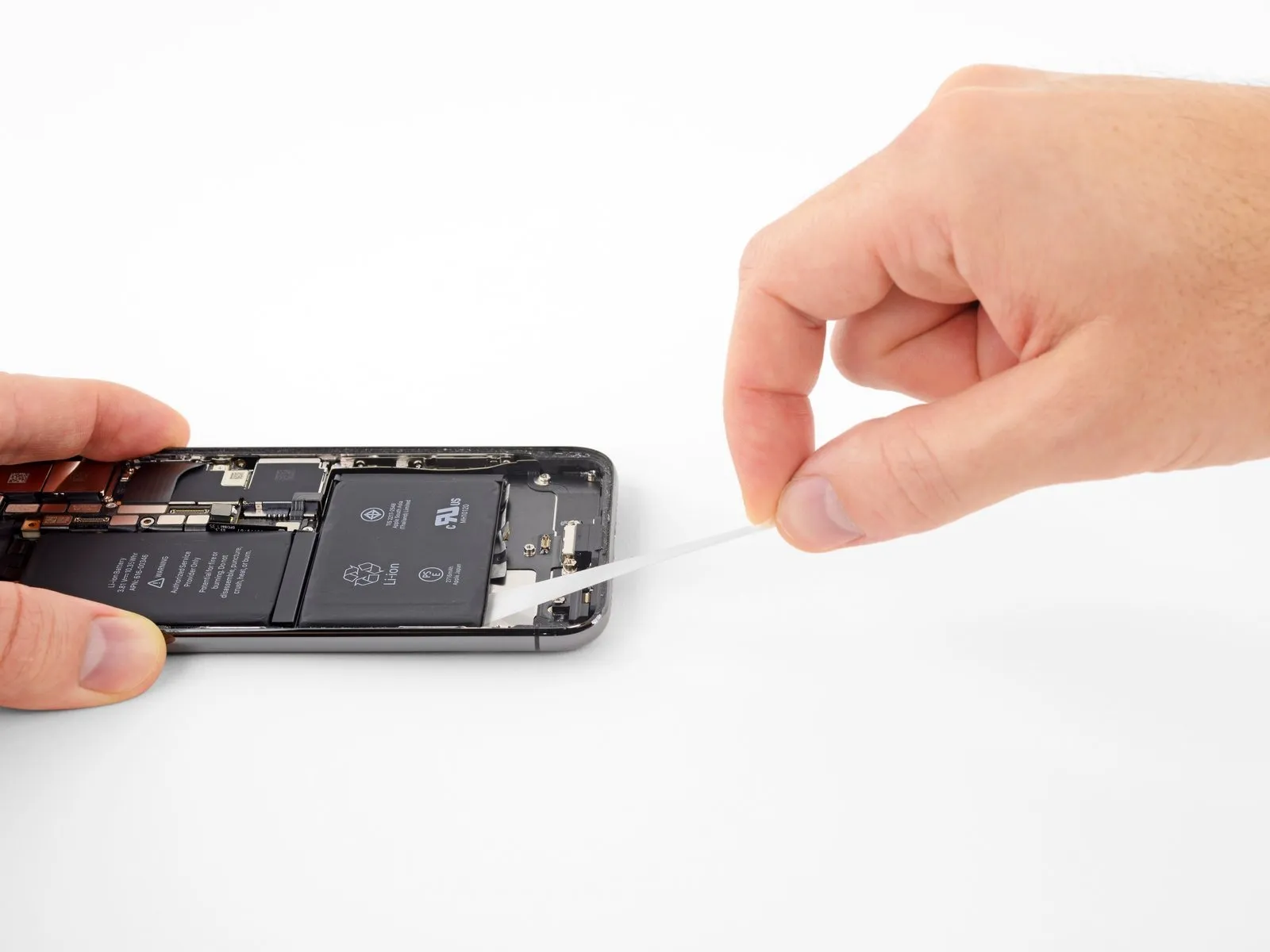
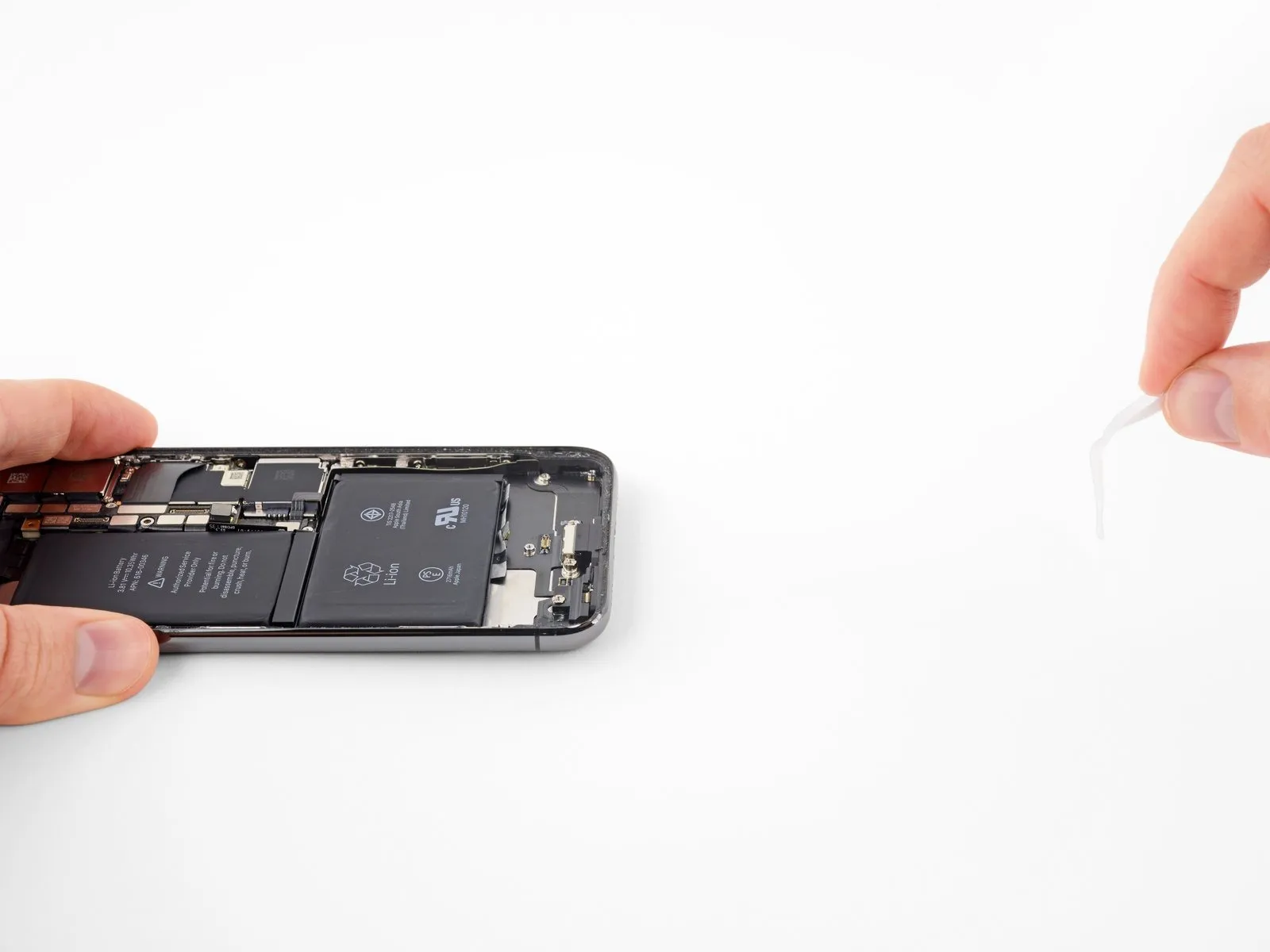
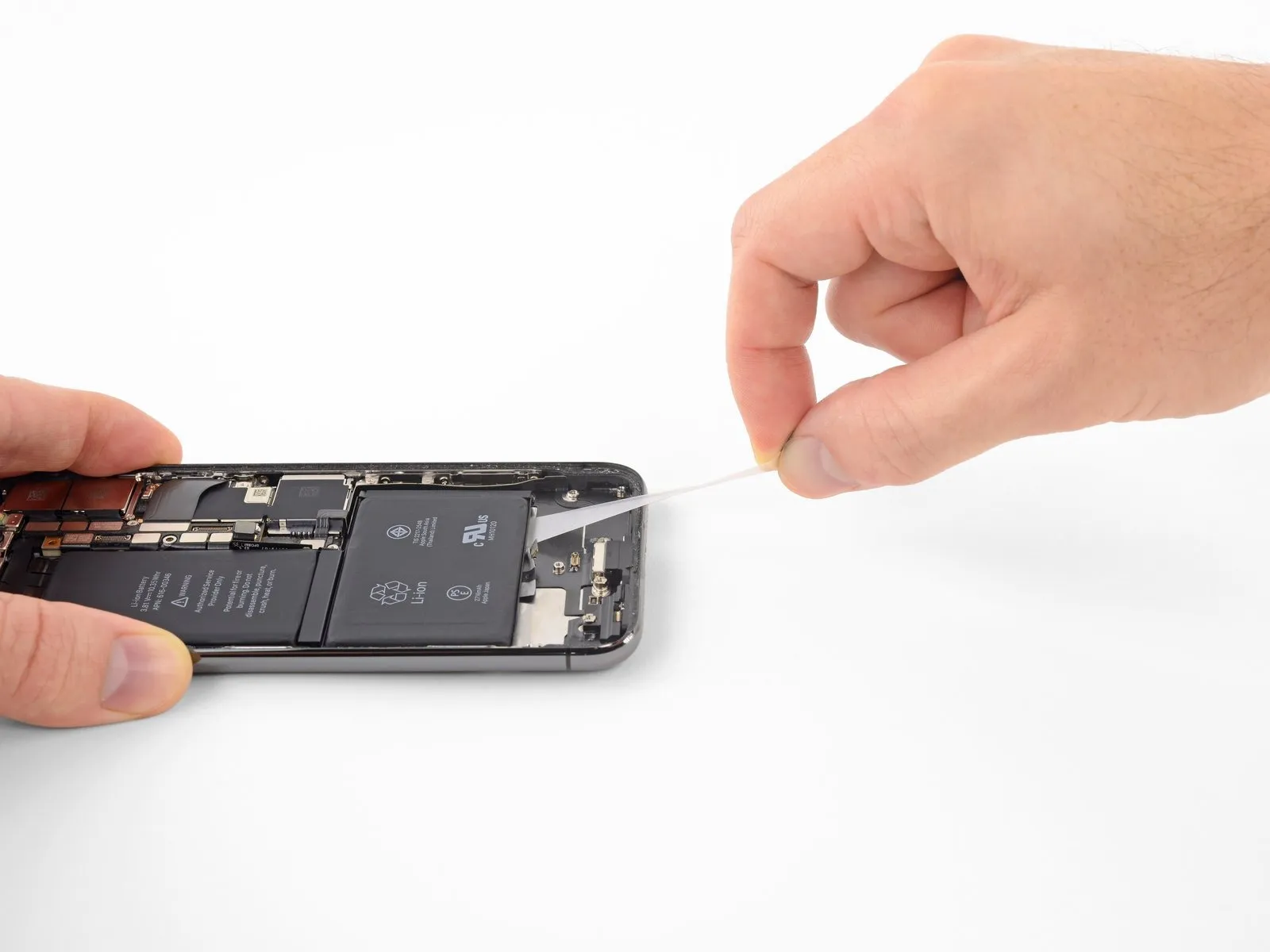
The subsequent instructions detail how to gradually extend each adhesive tab, facilitating separation from beneath the battery; this unique stretch-release adhesive diminishes its stickiness when extended, subsequently detaching in your hand, enabling effortless battery removal.
Should any of the strips fracture, remain composed; their functionality isn't guaranteed. Consult the subsequent instructions for alternative methods to address broken strips.
To maximize the likelihood of a successful outcome:
Avoid applying downward pressure to the battery; instead, maintain a secure grip on the iPhone's lateral surfaces.
Ensure the strips remain smooth and free from creases during the pulling process.
Exercise extreme caution, drawing the strips out deliberately to permit adequate stretching and separation; each strip typically requires approximately 15 to 30 seconds of extension for removal.
Maintain a shallow pulling angle to prevent the strip from catching on the battery's lower edge.
Should a strip fragment and become lodged beneath the battery, rendering retrieval impossible, proceed to the remaining strips and then follow the supplementary instructions provided afterward.
Step 44
- Carefully detach one of the external battery adhesive strips by gently drawing it away from the battery surface, directing the movement towards the lower portion of the iPhone's chassis.
- Maintain a consistent, even force while pulling on the strip, ensuring it remains taut until it disengages from the space between the battery and the rear enclosure.
- Expect the adhesive strip to elongate significantly, potentially stretching to several times its initial size; persist in pulling and reposition your grip along the strip's length near the battery as needed.
- Should any of the battery adhesive strips tear during the removal procedure, utilize your fingers or non-piercing tweezers to recover the detached adhesive fragments, and continue the extraction process.
- In the event that adhesive strips fracture beneath the battery and are inaccessible, attempt to remove the remaining strips and then follow the subsequent instructions.
Step 45
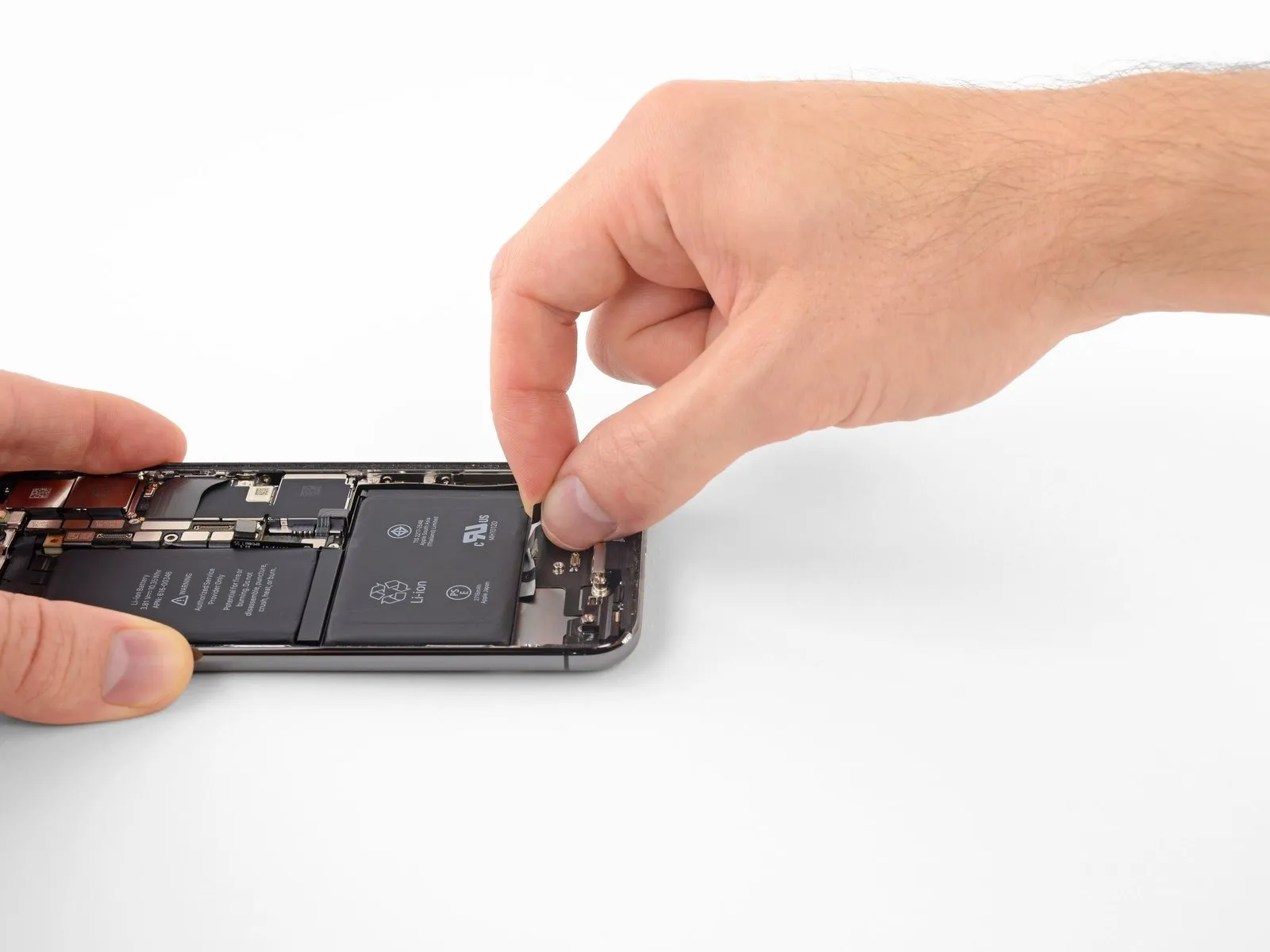
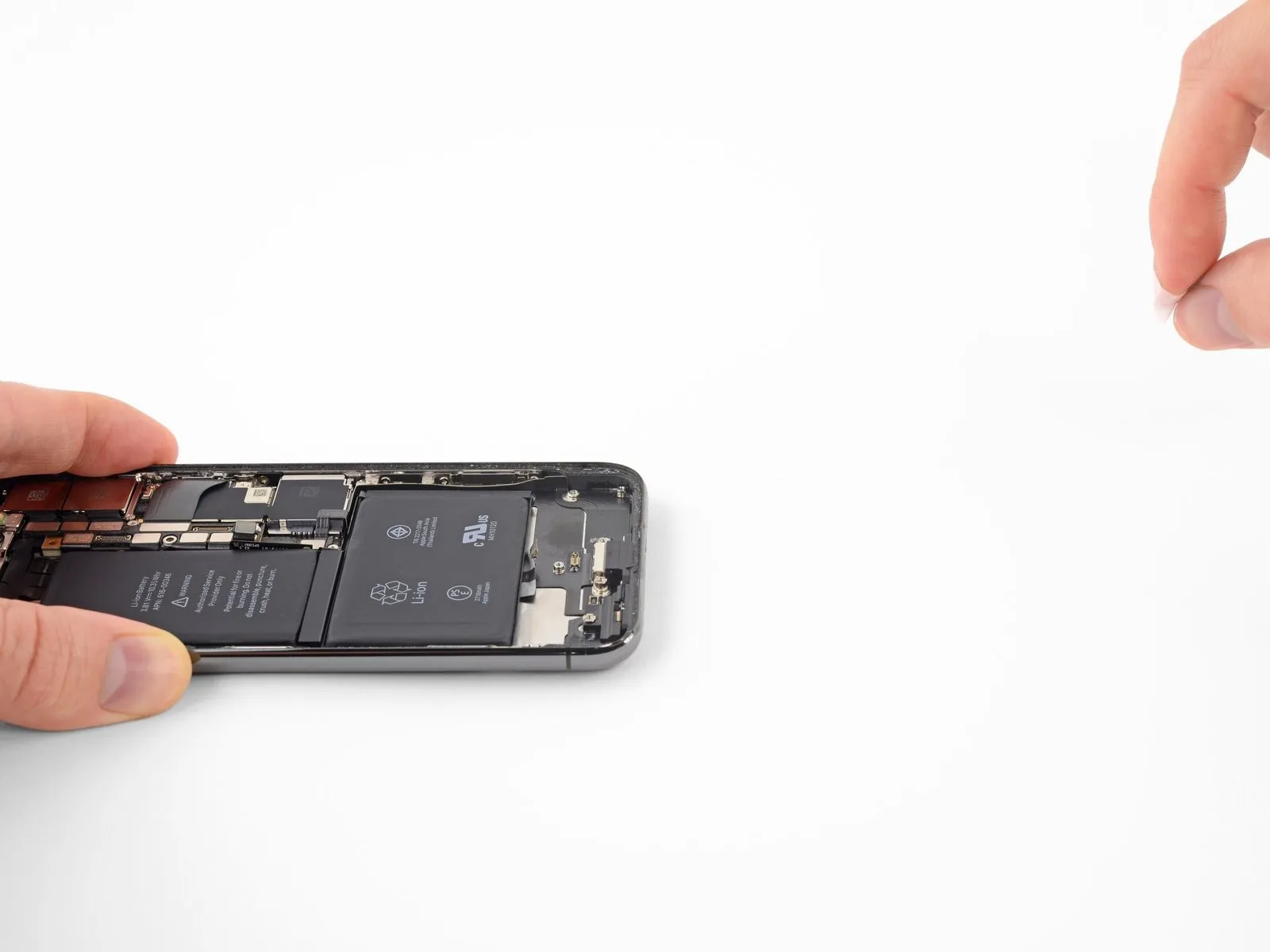
Step 46
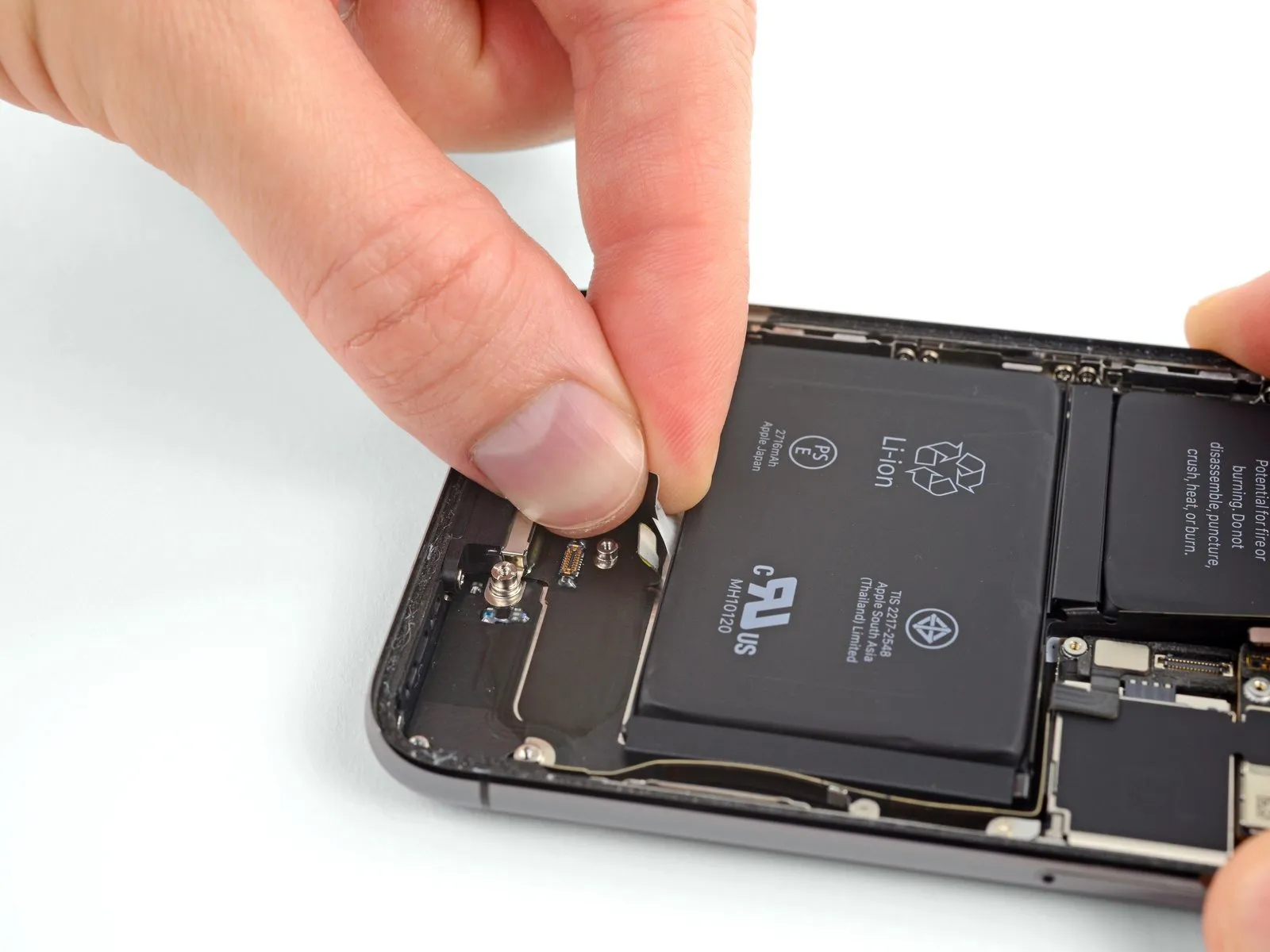
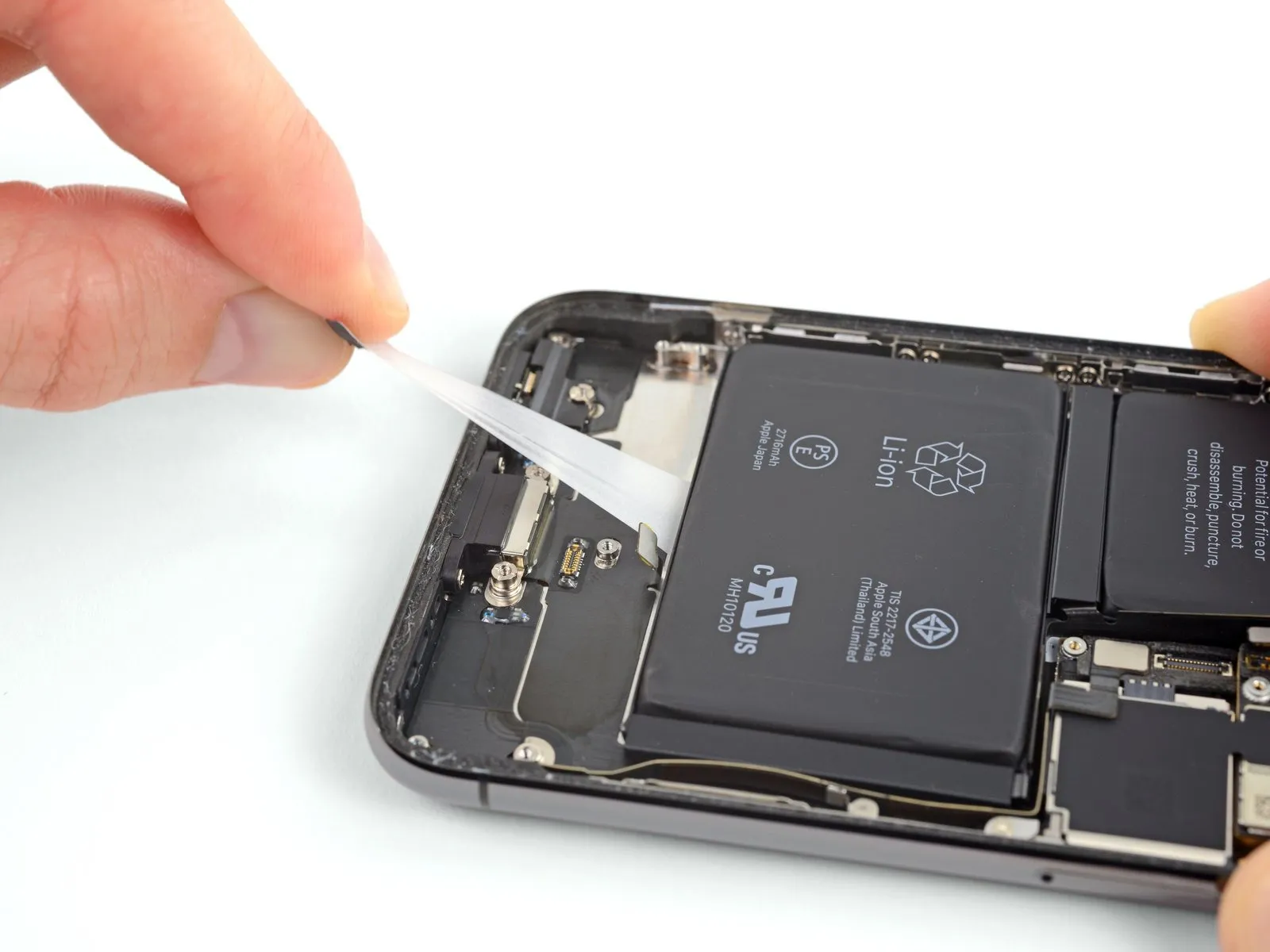
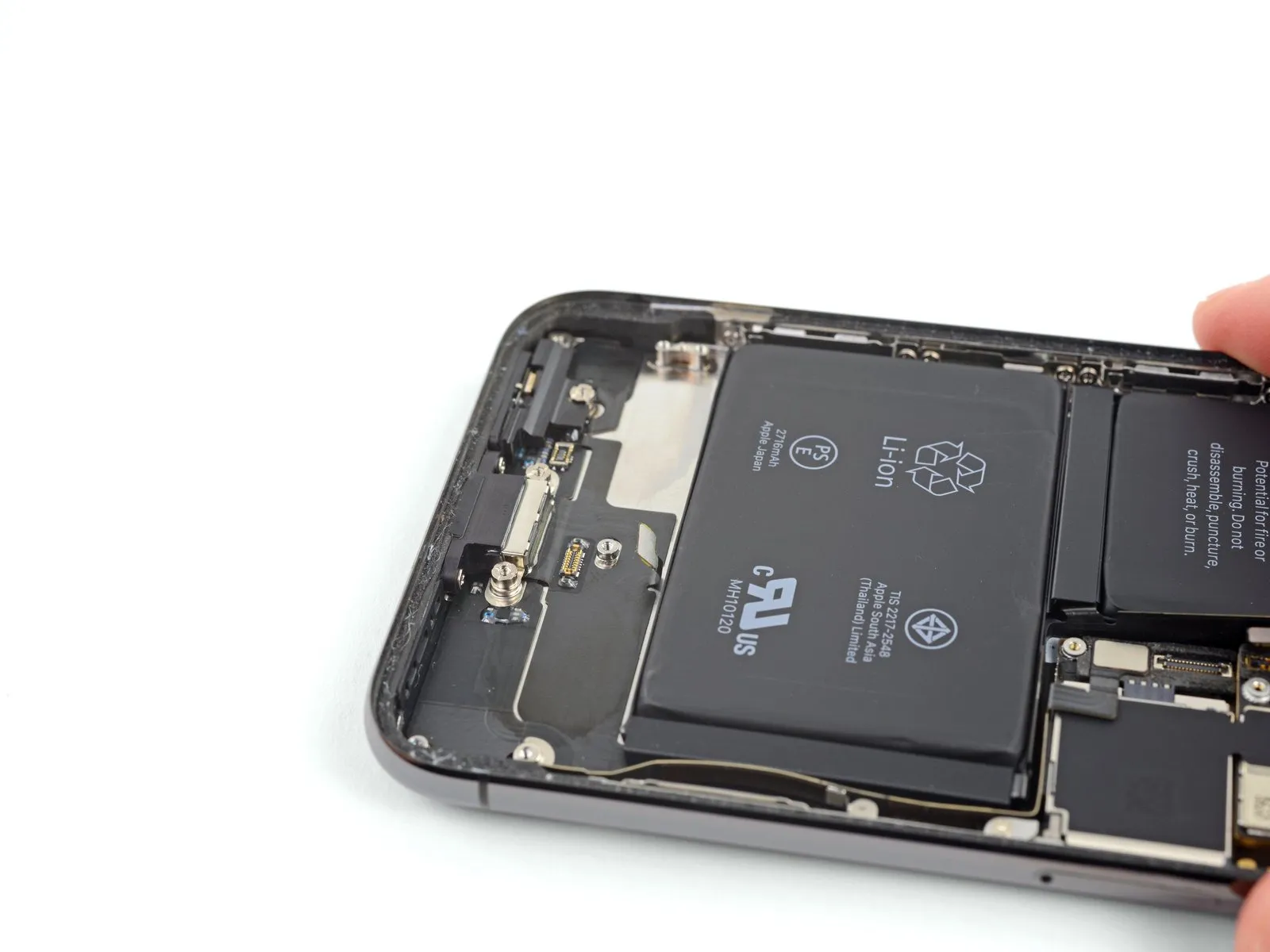
- Detach the central section of material.
- Exercise caution to prevent the speaker flex cable from being damaged during removal.
Step 47
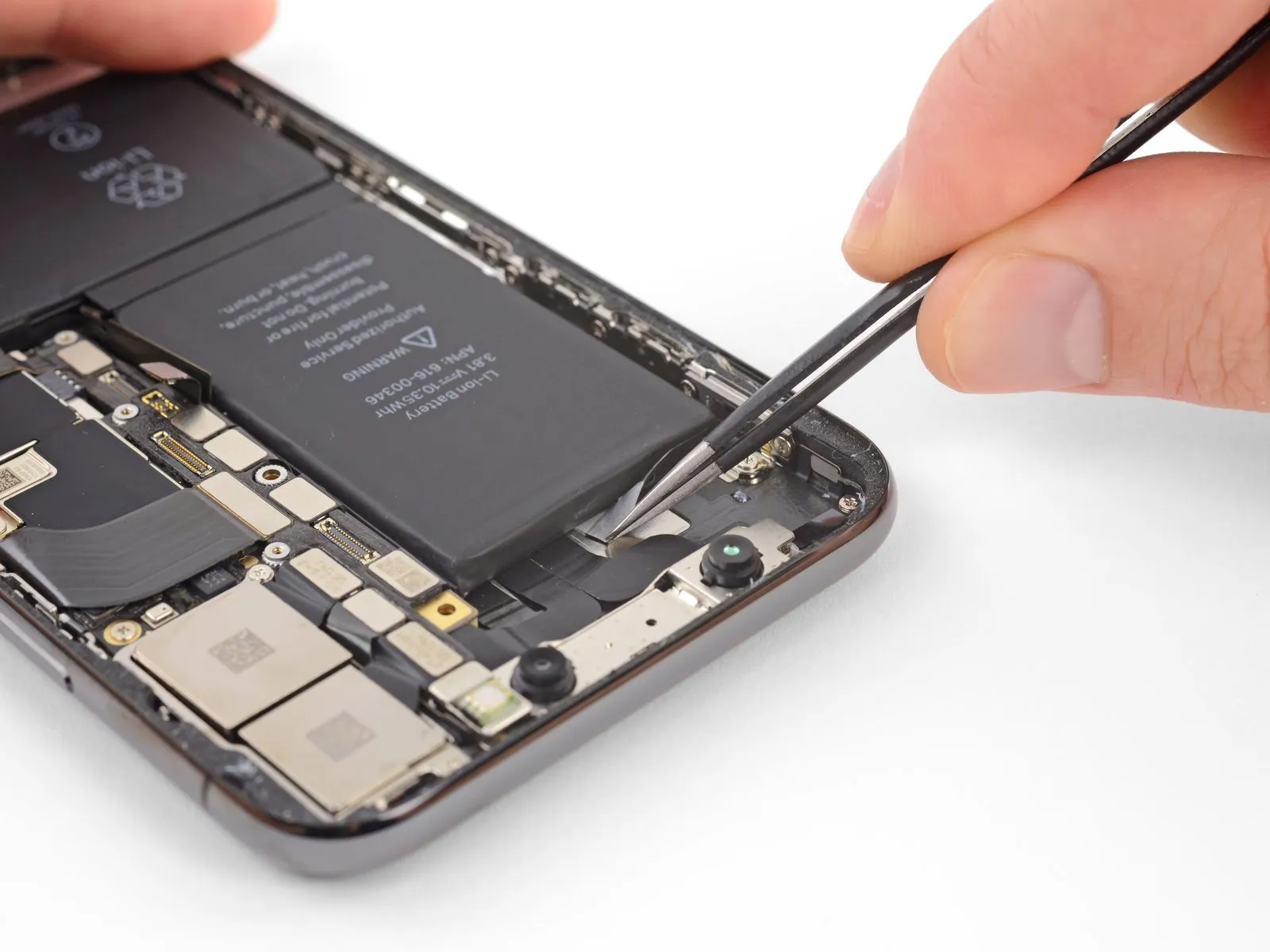
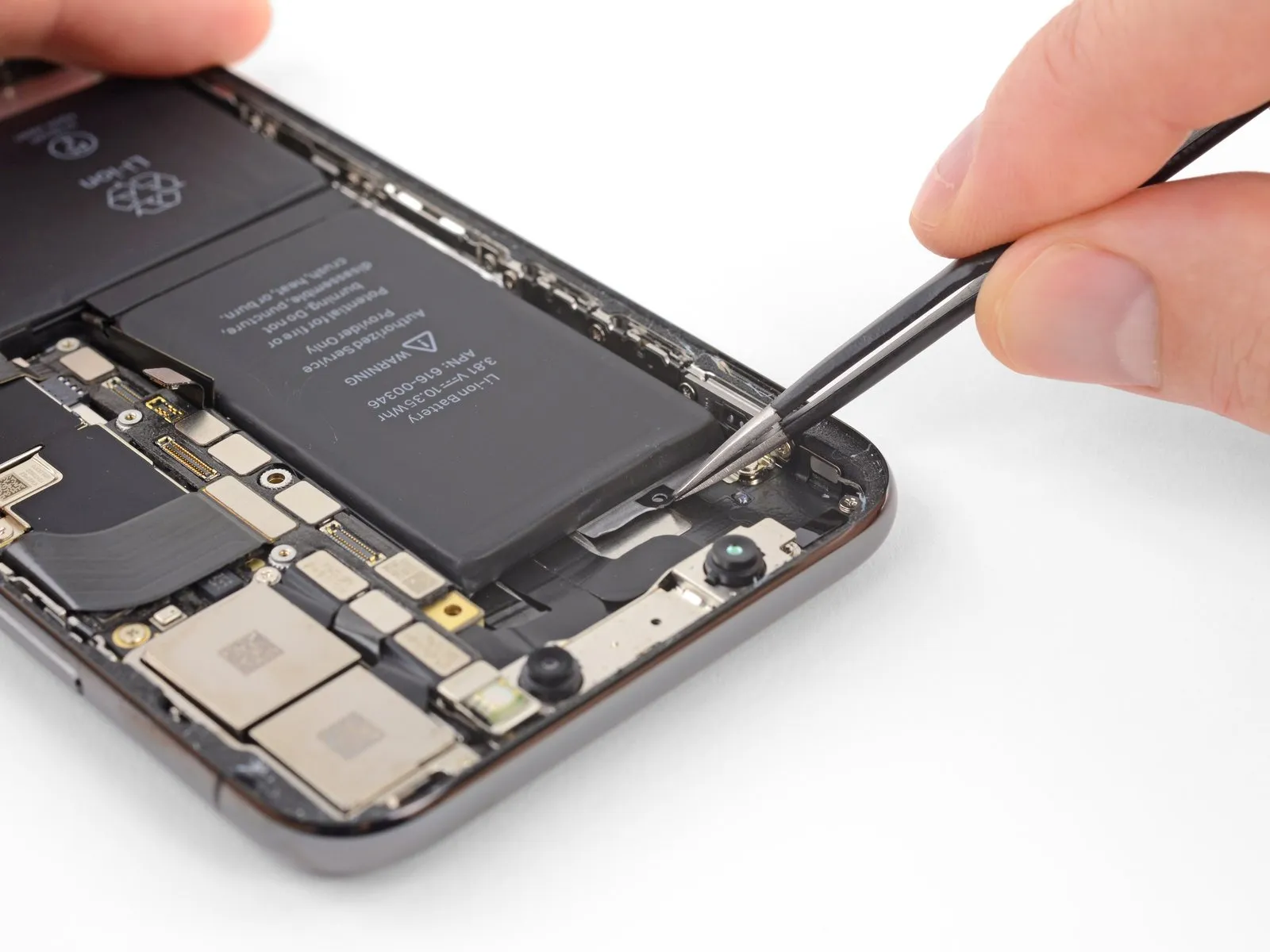
The last retaining tab is situated in close proximity to the Face ID components.Should this component sustain damage, Face ID functionality can only be restored through service performed by Apple., therefore proceed with meticulous attention.
Carefully lift and detach the pull tab from the uppermost adhesive strip, which is positioned along the top edge of the upper battery cell.
Step 48
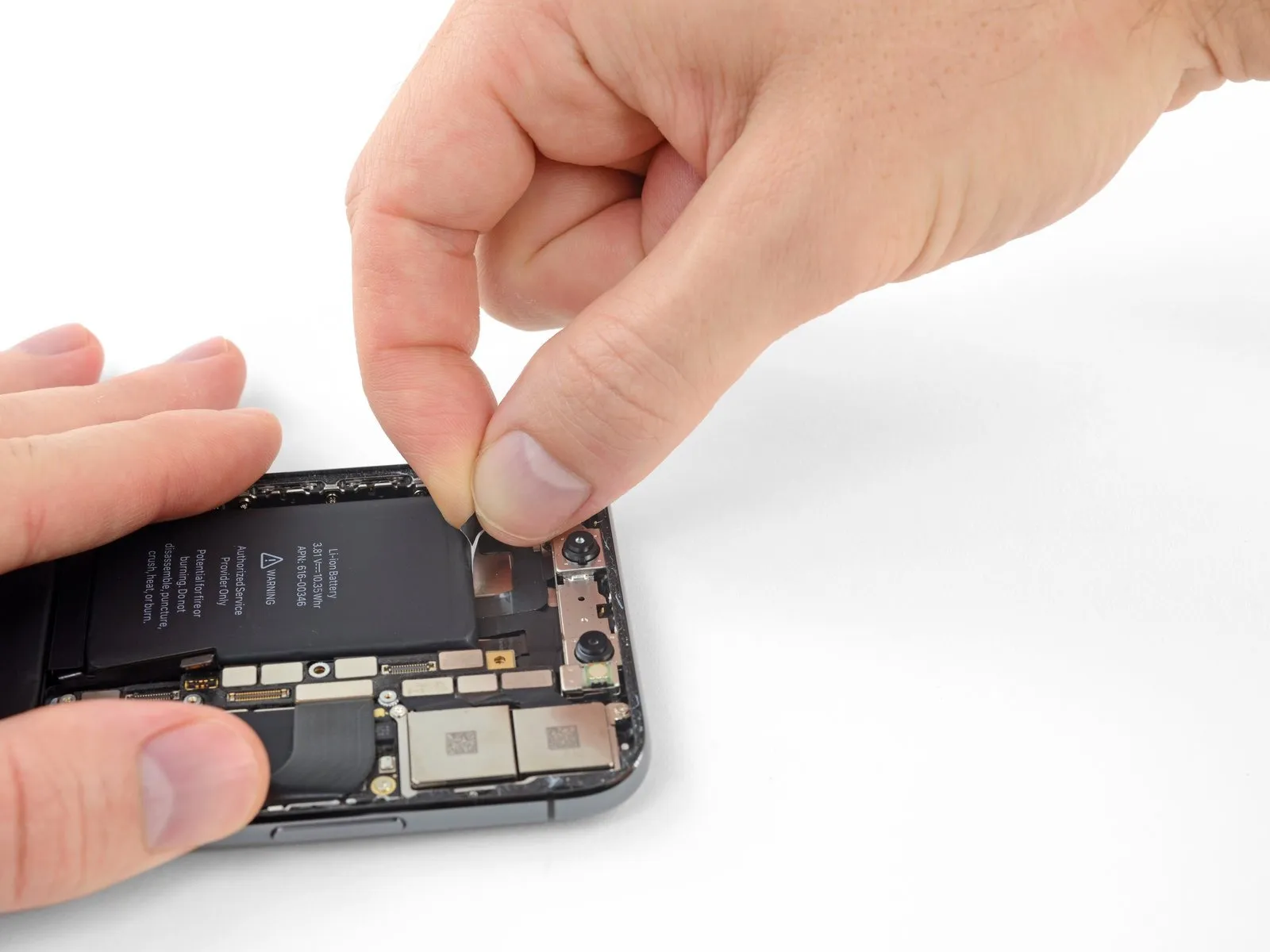
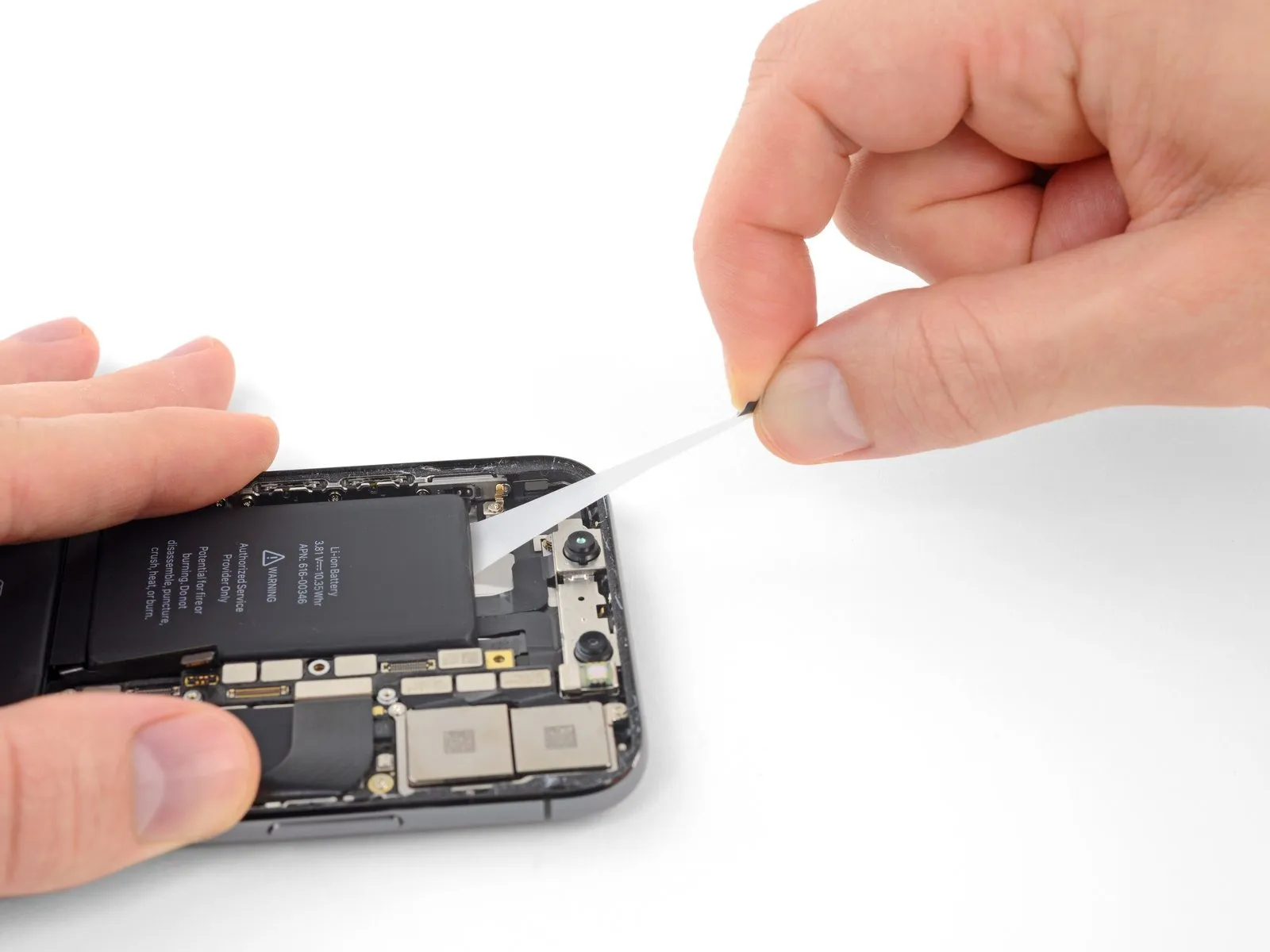
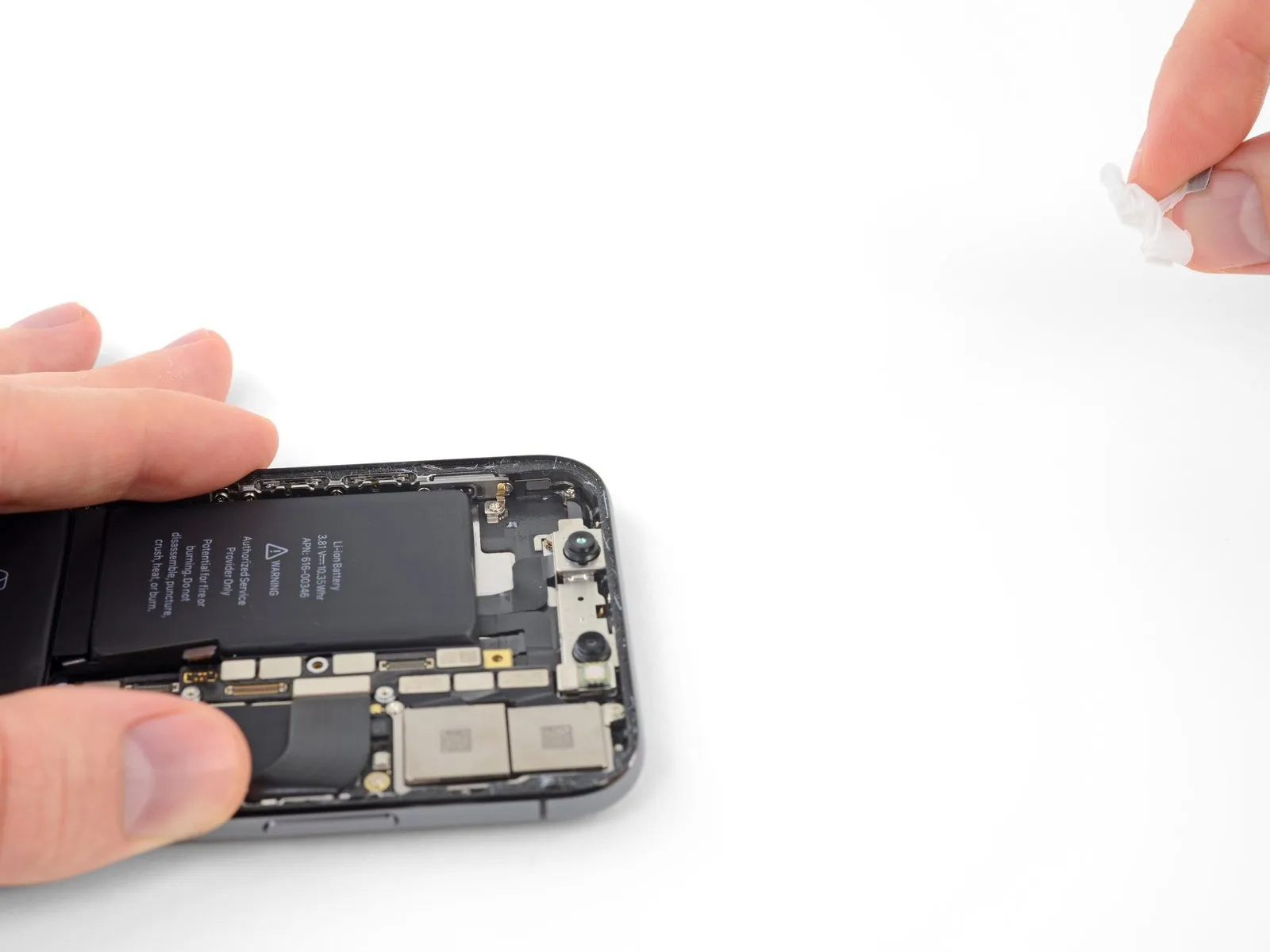
- Carefully detach and eliminate the last adhesive strip.
- As the strip releases, the battery could be ejected from the iPhone; therefore, position your hand above the battery to keep it in place, but avoid applying direct pressure, as this may cause the adhesive strip to fracture and remain beneath the battery.
- Should you successfully remove all four adhesive strips, proceed past the following instruction.
- Should any portion of the adhesive become detached from the battery and be inaccessible, introduce a small quantity of isopropyl alcohol with a concentration exceeding 90% beneath the battery's edge, specifically targeting the area where the adhesive strip(s) fractured.
- Allow approximately one minute for the alcohol to diminish the adhesive's strength. Subsequently, utilize the planar end of a spudger to delicately elevate the battery.
- Refrain from employing excessive force to dislodge the battery. If resistance is encountered, introduce additional drops of alcohol to further reduce the adhesive bond; under no circumstances should you deform or penetrate the battery with your tool.
- Exercise caution to prevent damage to the ribbon cables and the wireless charging coil located directly beneath the battery.
- For different approaches to separating the battery from the iPhone's enclosure, consult the subsequent instructions.
Step 49 | Alternative method to unstick the battery from the case
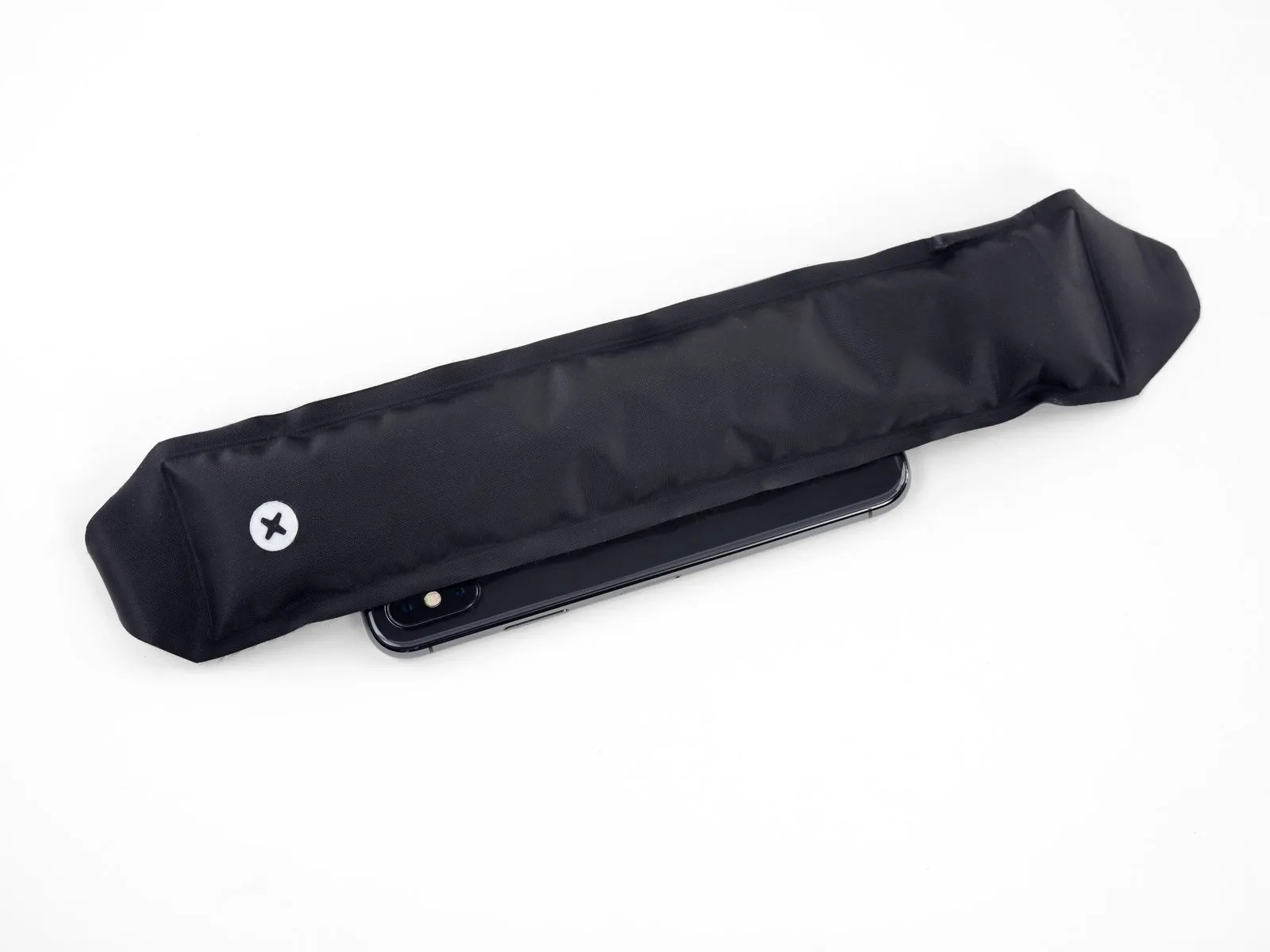
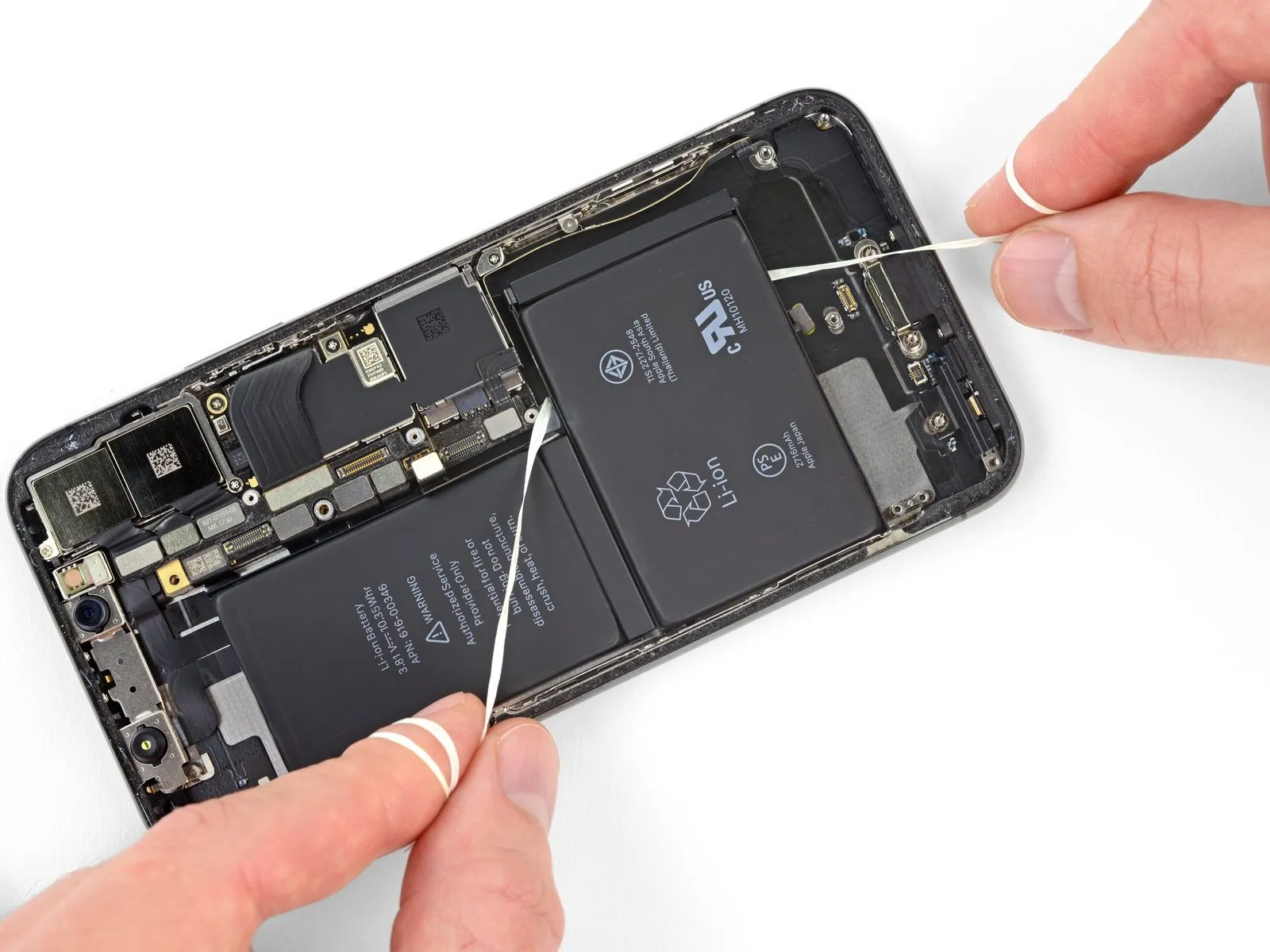
- Should any of the adhesive strips detach and the battery remains adhered to the rear case, utilize an iOpener or apply heat to the rear case's surface immediately behind the battery with a hair dryer.
- Warm the iPhone's exterior until the rear case reaches a temperature that is slightly uncomfortable to touch, being careful to avoid excessive heat that could potentially cause the battery to combust.
- Turn the iPhone over and carefully slide a durable string – such as dental floss or a slender guitar string – beneath the battery.
- Protect your fingers by wrapping the string's ends with a cloth or by wearing protective gloves.
- Employ a sawing motion, moving the string horizontally along the battery's entire length, to sever the adhesive bond; this process may require considerable time due to the adhesive's slow yielding characteristics, but persistence will result in its separation, ensuring the battery remains undamaged.
- Should you opt to employ prying implements to extract the battery from the iPhone, exercise utmost care to prevent harm to the delicate ribbon cables or the wireless charging coil situated directly beneath the battery.
Step 50
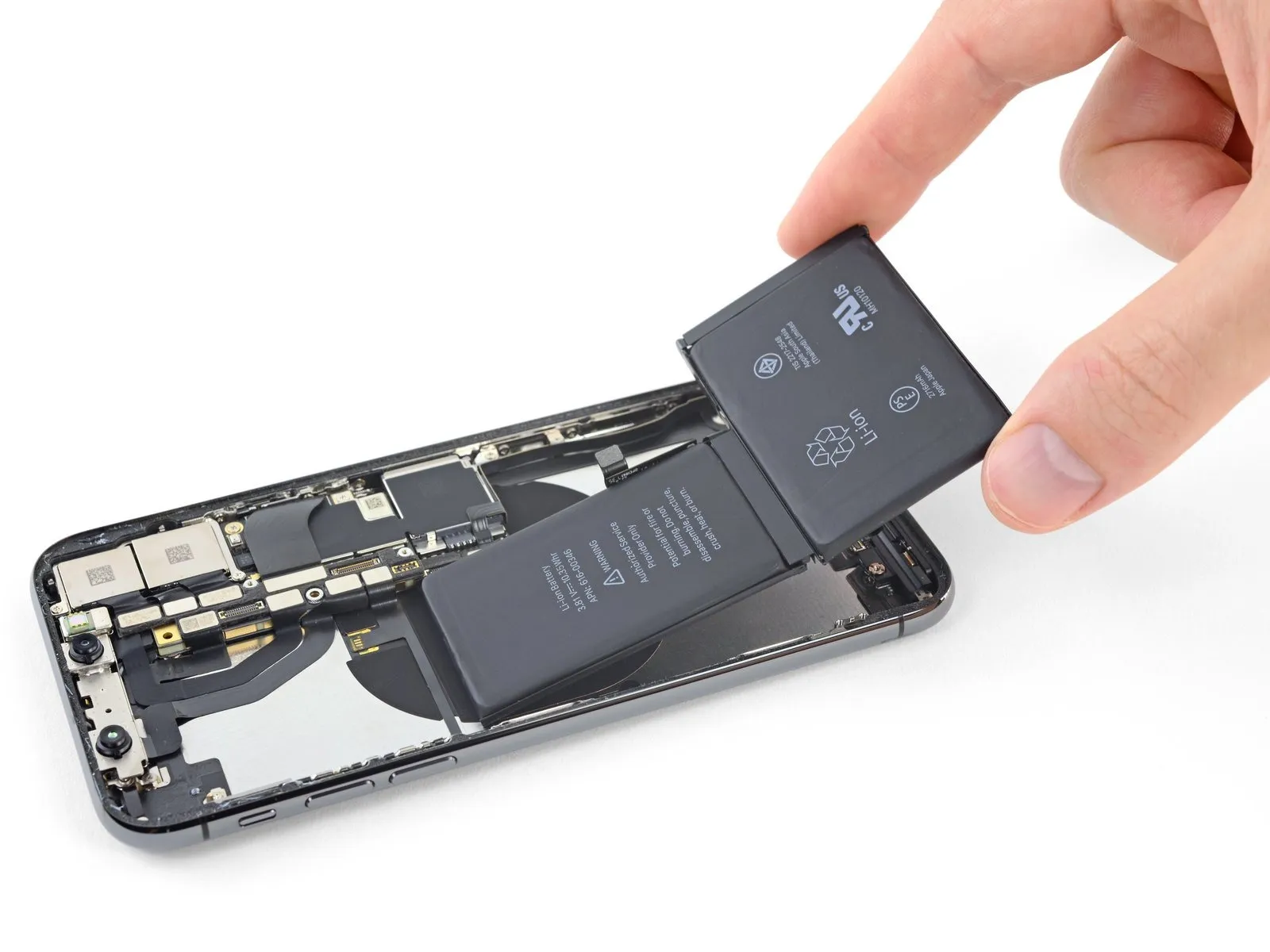
- Securely hold the battery from its lower edge and detach it from the iPhone's internal structure.
- To prevent damage, eliminate any residual alcohol solution from within the phone, either by gently wiping it away or permitting it to evaporate completely, prior to installing the new battery.
- Prior to installing the replacement battery, ensure the Taptic Engine and speaker are reattached. Maintaining this order aids in precise battery alignment during the installation process.
- To guarantee proper positioning within its designated space, briefly reconnect the battery connector to the logic board socket before securing the replacement battery.
- Attach the replacement battery, subsequently disconnect it, and proceed with reassembling the device.
- Should your replacement battery lack pre-applied adhesive, consult this guide for instructions on replacing the adhesive strips.
- Following the complete reassembly, execute a forced restart to proactively mitigate potential problems and streamline any necessary troubleshooting.
Step 51 | Front Camera Assembly

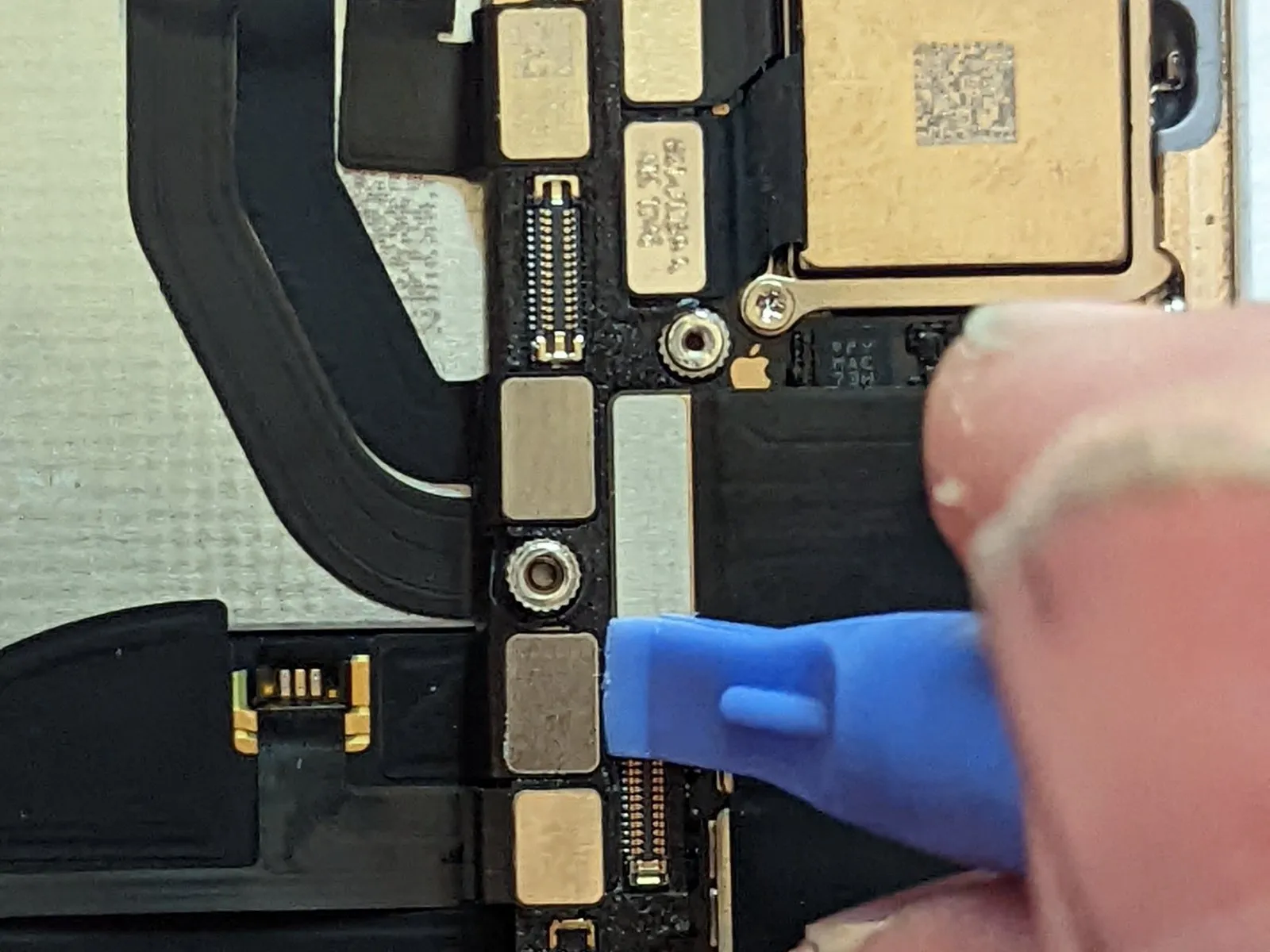

- Employing the planar edge of a spudger tool, carefully release the connection points of the three cables linked to the front camera assembly.
Specifically, detach the cable associated with the dot projector.
Also, disconnect the cable connected to the front camera itself.
Furthermore, release the cable that connects to the infrared camera.
Step 52
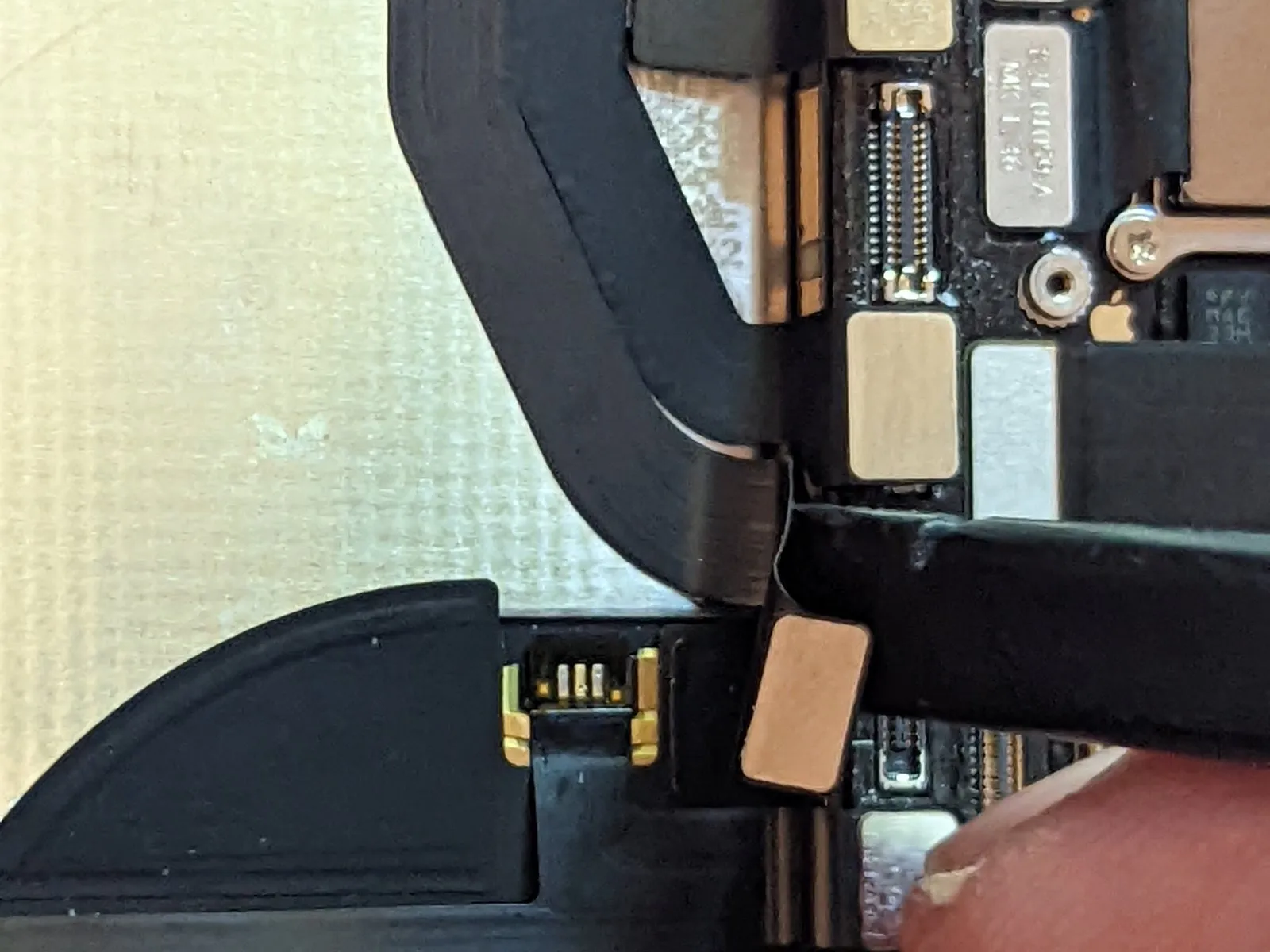
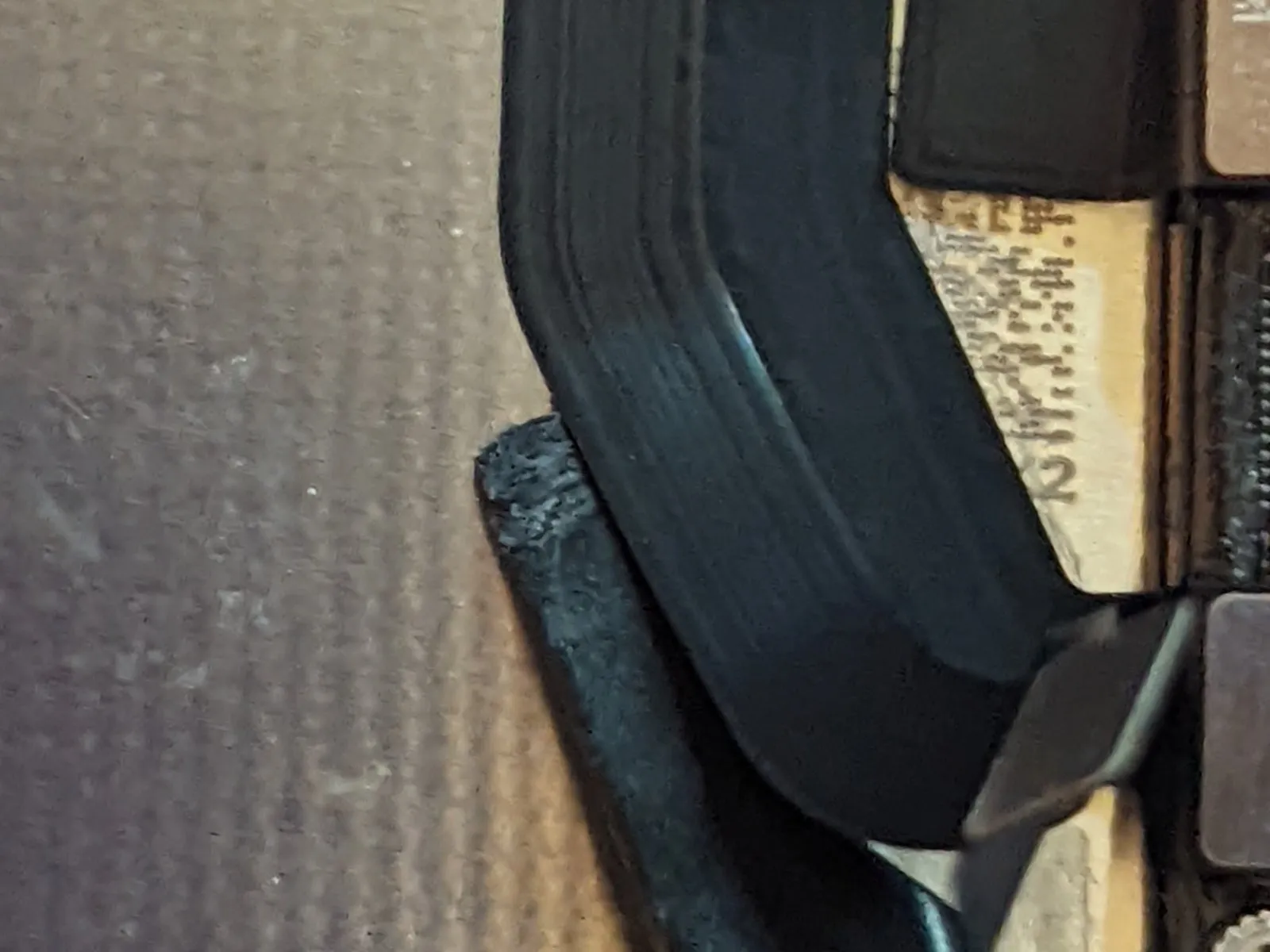
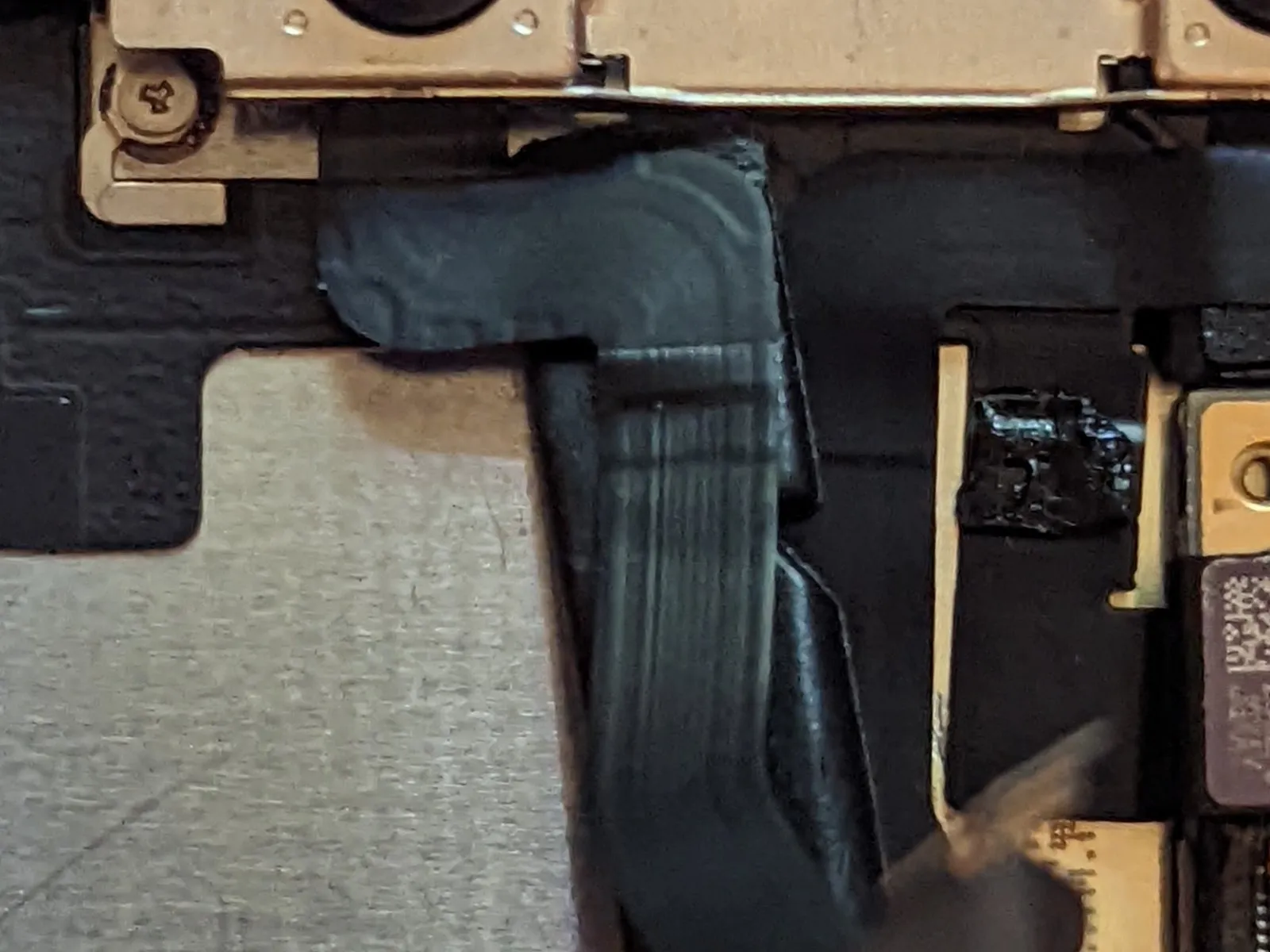
The camera cables are affixed to the midframe with a minimal adhesive.
Employing the pointed end of a spudger, initiate the separation process at the connector location, then carefully move the spudger's tip in between the infrared camera cable and the device housing to detach the cable.
Replicate this procedure for the front-facing camera cable.
Step 53
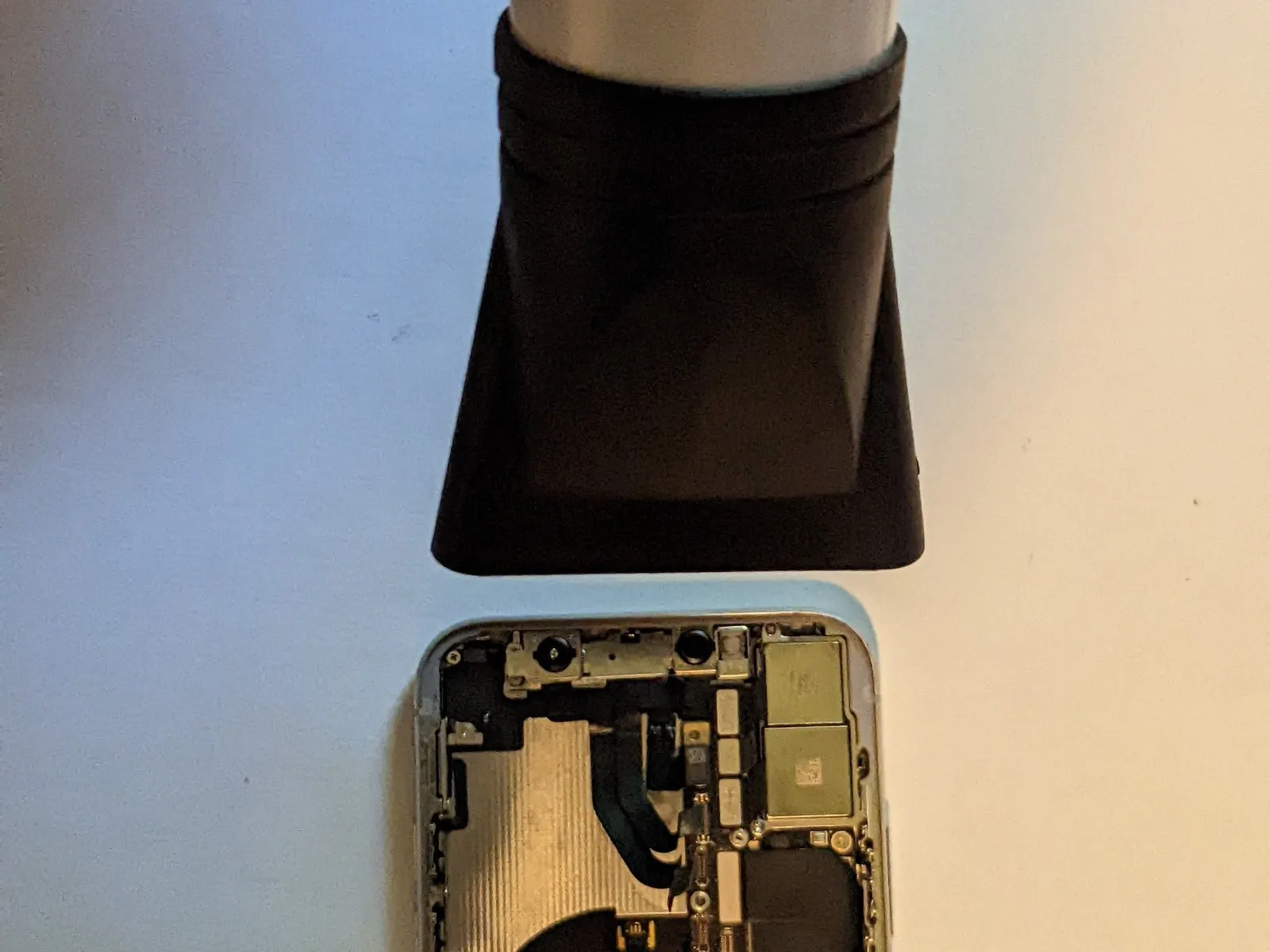
To detach the adhesive securing the front camera assembly, utilize heat application.
Step 54
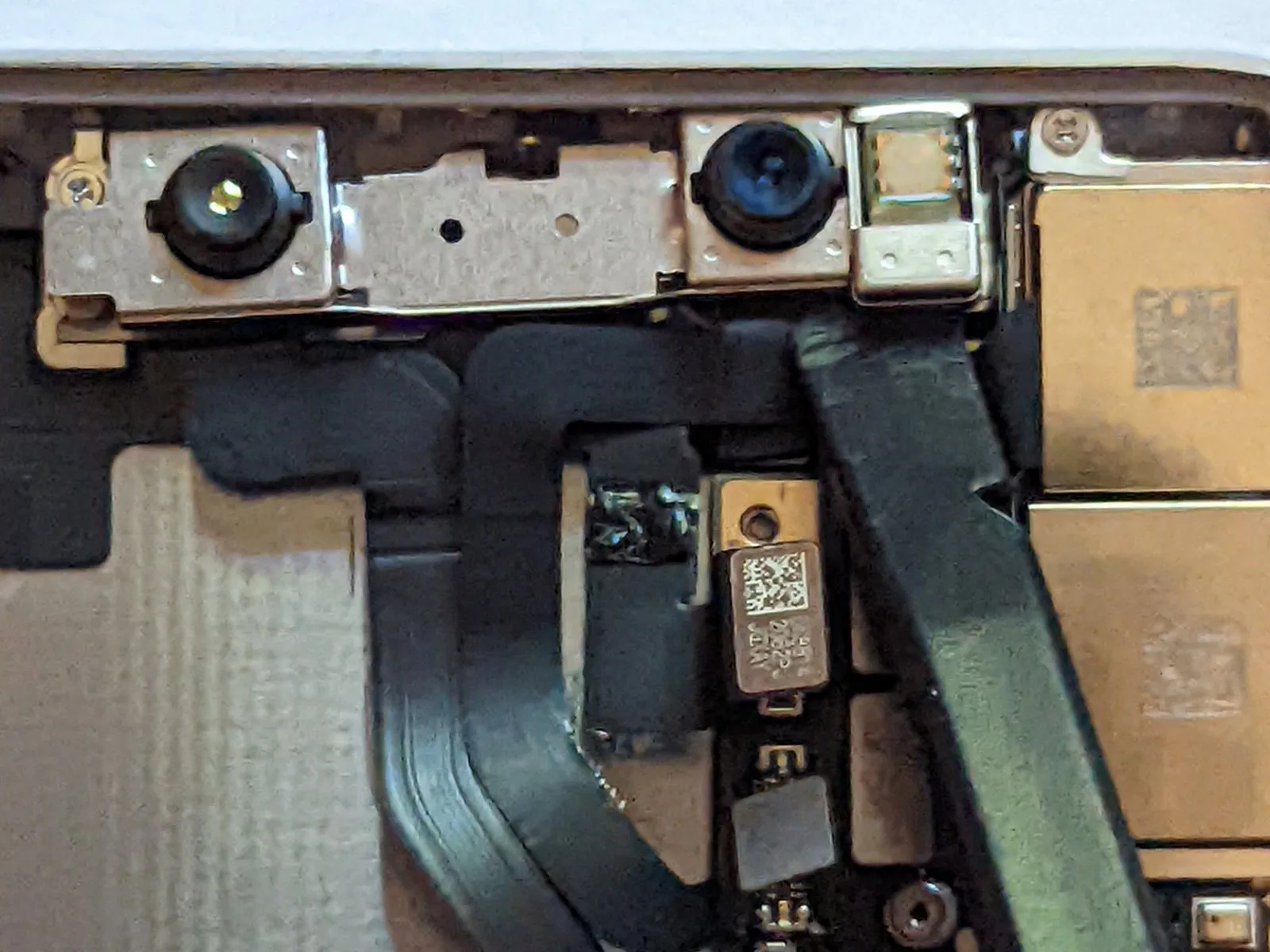
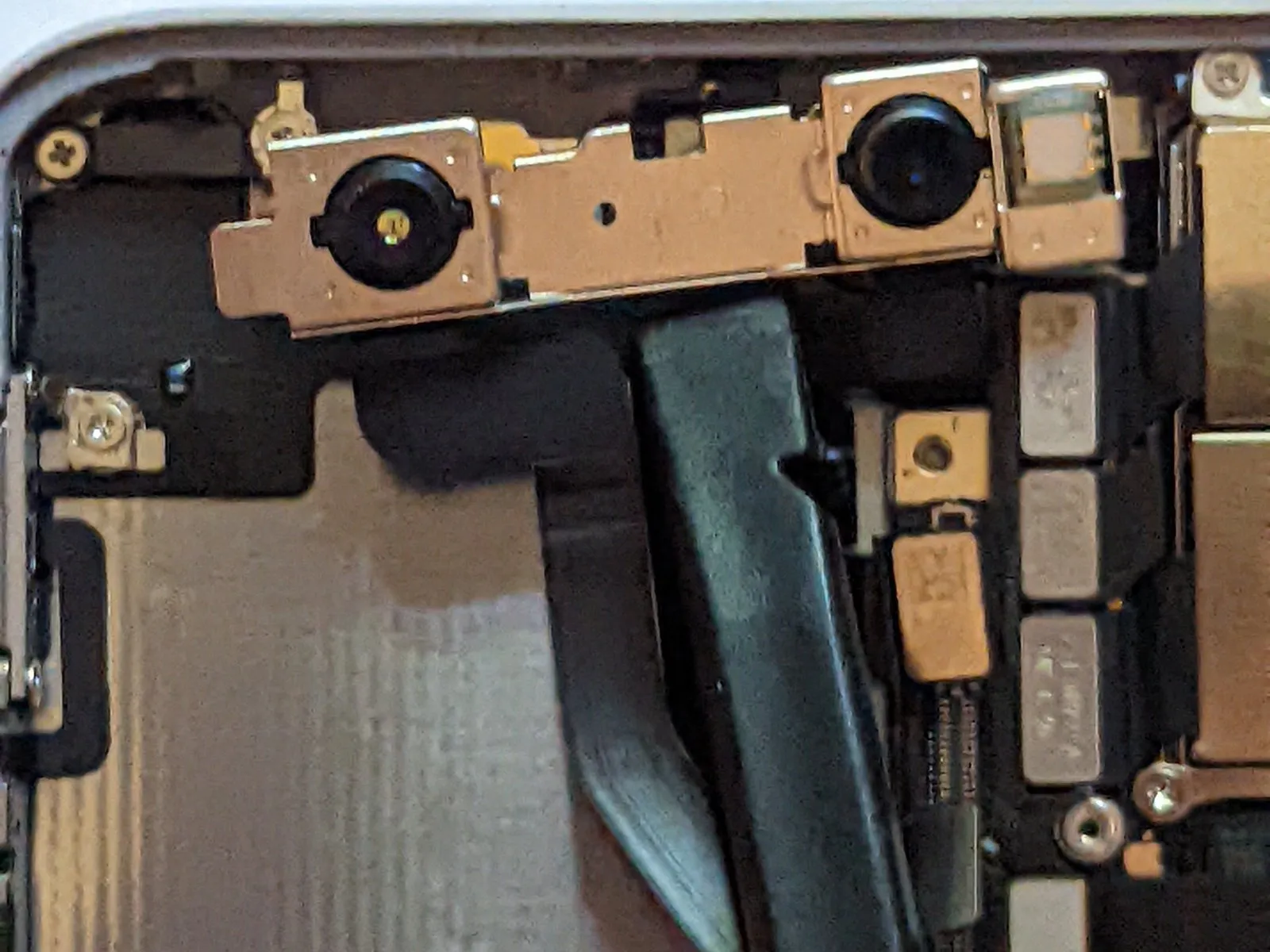
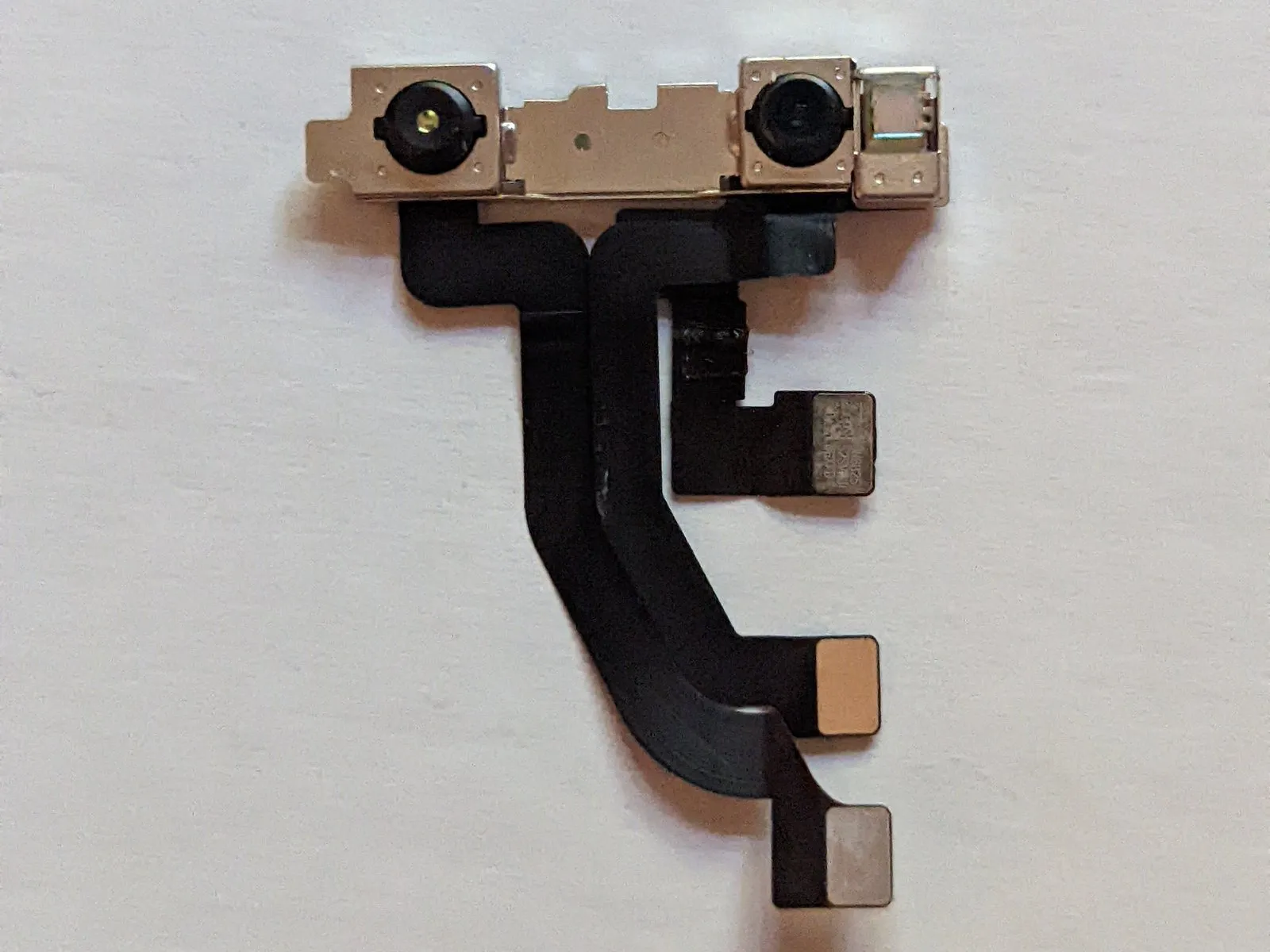
Carefully detach the front-facing camera module.
Step 55 | Logic Board
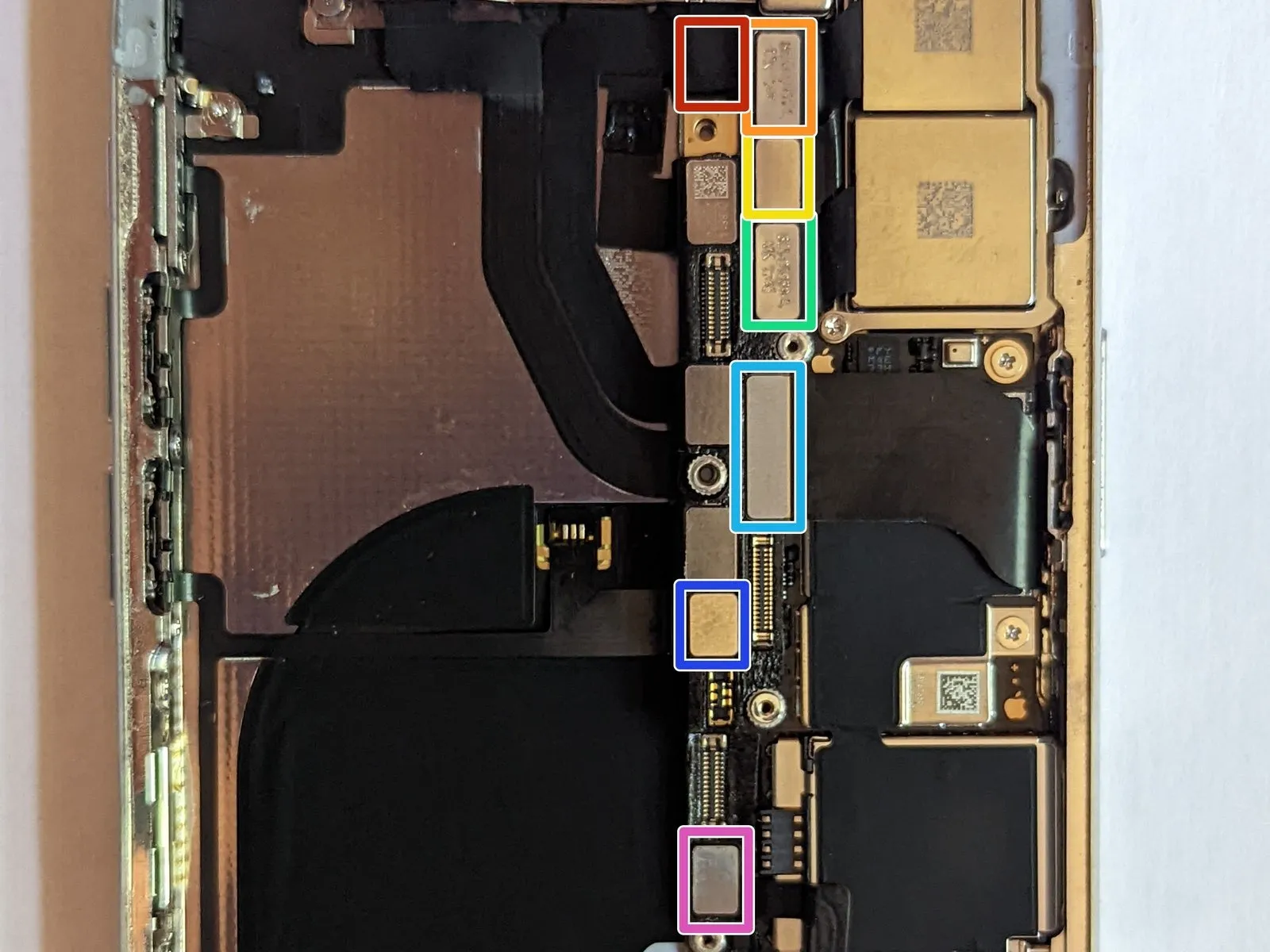
- To proceed with the repair, first, carefully detach these cable connectors:
The WiFi Antenna connection.
The Wide-Angle Camera interface.
The Power Button / Flash / Microphone link.
The Telephoto Camera connection.
The Dock Flex interface.
The Button / Wireless Charging link.
The Cellular Antenna connection.
Step 56 | WiFi Antenna Connector
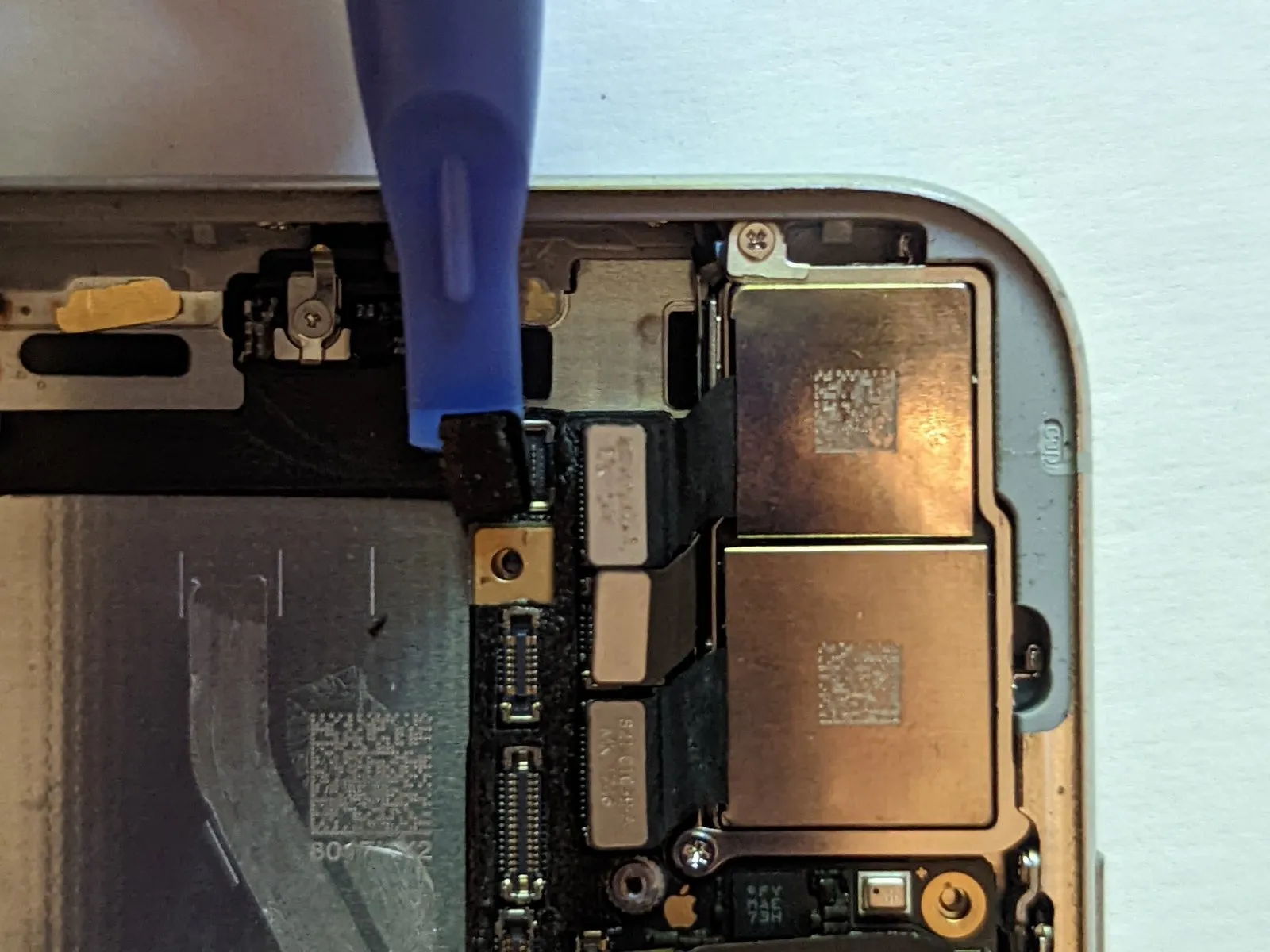

To proceed with the repair, first detach theWiFi Antenna connector from its associated cable.
Step 57 | Wide-Angle Camera Connector

Step 58 | Power Button / Flash / Microphone Connector

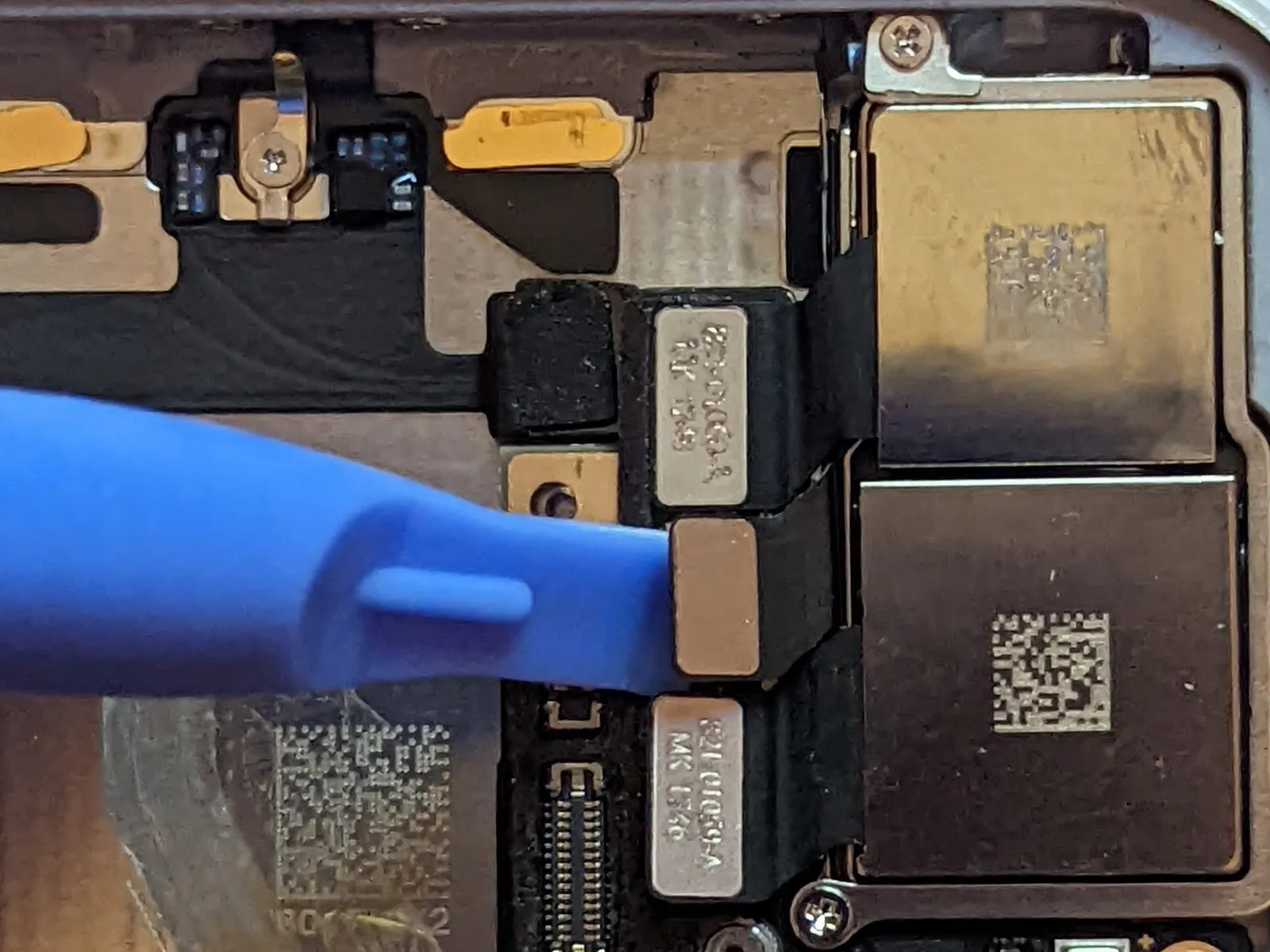
Step 59 | Telephoto Camera Connector
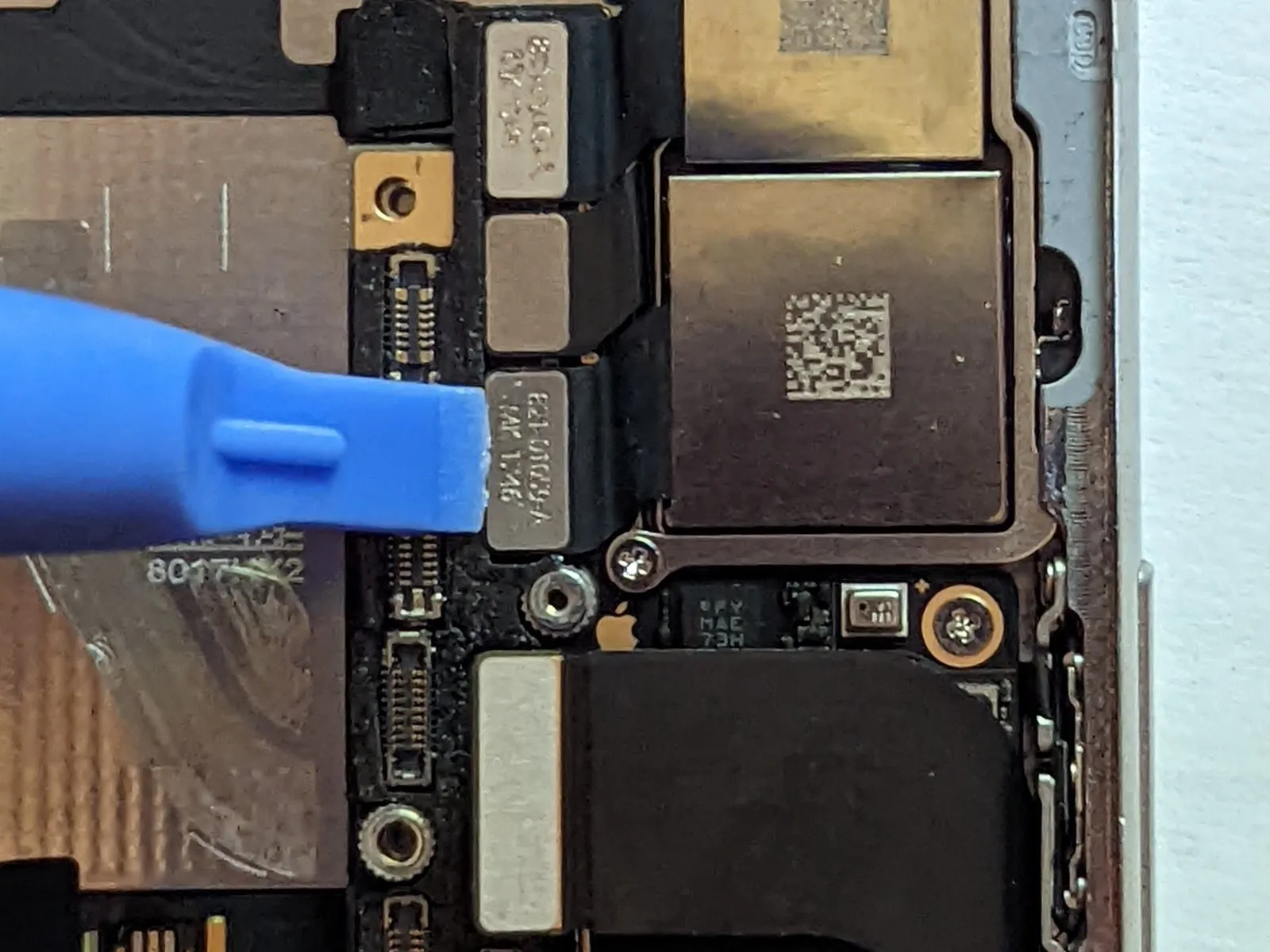
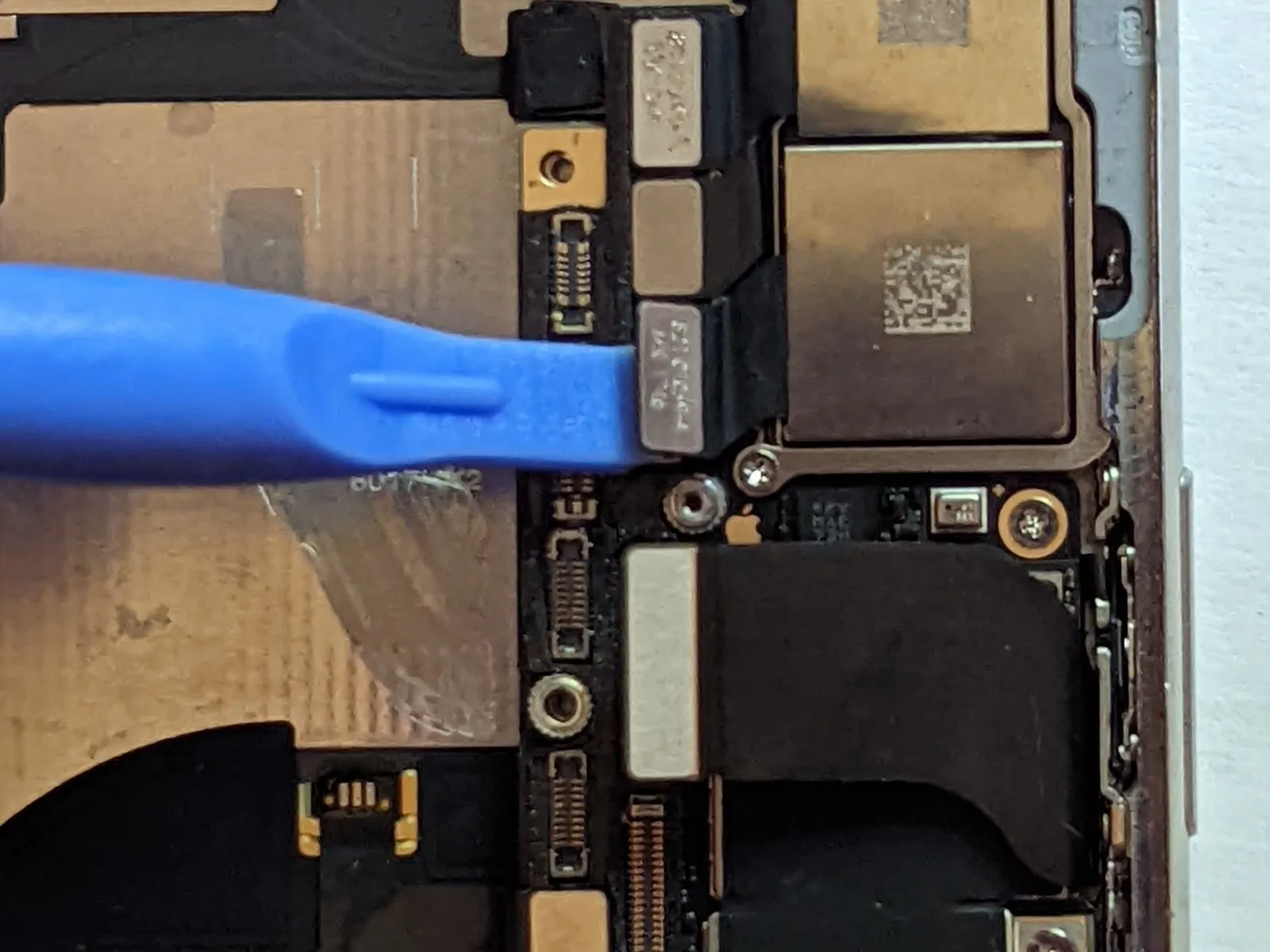
Step 60 | Dock Flex Connector
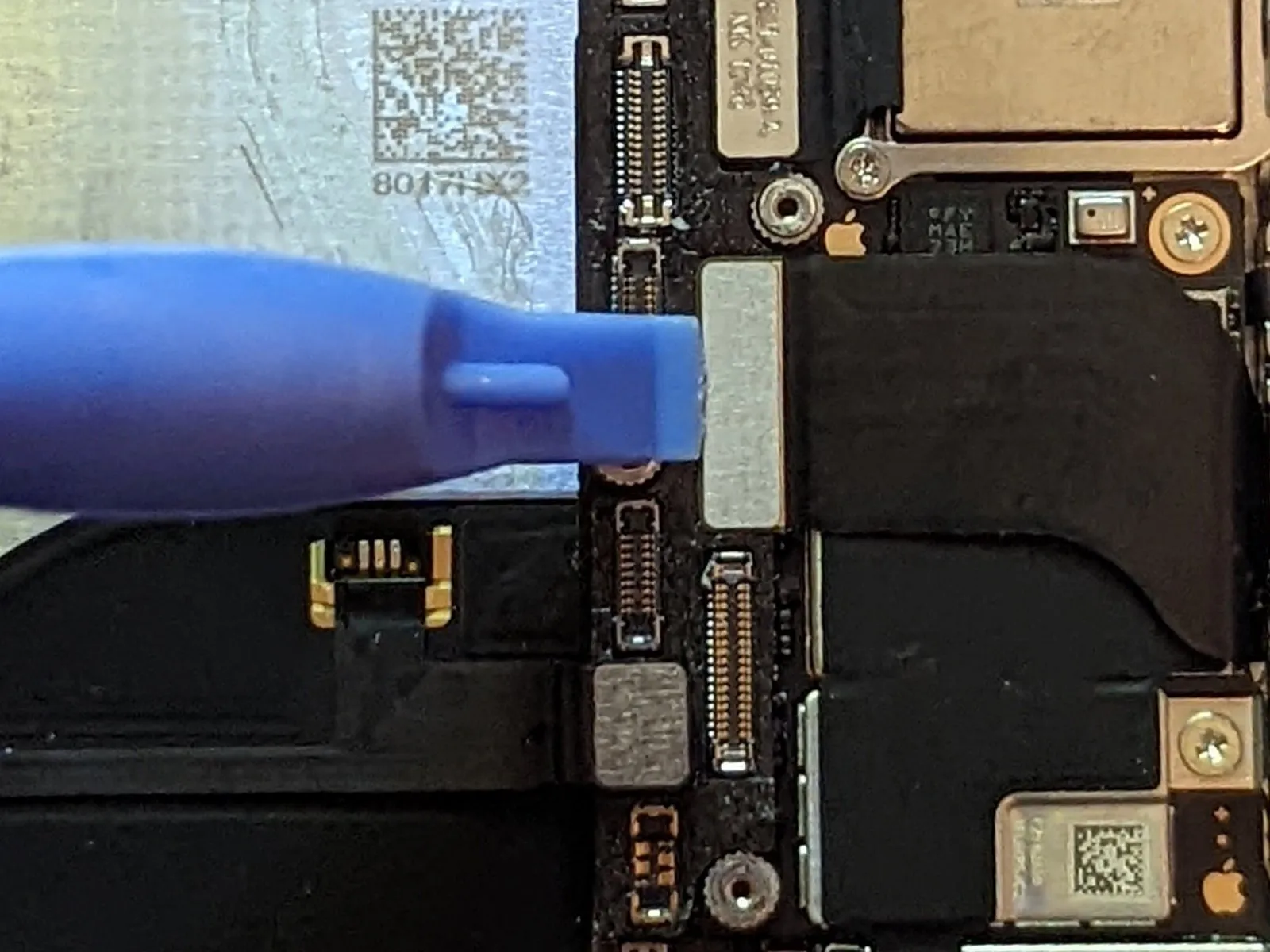
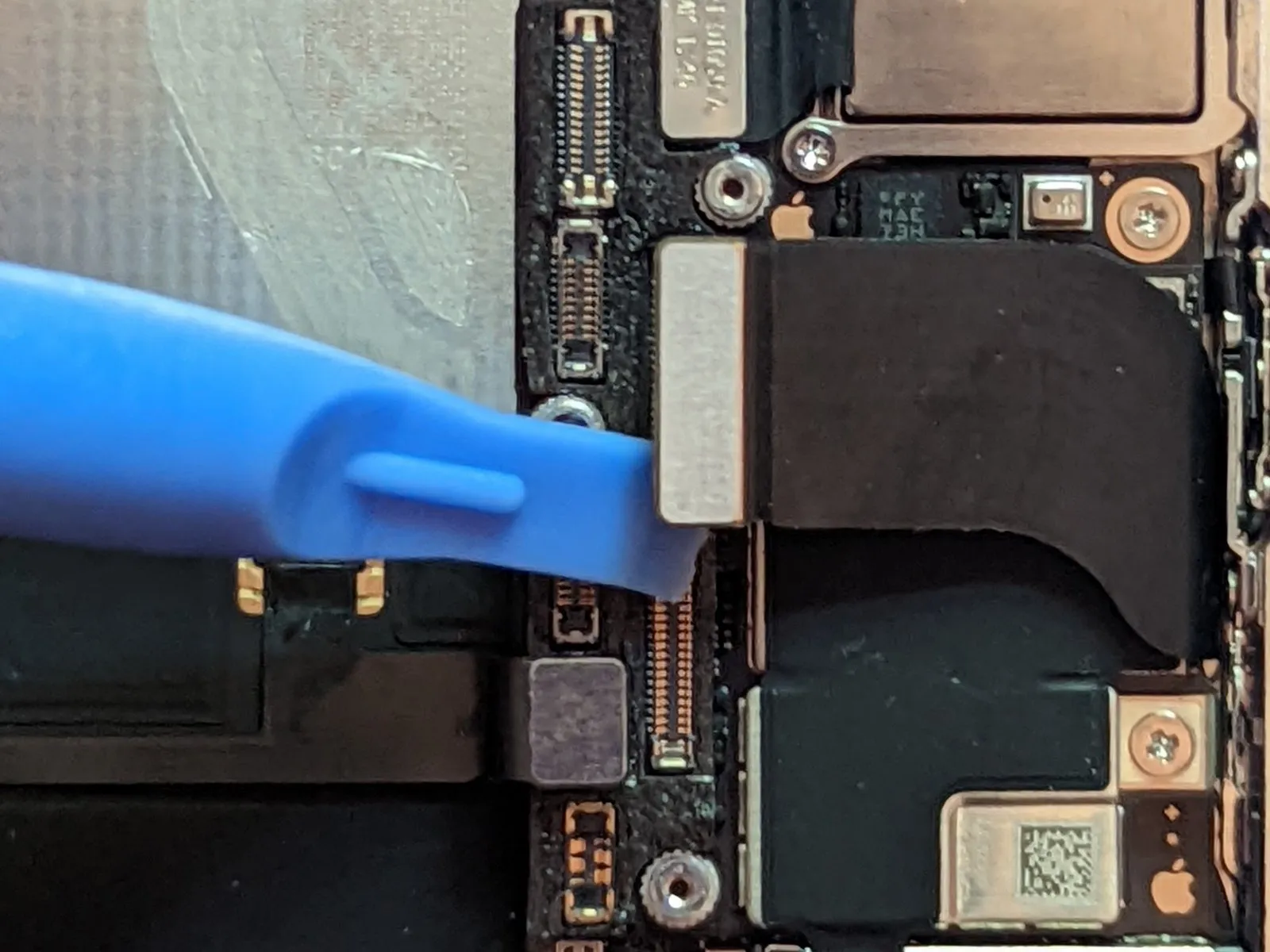
- To proceed with the repair, first detach the Dock Flex cable connector.
- Carefully flex the cable's form,creating a 90-degree angle,then orient it vertically to provide adequate space for logic board removal.
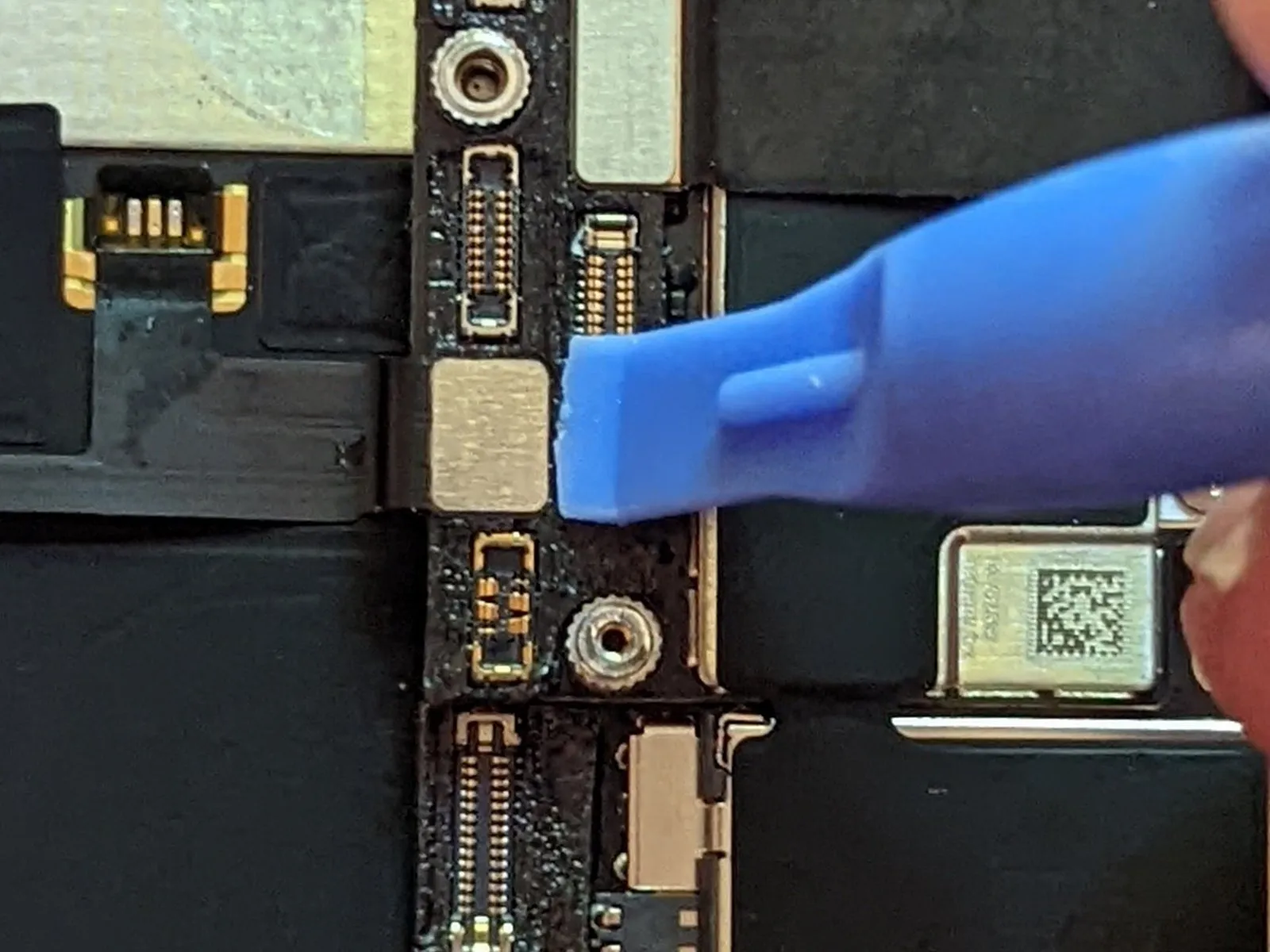
Step 61 | Button / Wireless Charging Connector
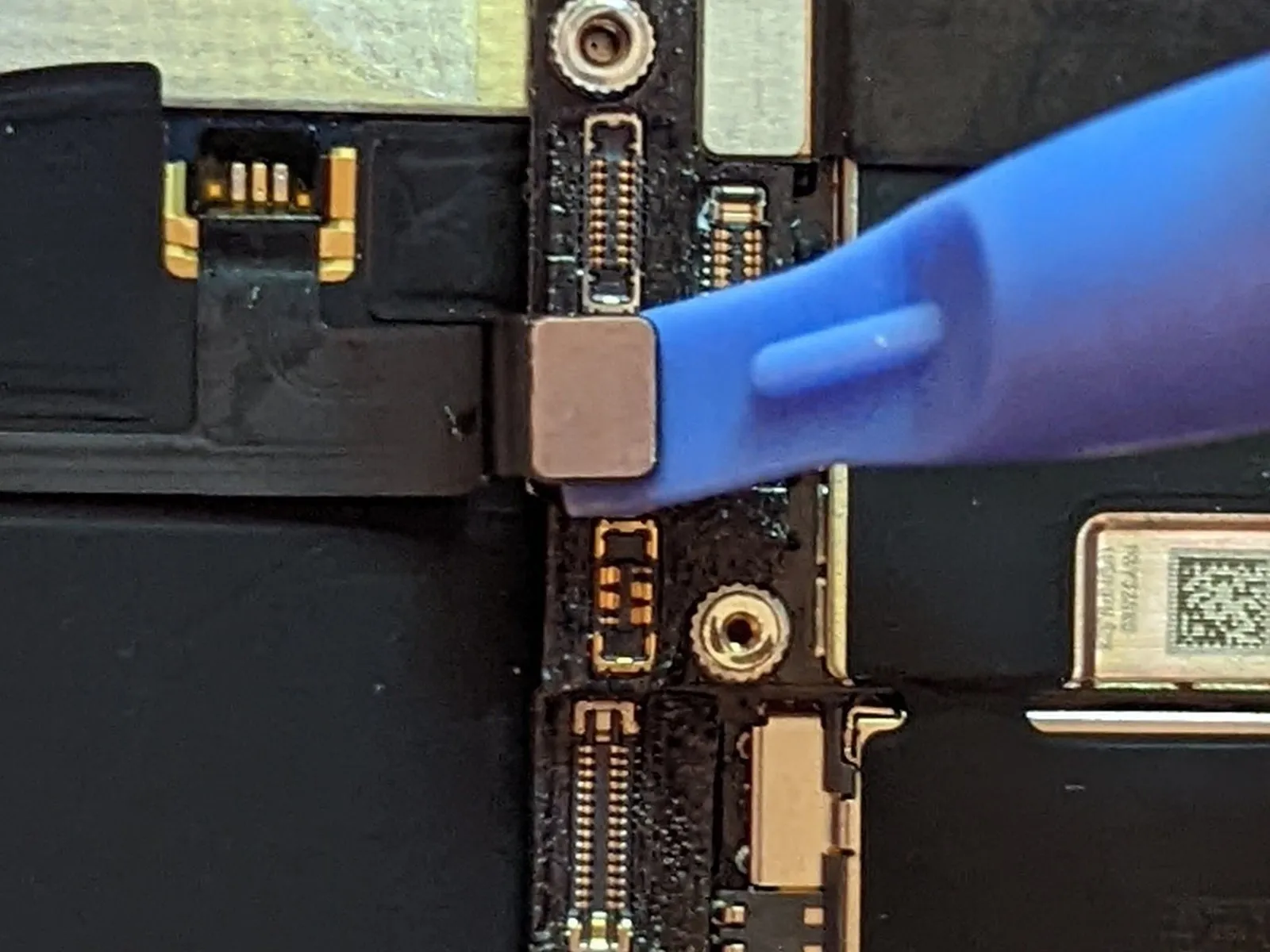
Step 62 | Cellular Antenna Connector
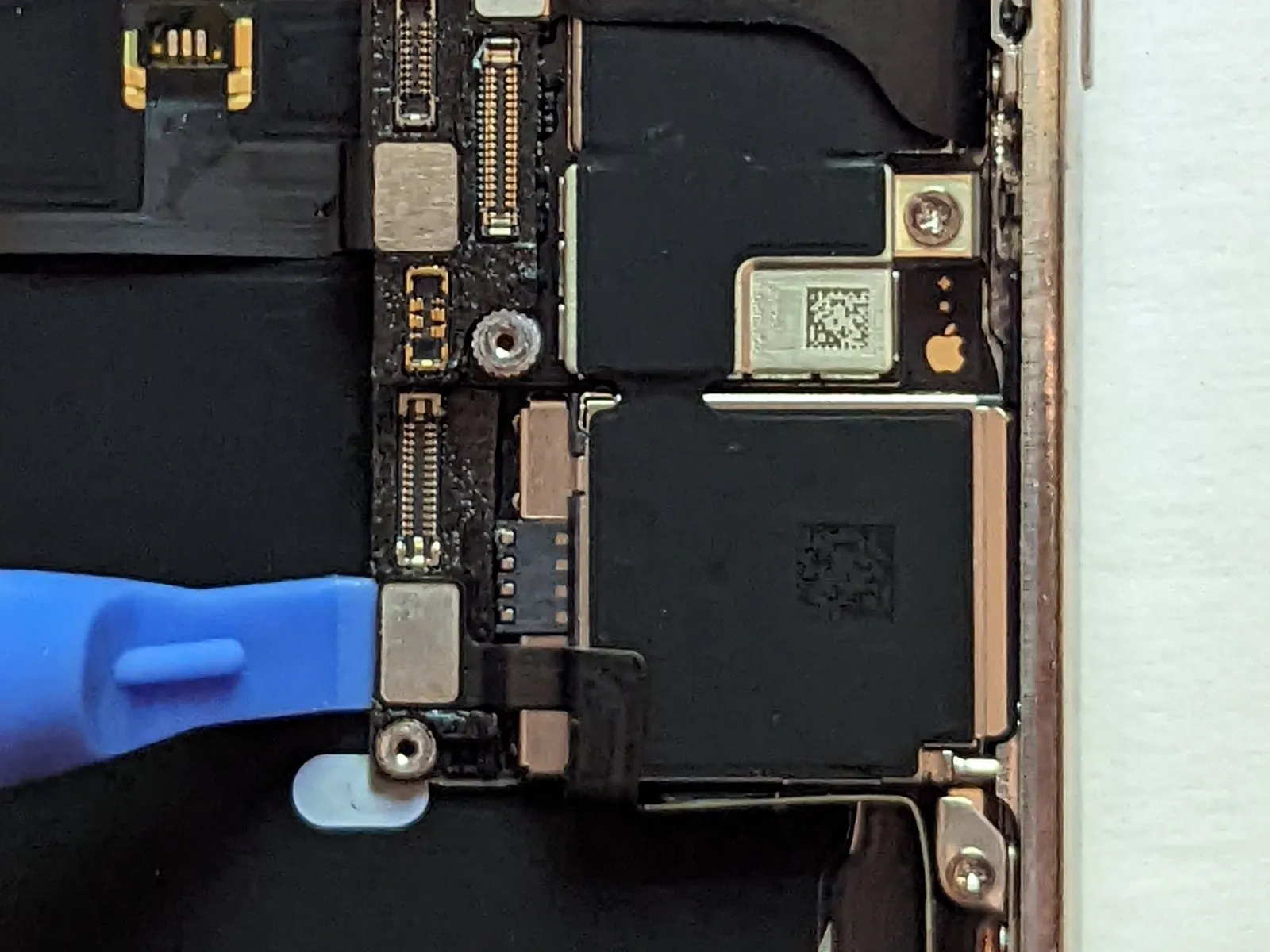

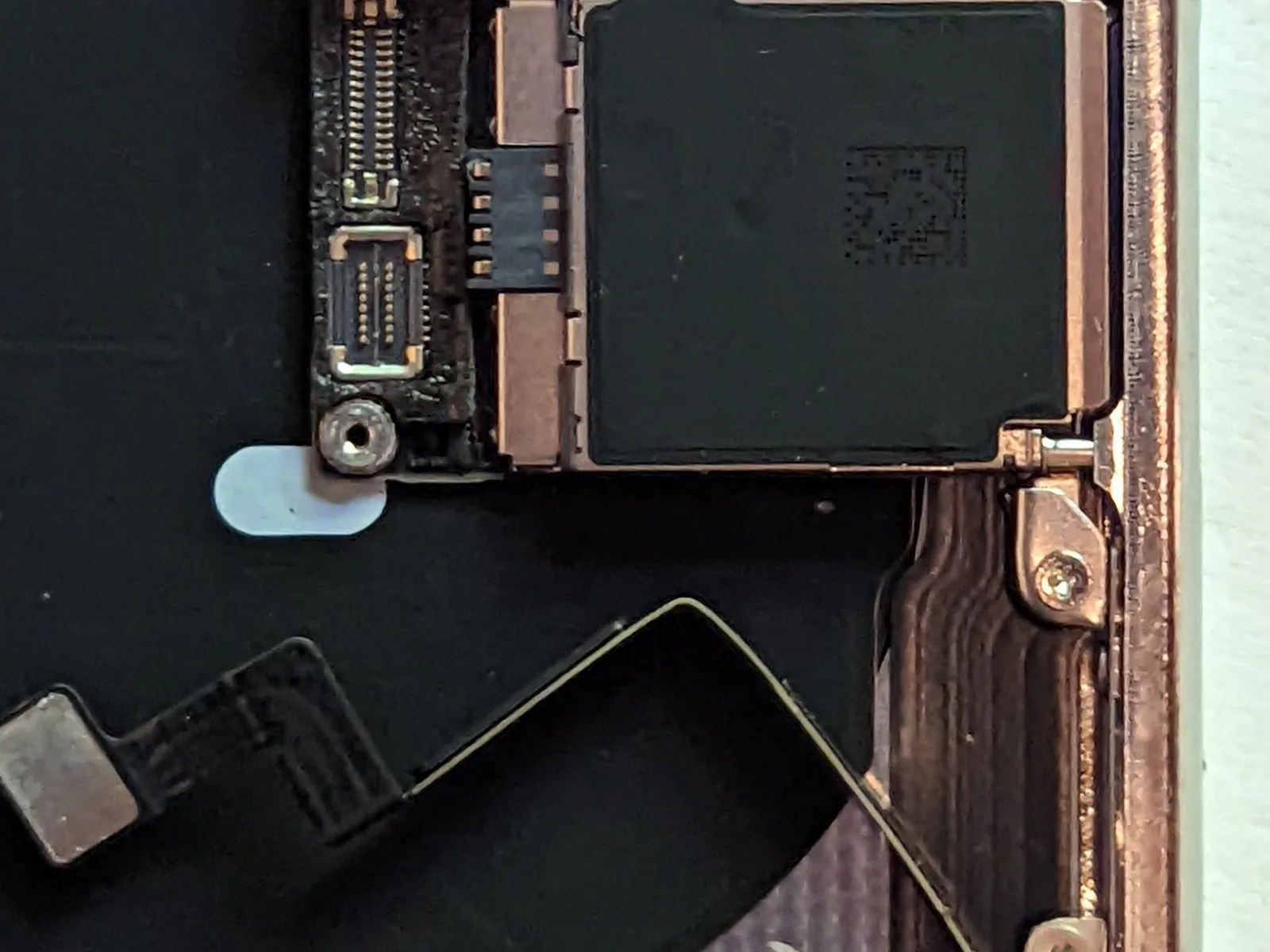
- To proceed with the repair, first detach the connector from the Cellular Antenna cable.
- Carefully maneuver the cable aside to prevent obstruction during subsequent steps.
Step 63
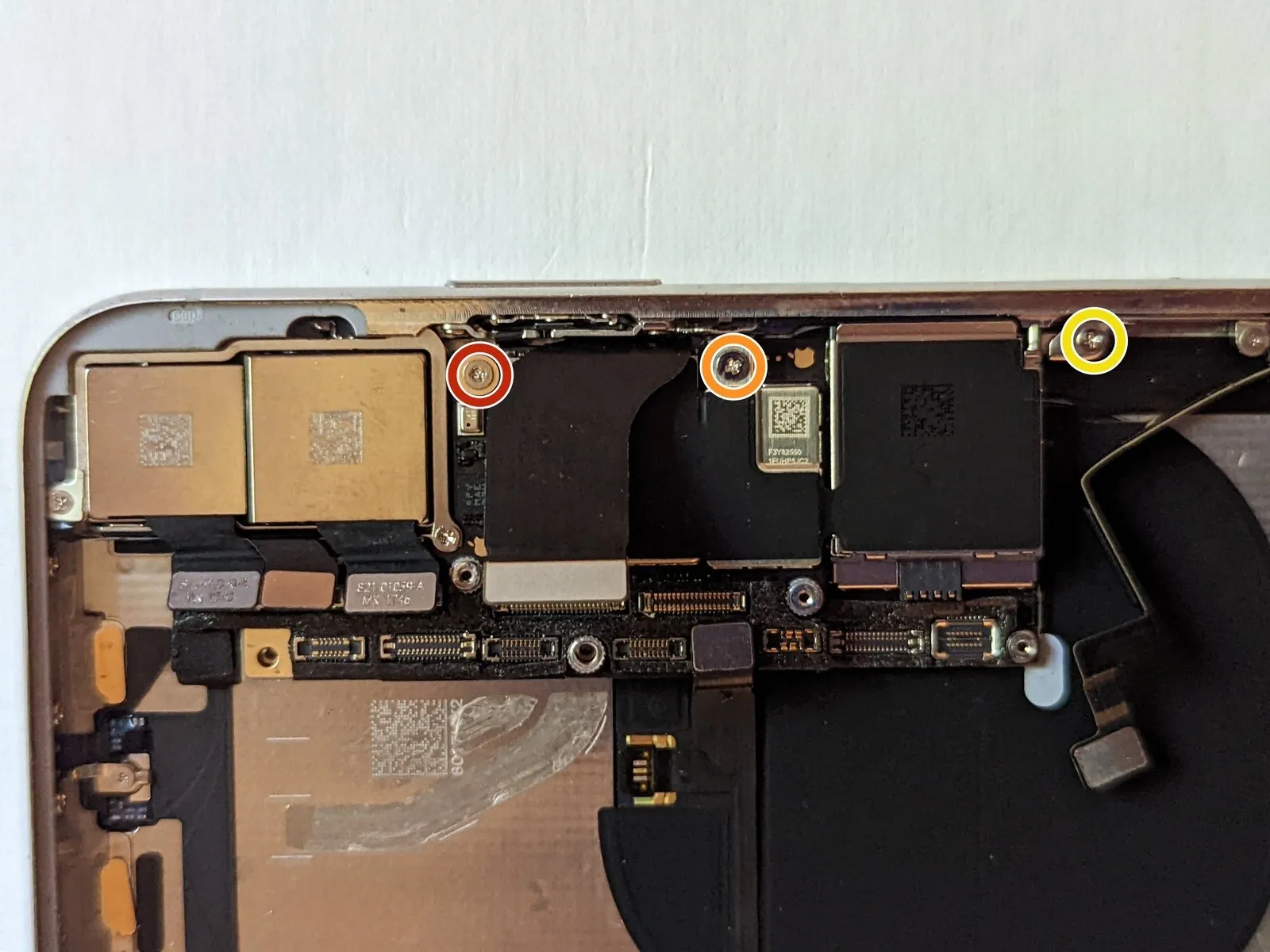
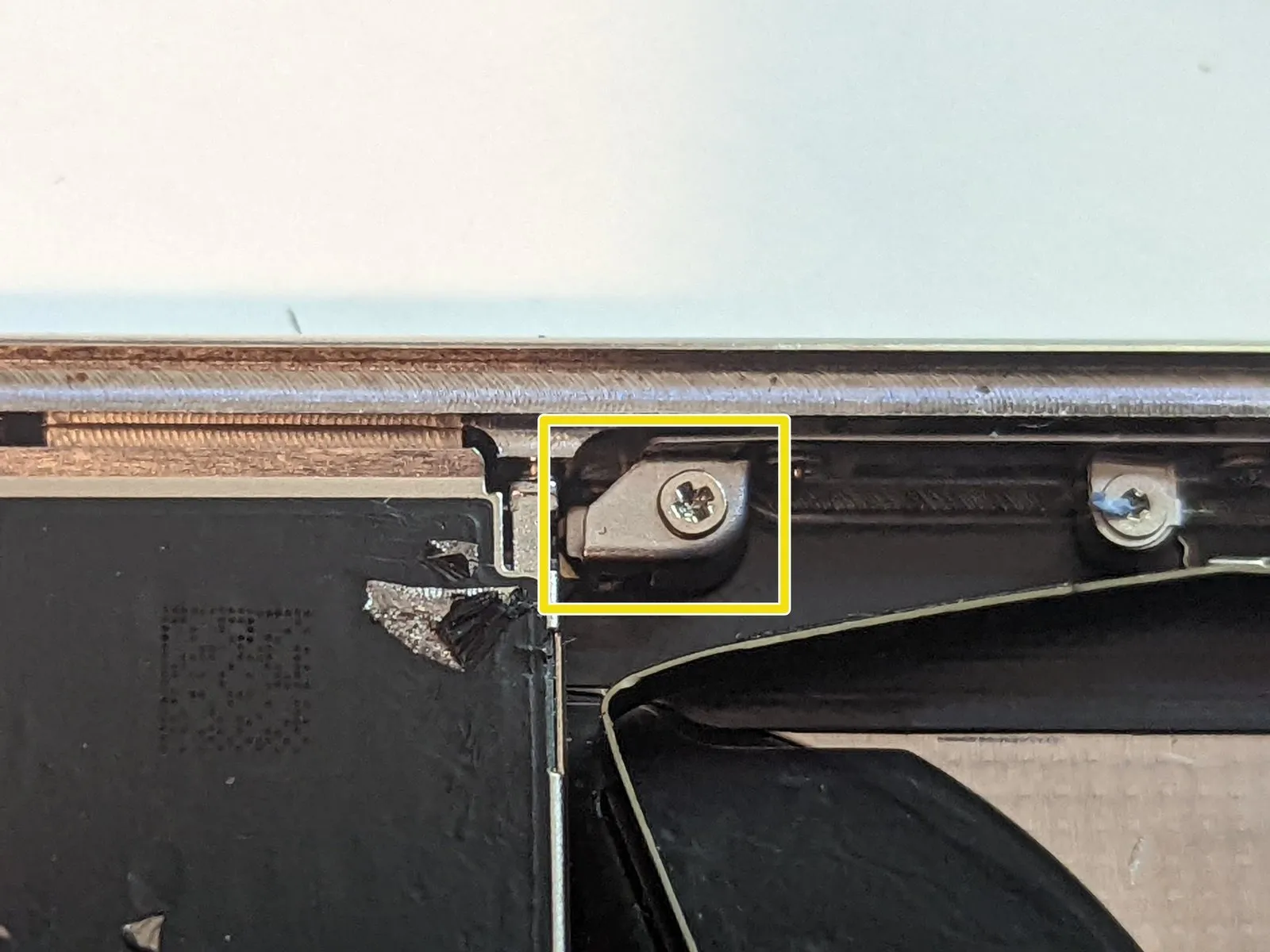
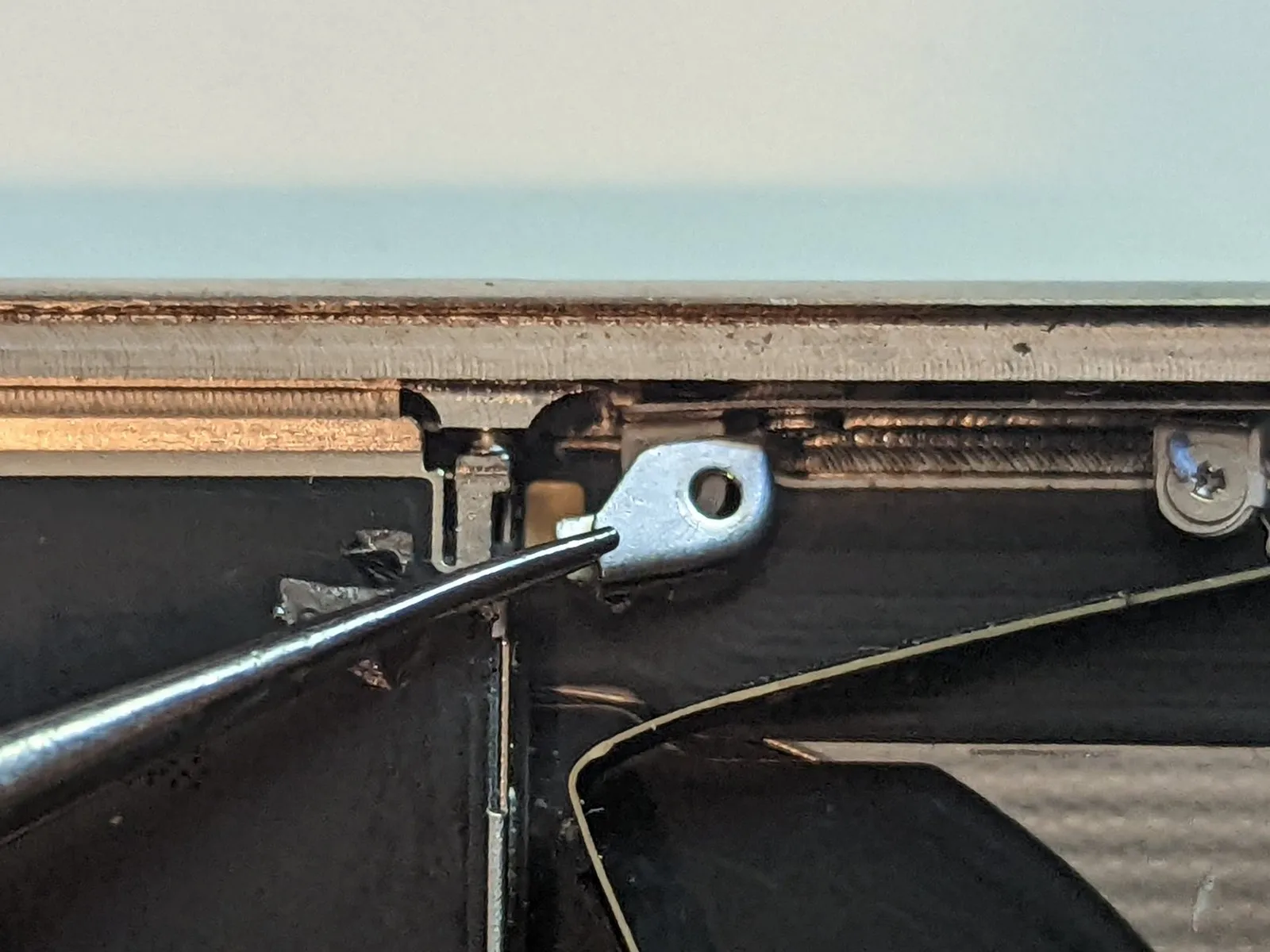
Detach the two Phillips head screws that secure the component.
- A single2.7millimeter Phillips screw is required.
- Also, a single2.1millimeter Phillips screw must be removed.
Carefully detach the grounding tab.
Following removal, it is essential to reinstall the metallic grounding tab, maintaining its original position and alignment.
Step 64 | Retract the SIM Eject Pin
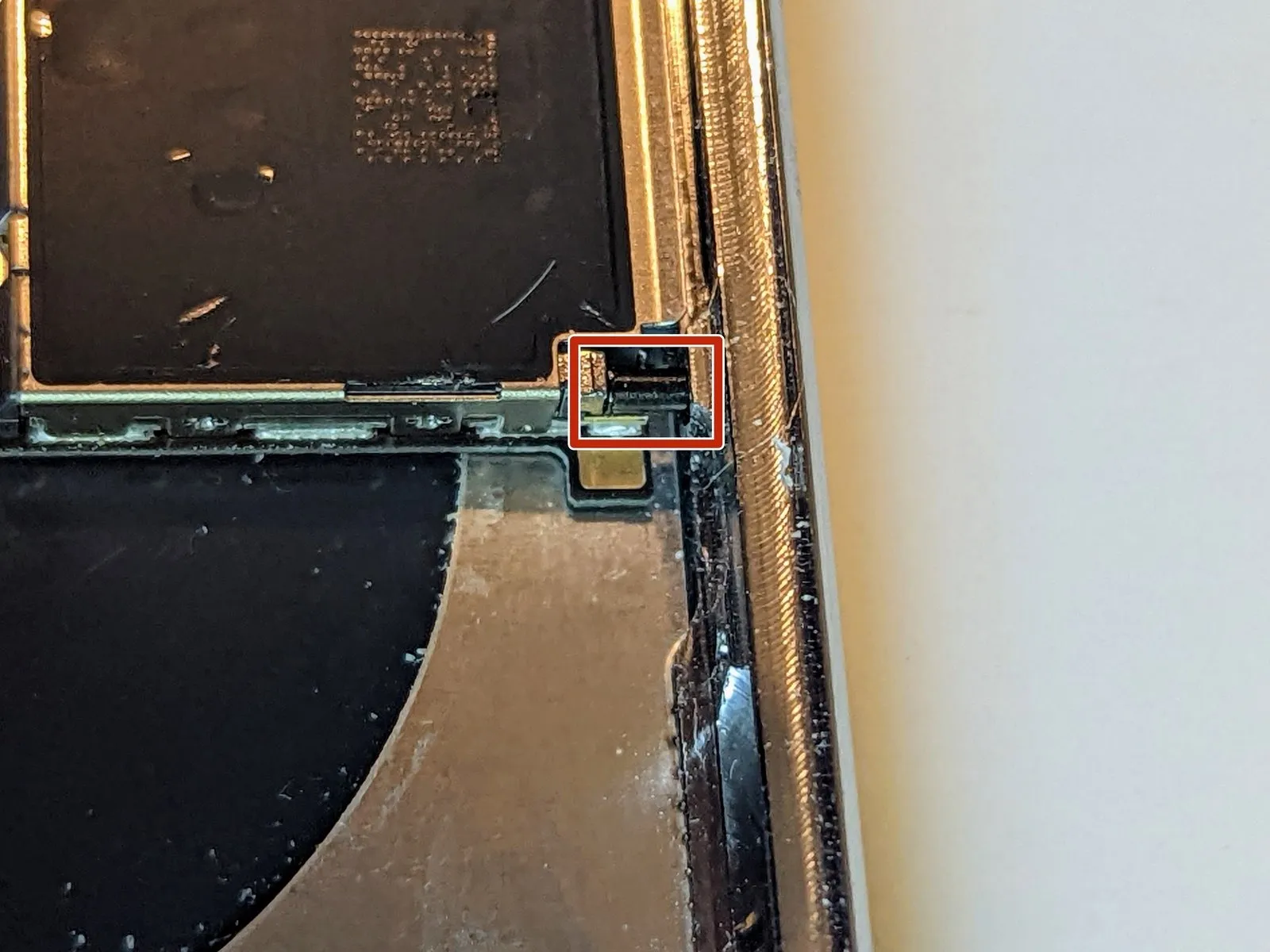
Step 65
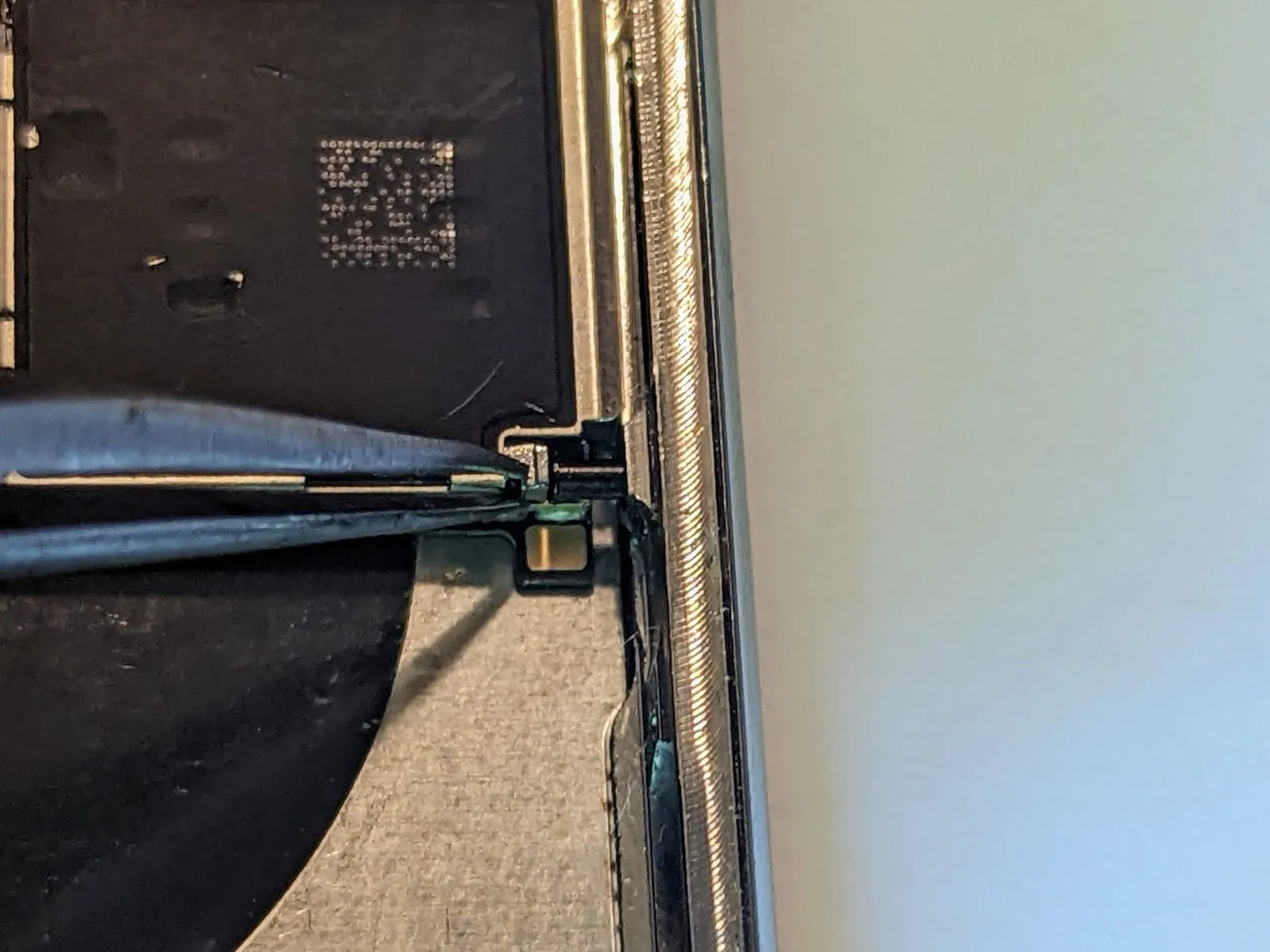


- Employing a set ofprecision tweezersallows you to move the SIM card release mechanism in the direction of the device's exterior.
- The appearance of the release mechanism after activation will resemble this image; the retaining pin will then be disengaged, permitting logic board removal.
Step 66

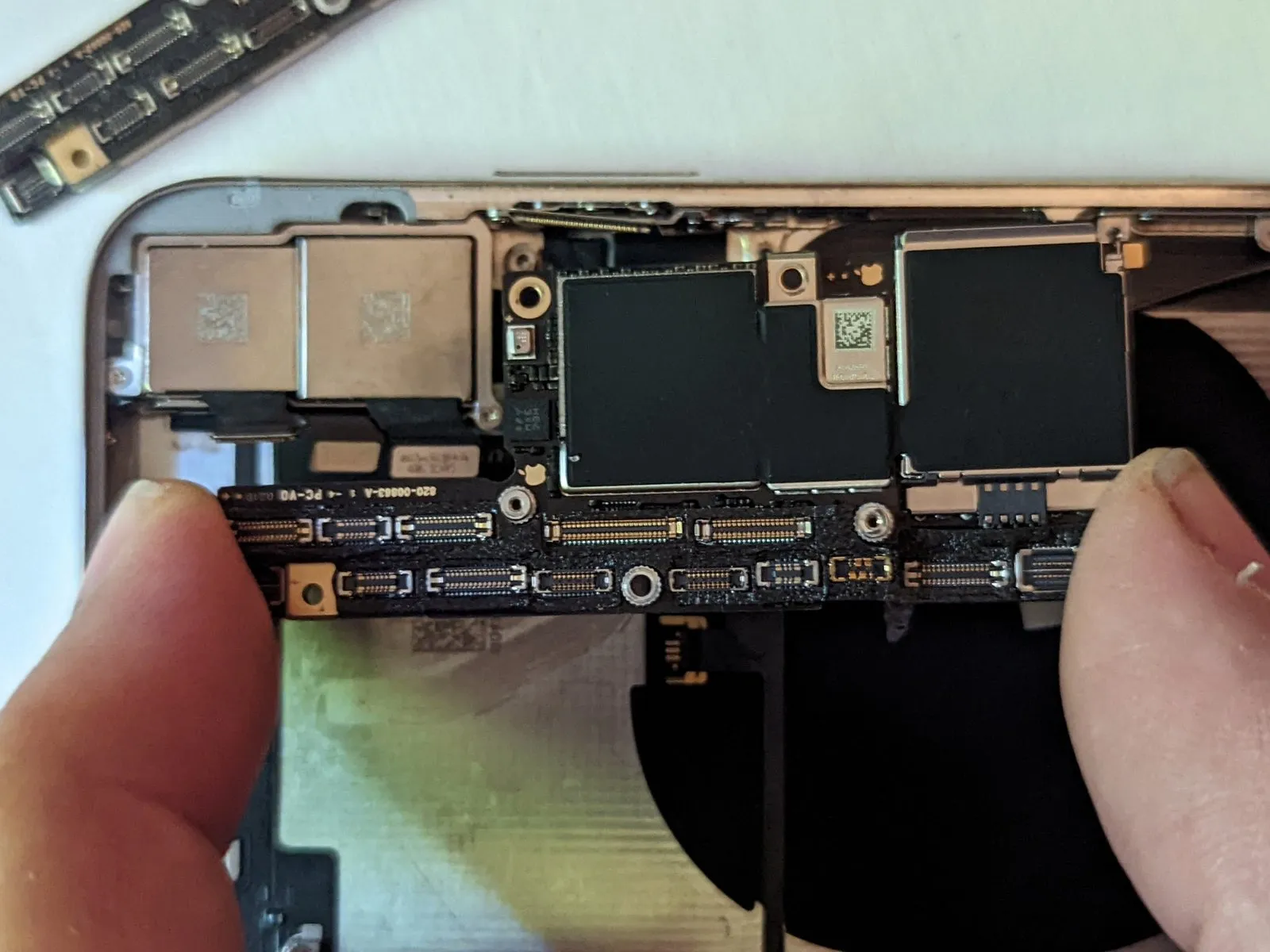
Step 67 | Bottom Right Screen Retainer
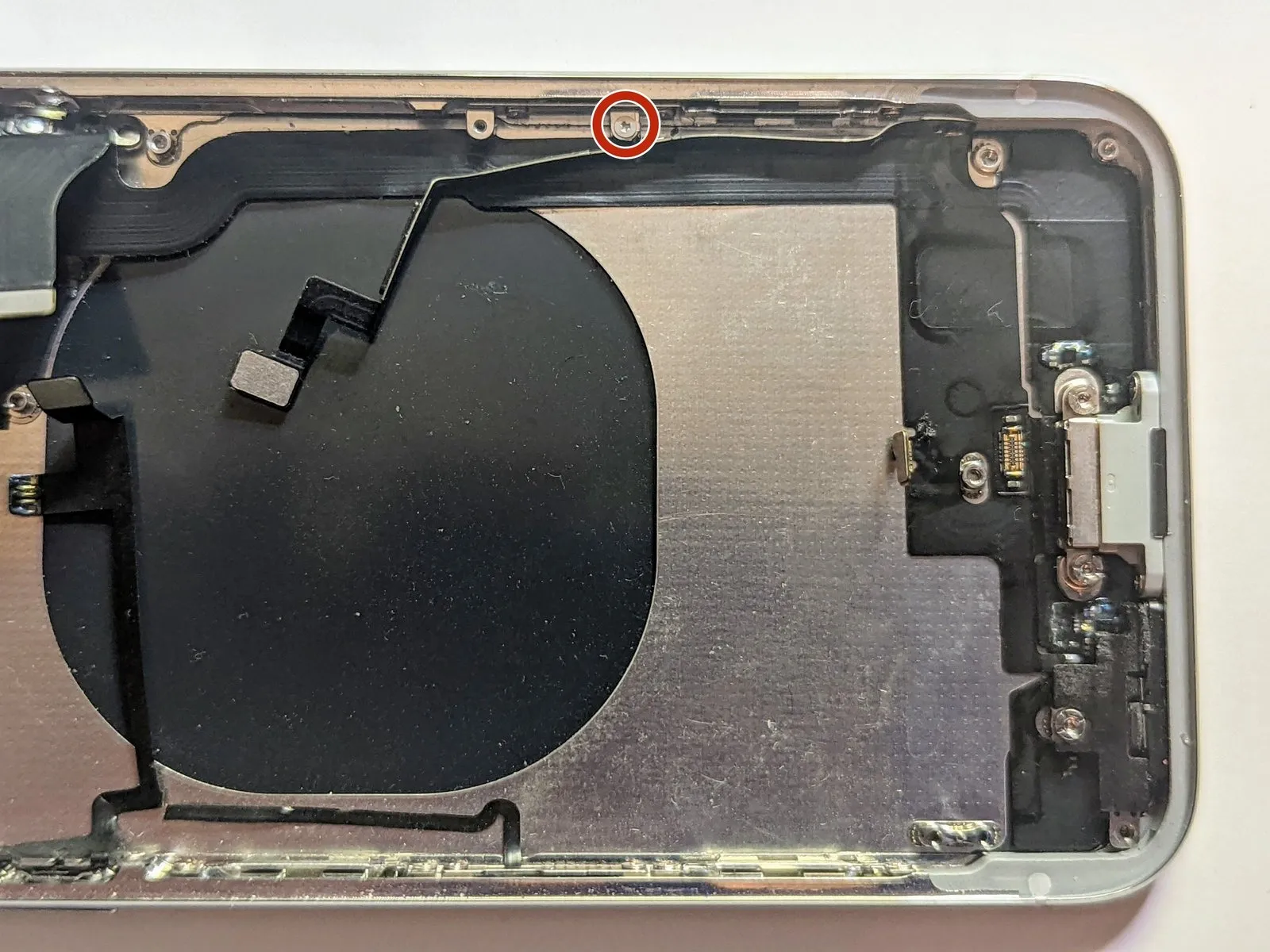
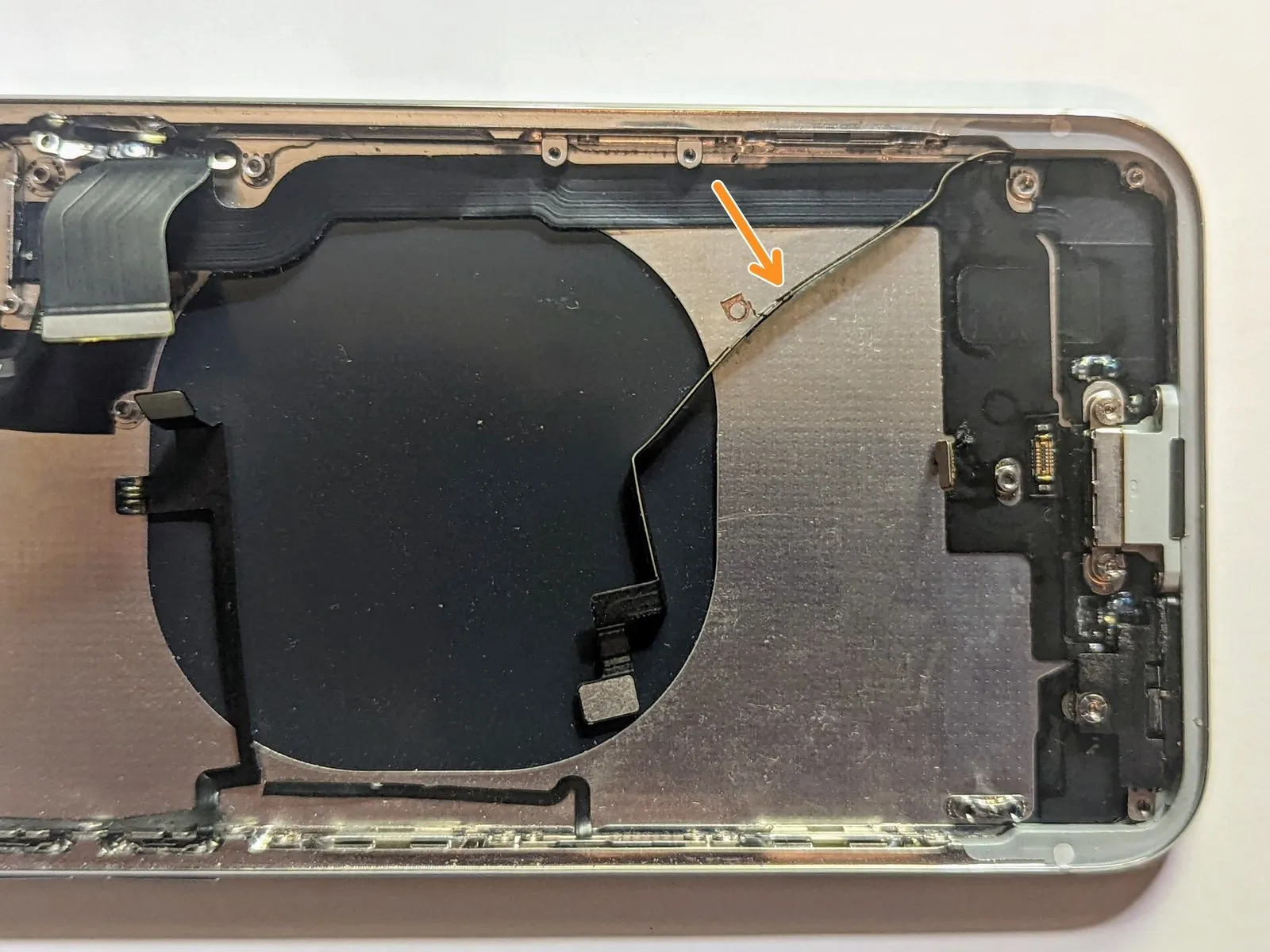
- Detach the1.2 mm Y000 screwthat fastens the cellular antenna cable to the screen retainer.
- Carefully deflect the antenna cable from the case's edge to gain access to the screws holding the retainer in place on the case's side.
Step 68
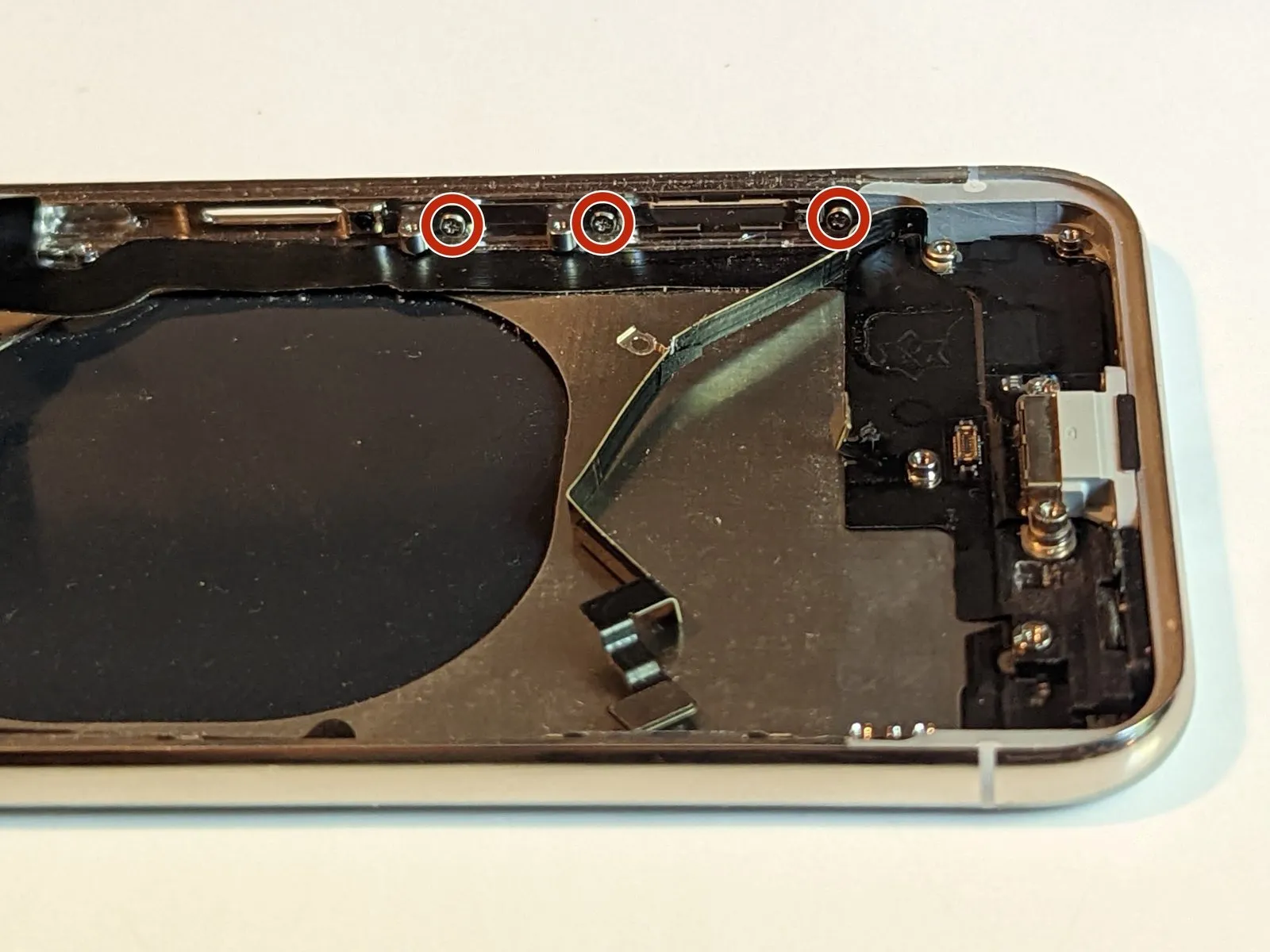
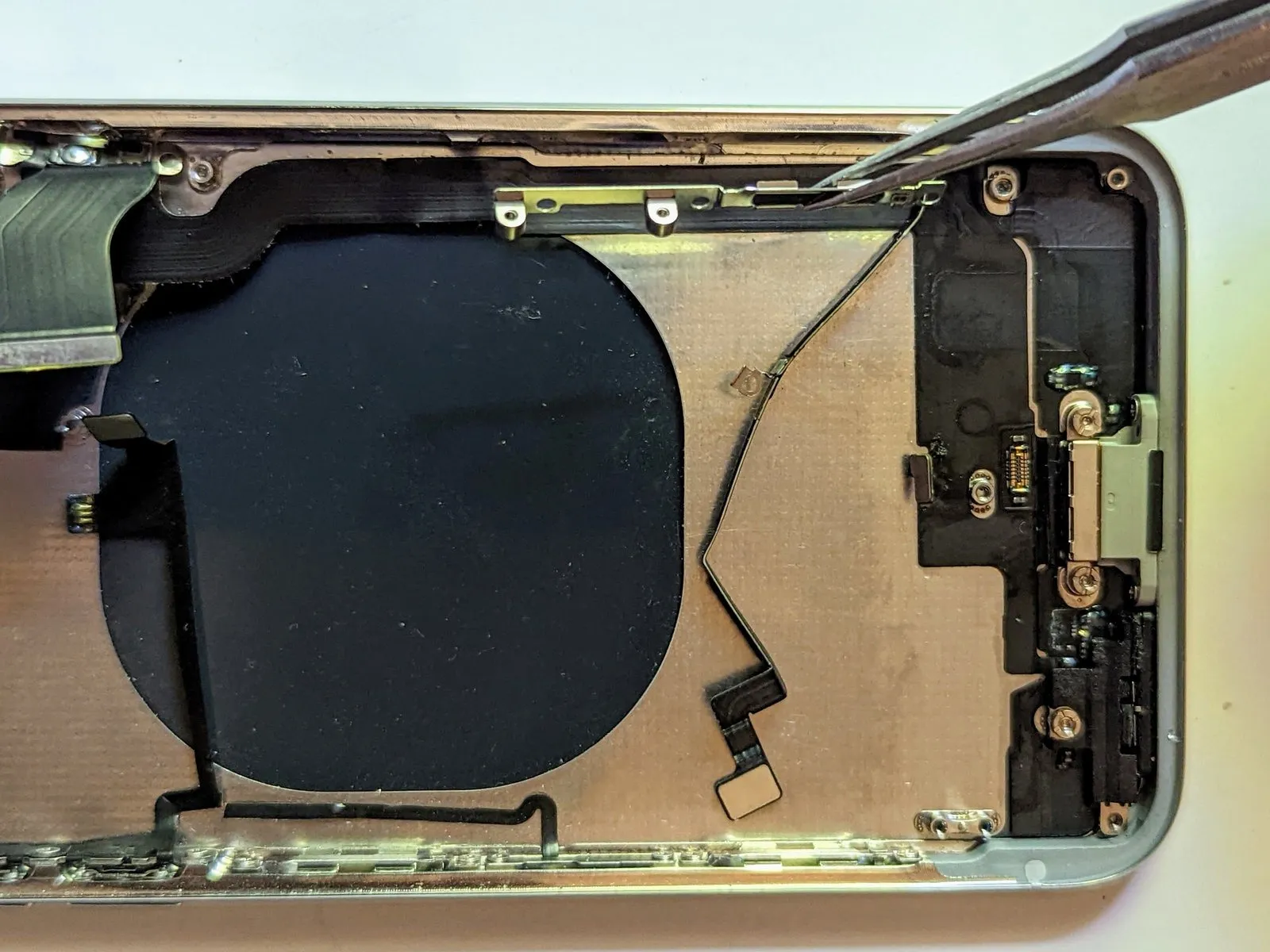
- To detach the display, begin by eliminating the three screws.Utilize a Phillips screwdriver with a 1.5 mm bit to loosen and remove these fasteners.These screws secure the screen retainer in place.
- Following screw removal, carefully separate the retainer component.
Step 69 | Lightning Connector

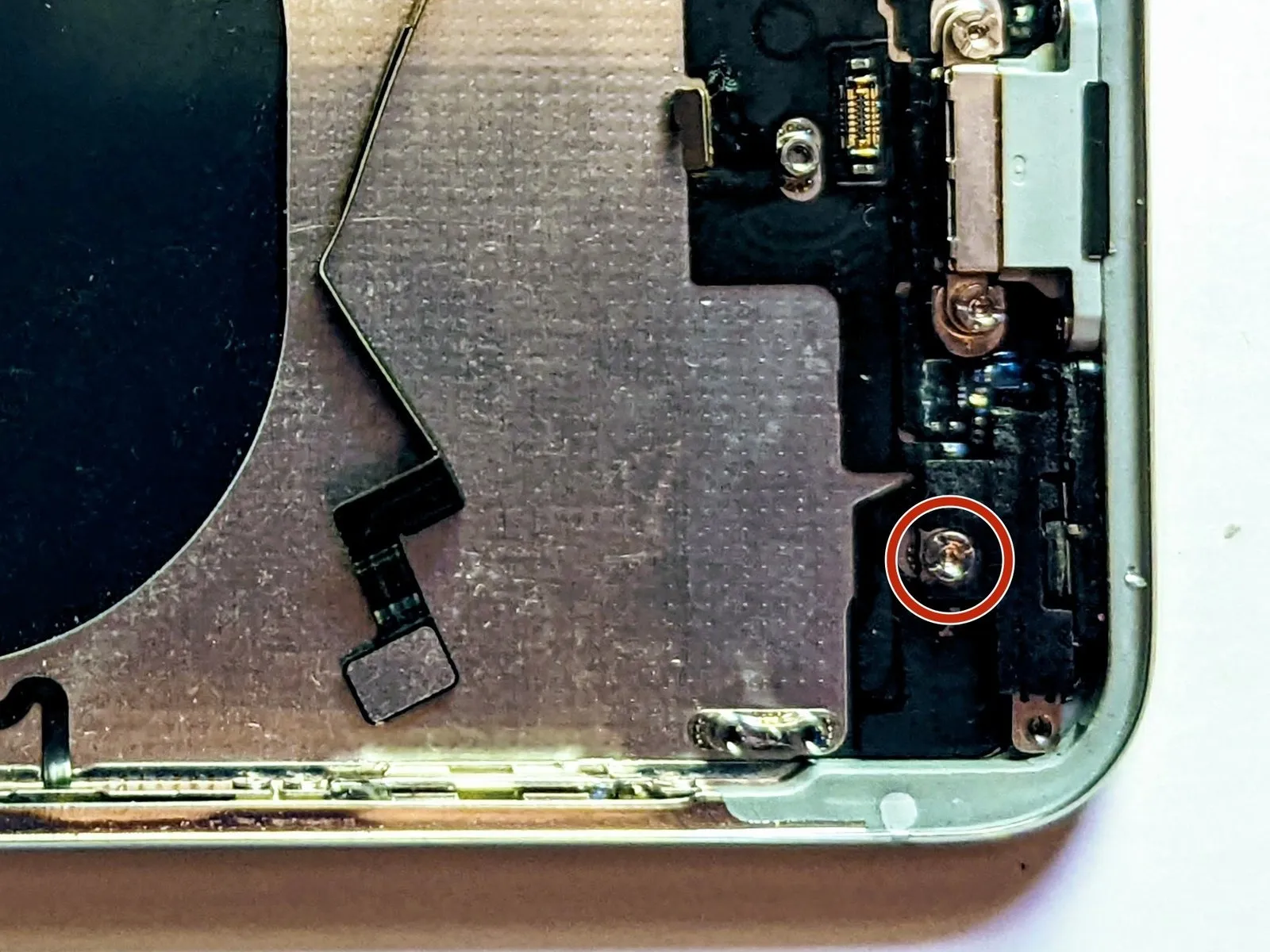
- Detach the2.3 mm stand-off screwwhich secures the barometric vent.
- To gain access to the screws fastening the retainer to the case's side, carefully deflect the antenna cable away from the enclosure's lateral surface.
- Utilize a standoff screwdriver or bit for the most effective removal of standoff screws.standoff screwdriver or bit.
- If a standoff screwdriver isn't available, a small flathead screwdriver can be substituted; however, exercise heightened care to prevent slippage and potential harm to nearby parts.
- Proceed with the removal of the barometric vent.
Step 70
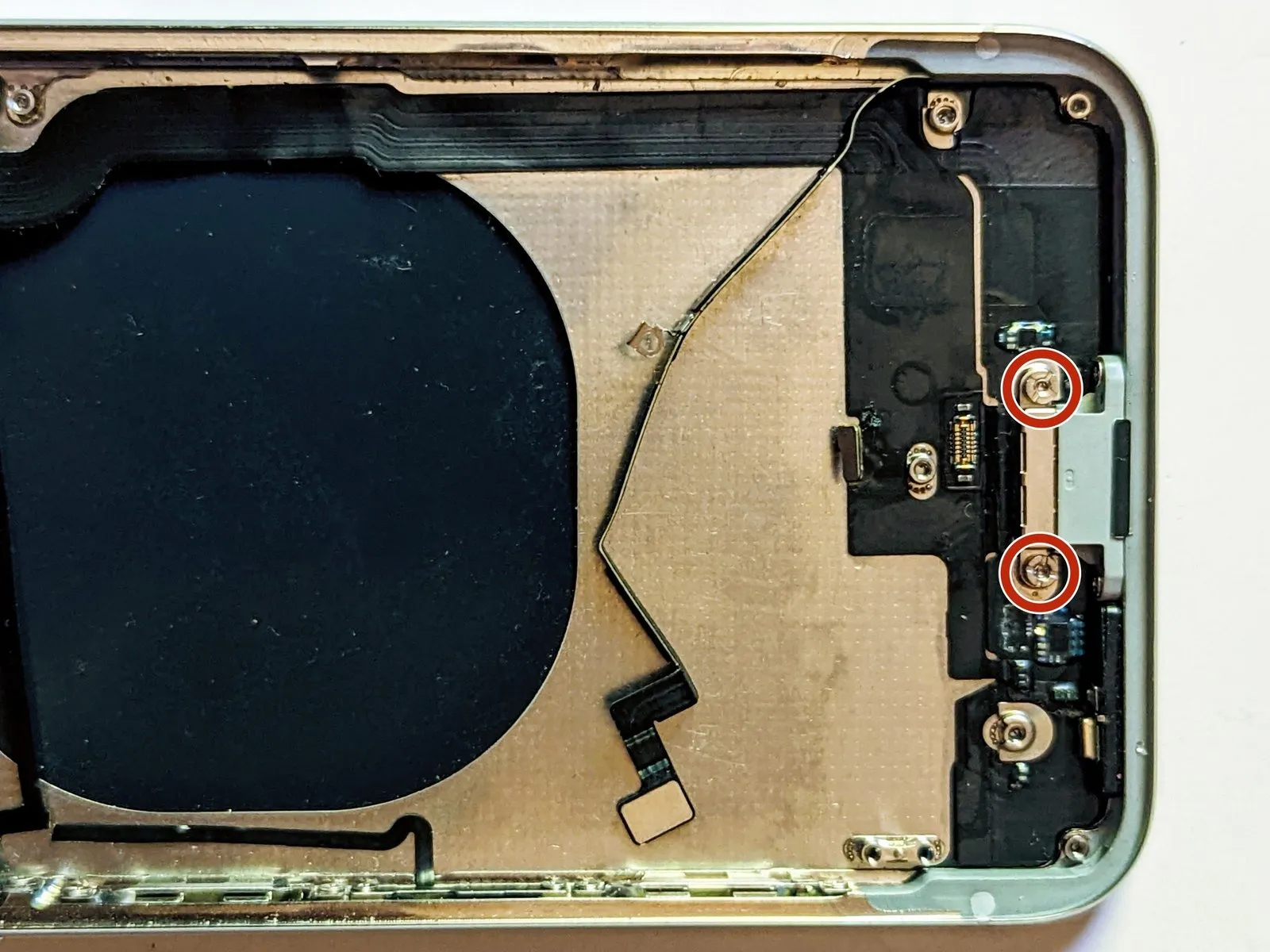
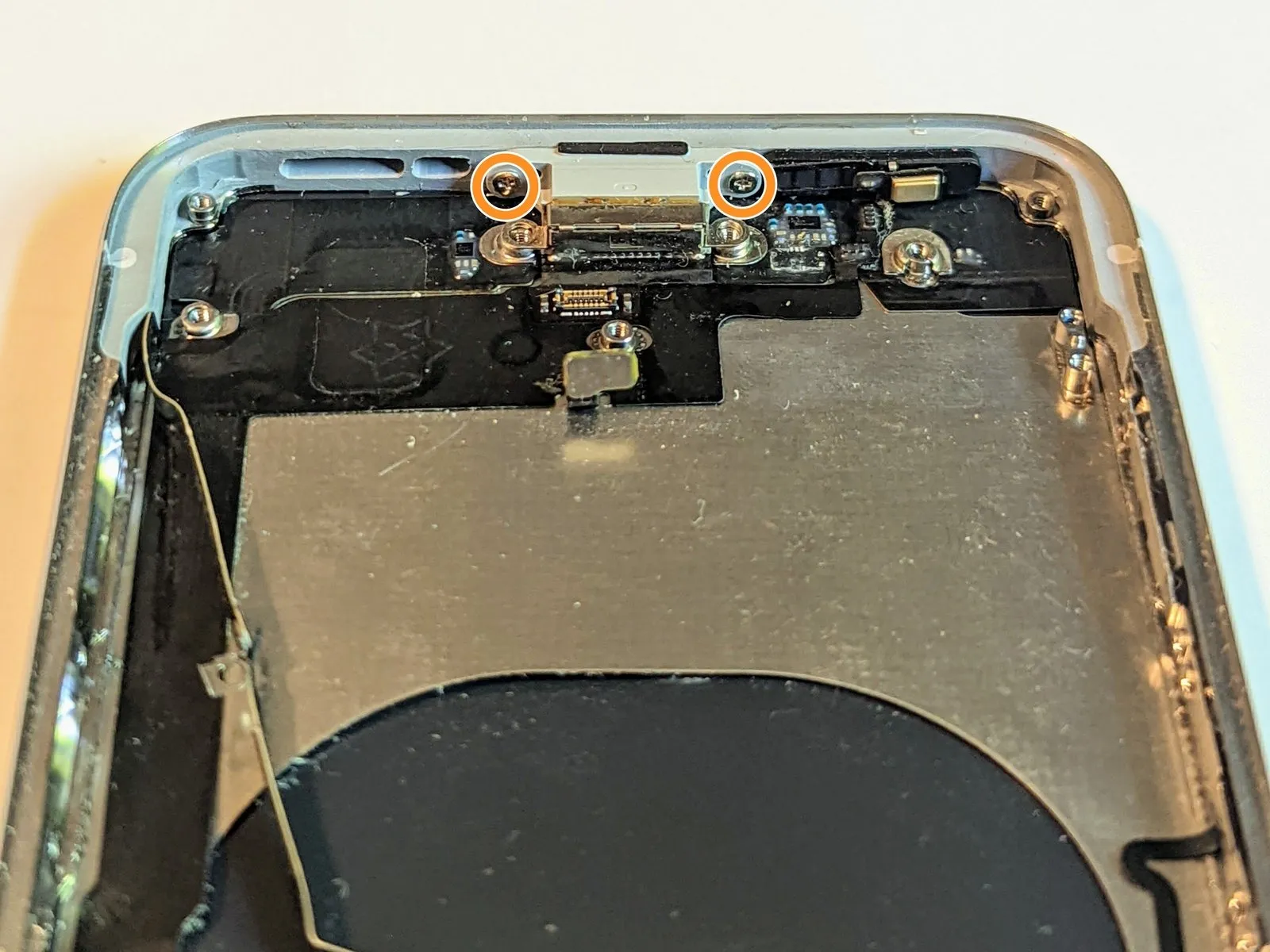
- Detach the two 2.6 mm stand-off screws that fasten the Lightning connector to the rear casing.These screws secure the Lightning connector to the back of the case.Also, detach the two 2.9 mm Phillips screws.
- These screws maintain the charging port's attachment to the case's base.The charging port is held in place by these 2.9 mm Phillips screws.Carefully remove these screws from the bottom of the case.
Step 71
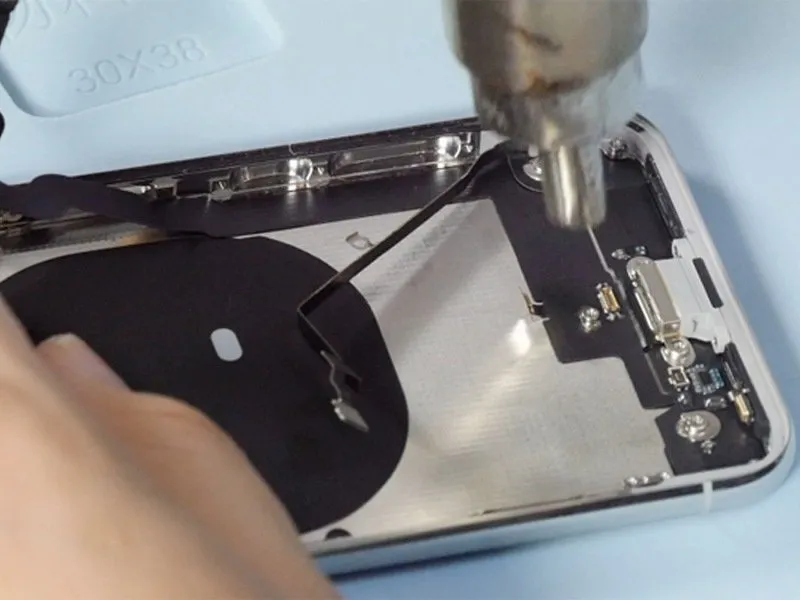
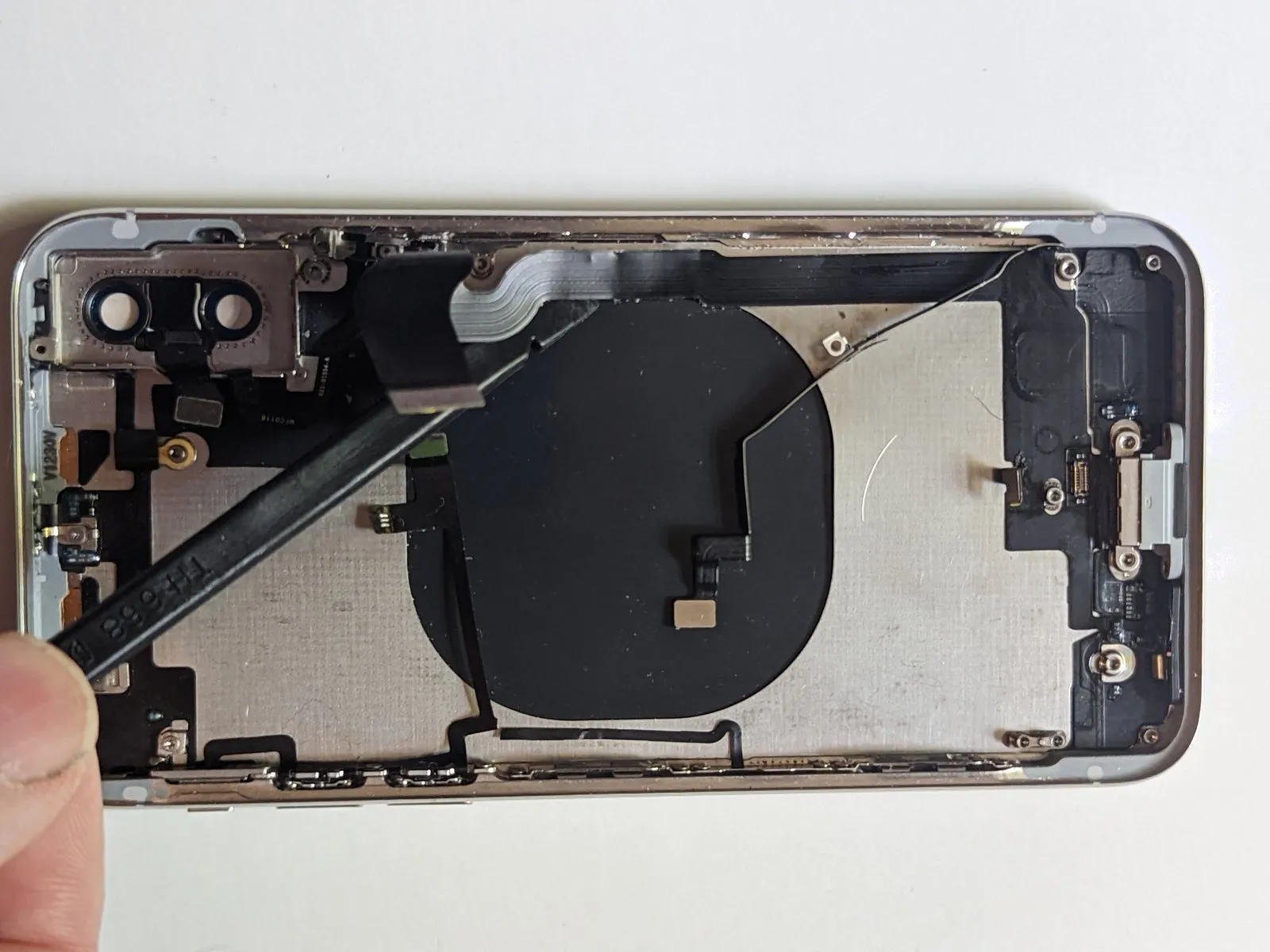

Applying warmth to loosen the adhesive securing the flex cable to the enclosure can be achieved using a hot air gun, a hair dryer, or an iOpener applied to the rear of the case.An iOpener.
Carefully detach the dock connector cable from its position using a spudger.
Step 72


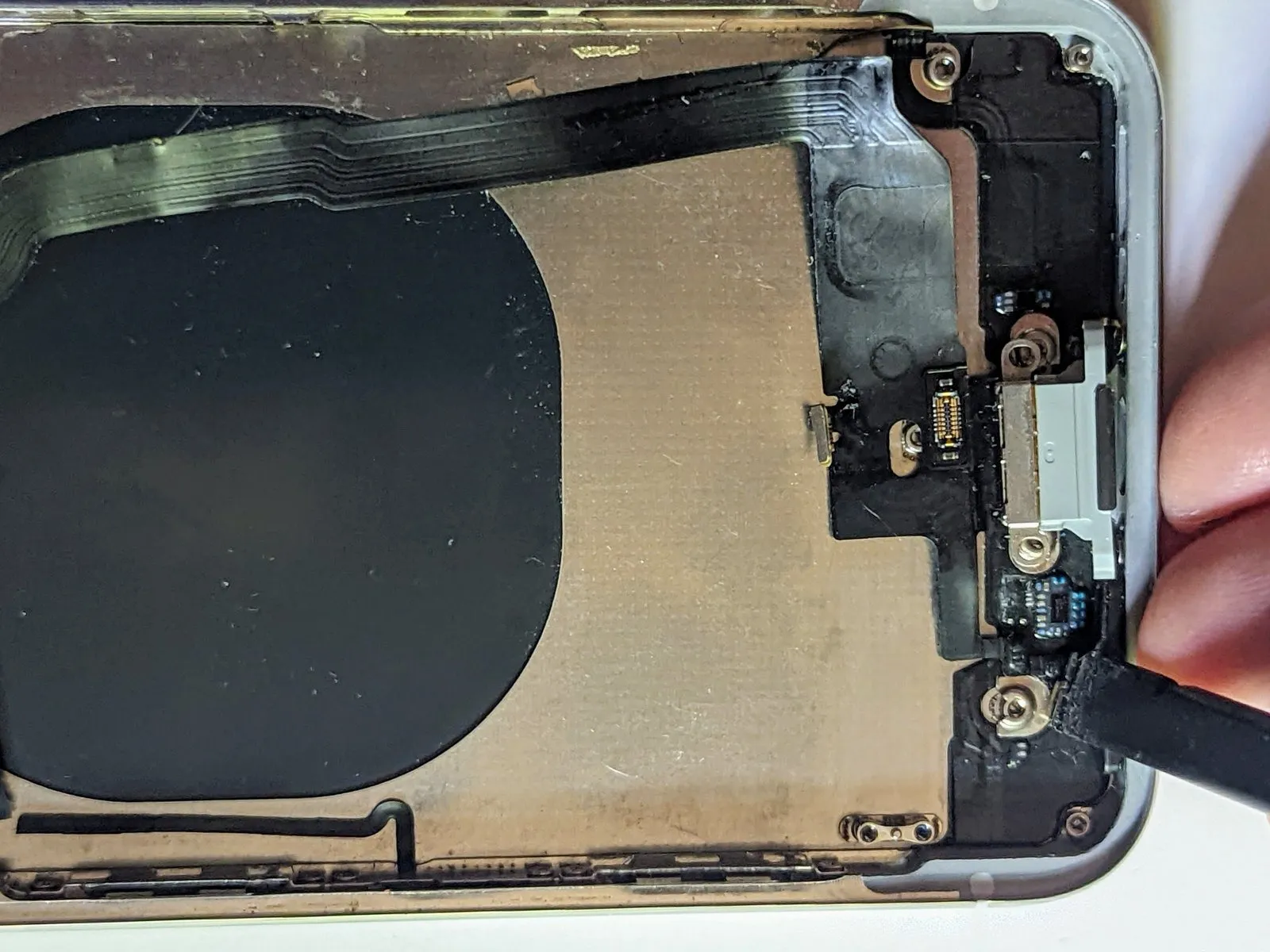
Proceed with the removal of the dock connector, carefully lifting it further.
Step 73

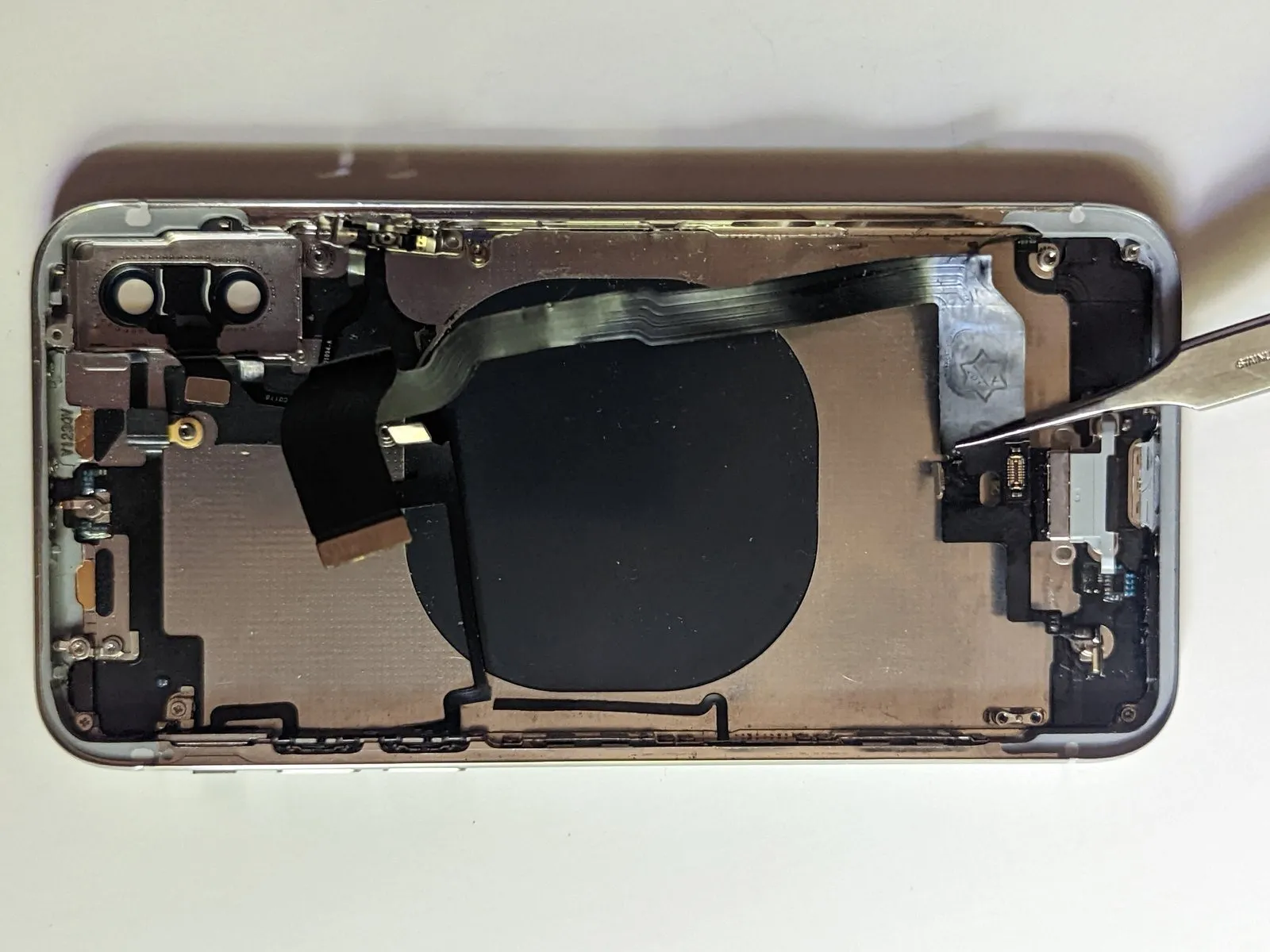
Disconnect the dock connector assembly.
Step 74 | Interconnect Cable


- Once the Lightning connector has been detached, the interconnect cable's attachment to the device's housing is solely maintained by an adhesive bond.
- Employing a hot air gun, a hair dryer, or an iOpener to apply heat will help loosen the adhesive securing the flex cable to the case's structure.
Step 75


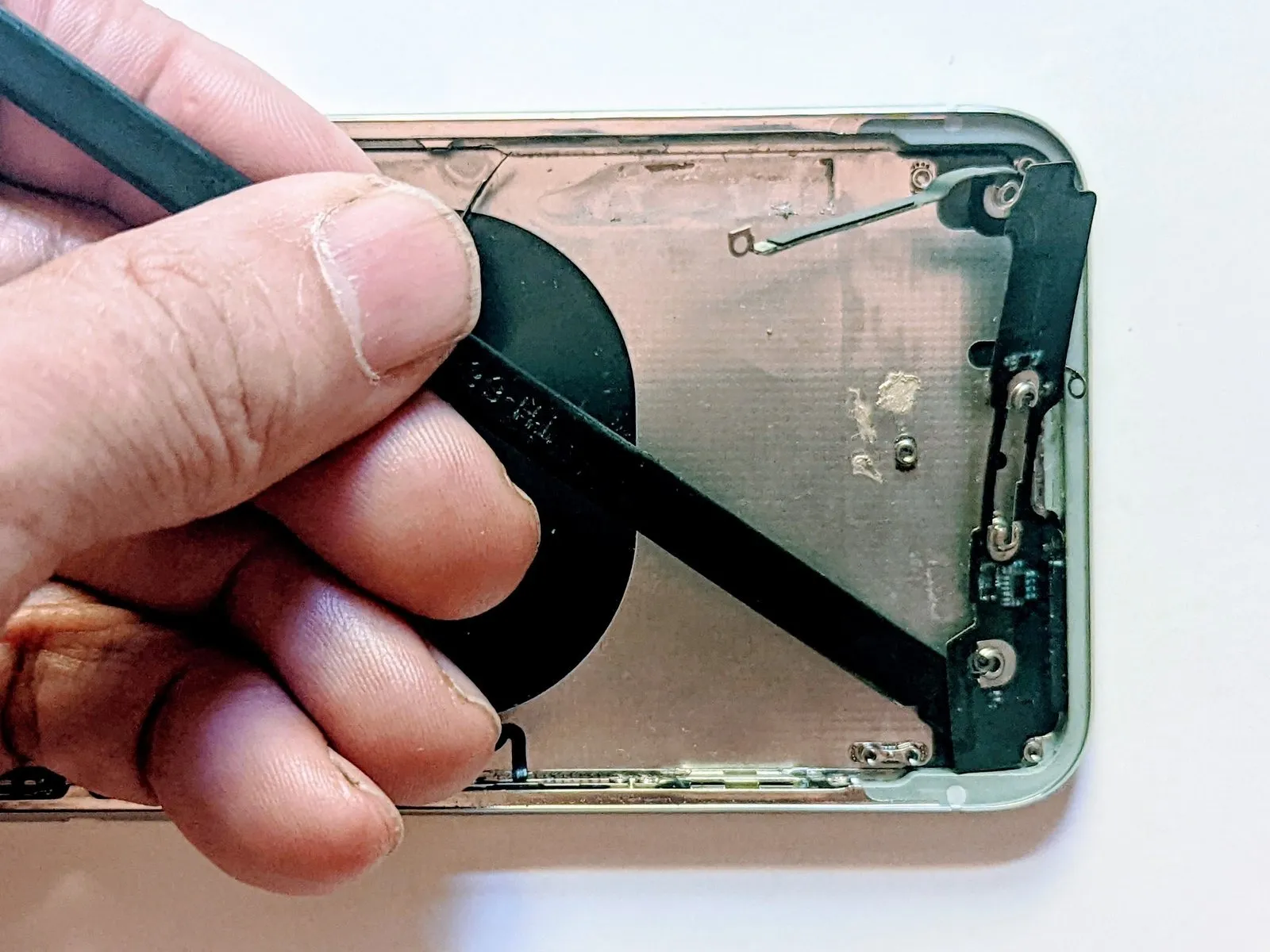
Carefully detach the cable using a specialized opening tool, known as a spudger.
Step 76
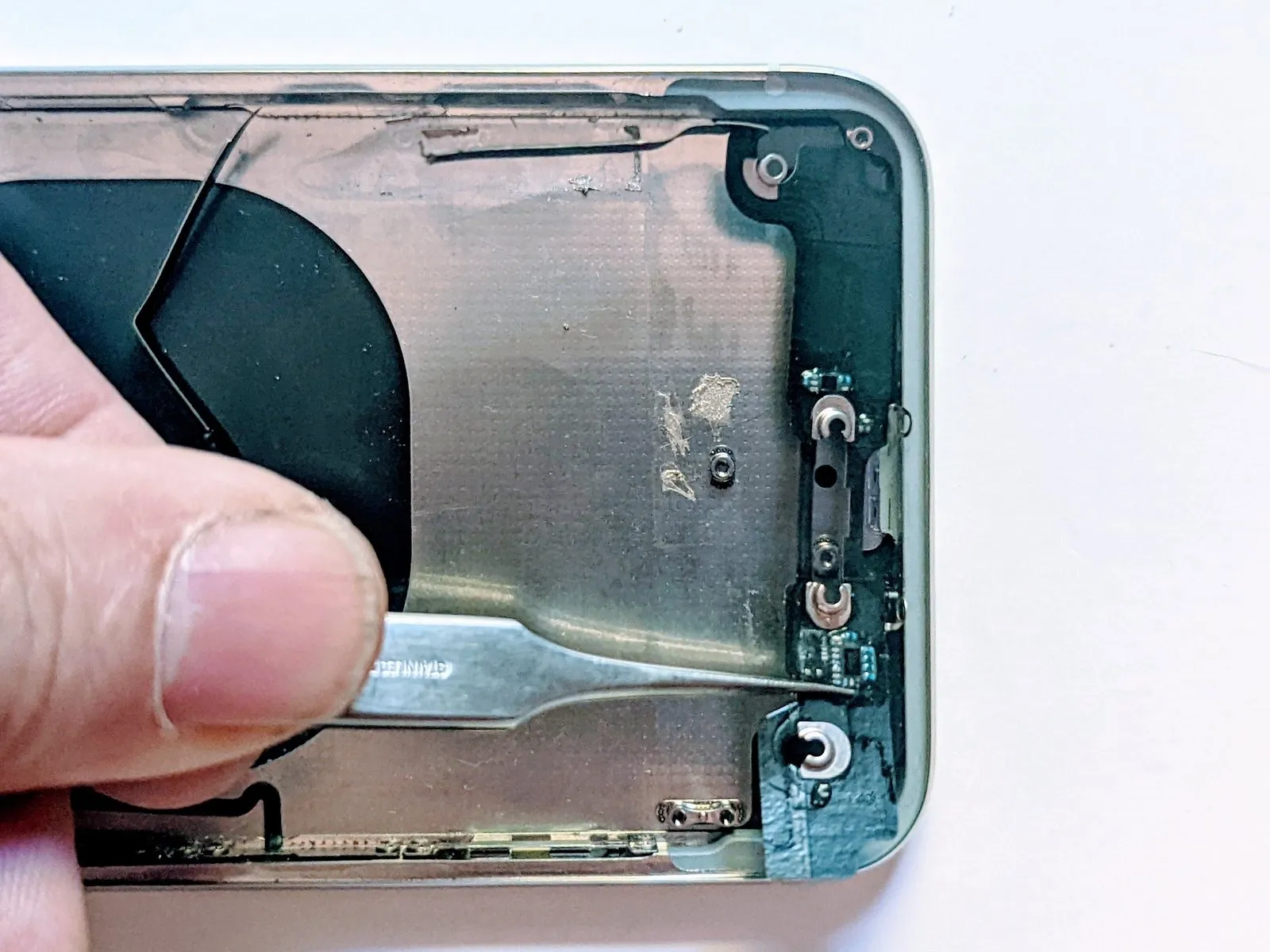
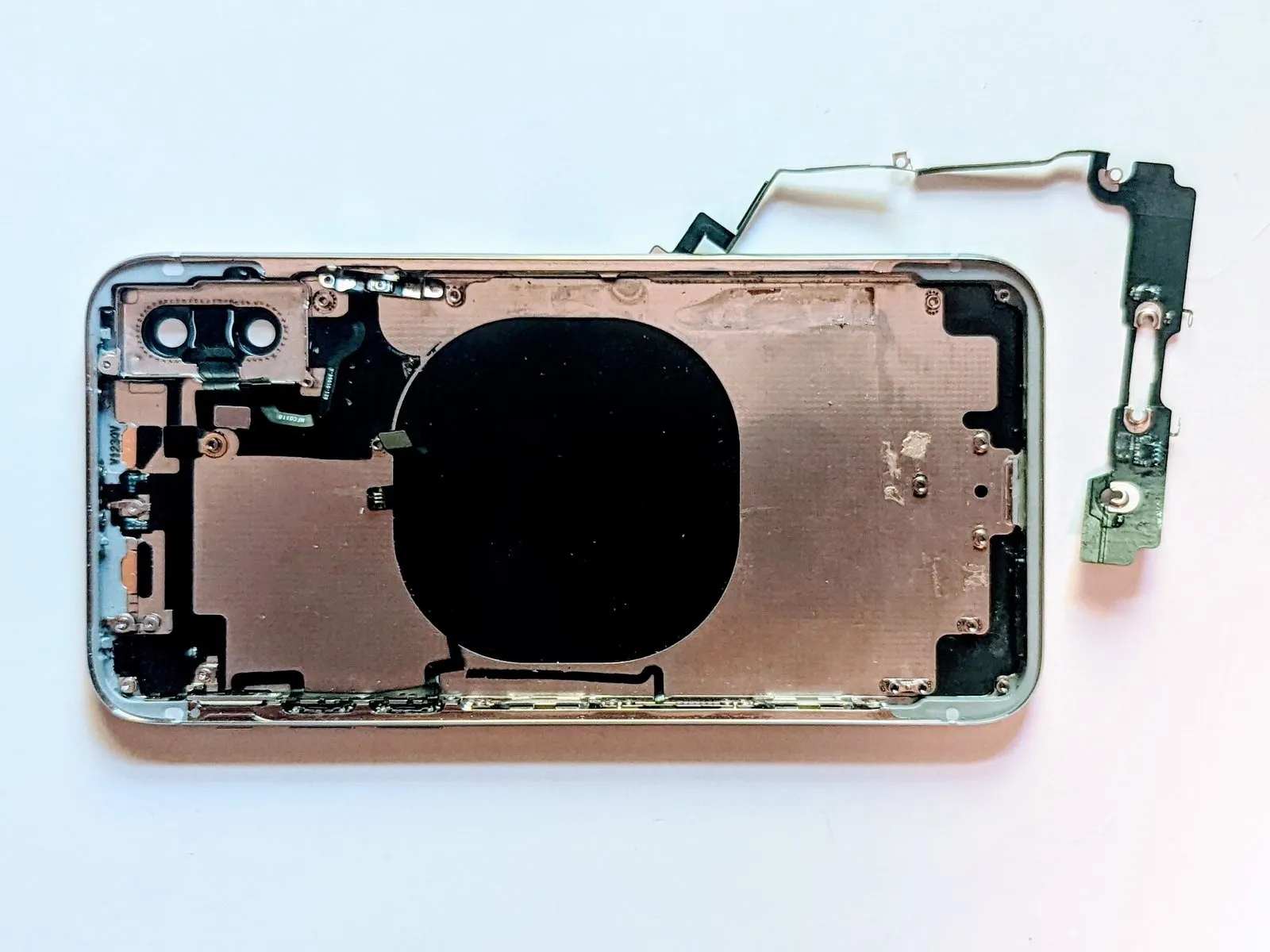
- Disconnect the linking cable to proceed.