iPhone SE Screen Replacement
To simplify the screen replacement process for your iPhone SE, the included component incorporates the front assembly, earpiece speaker, and EMI shield, eliminating the need for separate installation of these parts.
- To enable functionality, detach the existing display assembly and carefully relocate the home button to the replacement screen.Utilize the capacitive sensor to authenticate user identity via fingerprint recognition.Ensure proper operation.
- This document provides instructions for substituting the cable bracket that secures the front panel assembly.
Step 1 | Removing the Pentalobe screws
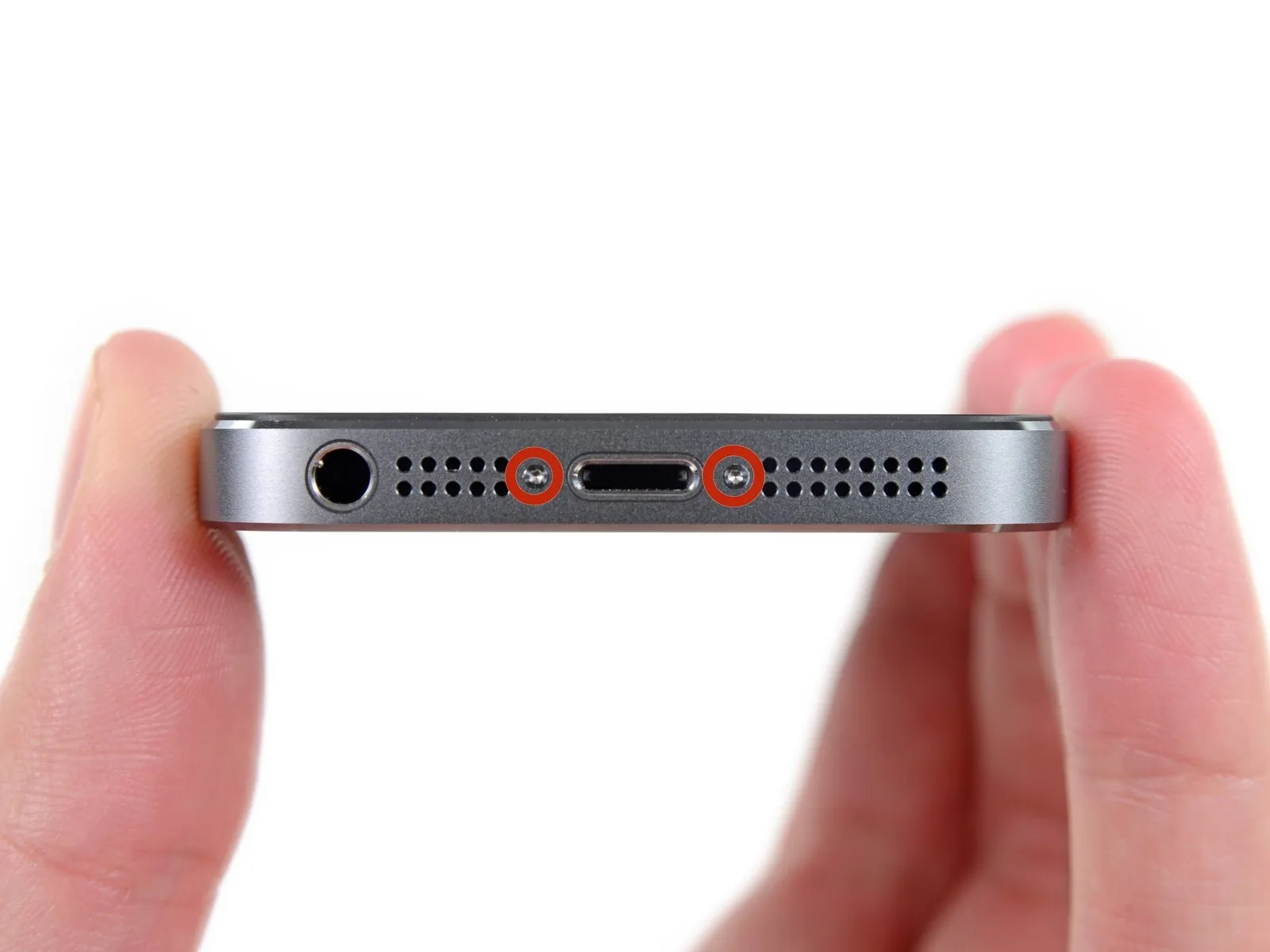
- To prevent potential fire or explosion hazards during repair, ensure the iPhone's lithium-ion battery has a charge level of less than 25% prior to beginning work; a fully charged battery poses a significant risk of ignition if damaged.
- To prevent electrical shock or damage to components, ensure the iPhone is completely de-energized prior to starting the repair process.
- Using a Pentalobe screwdriver, detach the two screws, each measuring 3.9 mm, located on the left and right sides of the Lightning connector.
Step 2 | Taping the display glass
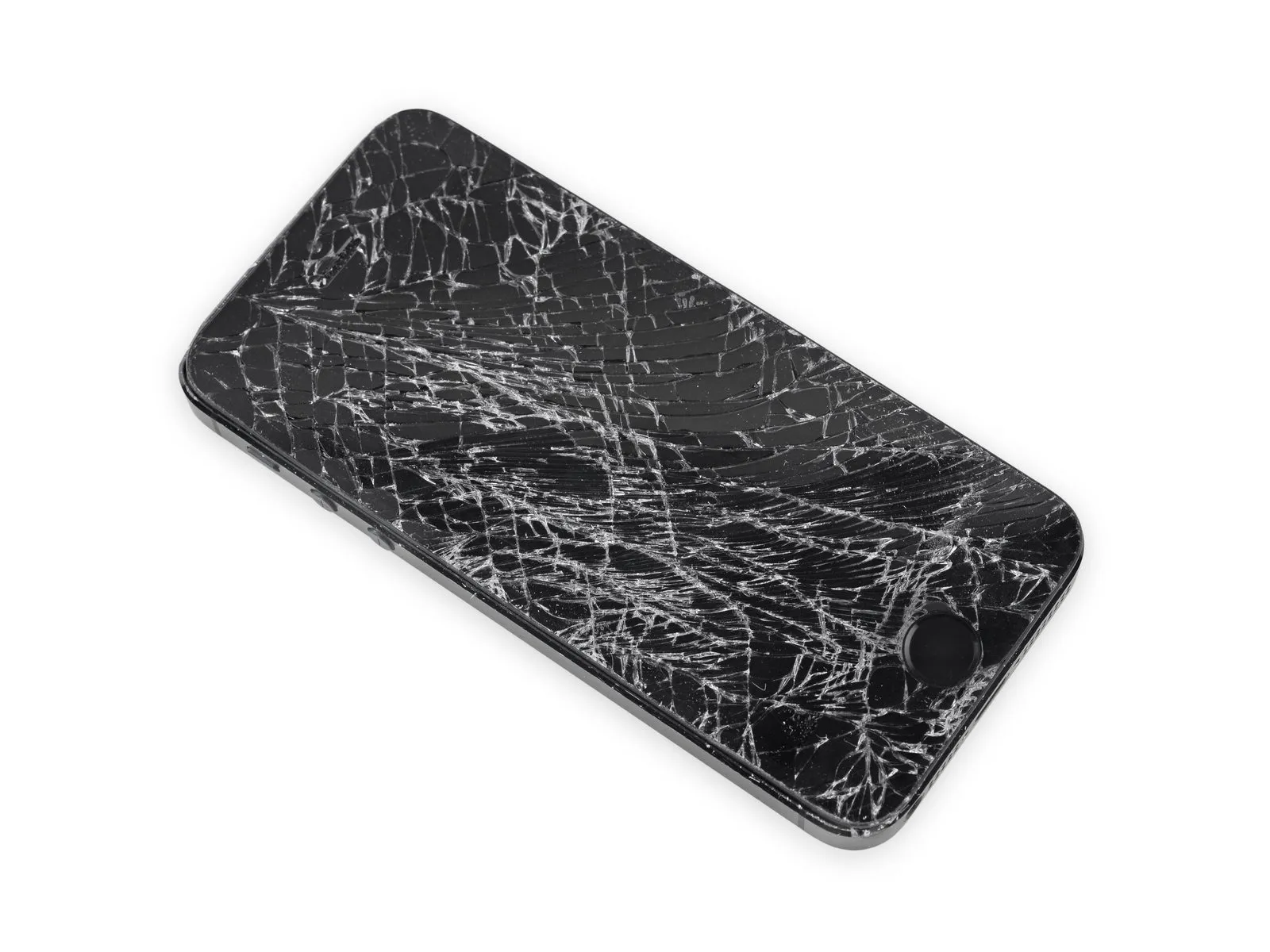
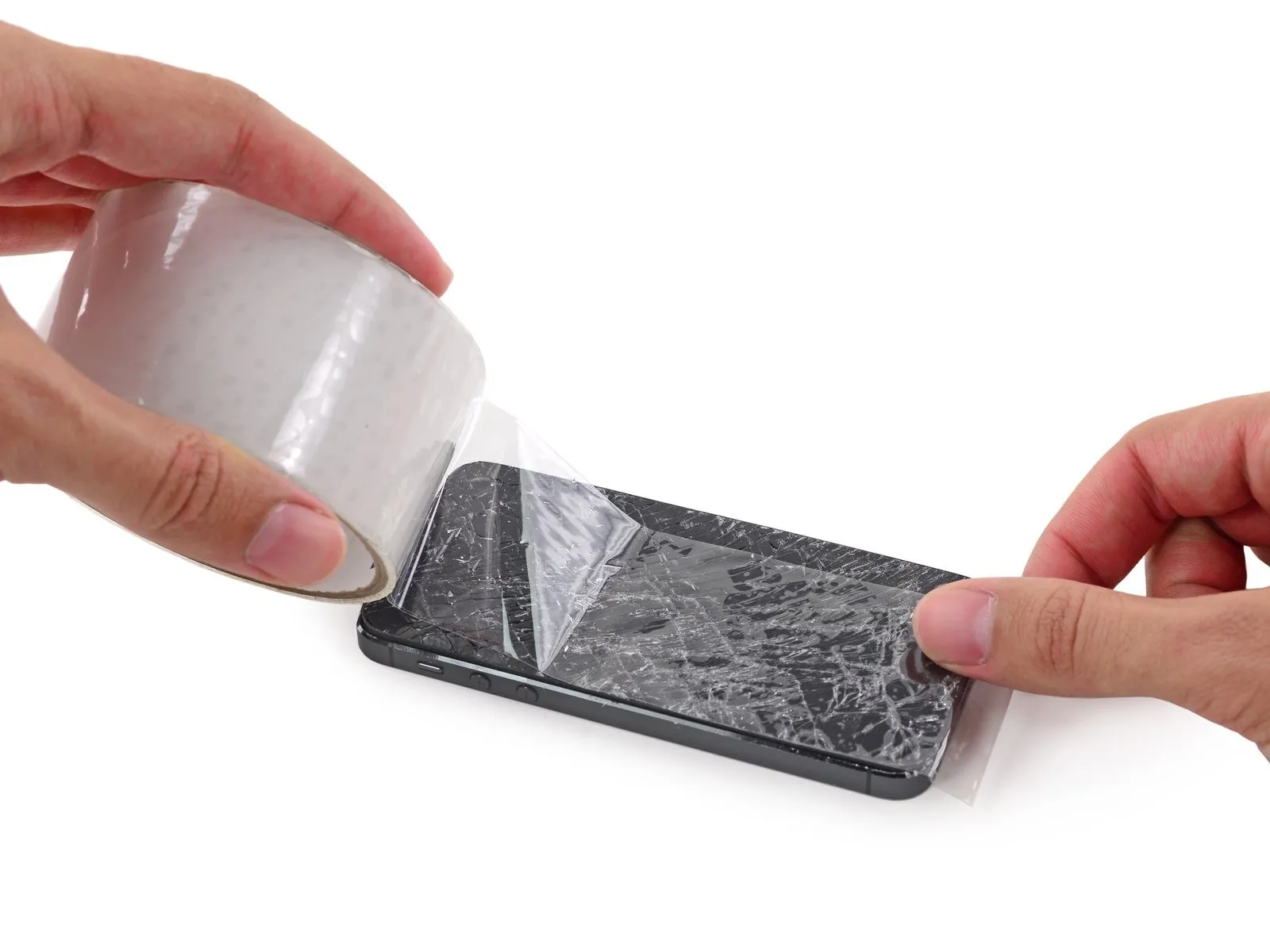
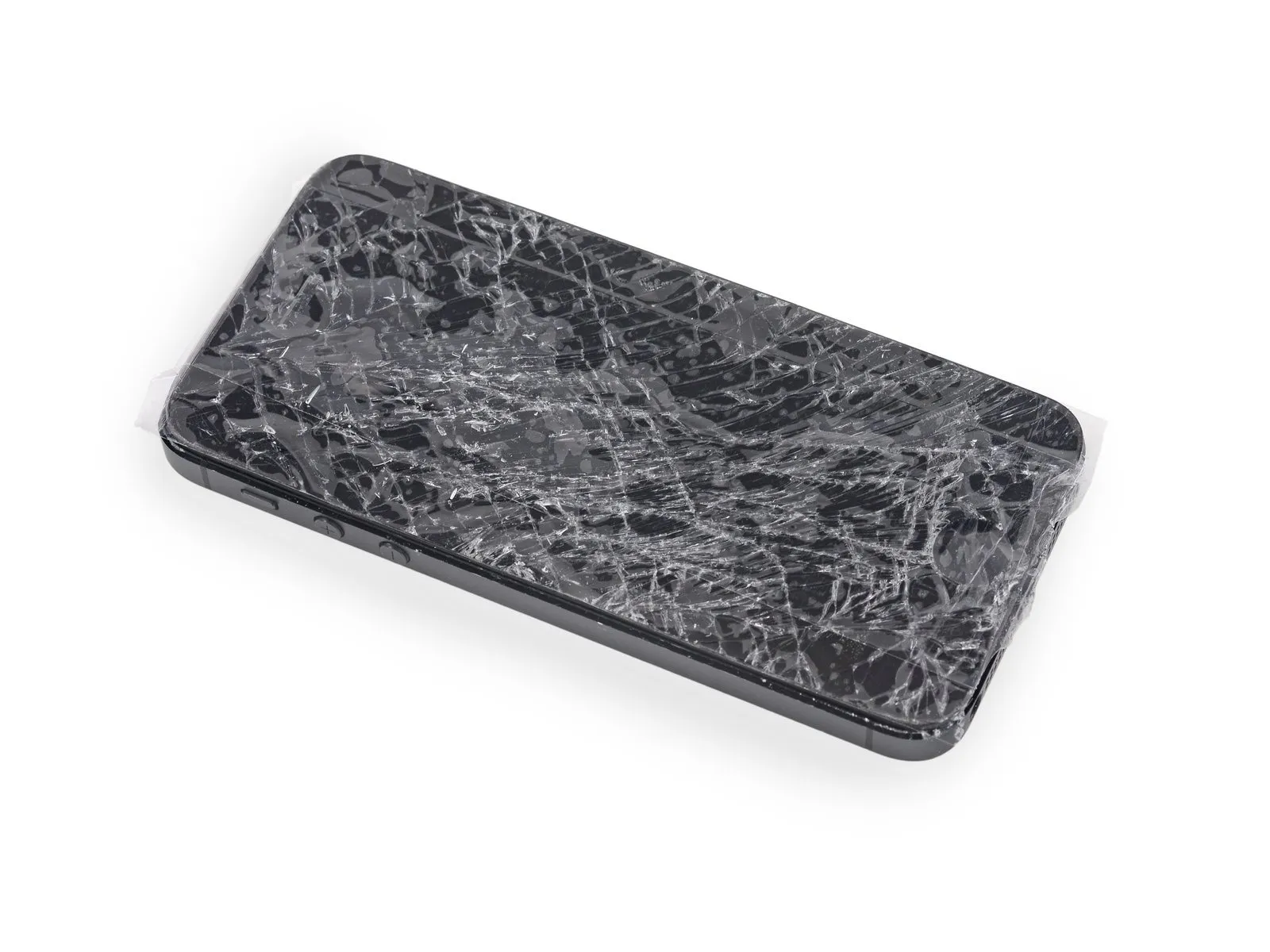
- To mitigate the risk of additional shattering and potential injury while repairing a cracked display glass, secure the glass with tape.
- Apply strips of transparent packing tape across the iPhone screen, ensuring complete coverage by layering them until the entire display surface is protected.
- To prevent glass fragments from scattering and maintain stability during the display separation process, this step is crucial.
- To safeguard your eyes from potential glass fragments that may detach during the repair process, always use safety glasses.
Step 3 | Display separation prevention
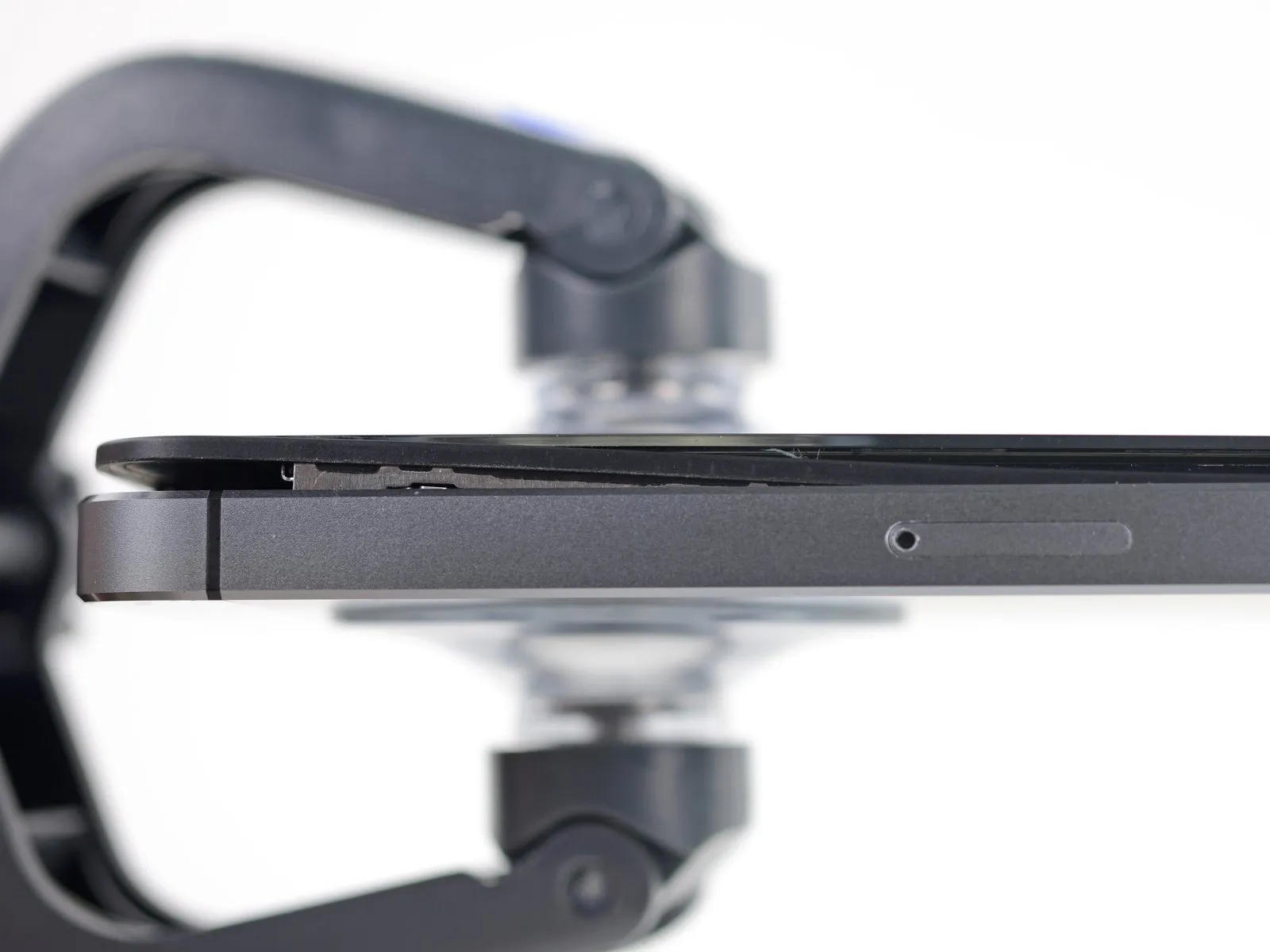
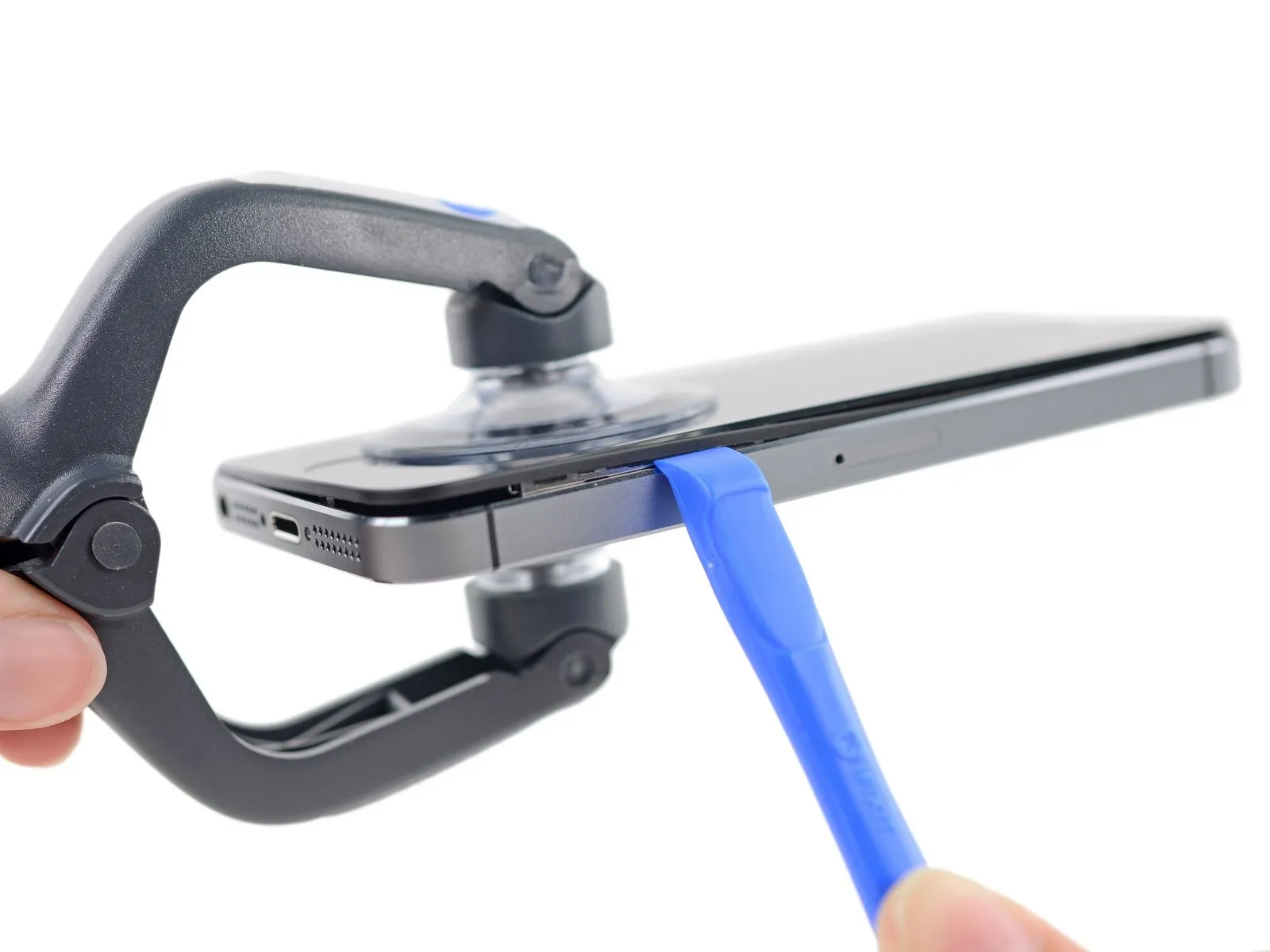
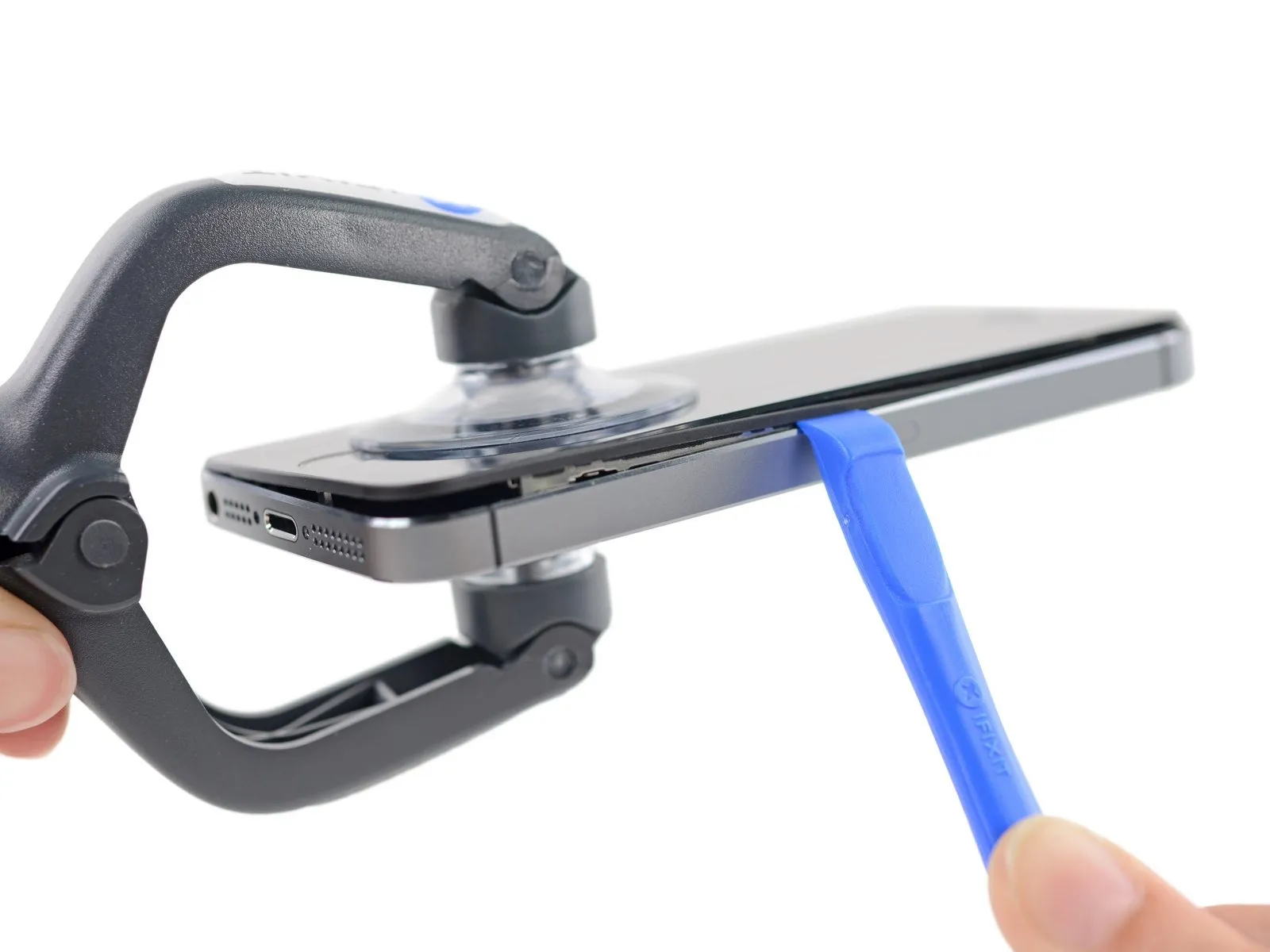
Carefully lift the display assembly—consisting of a glass screen, a plastic bezel, and integrated metal clips—from within the phone's chassis during the subsequent procedures.
Ensure complete removal of the display assembly, irrespective of the tool selected.
When separation between the glass and plastic is observed, matching the visual example provided, use a plastic opening tool to carefully insert it into the gap between the plastic frame and the phone's metal chassis, releasing the retaining clips.
To ensure proper closure during reassembly of a phone featuring a detached display bezel, apply a narrow adhesive strip positioned between the plastic bezel and the glass surface.
Step 4 | Anti-Clamp instructions

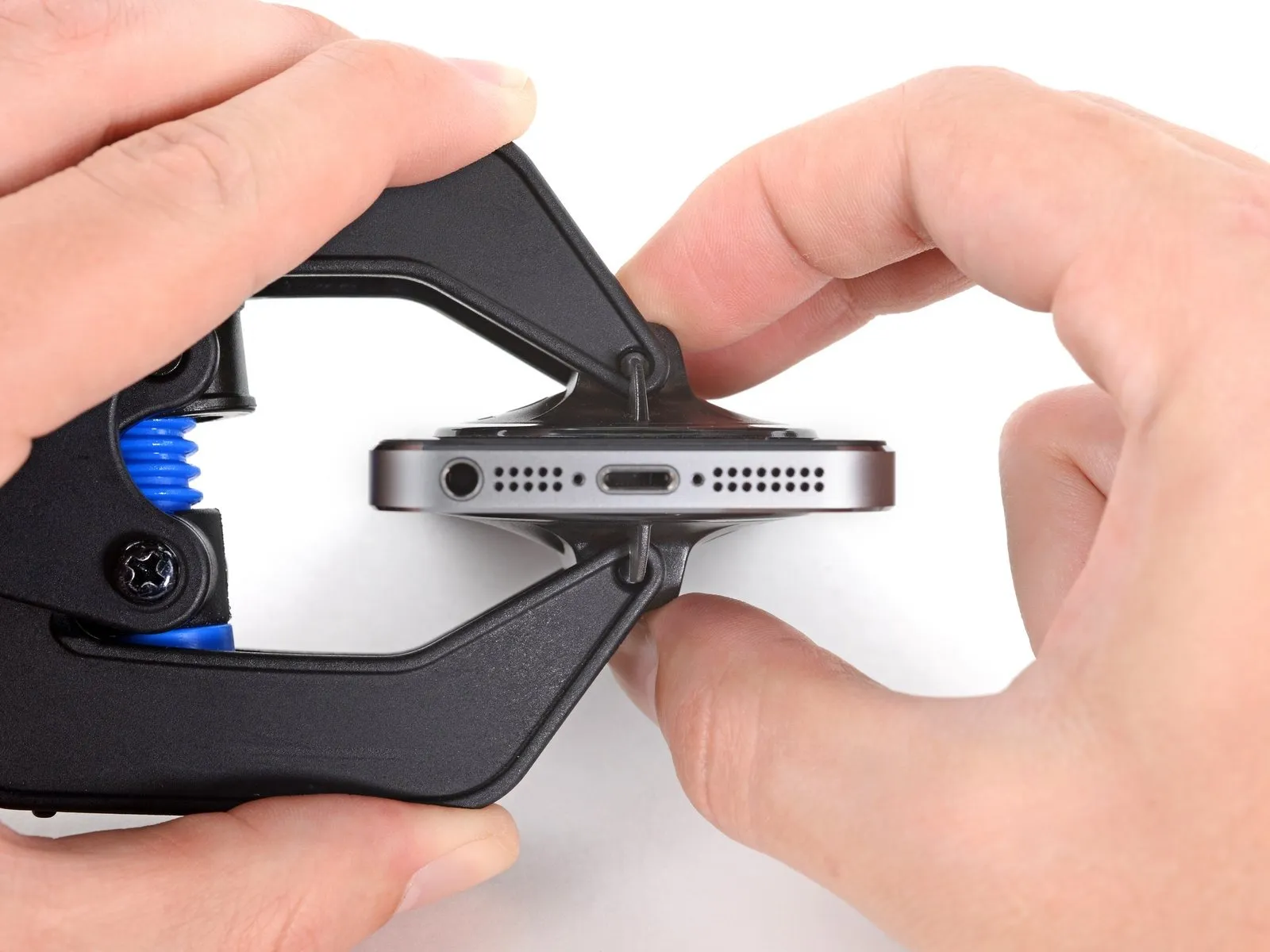
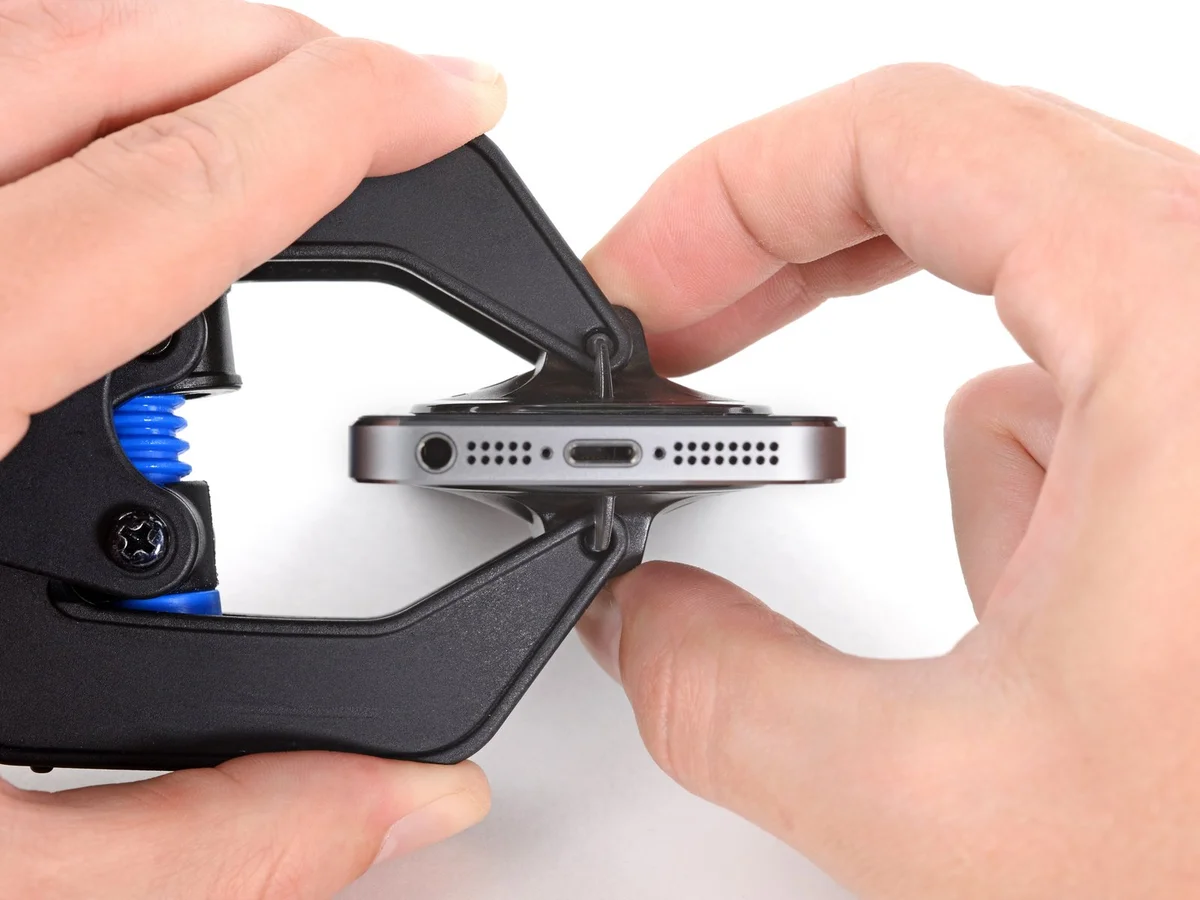
- To simplify the opening process, the following instructions utilize the Anti-Clamp tool, a custom design; if you do not have this tool, proceed two steps further for an alternative procedure.
- Refer to the accompanying guide for detailed procedures regarding Anti-Clamp operation.
- To release the Anti-Clamp's arms, move the blue handle in a rearward direction.
- Position the arms so they extend across the device's left or right side.
- Secure two suction cups, one to the front and one to the rear surface of the iPhone, placing them close to the lower edge and directly above the home button.
- Apply vacuum by pressing the cups firmly against the surface needing treatment.
- To improve the Anti-Clamp's grip if the iPhone's exterior is excessively smooth, apply the provided adhesive pad to generate a more textured holding area.
Step 5
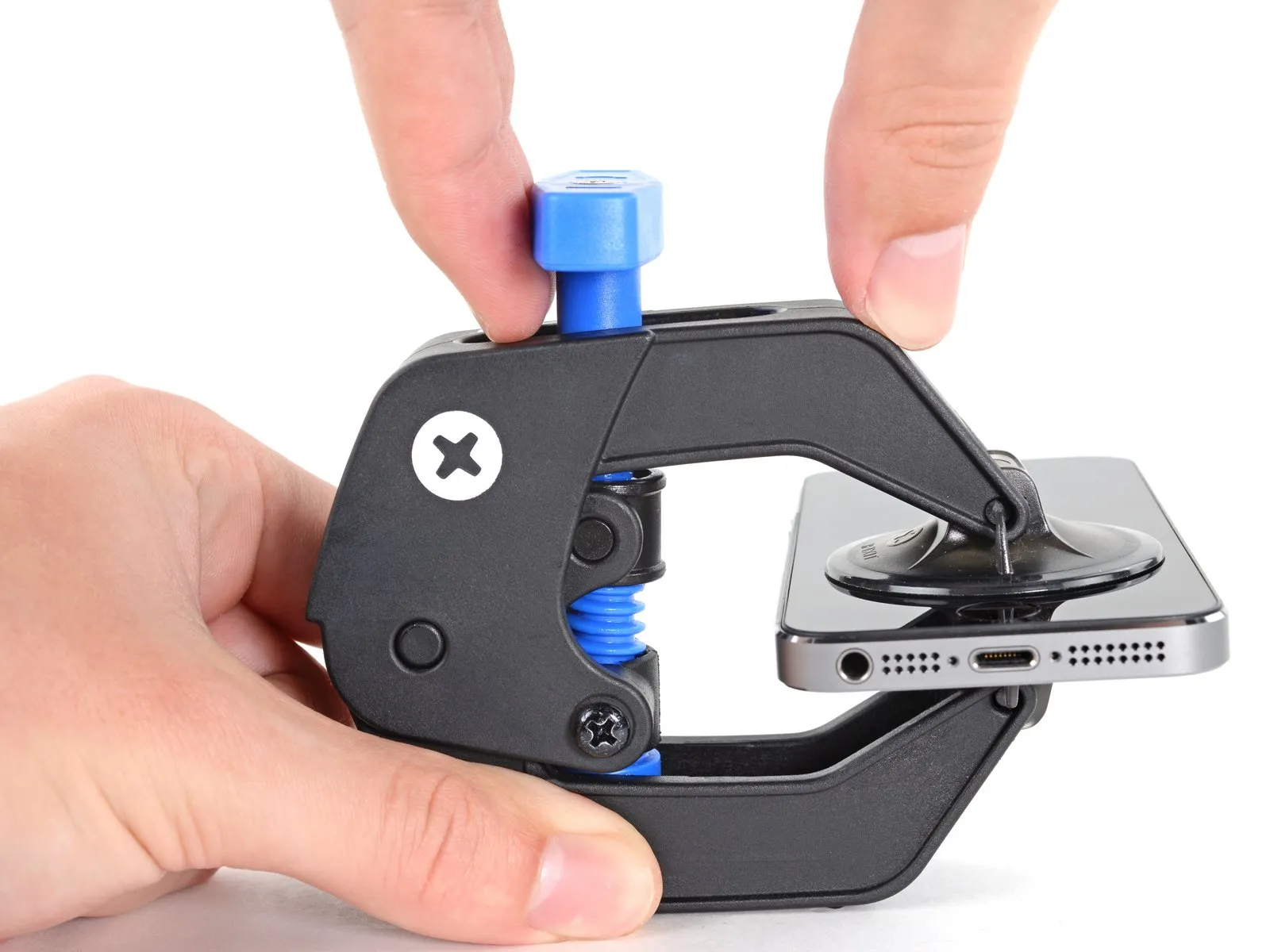
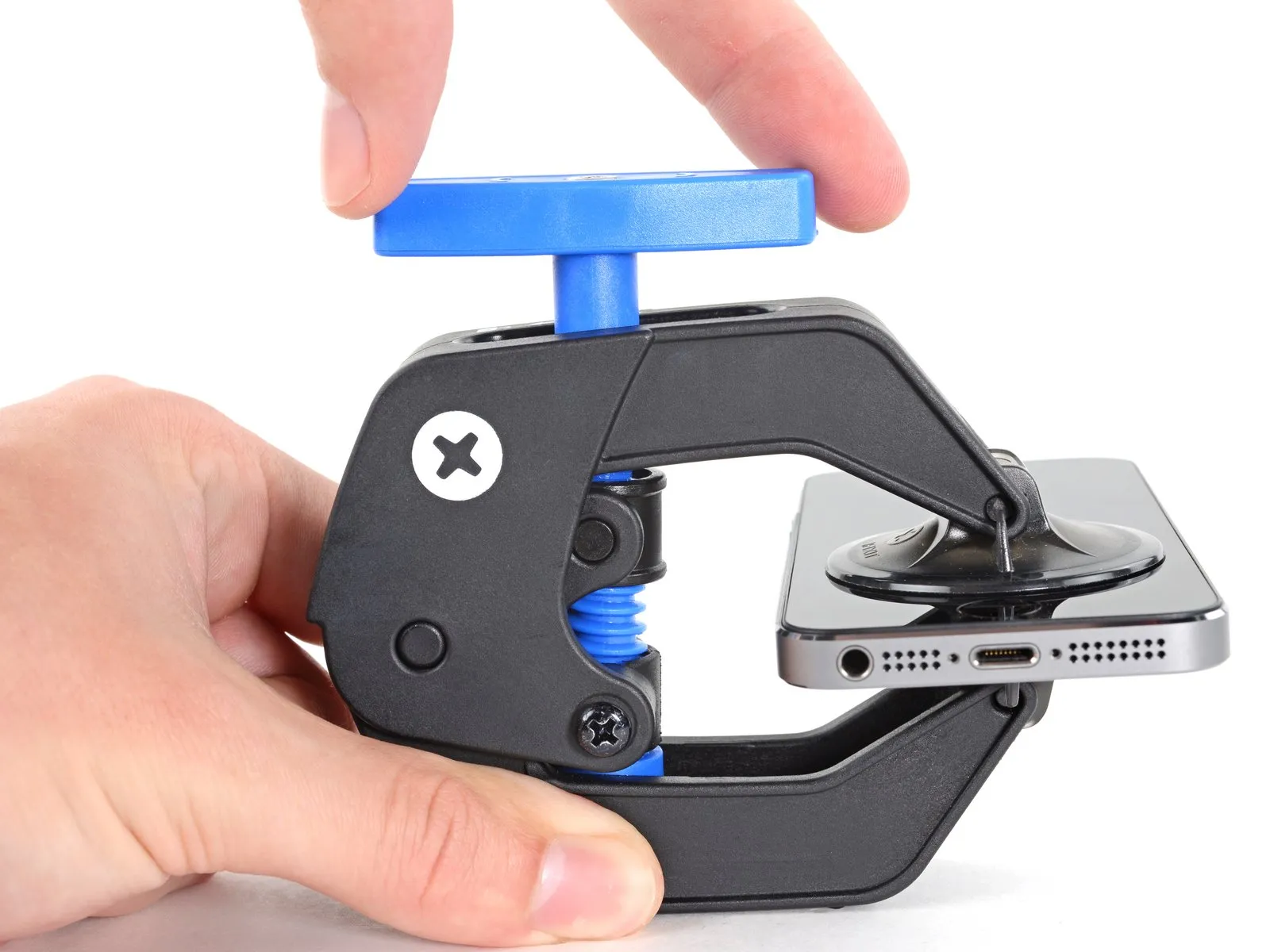
- To secure the arms, advance the blue handle in its direction.
- Rotate the handle fully, completing a 360-degree turn, observing for the initial expansion of the cups.
- Maintain parallel positioning of the suction cups; should misalignment occur, gently release the suction cups' grip and reposition the arms.
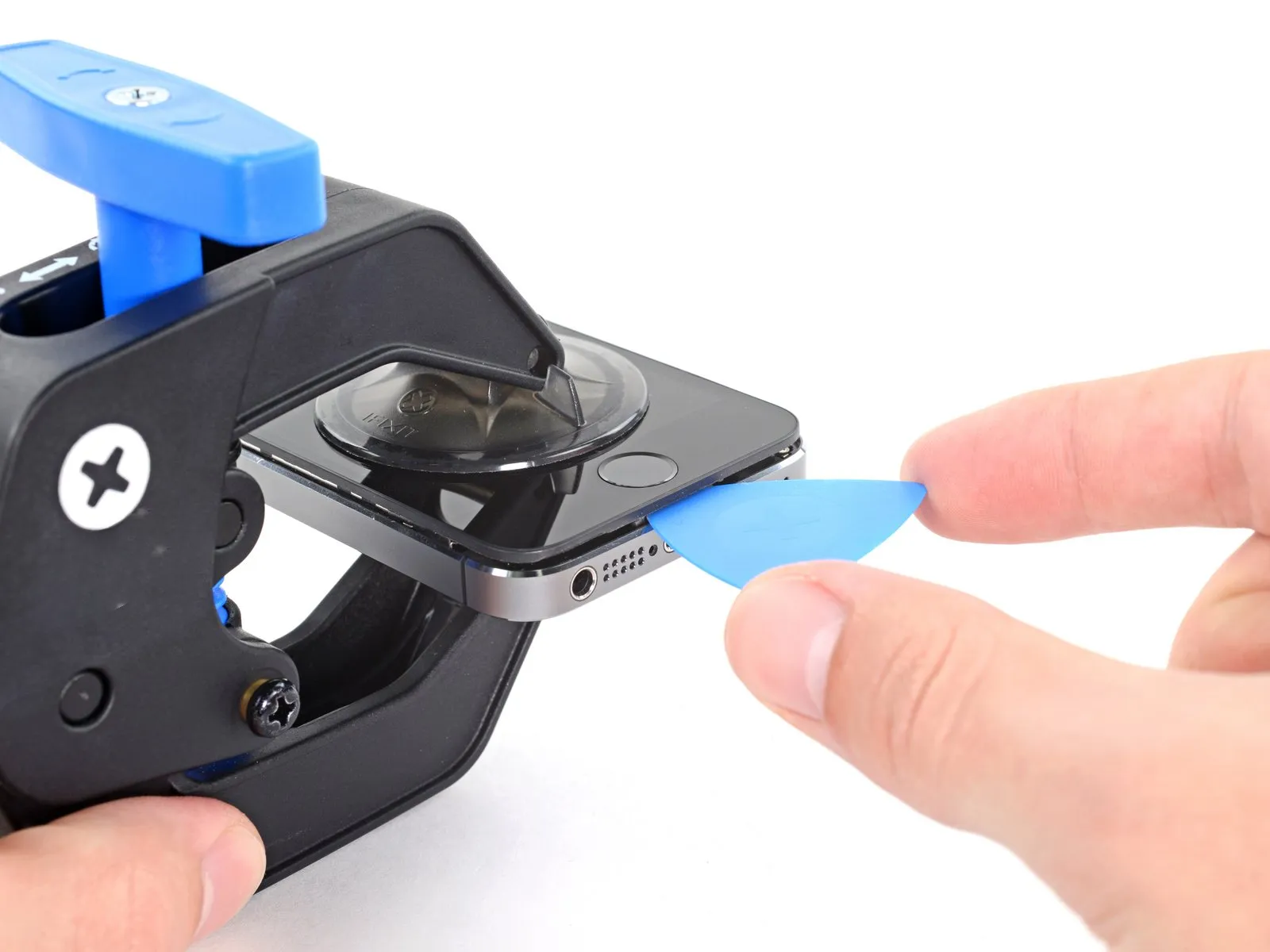
- Once sufficient space is created by the Anti-Clamp, slide a prying tool beneath the display.
- To ensure adequate separation, reposition the handle by 90 degrees.
- Apply adjustments in increments not exceeding 90 degrees, pausing briefly between each adjustment to allow the Anti-Clamp device and time to facilitate the process.
Step 6 | Manual Opening Procedure
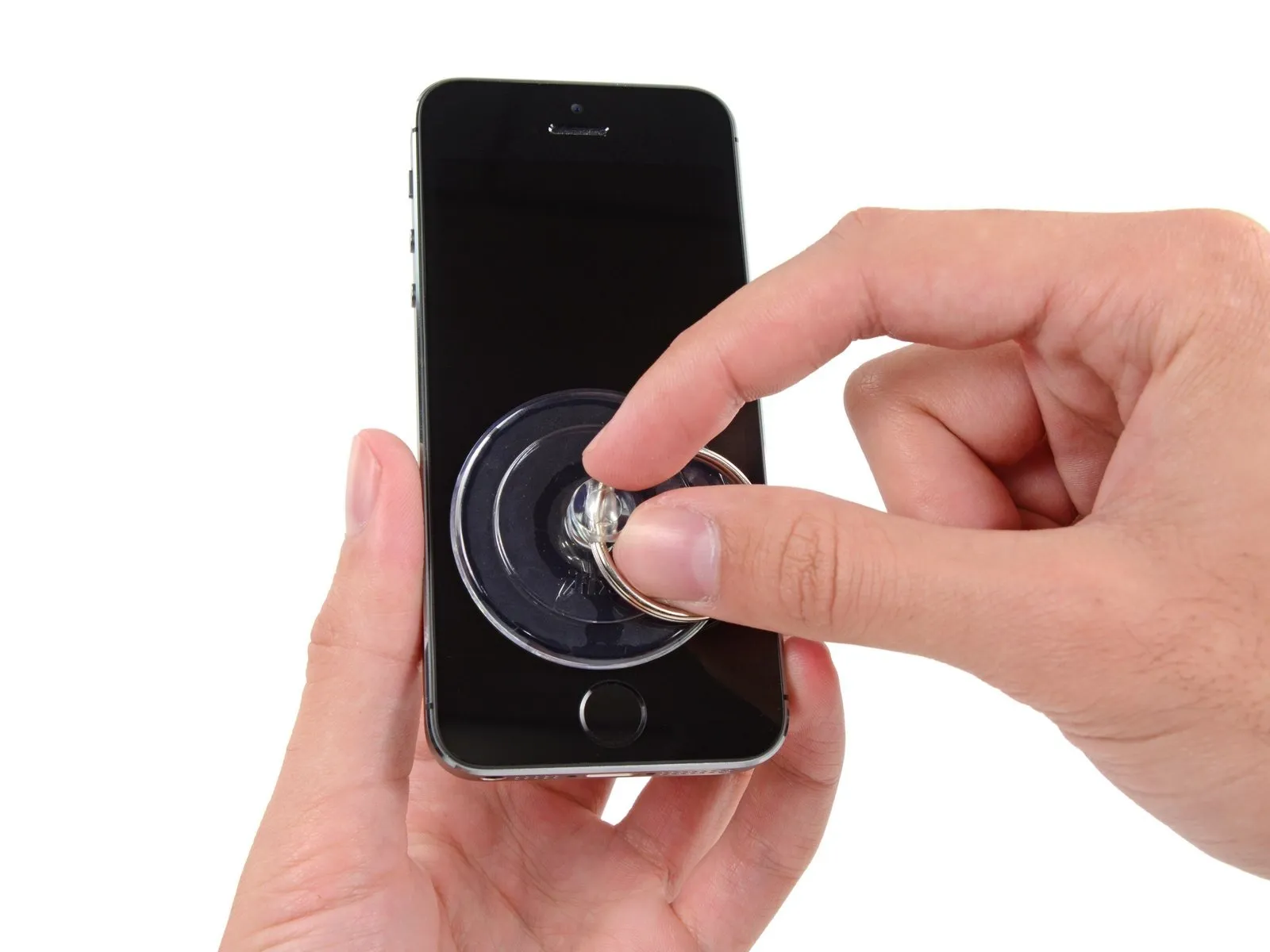
- Secure a suction cup to the display surface, positioning it directly over the home button area.
- Ensure the screen's entire surface is covered by the cup to guarantee a secure connection.
Step 7 | Start lifting the front panel assembly
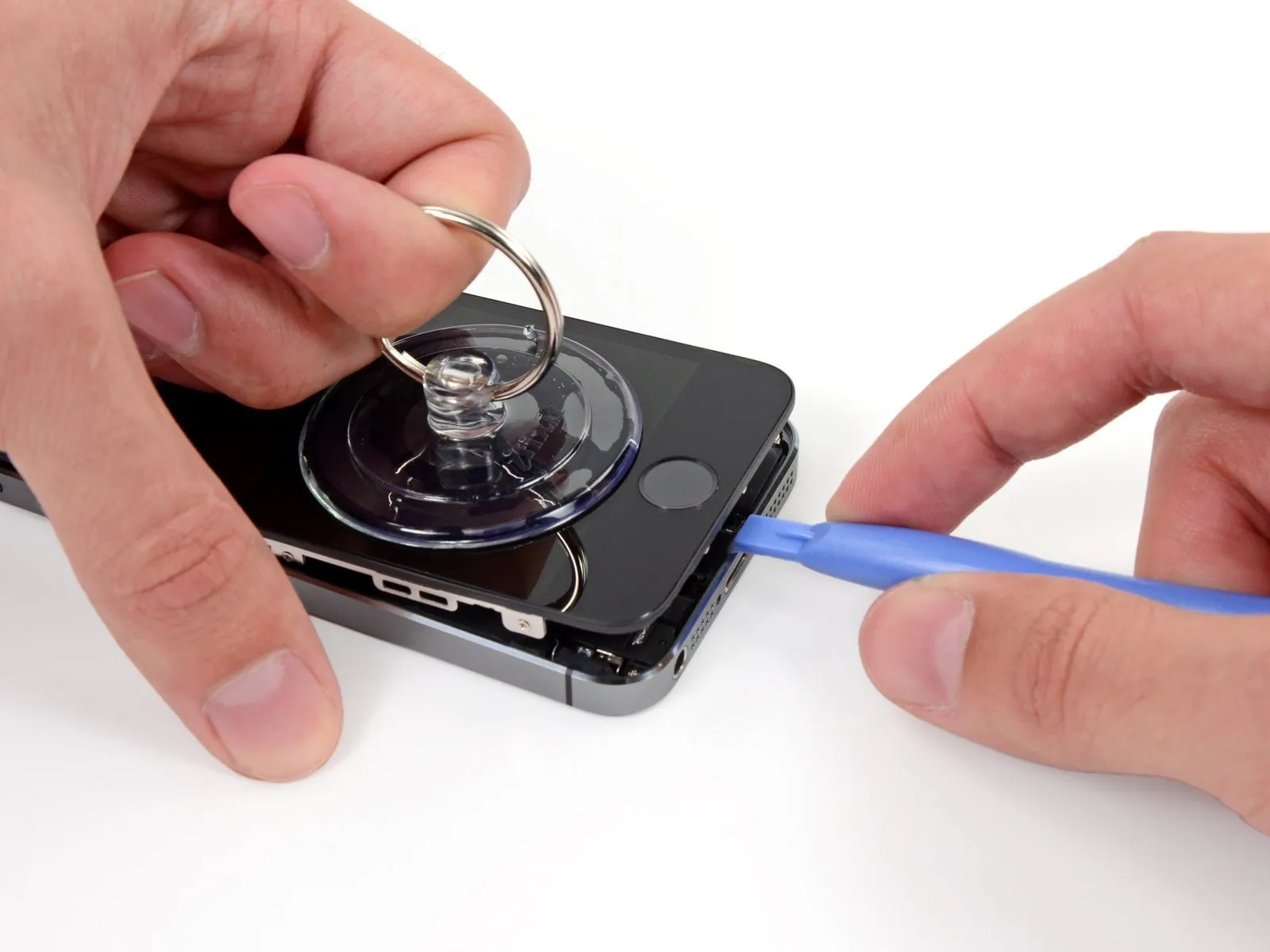
- Securely affix the suction cup to the front panel assembly, positioning it close to the home button.
- Using one hand to secure the iPhone, lift the suction cup vertically to create a small gap between the front panel's home button area and the rear case.
- Using a plastic opening tool, apply gentle prying force to the rear case edges, separating them from the front panel assembly, simultaneously lifting with the suction cup.
- Exercise caution and use steady, even pressure when installing the front panel assembly, as its fit is considerably snugger than what is typical for similar equipment.
Step 8
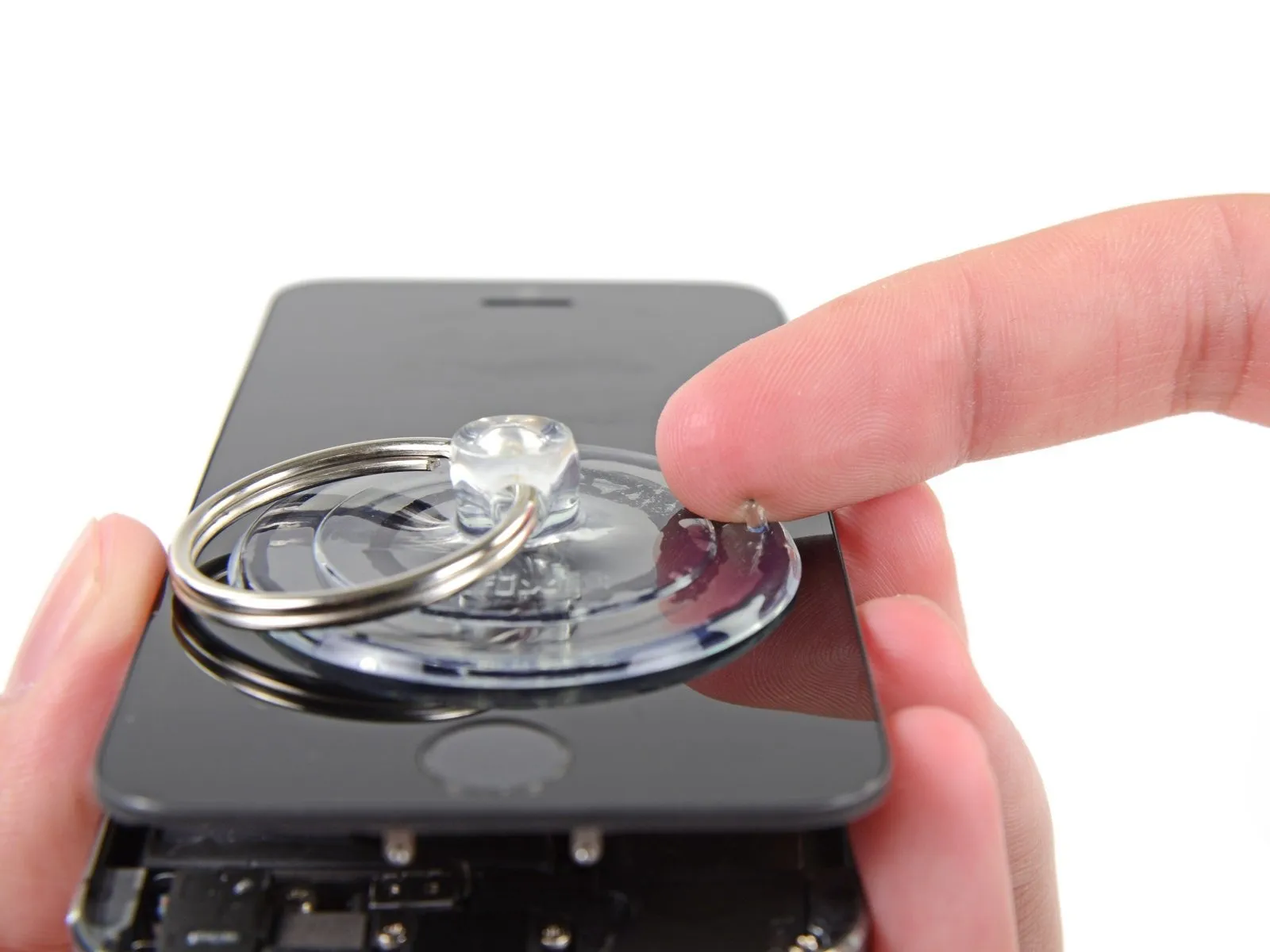
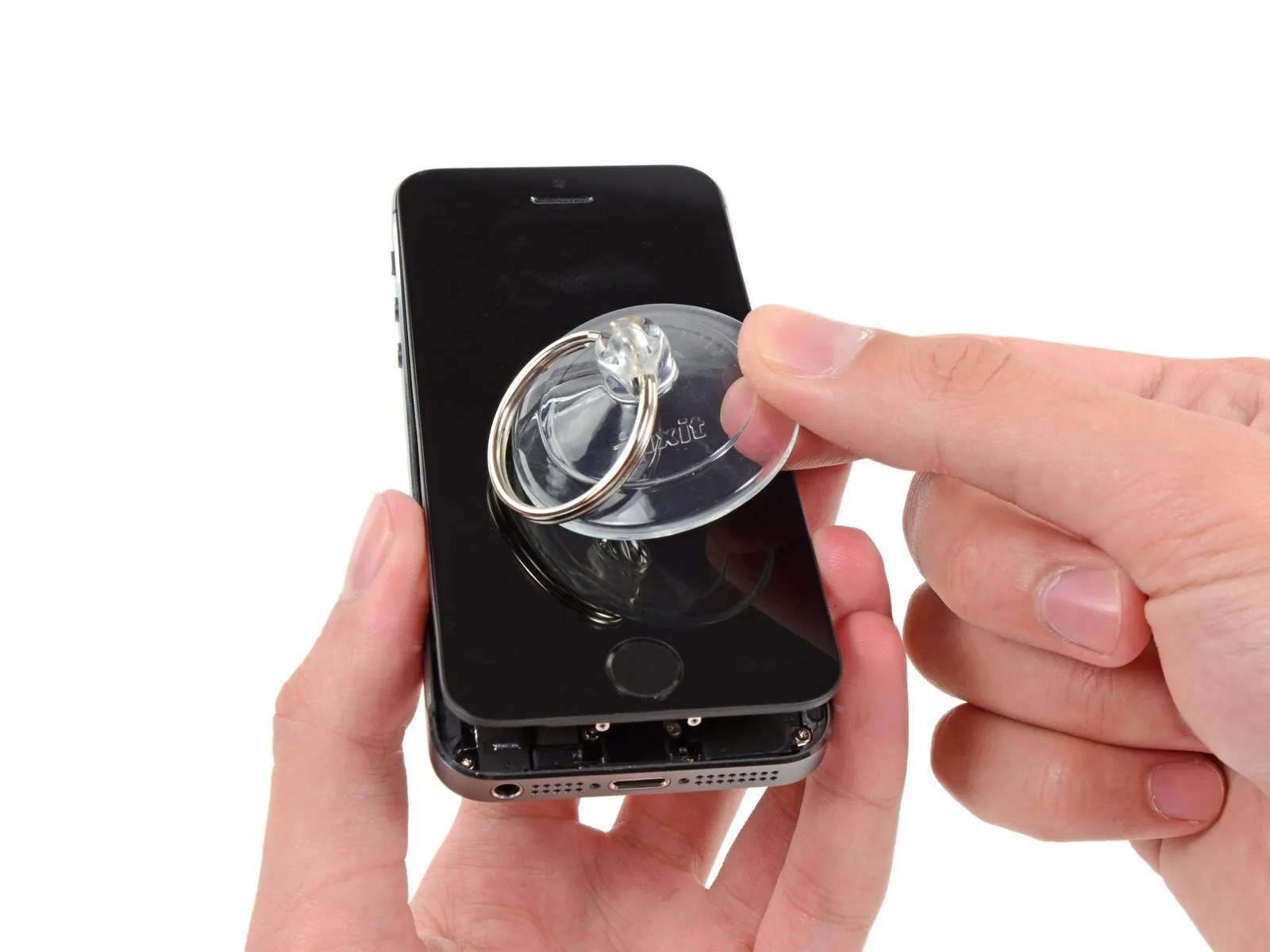
- To detach the suction cup, depress the plastic projection to break the airtight seal.
- Carefully detach the screen from the device using the suction cup.
Step 9 | Removing the Touch ID cable bracket

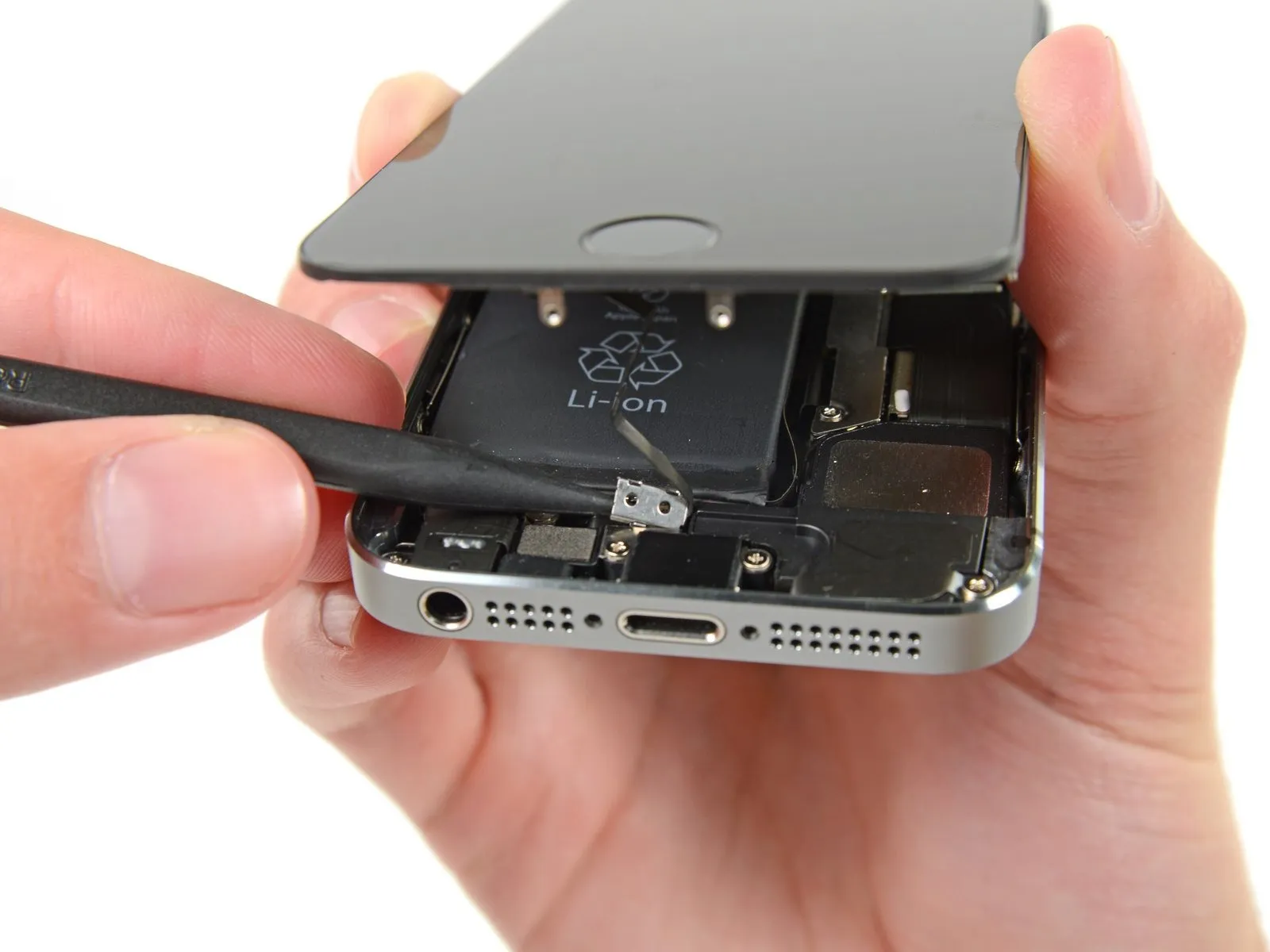
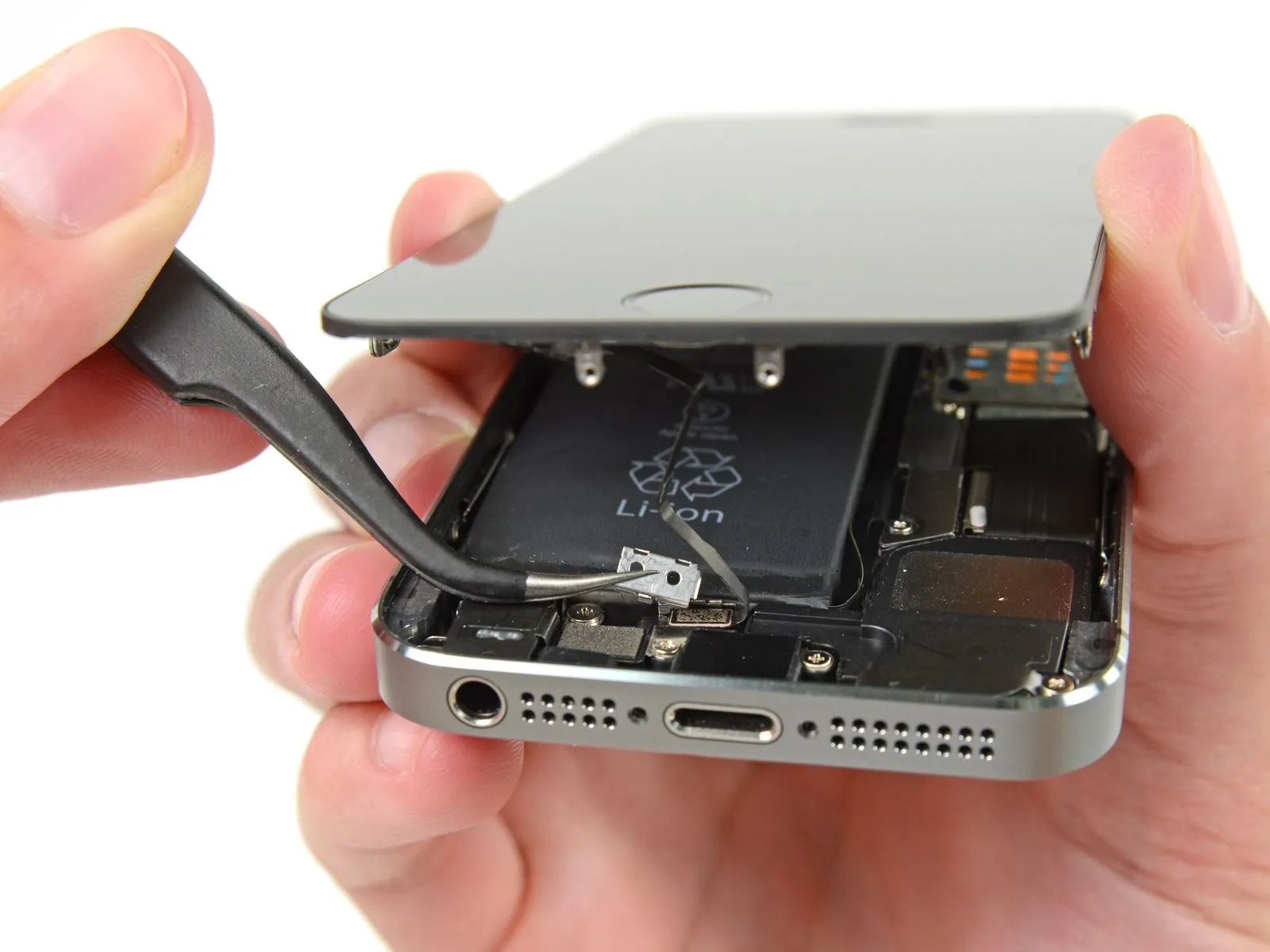
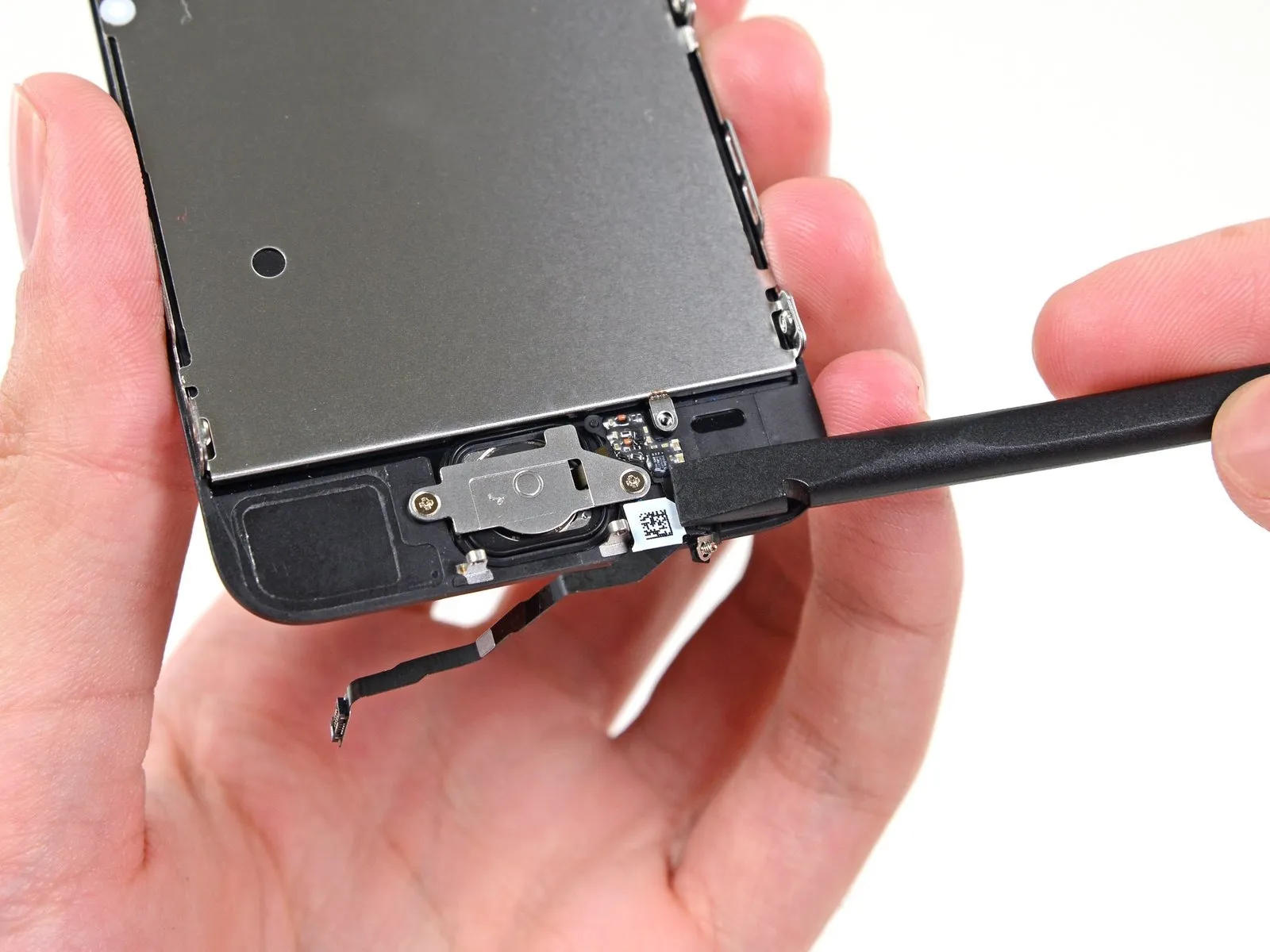
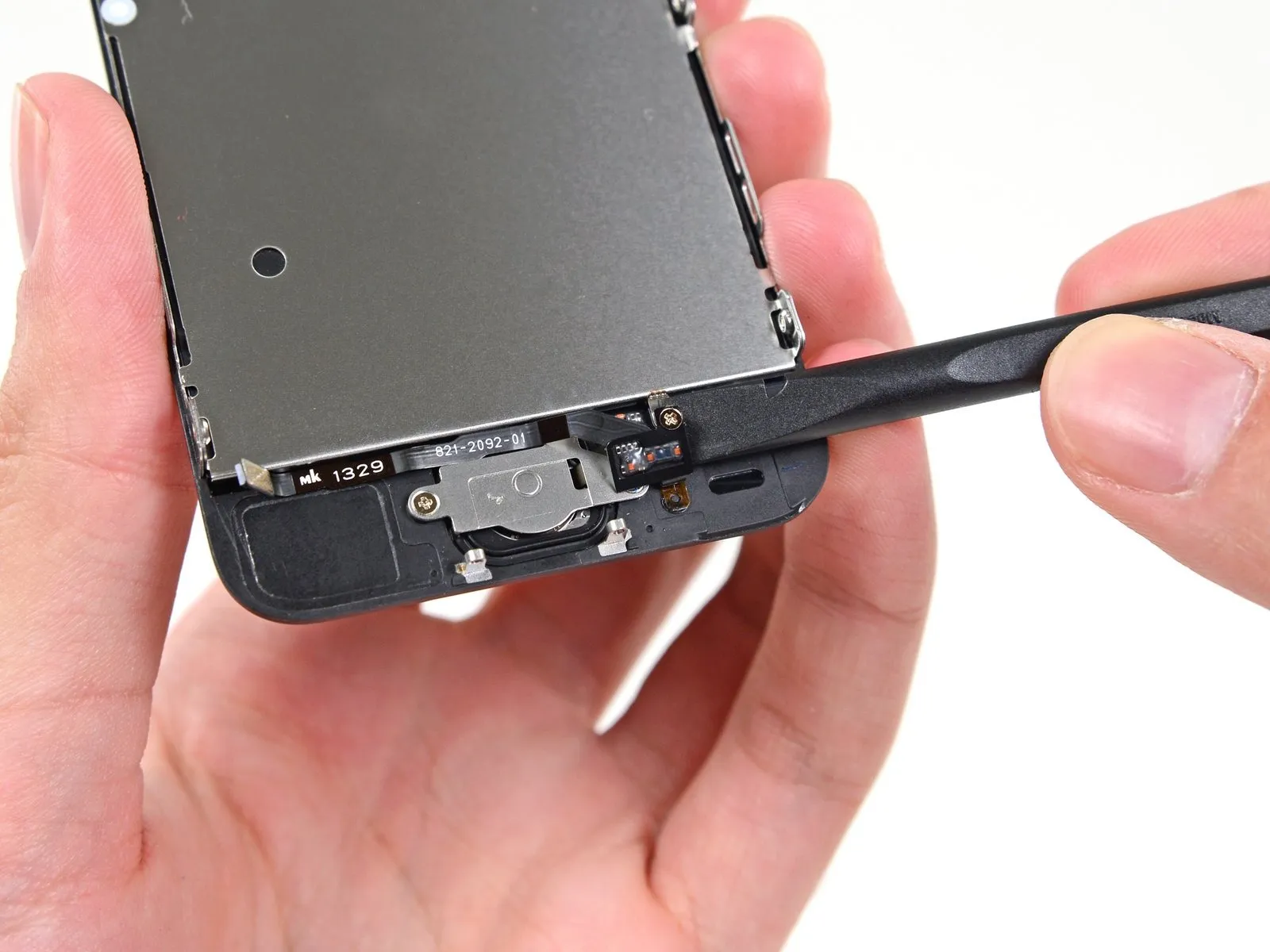
- Carefully separate the phone's casing to expose the metallic support securing the home button cable.
- To prevent damage to the home button cable and its connector, avoid excessive separation of the phone's housing; maintain slack in the cable, as overextension can cause harm.
- To maintain Touch ID operation, exclusively use the phone's factory-installed home button assembly; replacement of the cable will result in a standard home button function without Touch ID capabilities.
- Employ the pointed end of a screwdriver.Use a plastic pry tool, often referred to as a spudger, to gently separate components.Using tweezers, carefully disengage the bracket.
- For reassembly procedures, proceed with the following two steps later; if you are currently disassembling, bypass these instructions and move directly to Step 12.
Step 10

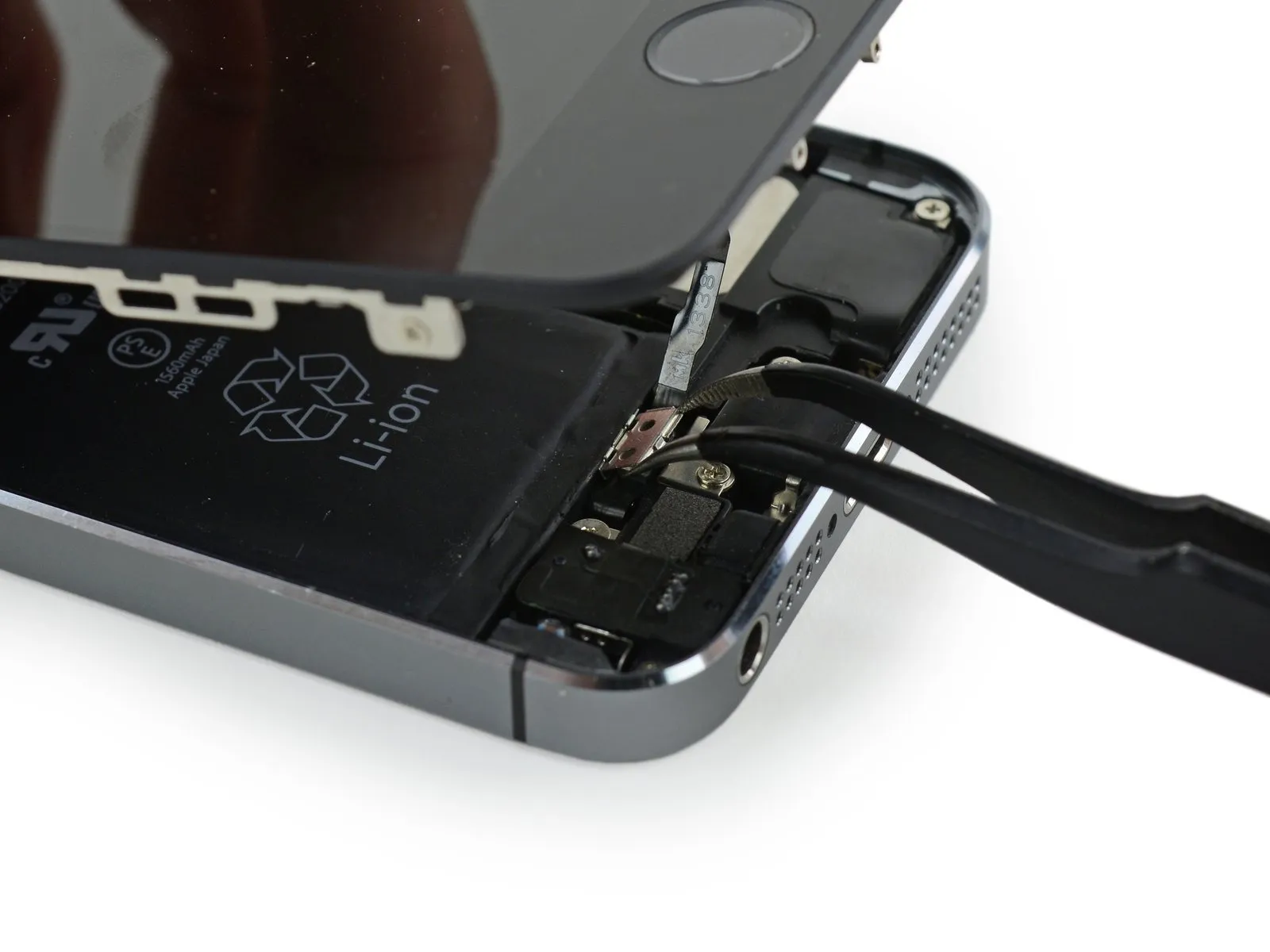
To complete reassembly, secure the Touch ID cable bracket by guiding its upper edge between the battery and the Touch ID cable connector, positioning it ahead of the metal tab, then engaging the bracket’s lower edge over the connector to ensure it’s properly latched.
- Align the bracket's upper edge with the Touch ID cable connector and move it horizontally to the right.
- Position the bracket so it rests on the connector; the side featuring the projecting "leg" will create a small incline, ensuring the opposing edge aligns between the connector and the battery's adjacent metal tab.Use a plastic pry tool, often referred to as a spudger, to avoid scratching surfaces.Position the component flush with the bracket, then carefully press downwards to secure both the rear and front clasps into place.
Step 11

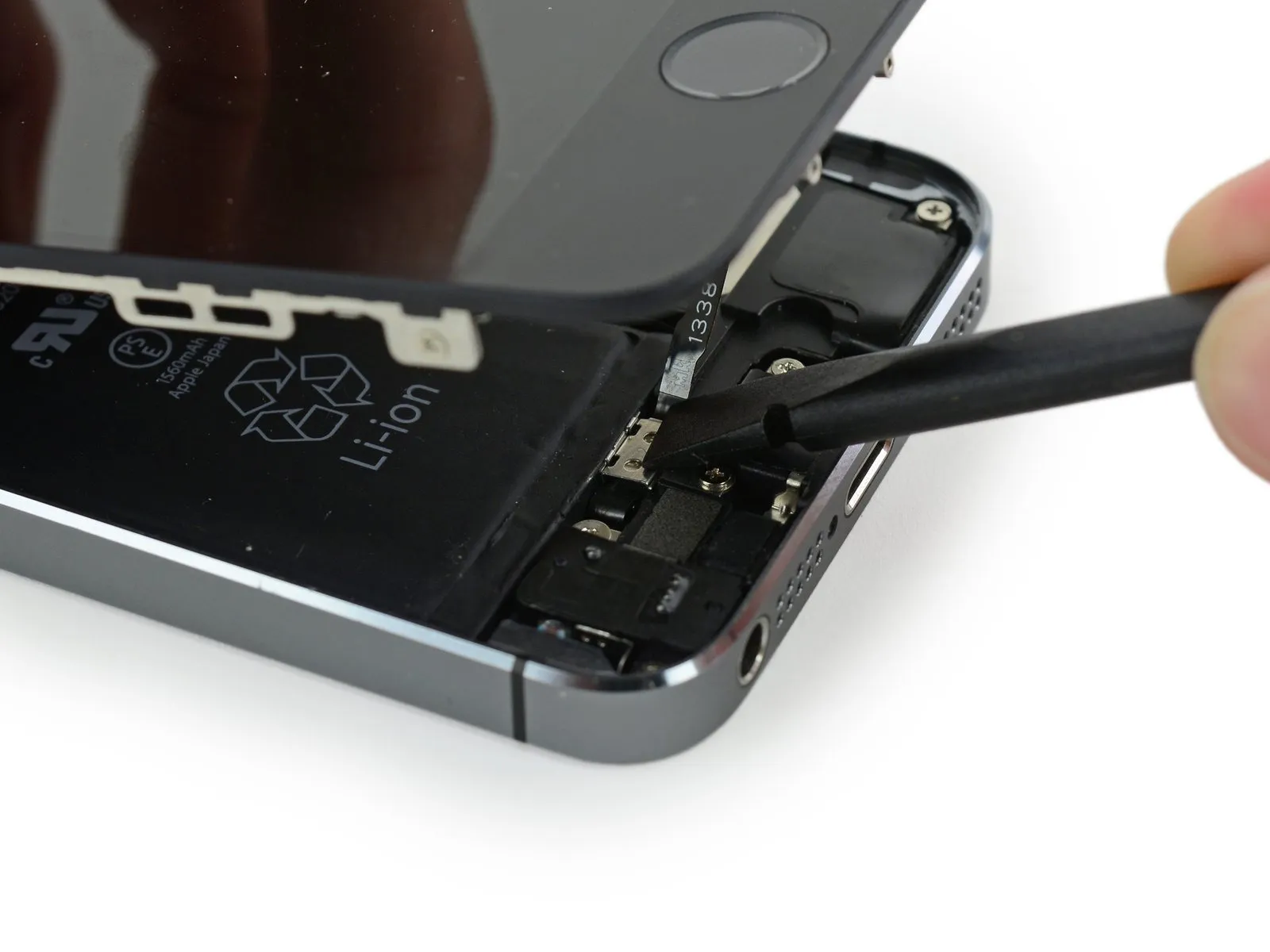
Employ the tool's flattened tip to facilitate reassembly.Use a plastic spudger.Secure the Touch ID cable connector by pressing the front bracket firmly into place.
To ensure the bracket sits level and even against the surface, reposition it by sliding it back over the cable connector if it doesn't seat properly.
Step 12 | Disconnecting the home button cable connector
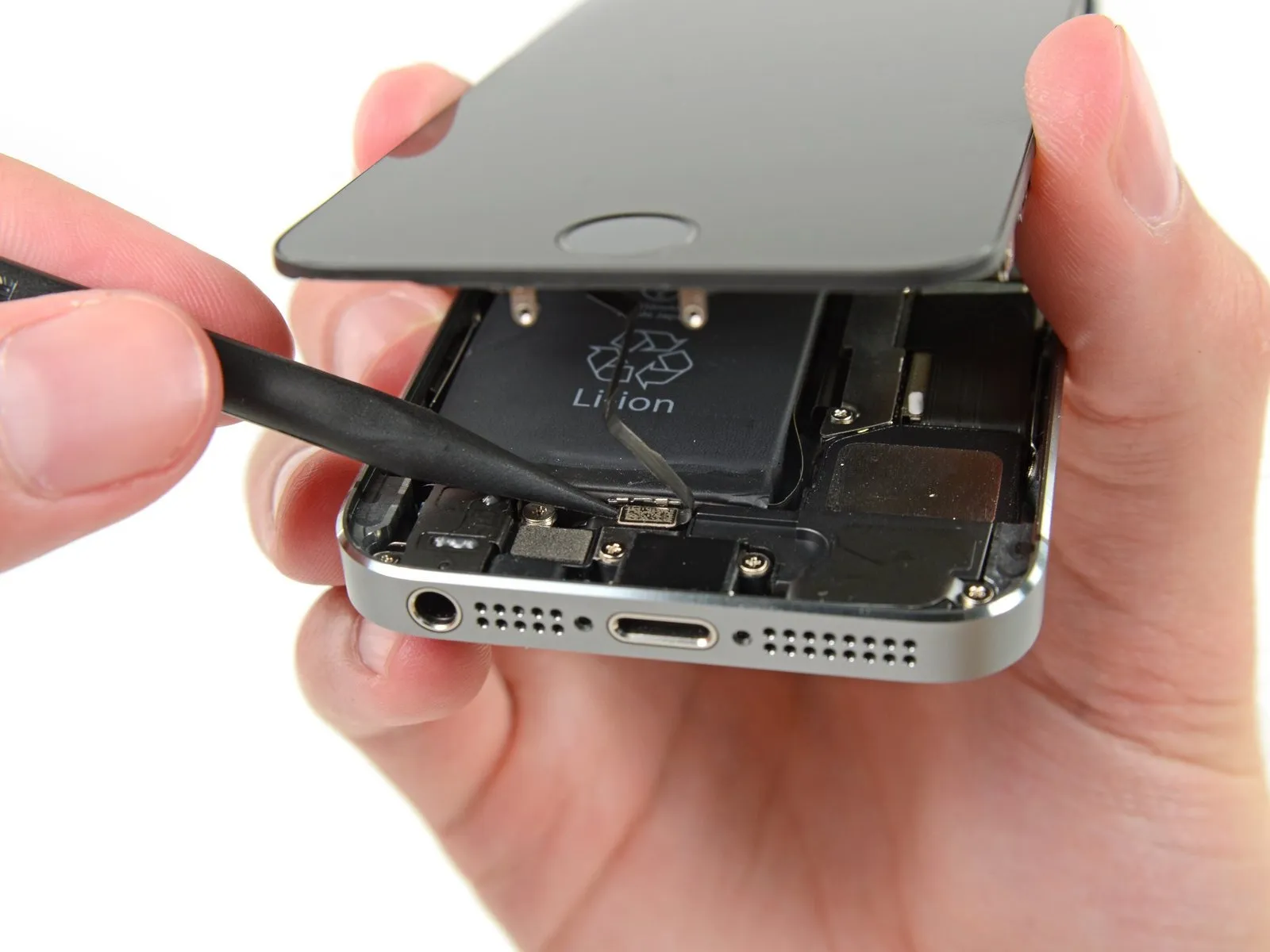
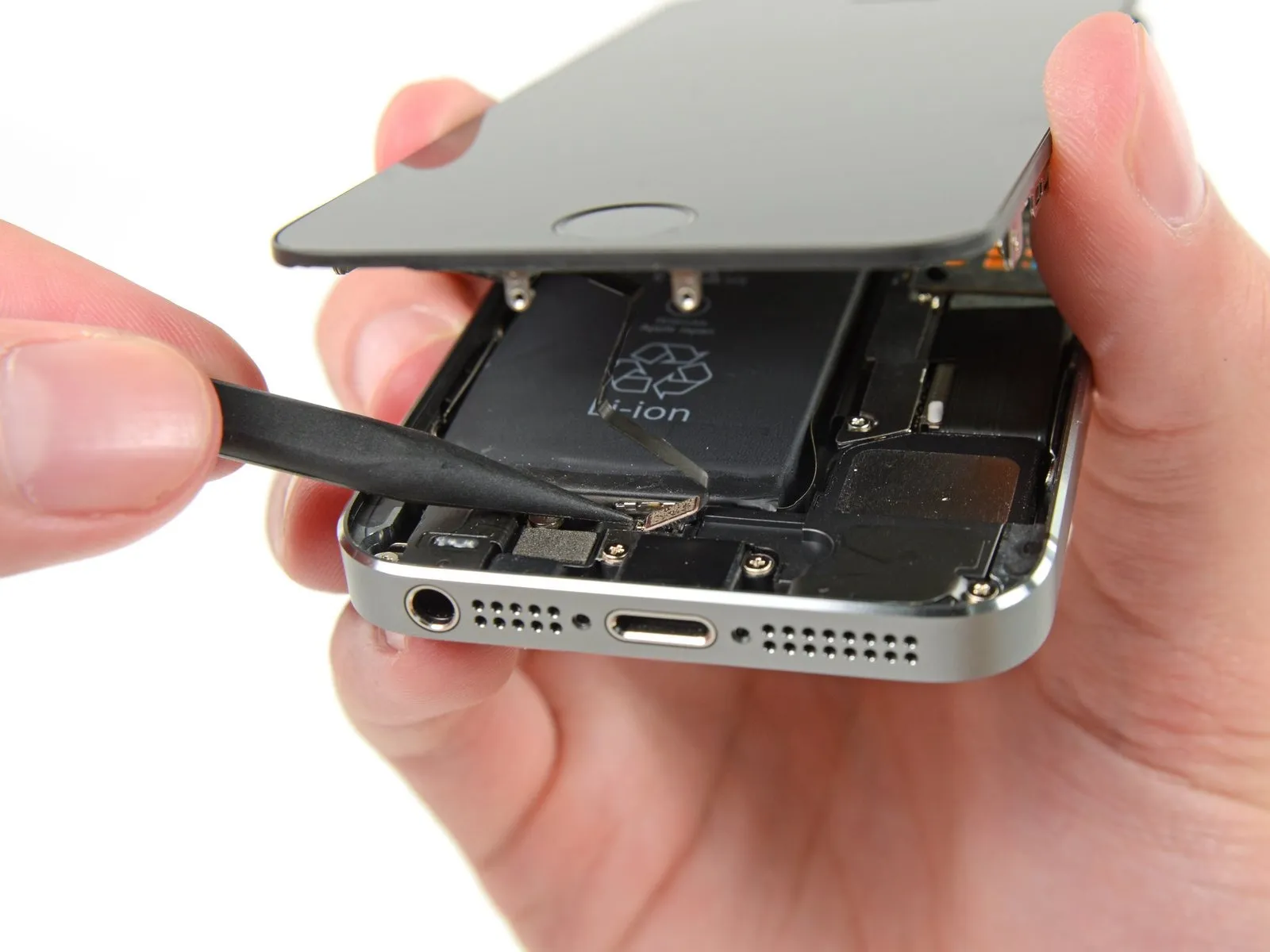
- Employ the pointed end of a screwdriver to carefully apply pressure.Use a plastic spudger.Carefully use a prying tool to lift the home button cable connector vertically from its receptacle.
- Carefully detach the cable connector from its receptacle; avoid lifting the receptacle itself, as it's affixed to a cable secured with adhesive that can be damaged if pried incorrectly.
Step 13 | Opening up the phone
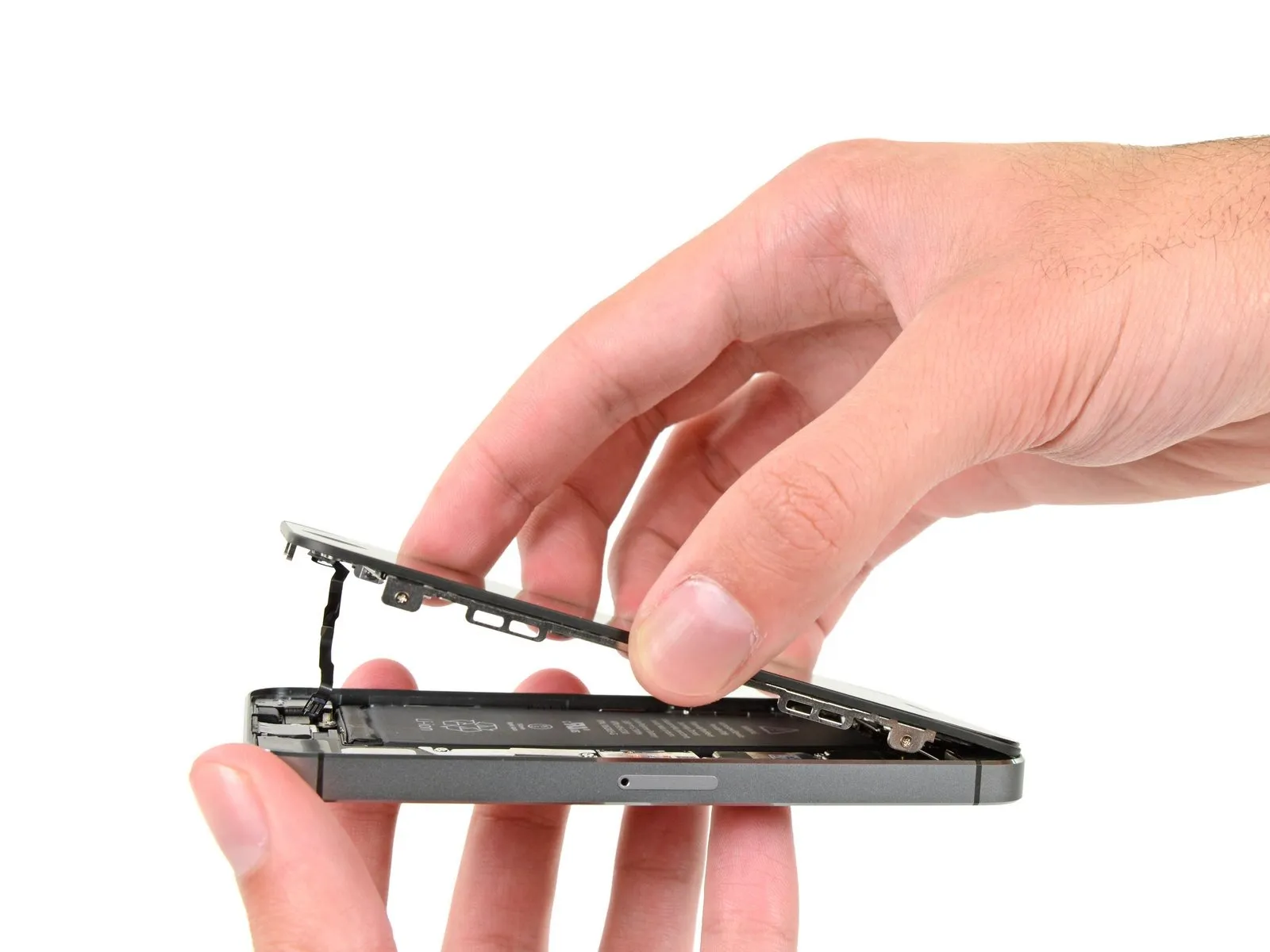
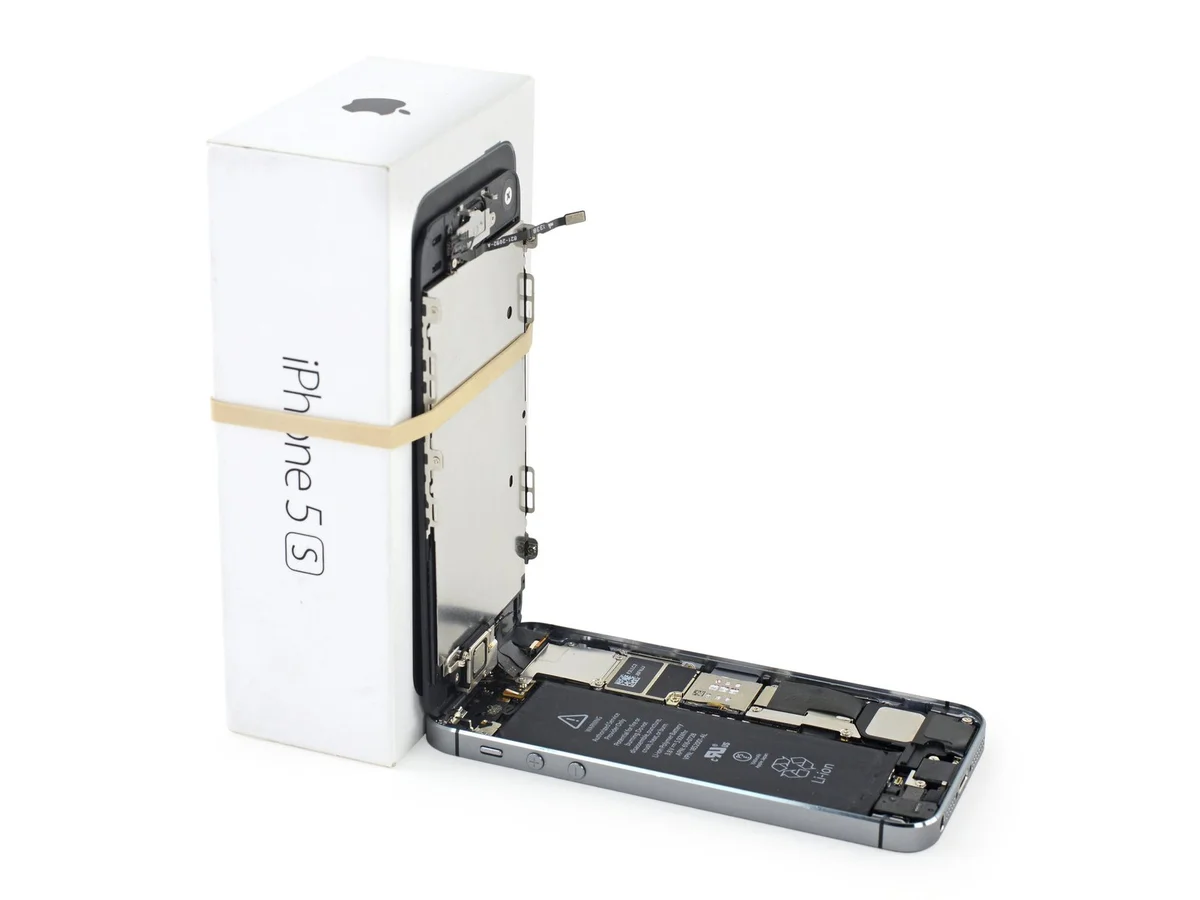
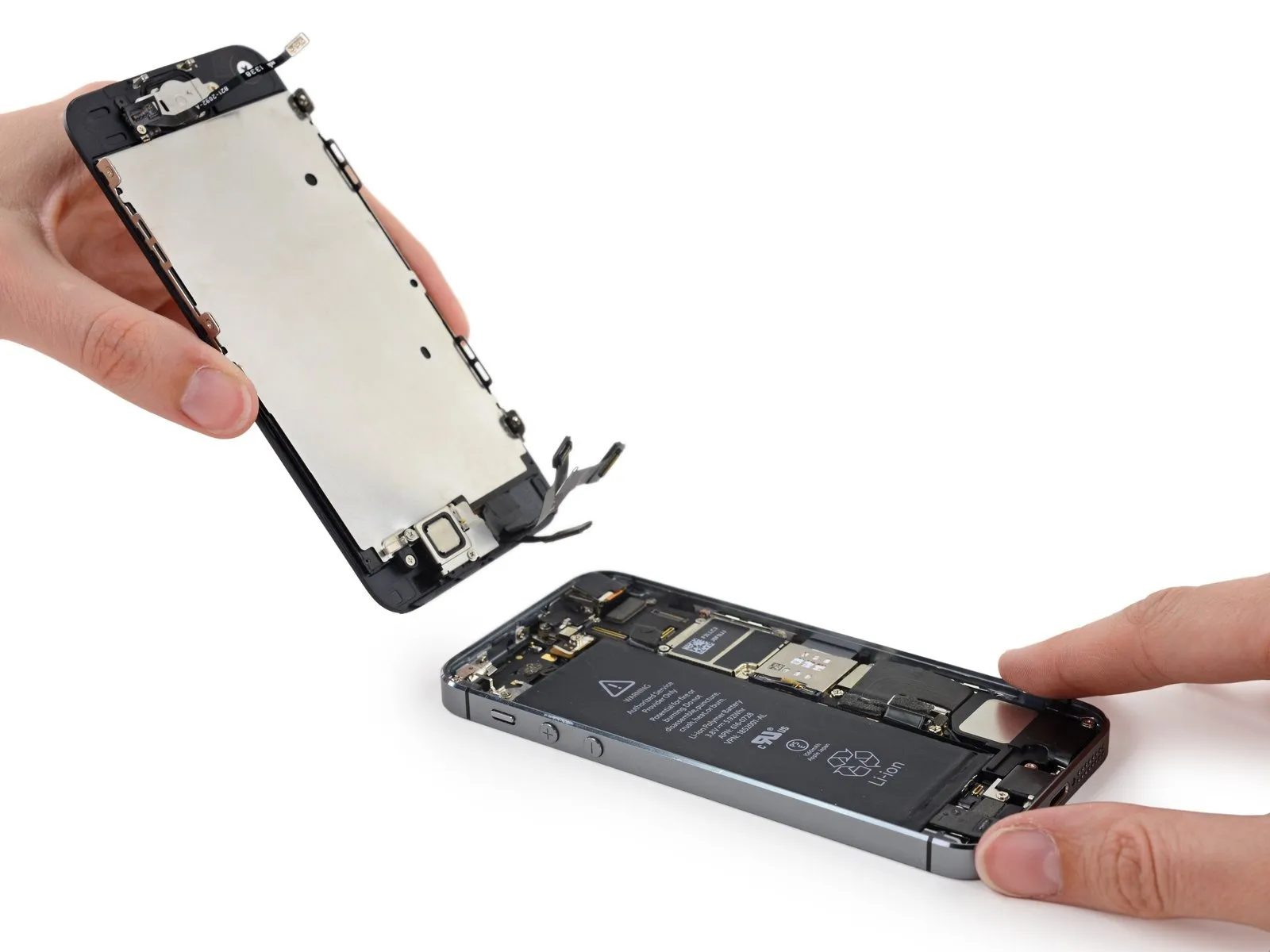
- After disconnecting the connector, pivot the assembly, using the phone's upper edge as a fulcrum, to separate the home button end from the rear case.
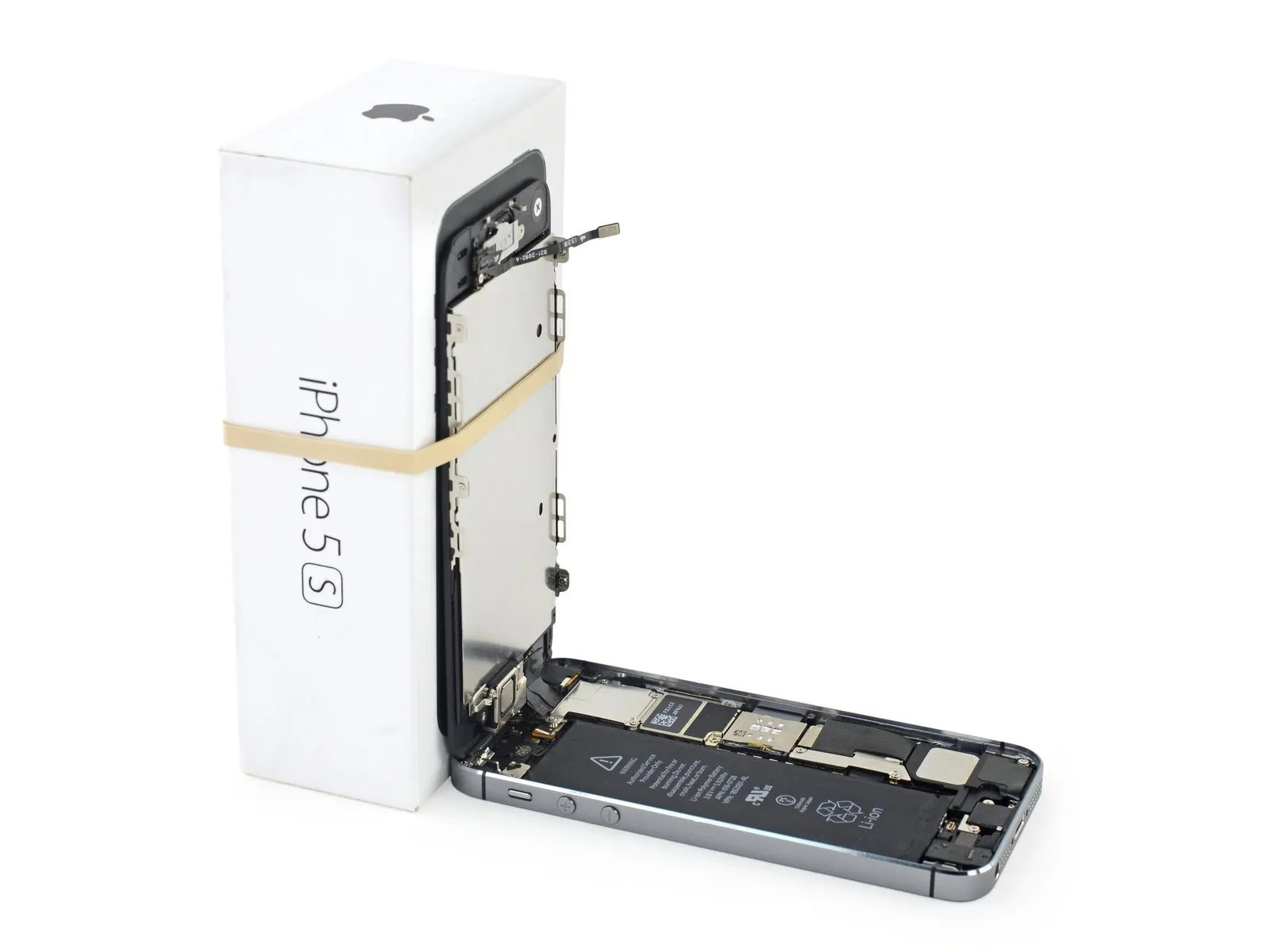
- Carefully separate the display assembly from the device housing, creating a gap of approximately one millimeter.Rotate to a 90-degree angle.Position the device at an angle, securing it in place with support to prevent movement during the repair process.
- To avoid stressing the display's wiring during the repair process, secure it with a rubber band.
- As a temporary measure, an unopened, sealed can of soda can be employed to support the display.
Step 14

Step 15

Step 16

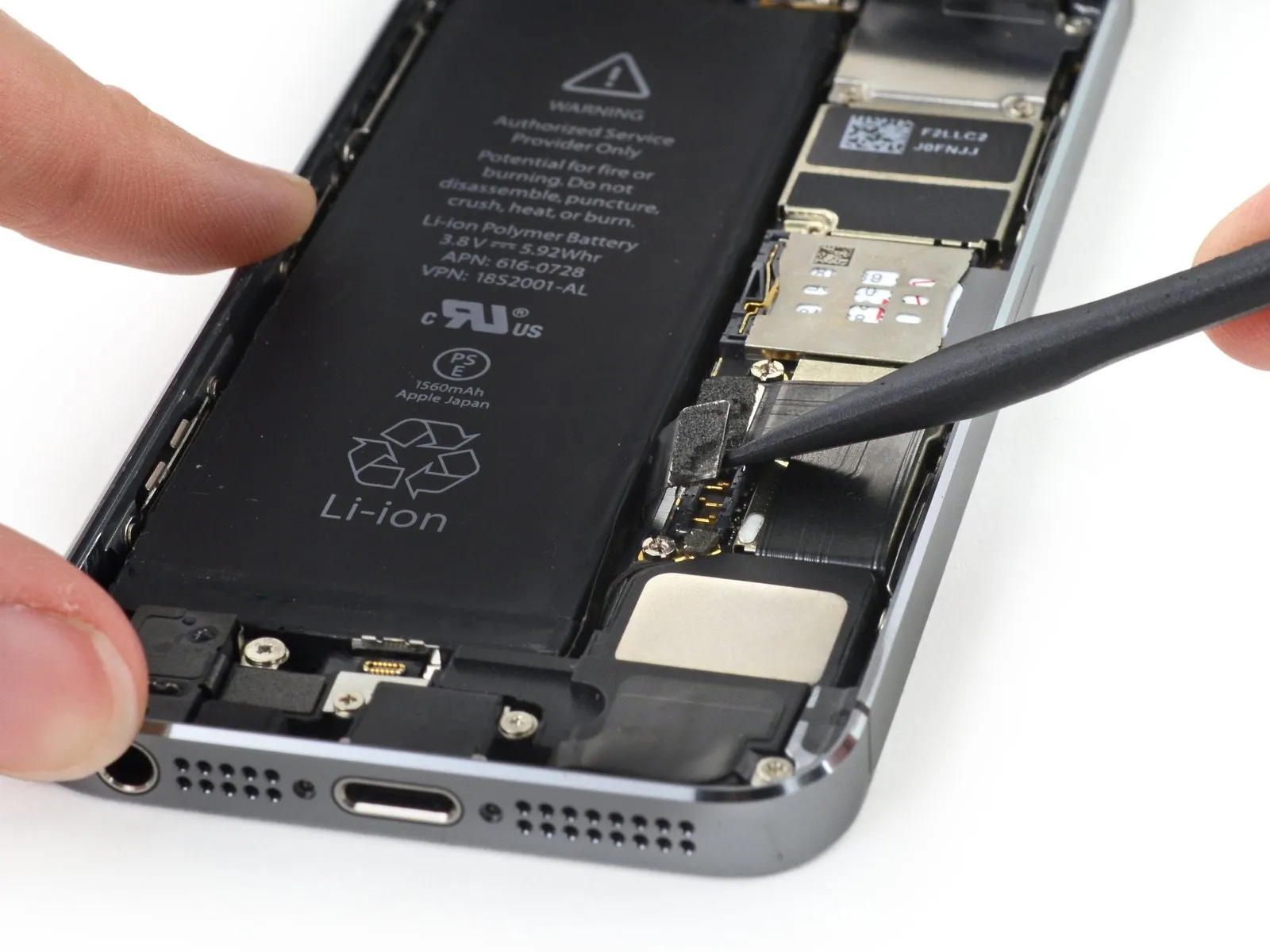
- Carefully lift the battery connector away from its corresponding socket on the logic board, utilizing the flat edge of a spudger to avoid damage.
- Exercise extreme caution when releasing the battery connector, ensuring you apply force solely to the connector and avoid contact with the logic board socket; applying pressure to the socket or the board could result in socket destruction or damage to adjacent components.
Step 17

- Detach the cable bracket that holds the front panel assembly wiring by unscrewing the screws listed below.
- A Phillips screwdriver, size #000, is needed to remove a 1.7-millimeter screw.
- A Phillips head screwdriver, size #000, is needed to remove a 1.2-millimeter screw.
- A Phillips screwdriver, size #000, is needed to remove a 1.3-millimeter screw.
- An additional screw, measuring 1.7 mm in diameter and utilizing a Phillips #000 head, is required.
Carefully organize all screws during this stage, as incorrect placement during reassembly can cause damage.Use a 1.3-millimeter screw.Alternatively, aUse screws with a 1.7-millimeter head diameter.Inserting a tool into that specific lower-right aperture can severely compromise the logic board's integrity, preventing the device from powering on.
Avoid applying excessive force when tightening screws; overtightening can damage components. Should a screw resist proper engagement during installation, verify its size against the specified dimensions to ensure compatibility.
Step 18

- Detach the bracket securing the front panel assembly cable to the logic board.
Step 19

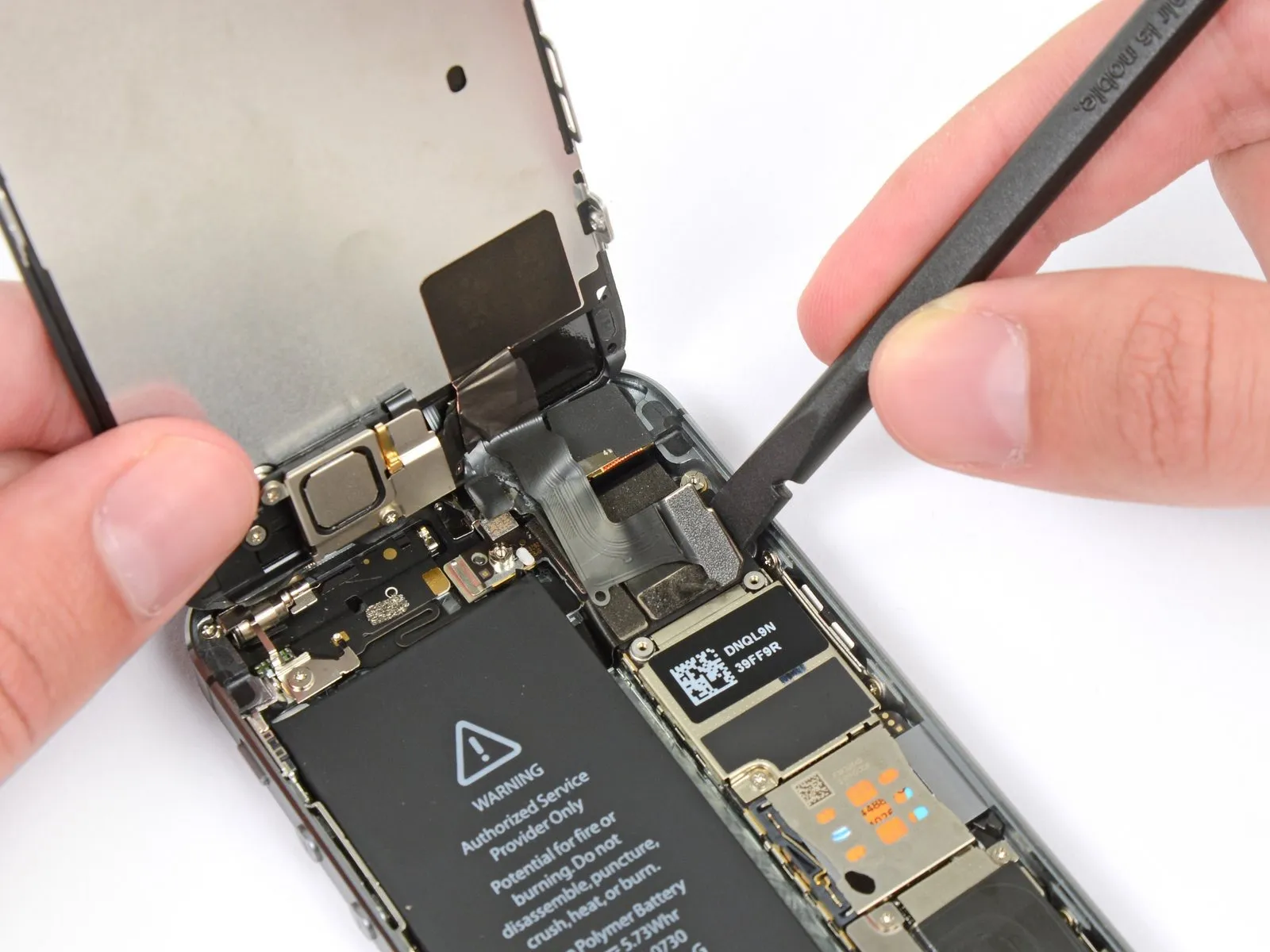
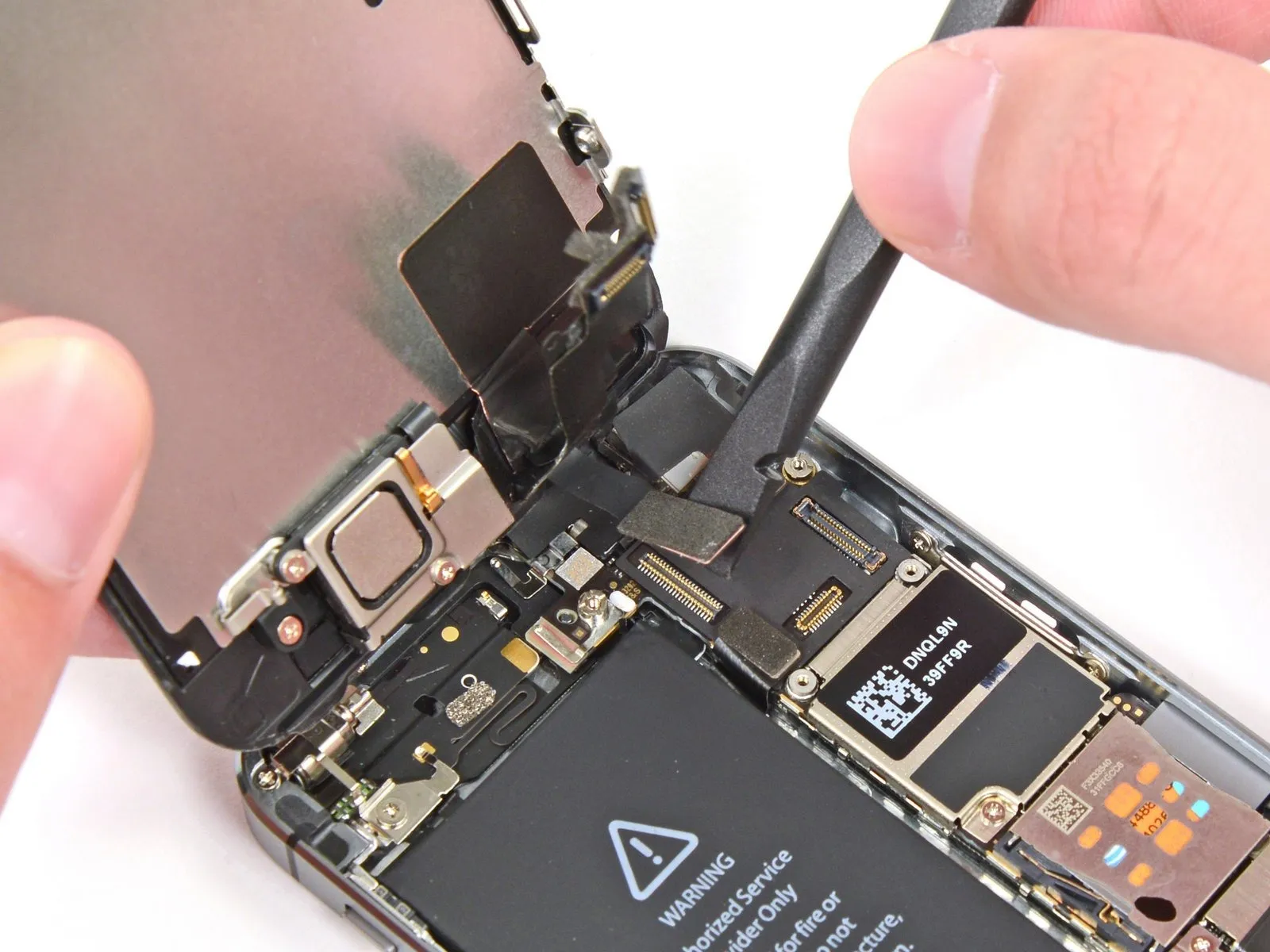
- Carefully detach the front camera and sensor cable assembly from its connector using a spudger or similar non-conductive tool.
Step 20

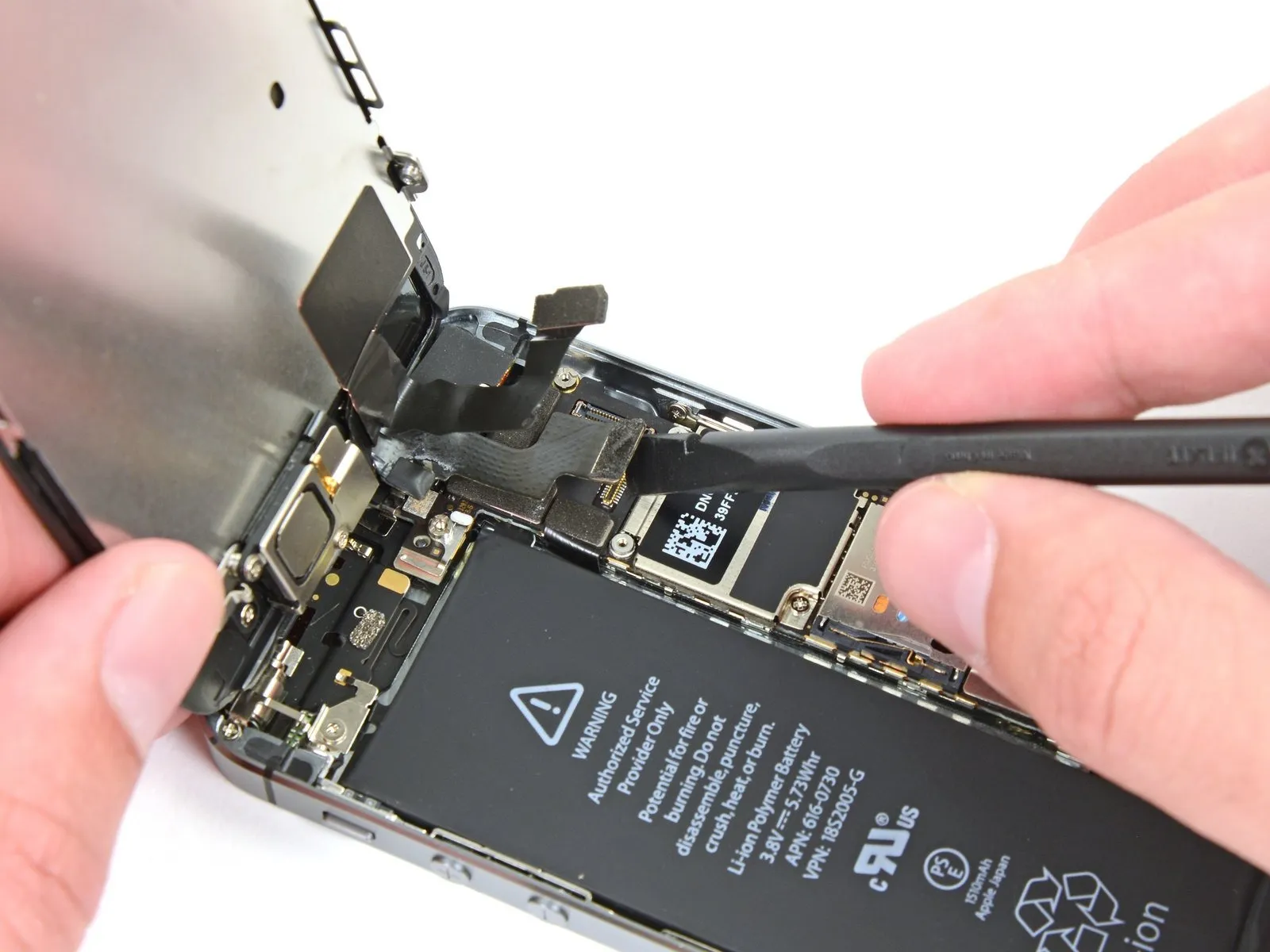
- Prior to either detaching or reattaching the cable in this procedure, ensure the battery is disconnected.
Carefully detach the LCD cable connector.
Should the LCD cable become detached from its connector during reassembly, the display may exhibit white lines or remain blank upon powering on; to resolve this, re-establish the cable's connection and restart the device, preferably by disconnecting and reconnecting the battery to ensure a complete power cycle.
Step 21

Step 22
Step 23 | Home Button Assembly
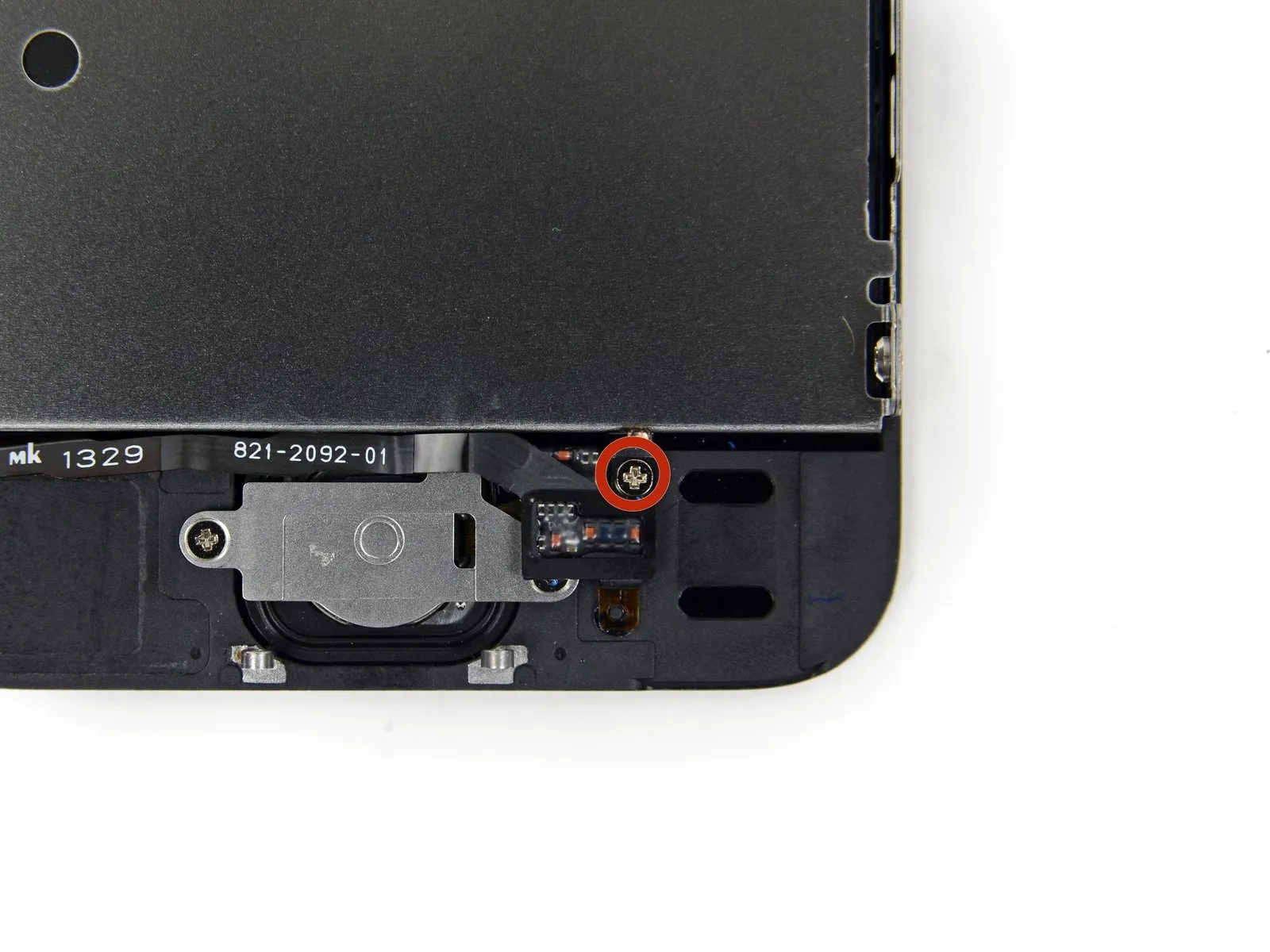
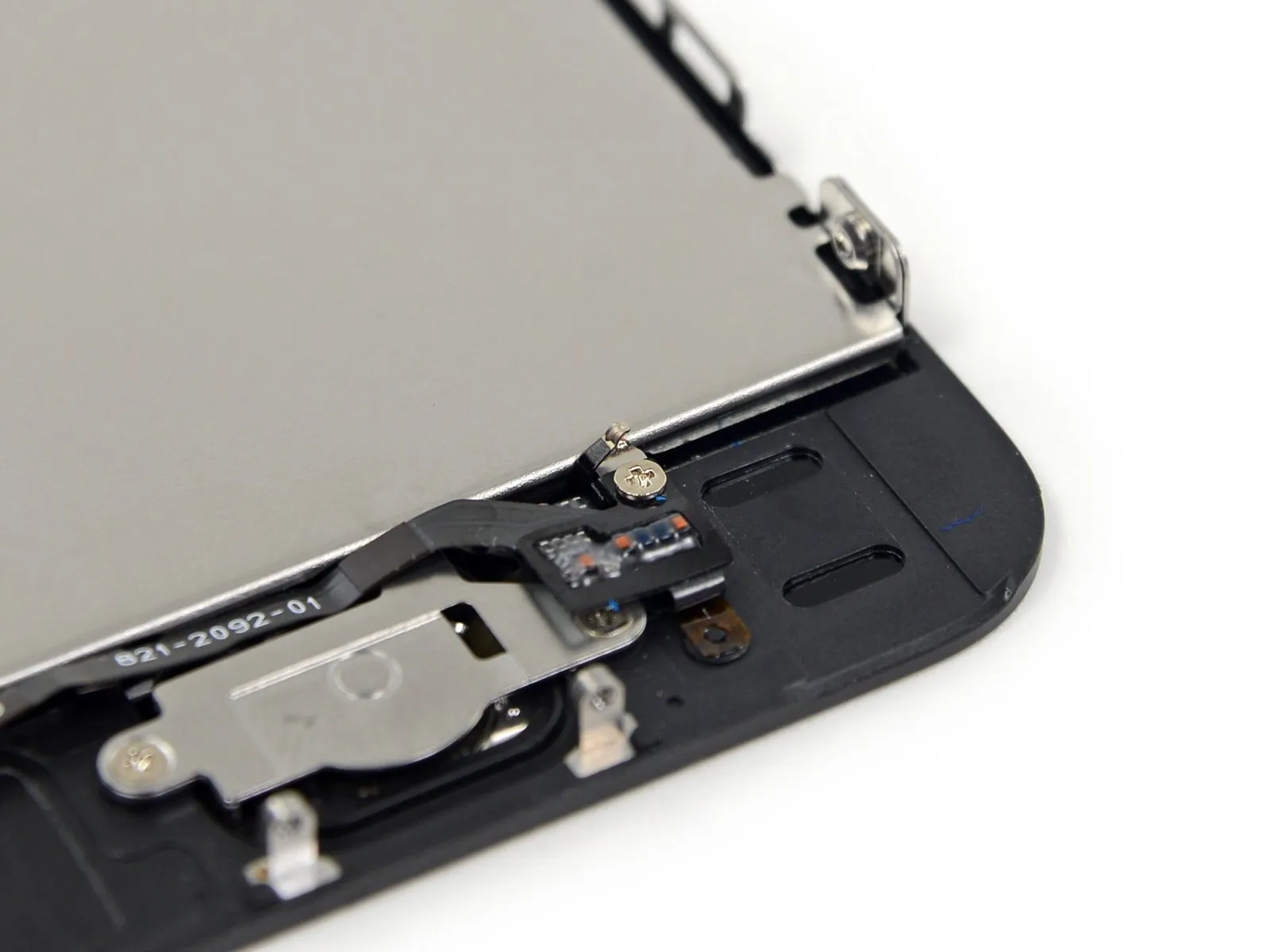
- Loosen the single, attached fastener by rotating it counterclockwise.Use a Phillips head screwdriver, size 000.Using the Phillips #00 screwdriver, fasten the screw that holds the home button cable in place.
- To secure the captive screw to the home button cable, a spring contact provides backing; during reassembly, position this contact so it faces toward the LCD, aligning it closest to the screw.
- To ensure proper functionality, carefully move the existing screw and spring contact to the new cable if they are not already pre-installed on the replacement part.
Step 24
Step 25
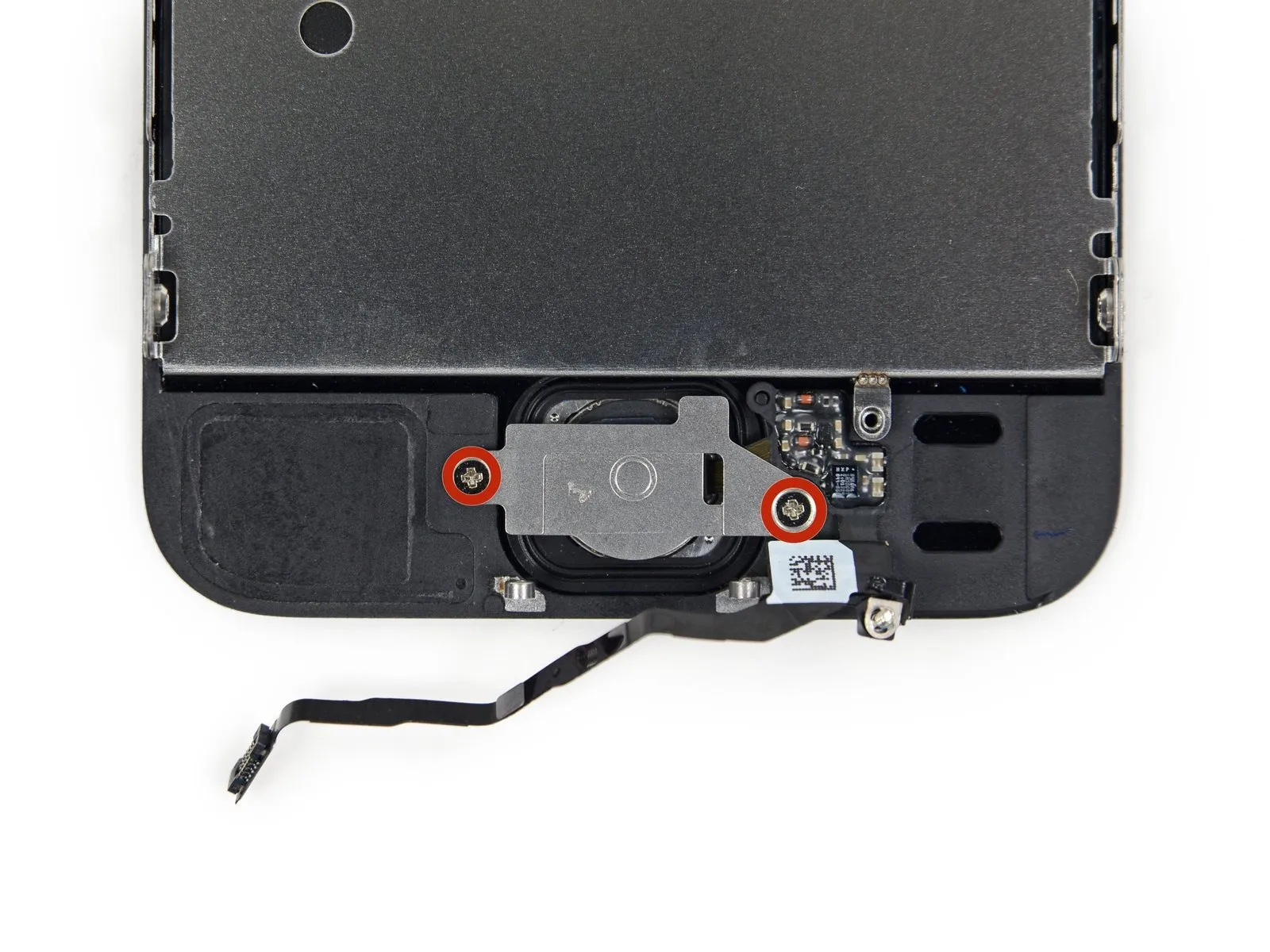
- Using the appropriate screwdriver, detach the pair of screws.Use a Phillips head screwdriver, size #000, with a tip measuring 1.4 millimeters.Carefully remove the screws securing the home button bracket.
Step 26
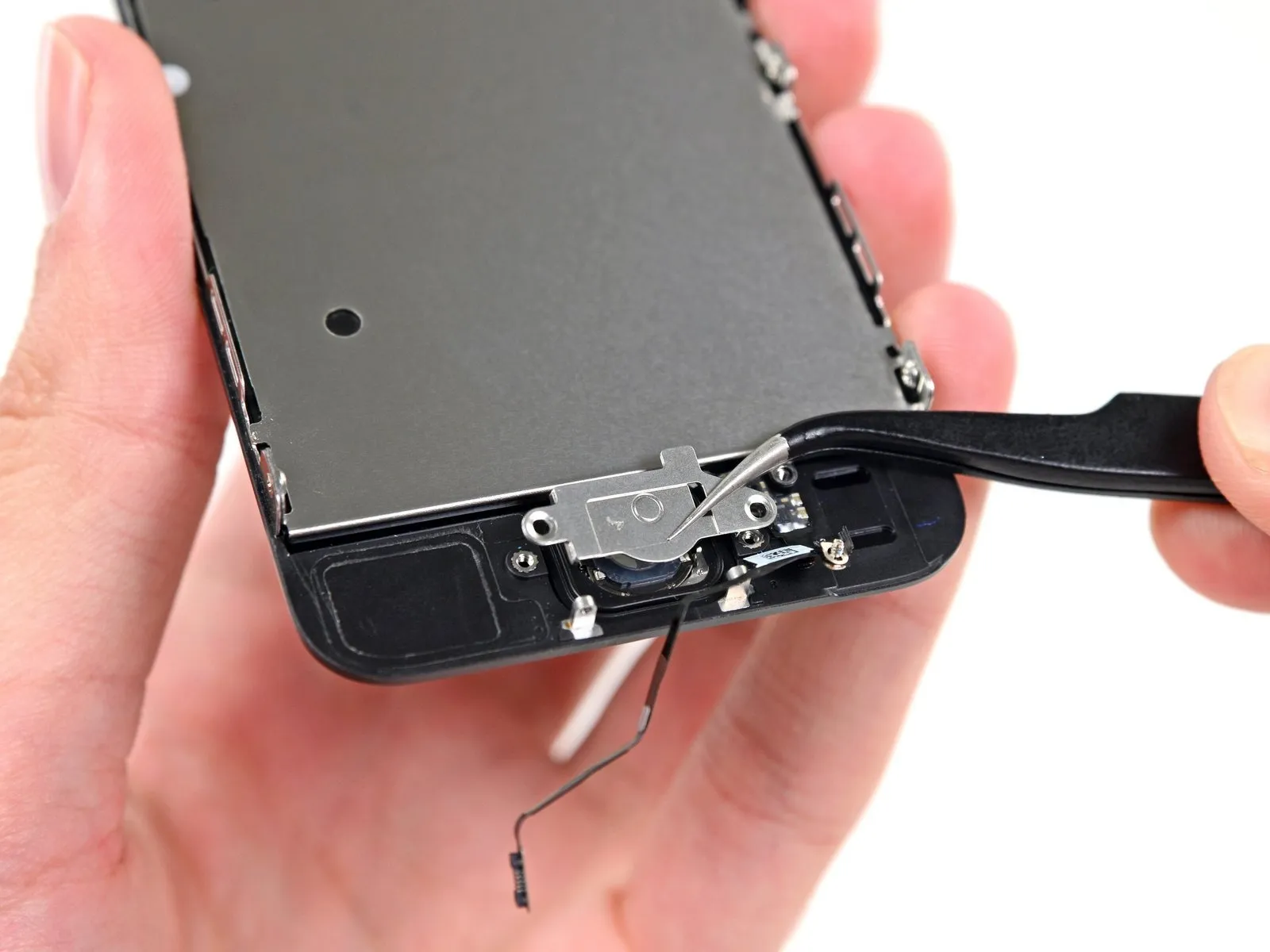
- Using a precision tool, detach the bracket securing the home button to the display assembly.
Step 27
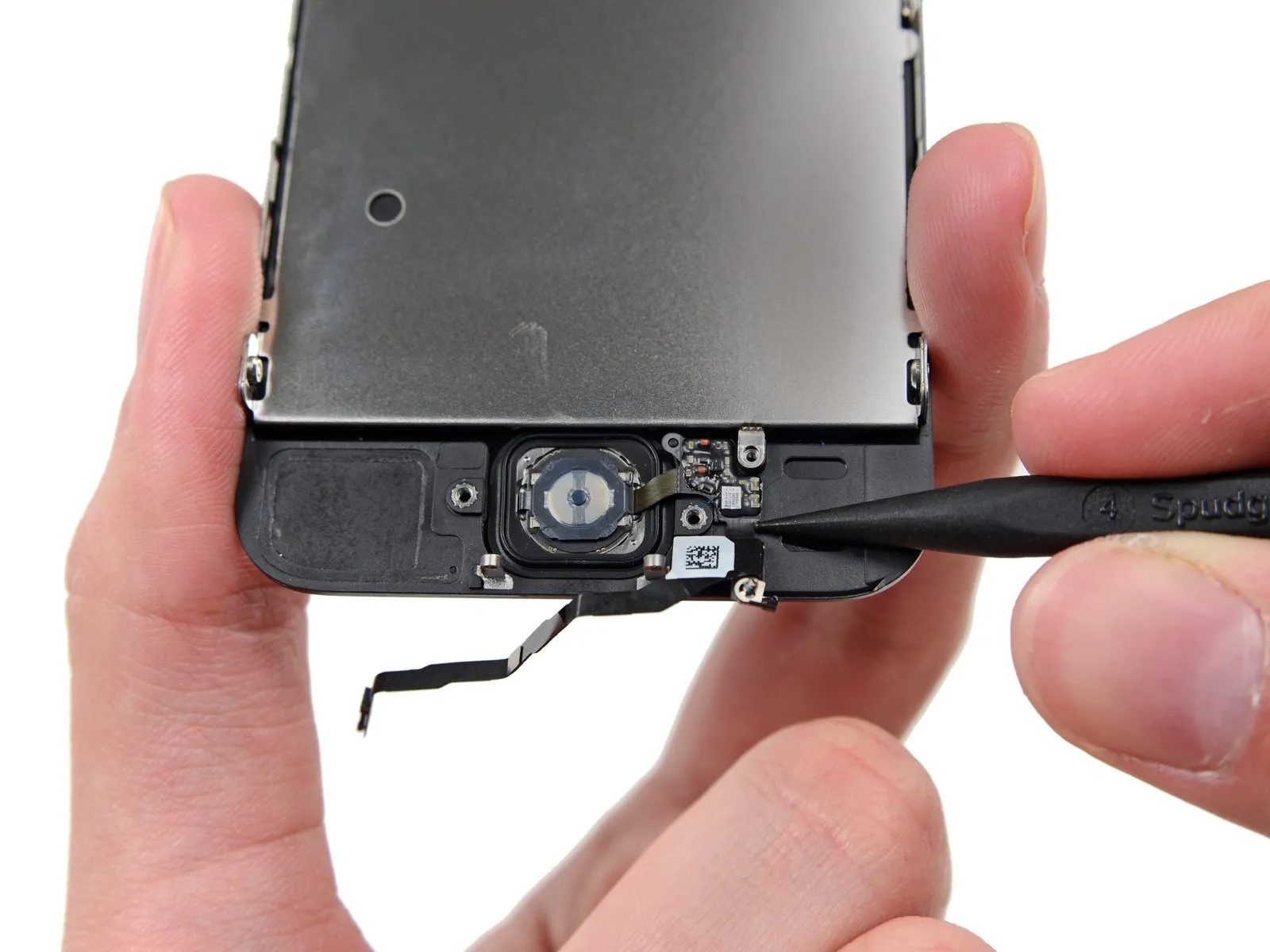
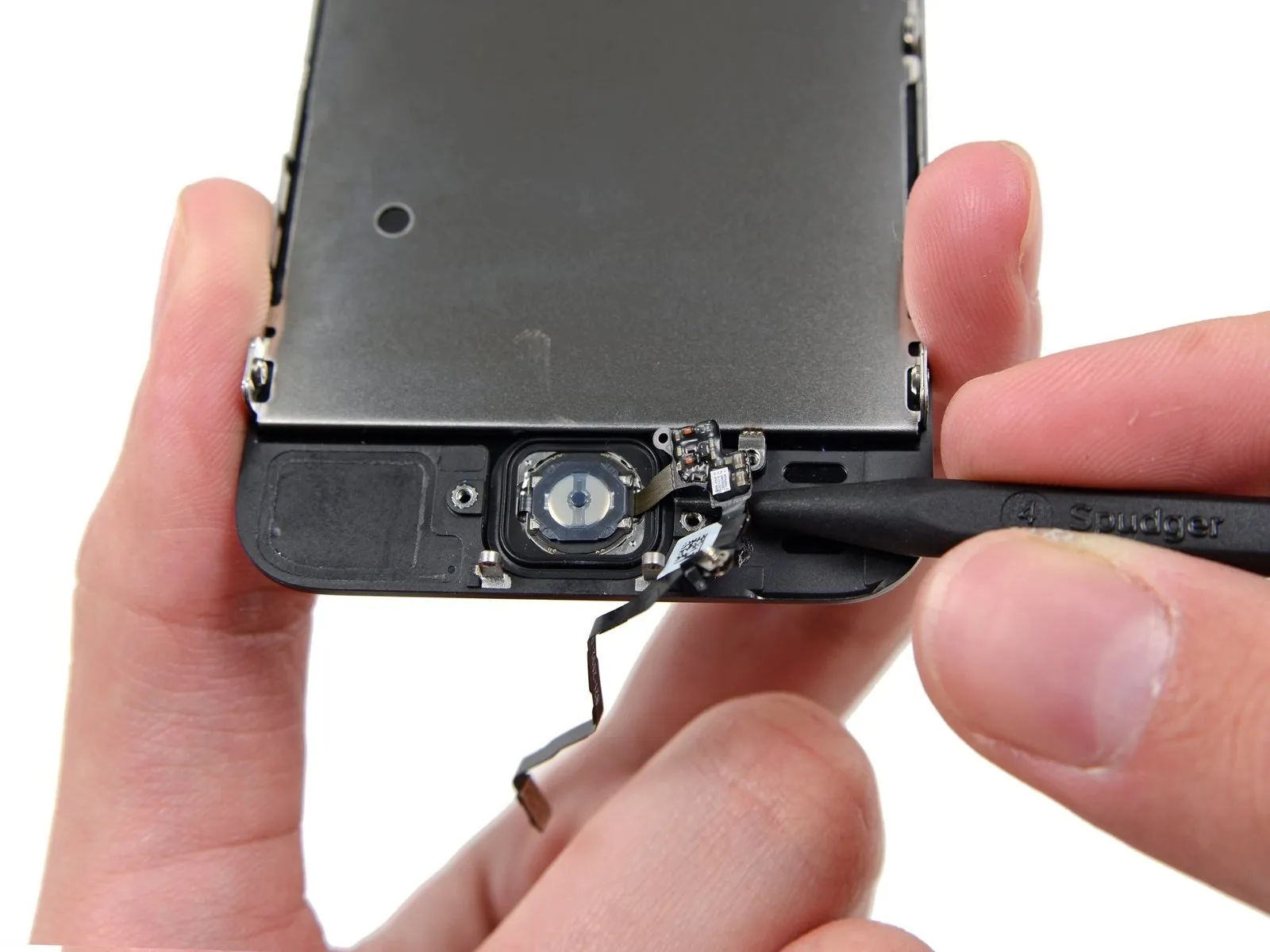
- Using a spudger, gently insert the tip beneath the home button cable assembly to create a small gap.
- Please provide the original text you want me to rewrite. I am ready when you are.The flexible ribbon connector responsible for the home button's functionality.A light adhesive secures the component.
- Using a spudger, carefully pry the home button cable away from the front panel assembly.
- The front panel assembly retains the home button; therefore, avoid its removal at this stage.
Step 28
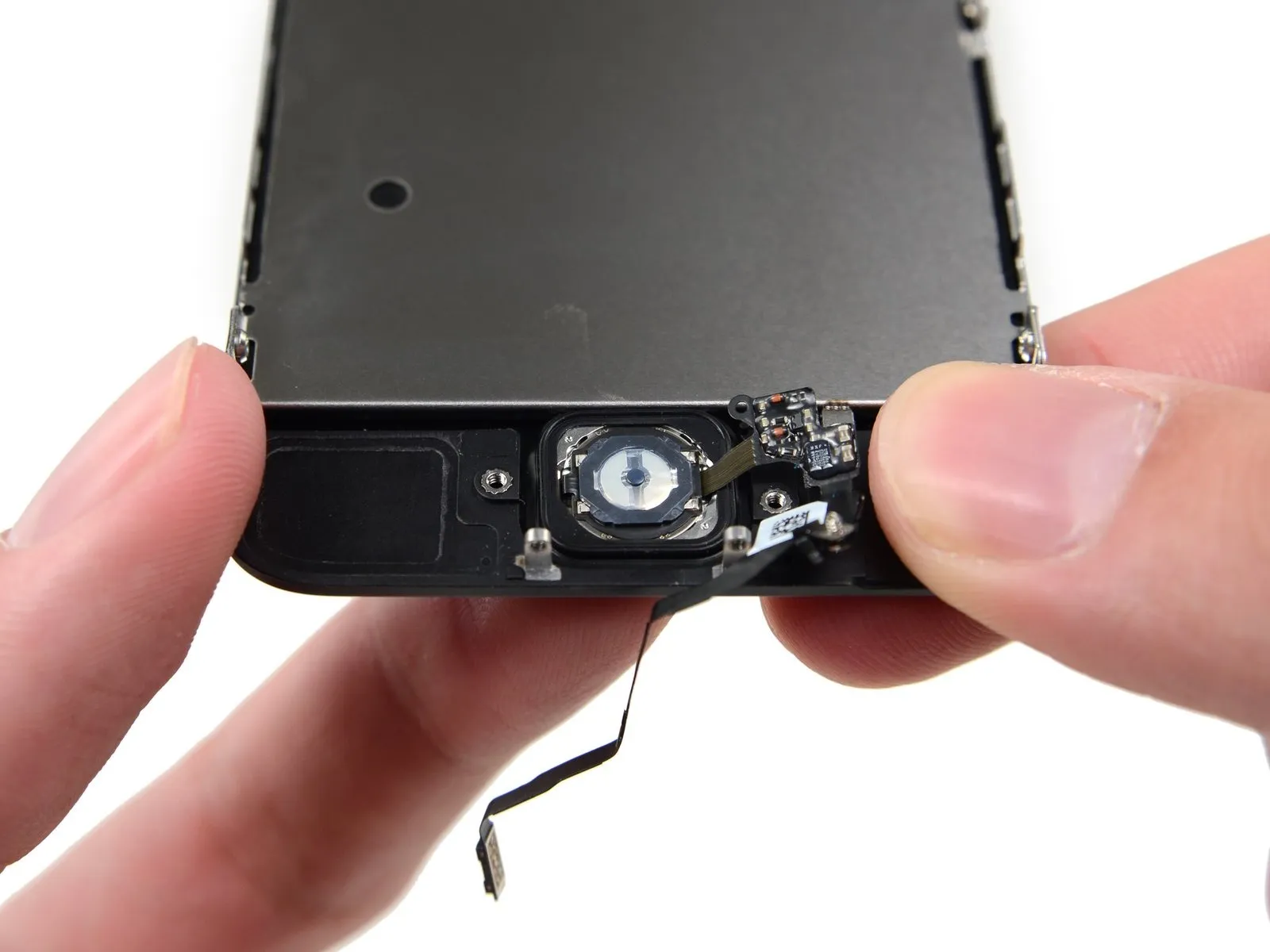
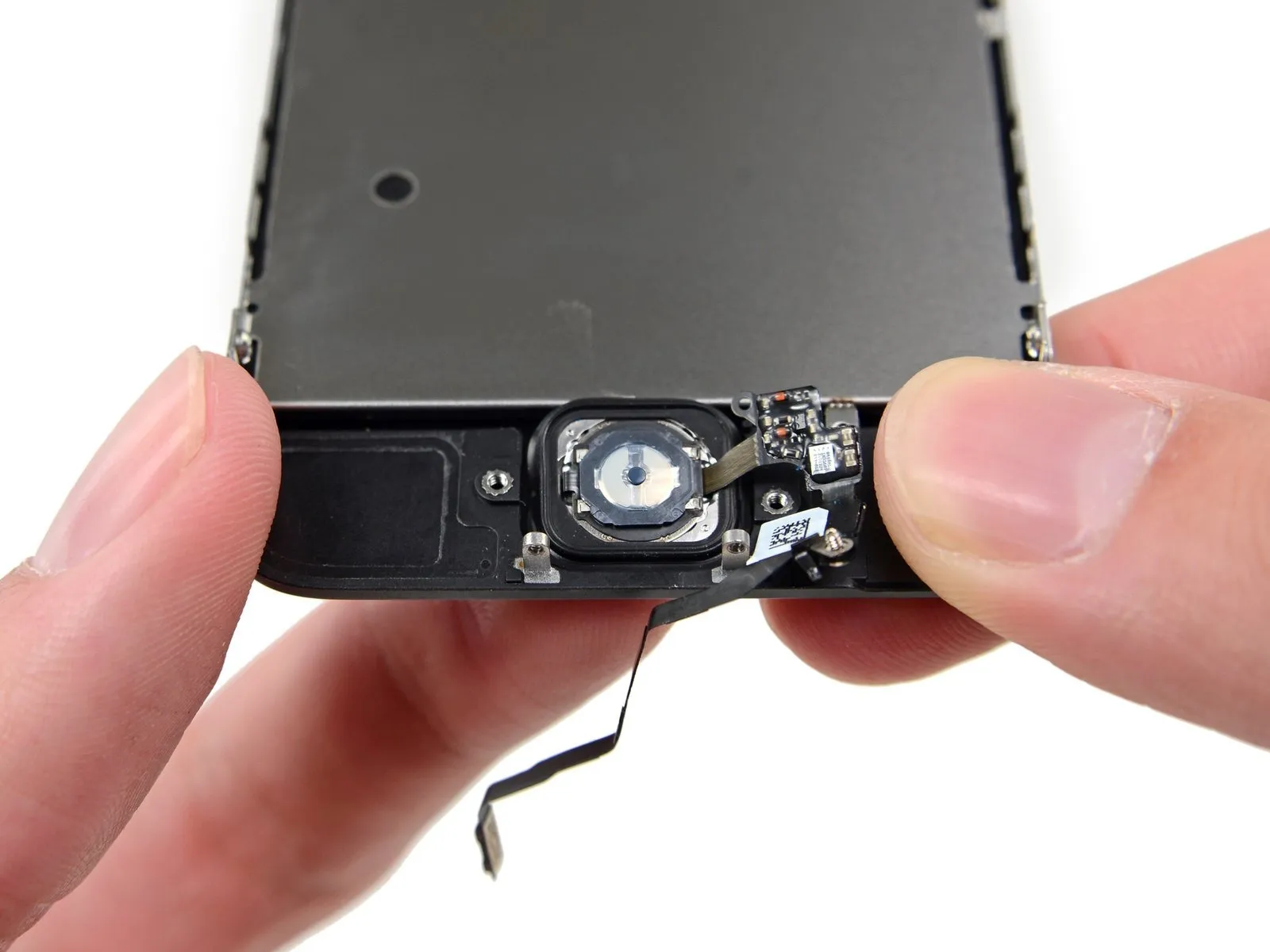
- Carefully peel away any protective tape covering the home button located on the exterior surface of the damaged front panel assembly.
- Using careful, even pressure, lift the upper-left portion of the home button assembly, separating it from the display assembly.
- To release the home button, avoid fully depressing it; instead, disengage just one corner, allowing for leverage with a spudger to separate it.
- Due to its delicate nature, the membrane is prone to damage; should you encounter resistance while handling it, gently warm the area and attempt the process once more.
Step 29
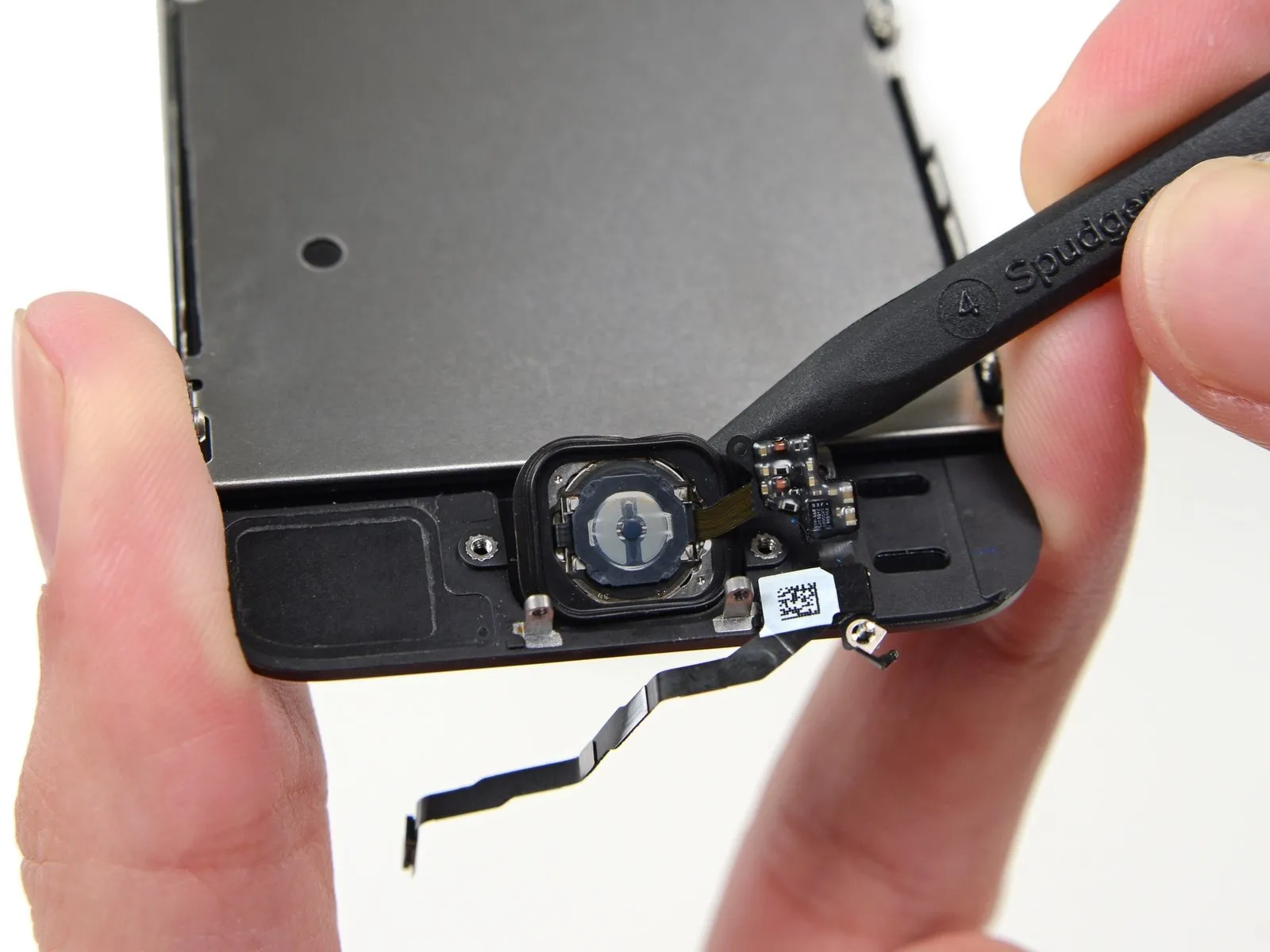
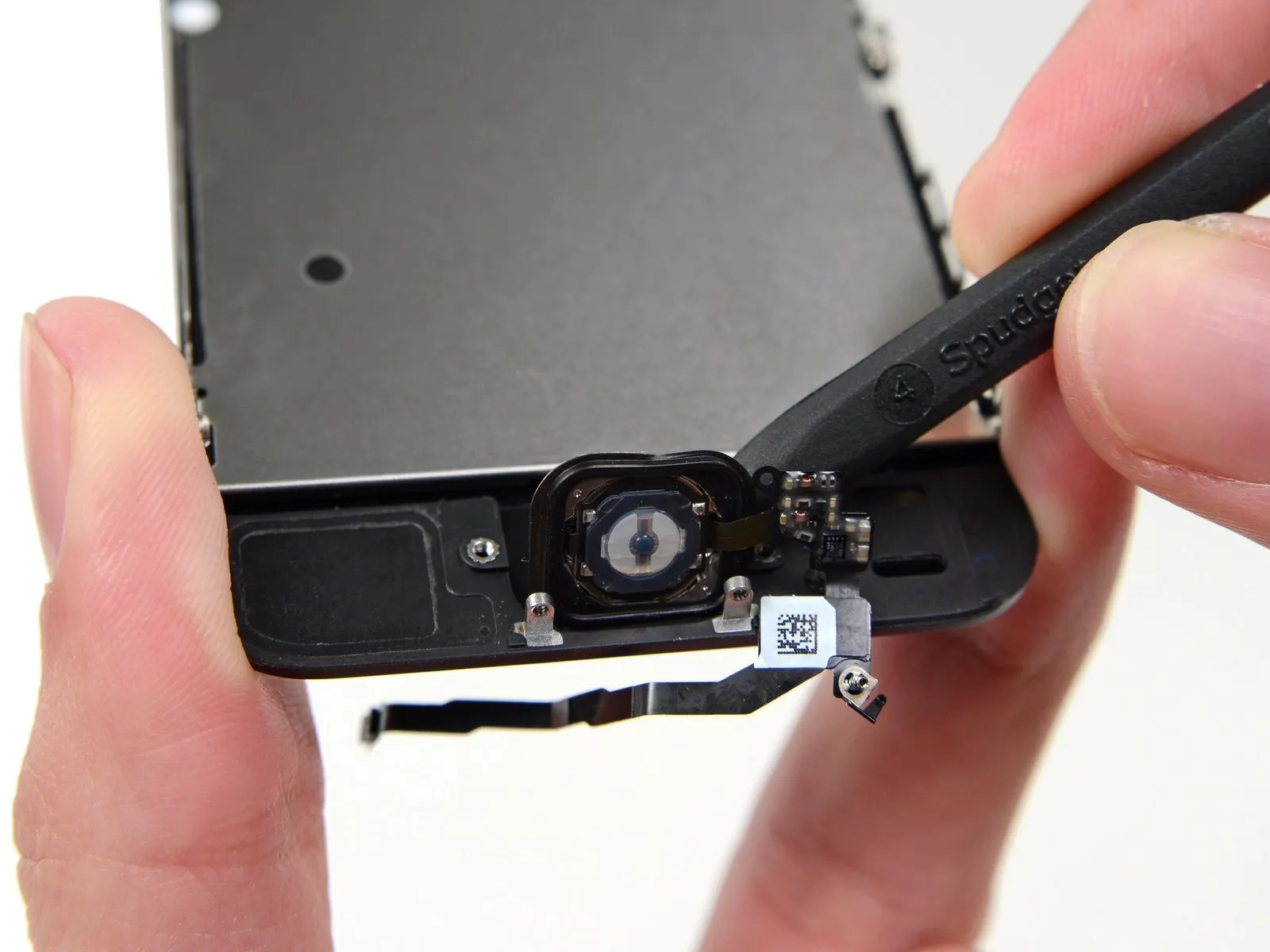
Carefully separate the display from the chassis by using a spudger to gently lift the home button completely free.Use a plastic pry tool, often referred to as a spudger, to gently separate components..
Step 30
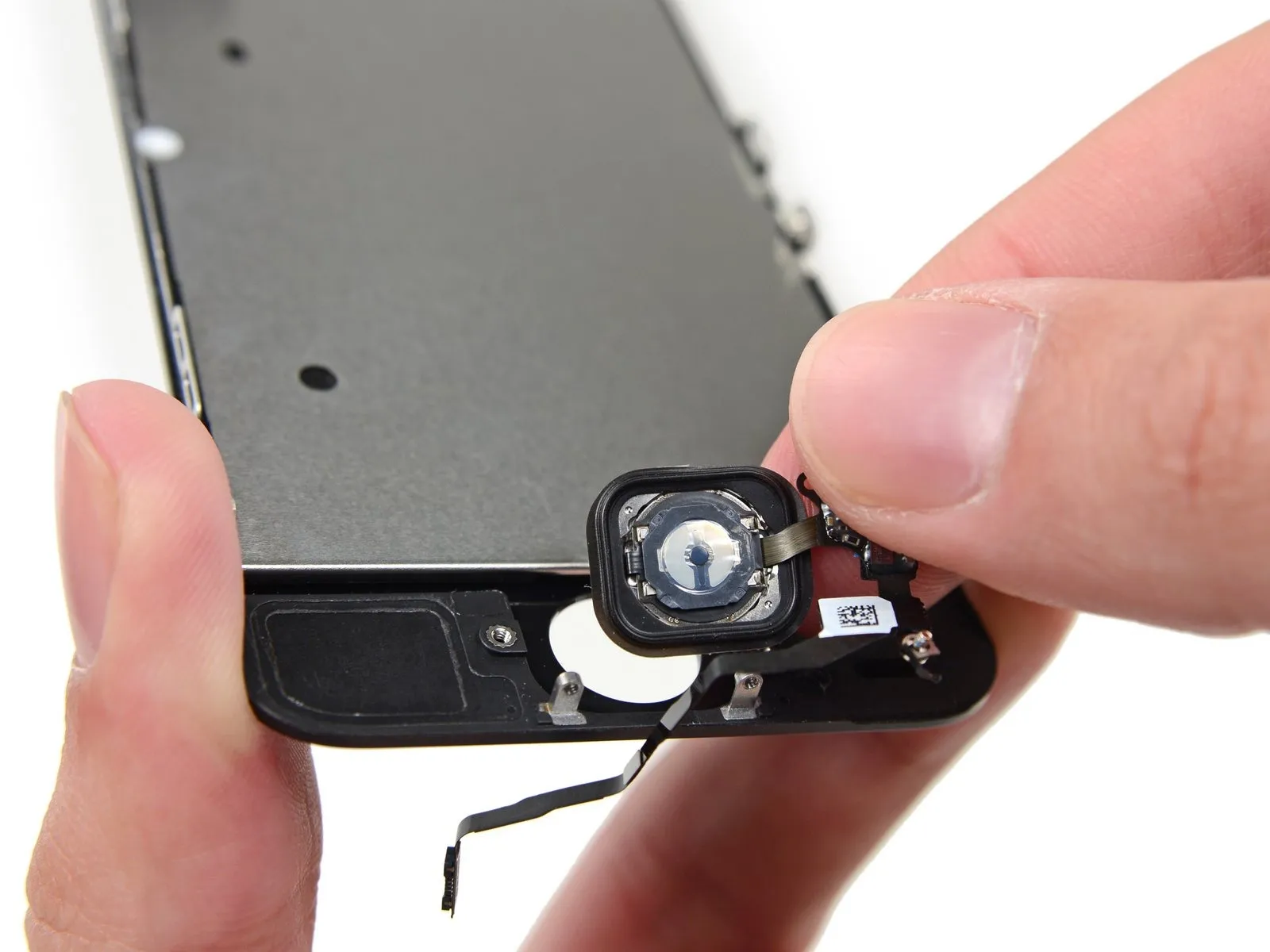
Carefully detach the home button assembly from the front panel.
Step 31 | Screen
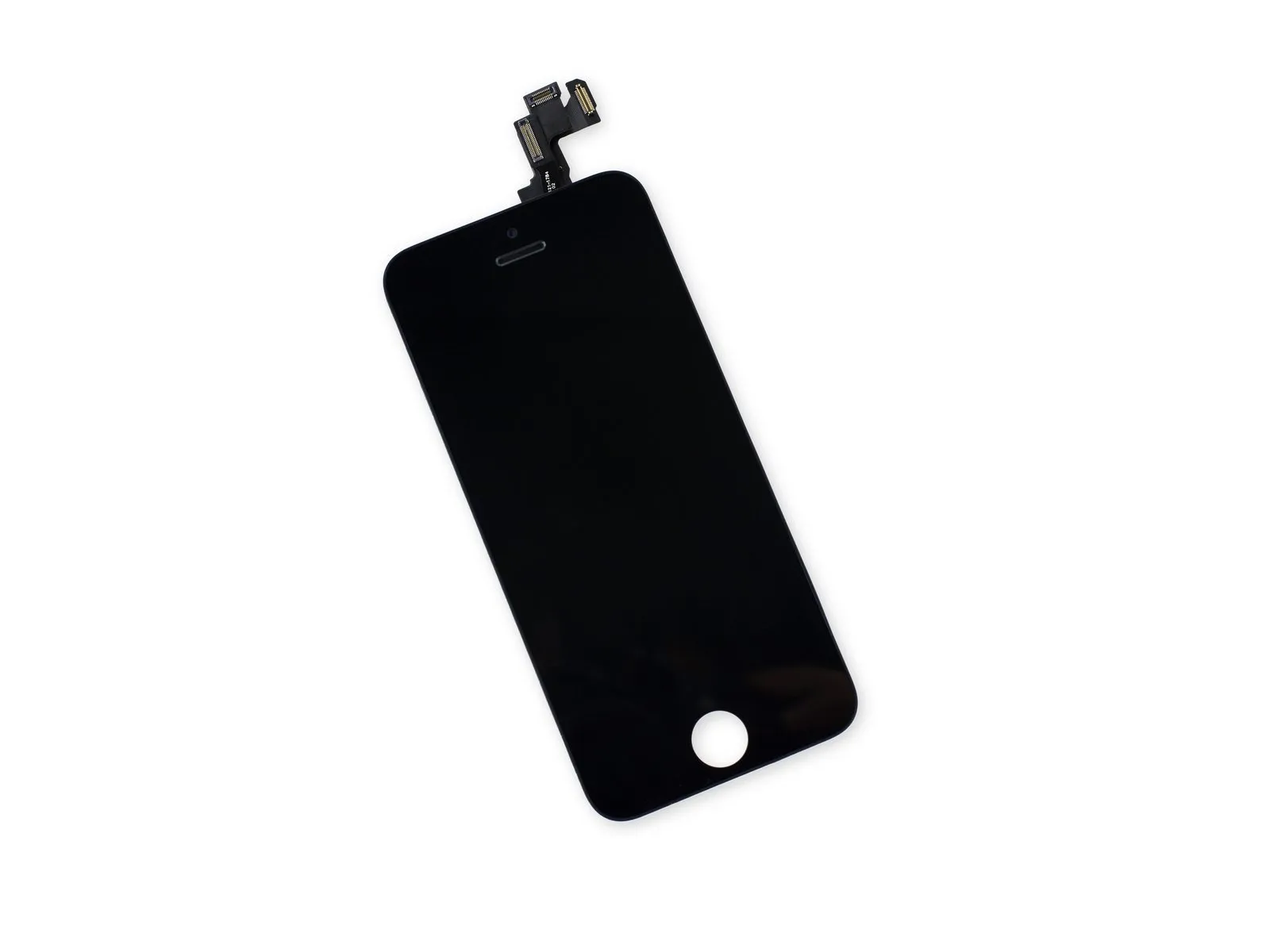
- The display panel is not removed during this process.
- Carefully move any components remaining on the detached screen to the new replacement screen, using this guide as reference.
- Before reassembling the device, remove any extraneous plastic coverings that may be present on the new screen, as these are not part of the original display's design.