iPhone 17 Pro Max Back Glass Replacement
To resolve a damaged or fractured rear glass assembly on an iPhone 17 Pro Max, adhere to the instructions provided in this repair manual; this component integrates the wireless charging functionality, and its replacement may be necessary if wireless charging performance is compromised.
A fresh application of replacement adhesive is essential for the successful completion of this repair procedure.
Step 1 | Safety precautions


- Deplete the iPhone's battery charge to a level below 25% prior to commencing the repair procedure, as a fully charged lithium-ion battery presents a fire hazard if compromised.Disconnect every cable connection from the device to ensure electrical safety during the repair process.
- Initiate a power-down sequence by concurrently depressing and maintaining pressure on both the power button and the volume button.
- To prevent accidental activation or electrical shorts, ensure all external connections are detached from the iPhone before proceeding.
Step 2 | Cracked glass preparation
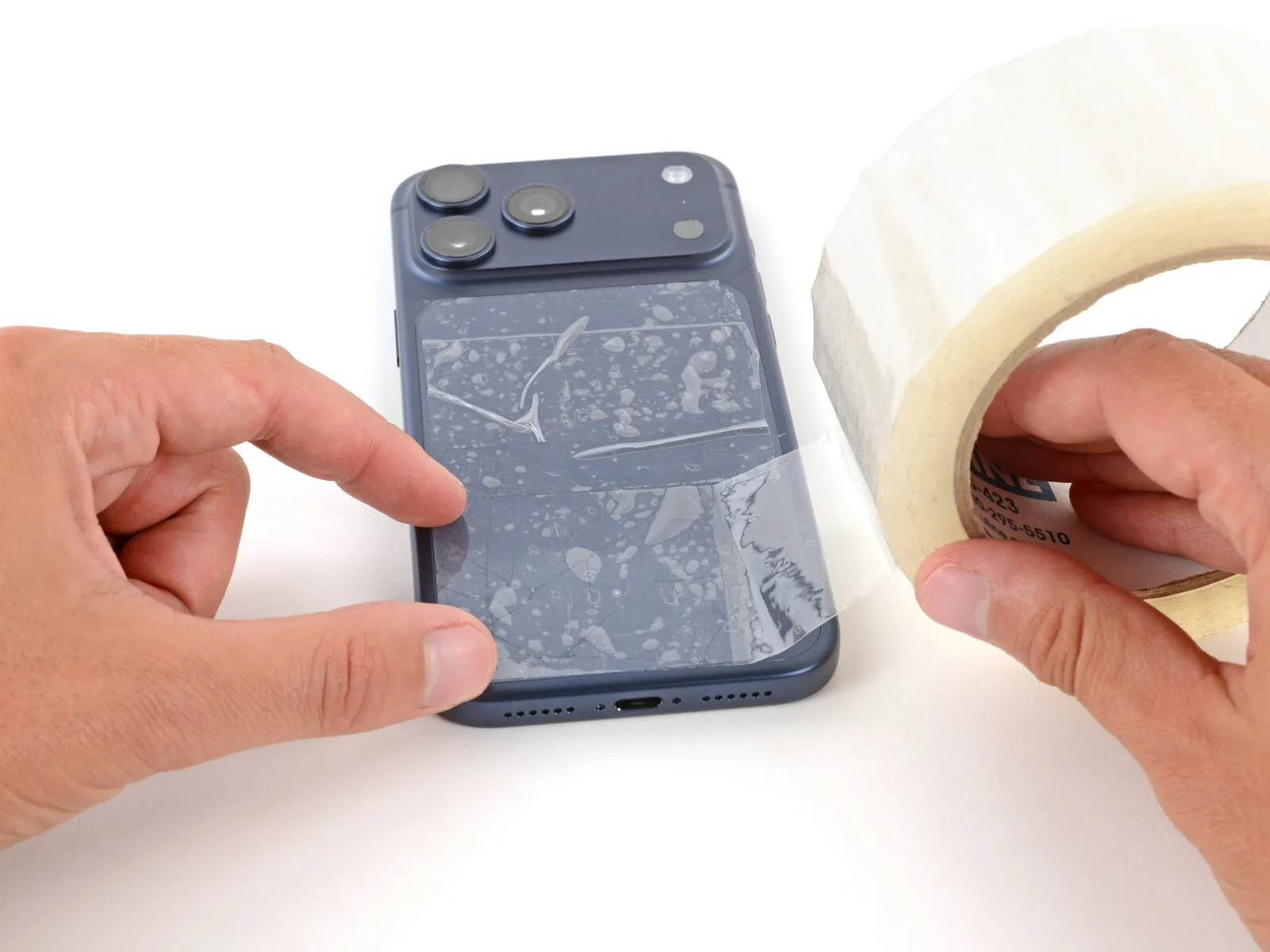
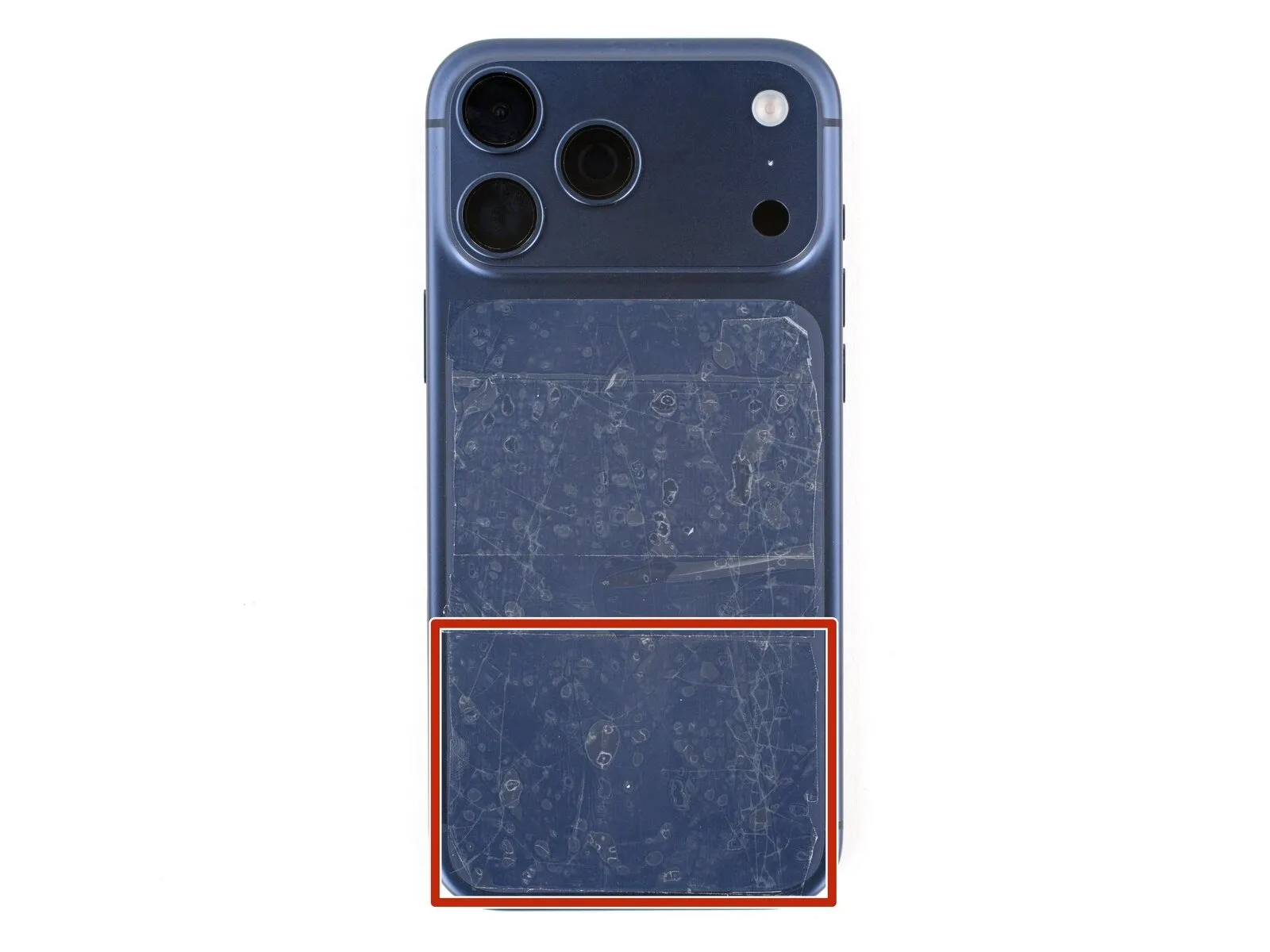

- Damage to the screen's glass surface introduces potential hazards during repair and may hinder component separation.Proceed with the subsequent instructions if your device exhibits a cracked display.
- To mitigate glass fragments and facilitate suction cup attachment, affix packing tape across the entire damaged area.
- A continuous strip of tape, spanning the lower edge and sufficient for suction cup placement, is essential, preventing any overlaps.
- Confine the tape application solely to the glass portion, excluding the device's surrounding frame.
- Protect your vision by utilizing safety glasses, as shattered glass may become airborne during the repair procedure.
Step 3 | Remove the pentalobe screws

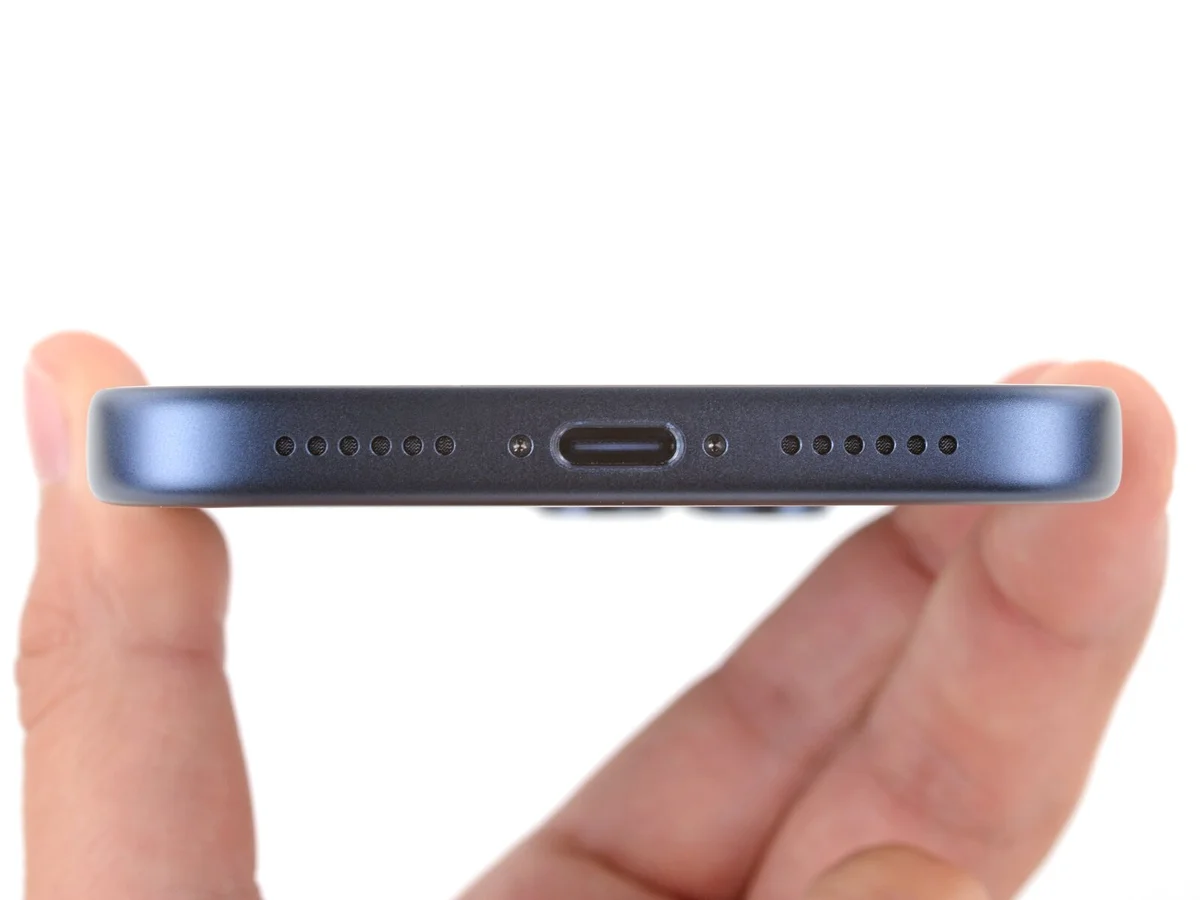
Employ a P2 pentalobe screwdriver for screw removal.The two screws, each measuring 7.5 millimeters in length, are situated laterally around the charging port and require removal.
Step 4 | Heat the bottom edge
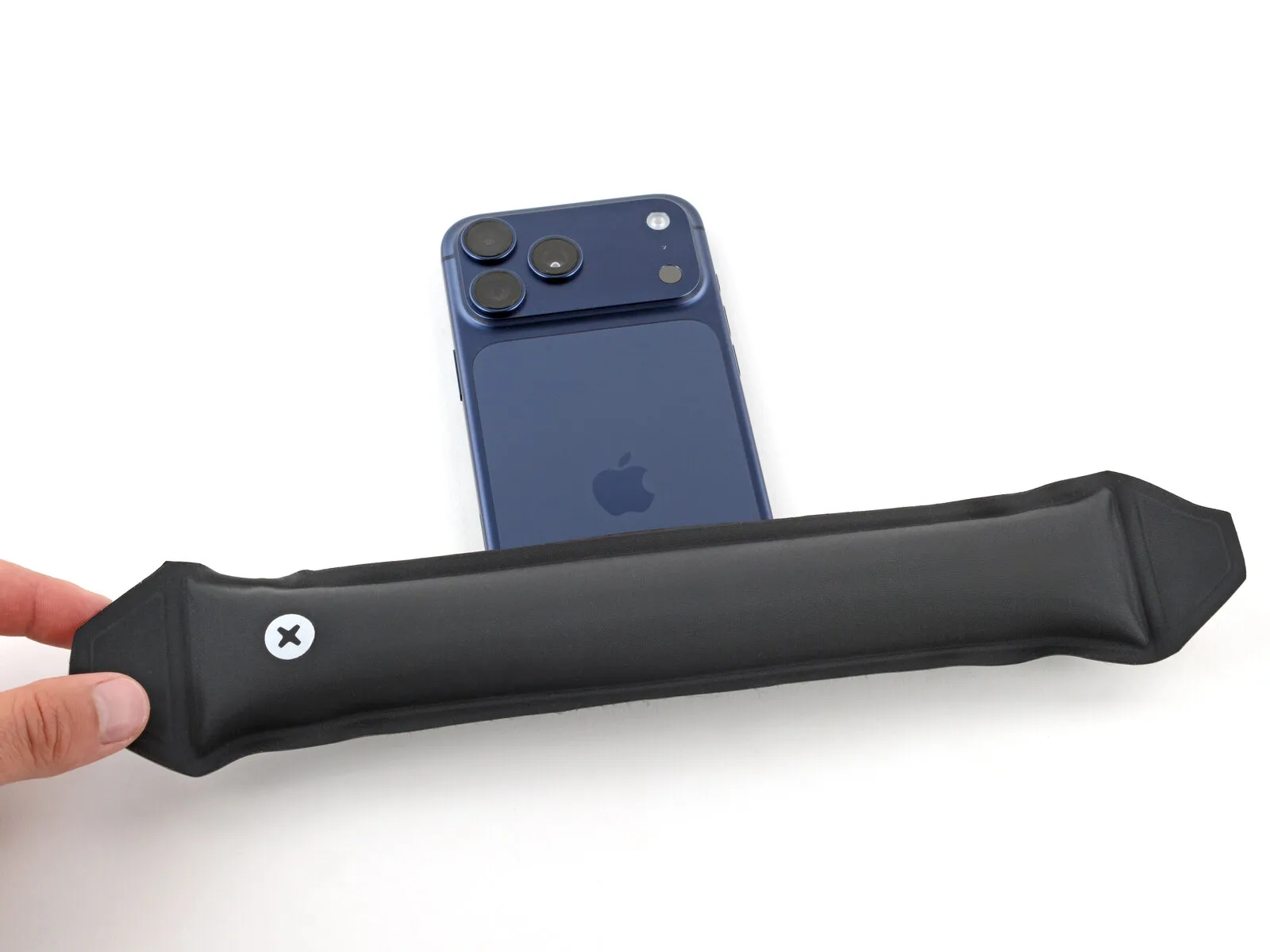
- The rear glass is affixed to the device's frame using an adhesive.Applying heat to the glass reduces the adhesive's viscosity, facilitating its detachment.
- Employ an iOpener, applying heat for a duration of two minutes to the lower edge of the rear glass.
- As an alternative method, a hairdryer or heat gun can be utilized to warm the back glass to a temperature just beyond comfortable touch.
- Incorrect operation of a heat gun carries the risk of compromising the wireless charging component and/or the battery; adhere strictly to the provided instructions.Careful adherence to the linked instructions is essential to prevent damage during the heating process.
Step 5 | Apply a suction handle
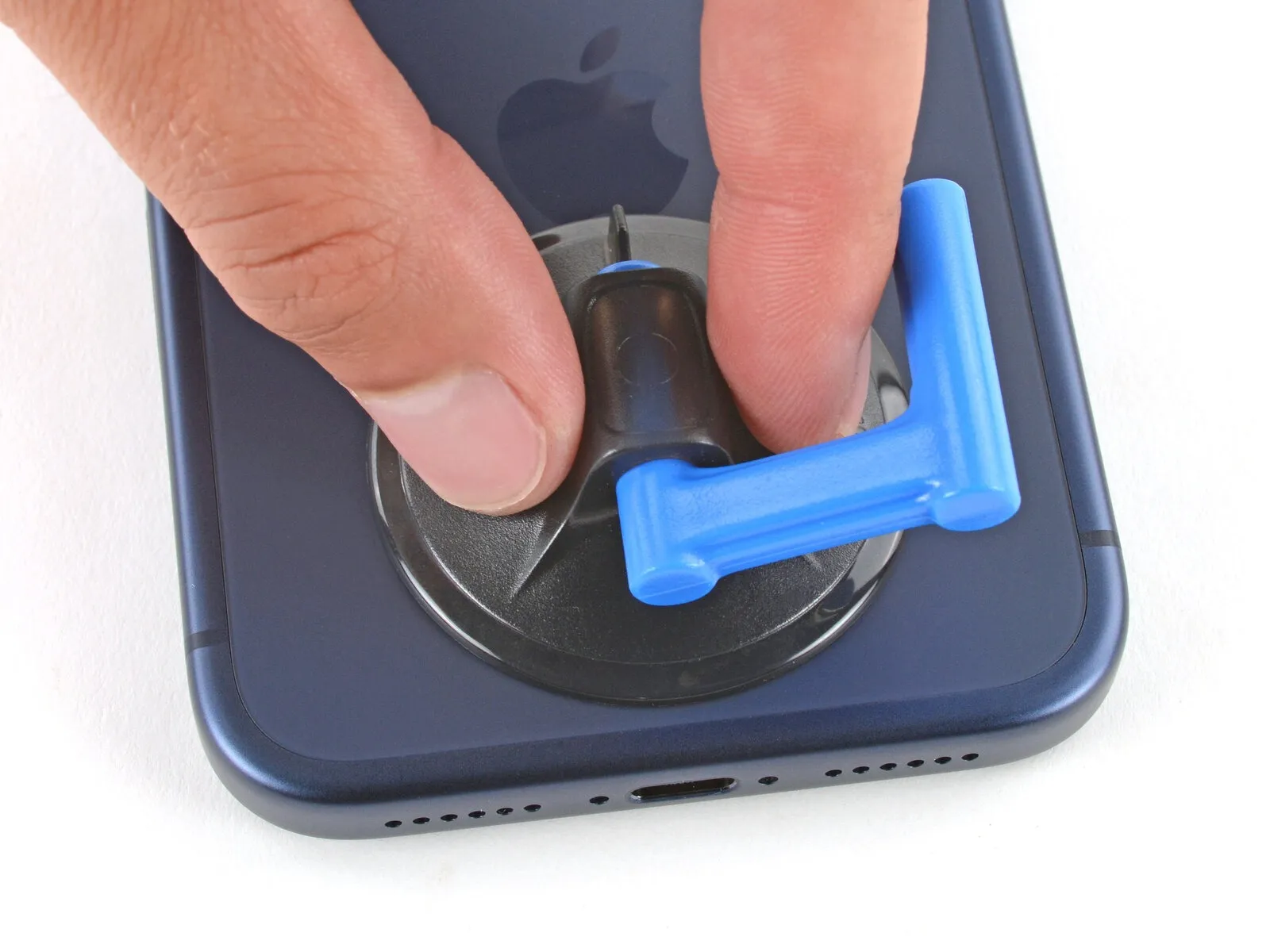
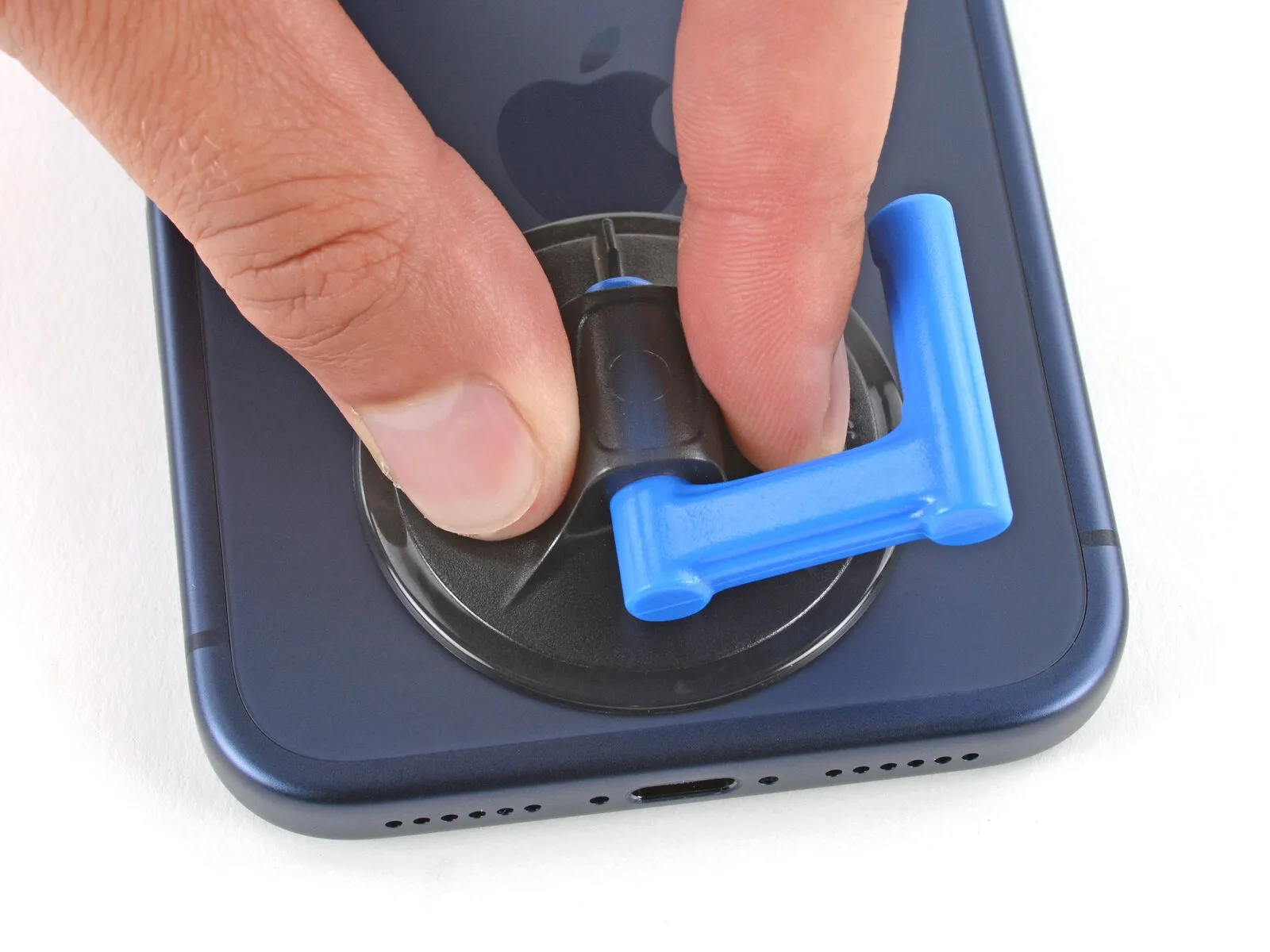
Secure a suction handle to the lower perimeter of the rear glass panel, positioning it as near the edge as feasible.The placement of the suction handle should be as close as possible to the edge of the back glass's bottom border to ensure a firm grip.
Step 6 | Insert an opening pick

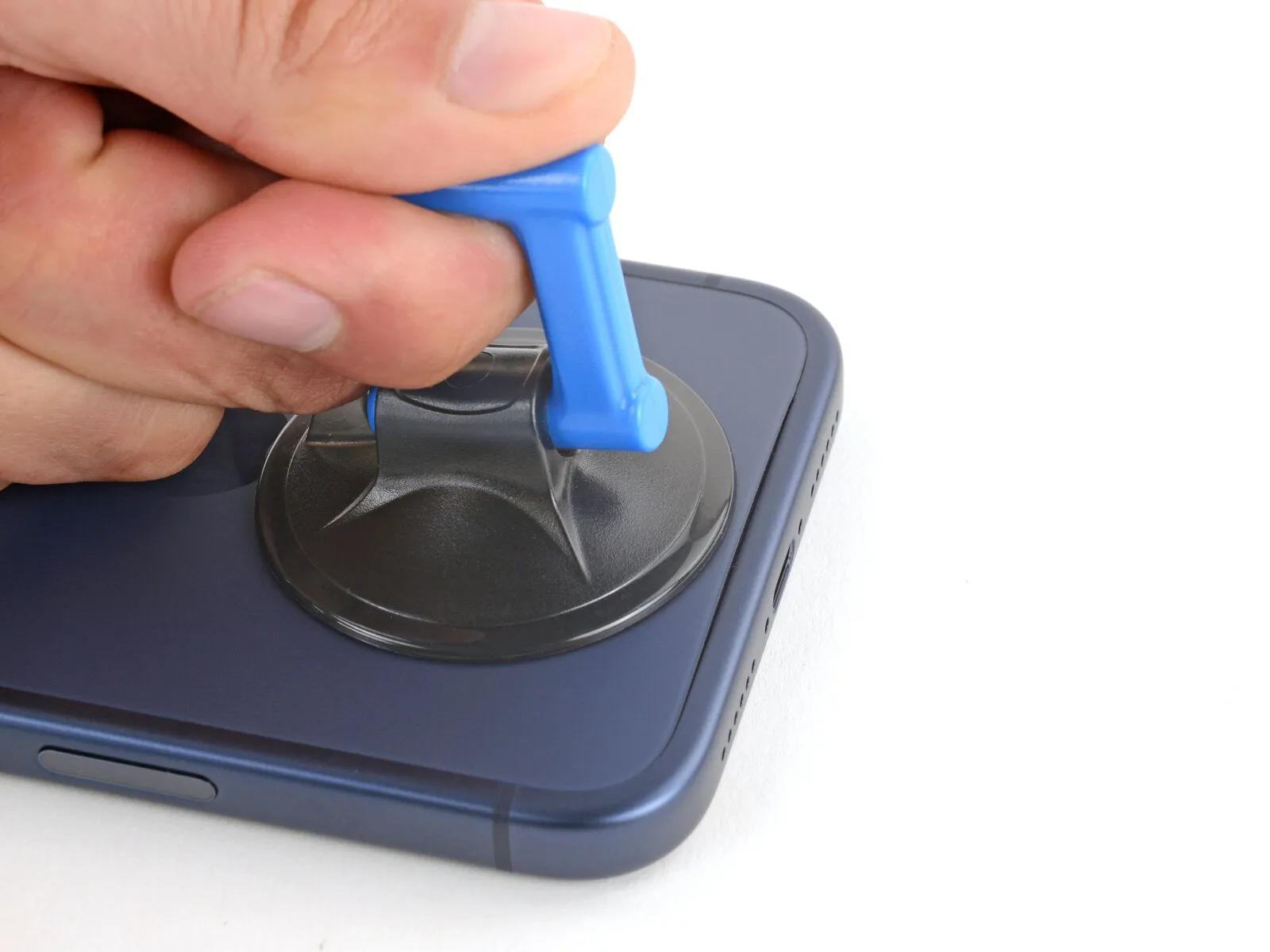

- Exert considerable, consistent pressure on the suction handle to separate the rear glass from the device's frame, observing for a visible separation.
- Should separation prove difficult, consider applying additional heat and repeating the separation attempt.
- Carefully position the pointed end of a prying tool within the newly formed space between the rear glass and the frame.
Step 7 | Separate the adhesive
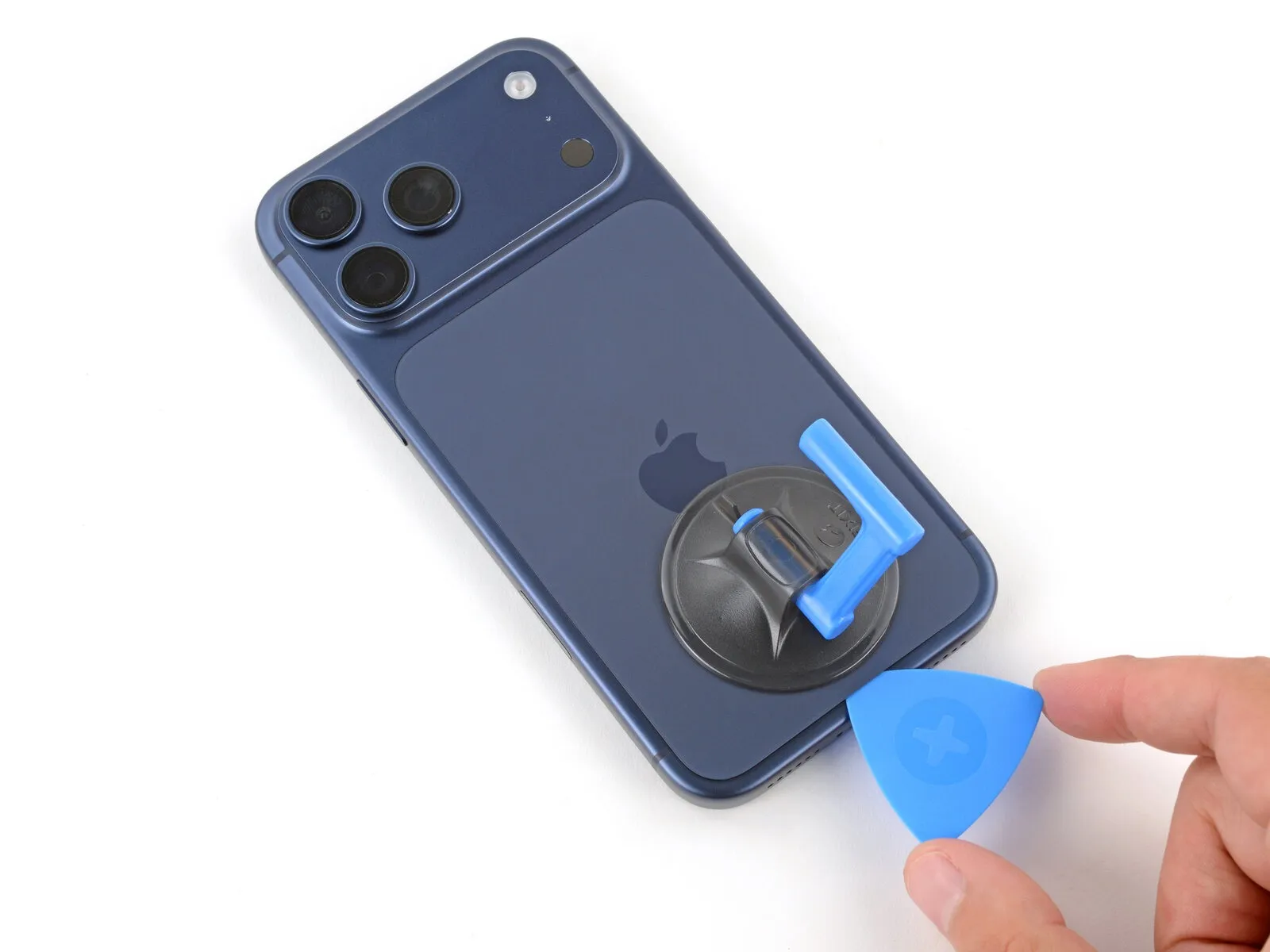
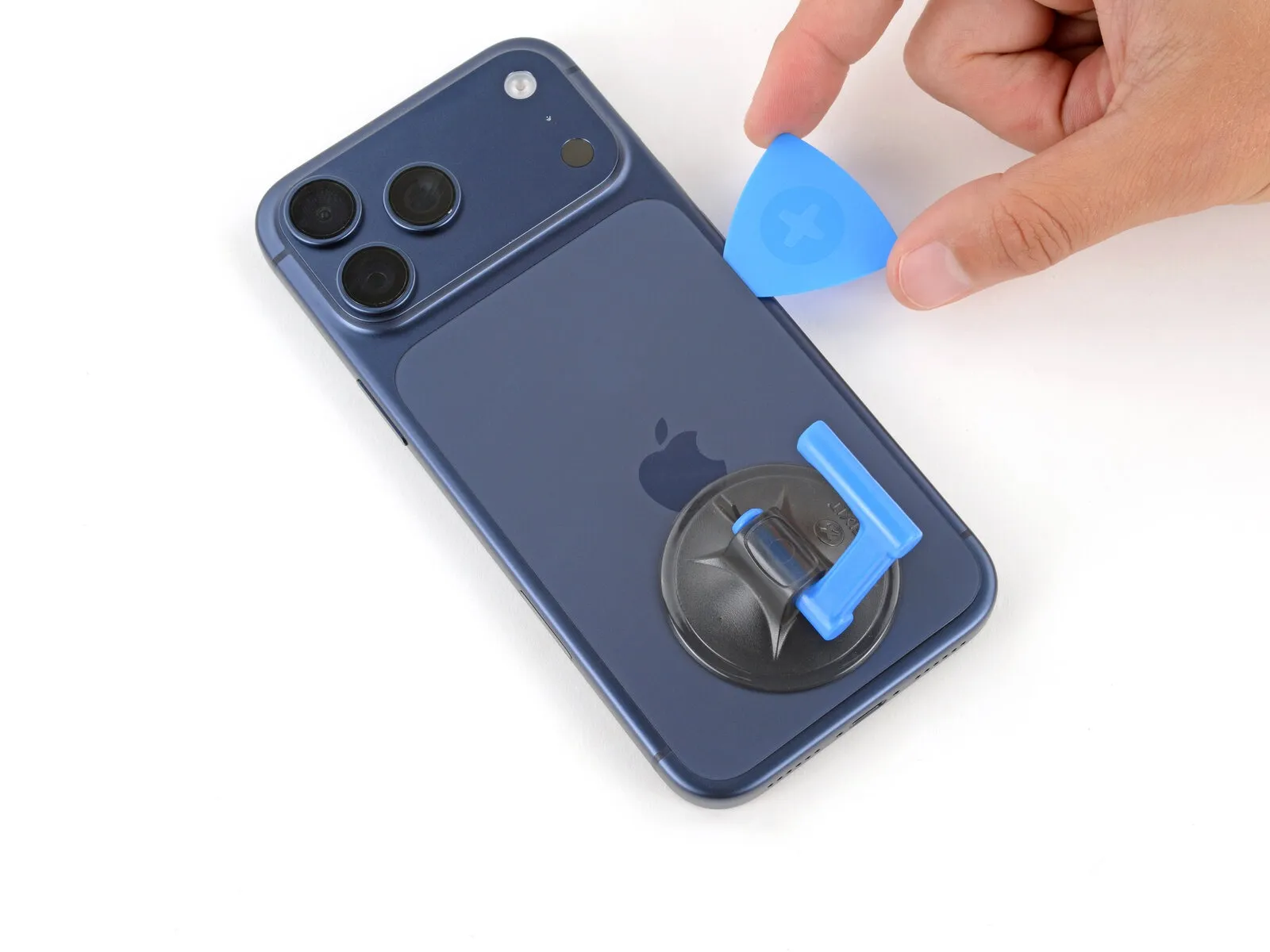

- Employ a separation tool along the outer edges of the rear glass to fully release the adhesive bond.
- To prevent potential harm to the wireless charging ribbon cable, position the separation tool minimally beneath the rear glass, specifically close to the upper portion of the left side.
Step 8 | Prop up the back glass
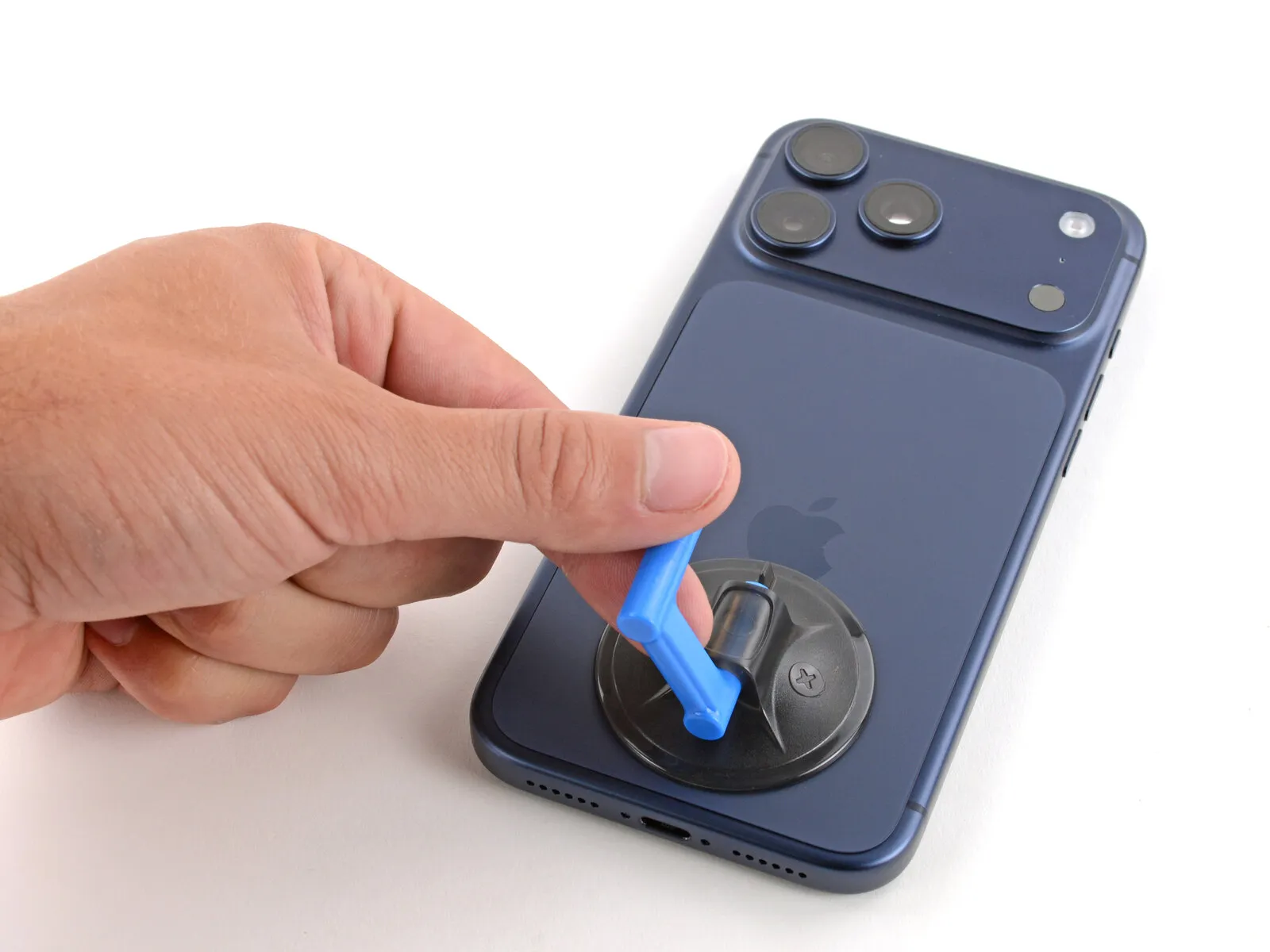


Ensure complete detachment of the rear glass component from the surrounding frame; persistent adhesion can be resolved by meticulously separating any residual adhesive along the edges.
Carefully pivot the detached rear glass to rest against the left side, utilizing the suction tool to maintain an upright position.
As an alternative method, gently place the glass flat against the work surface, positioned over the left lateral area.
Step 9 | Remove the cover screw
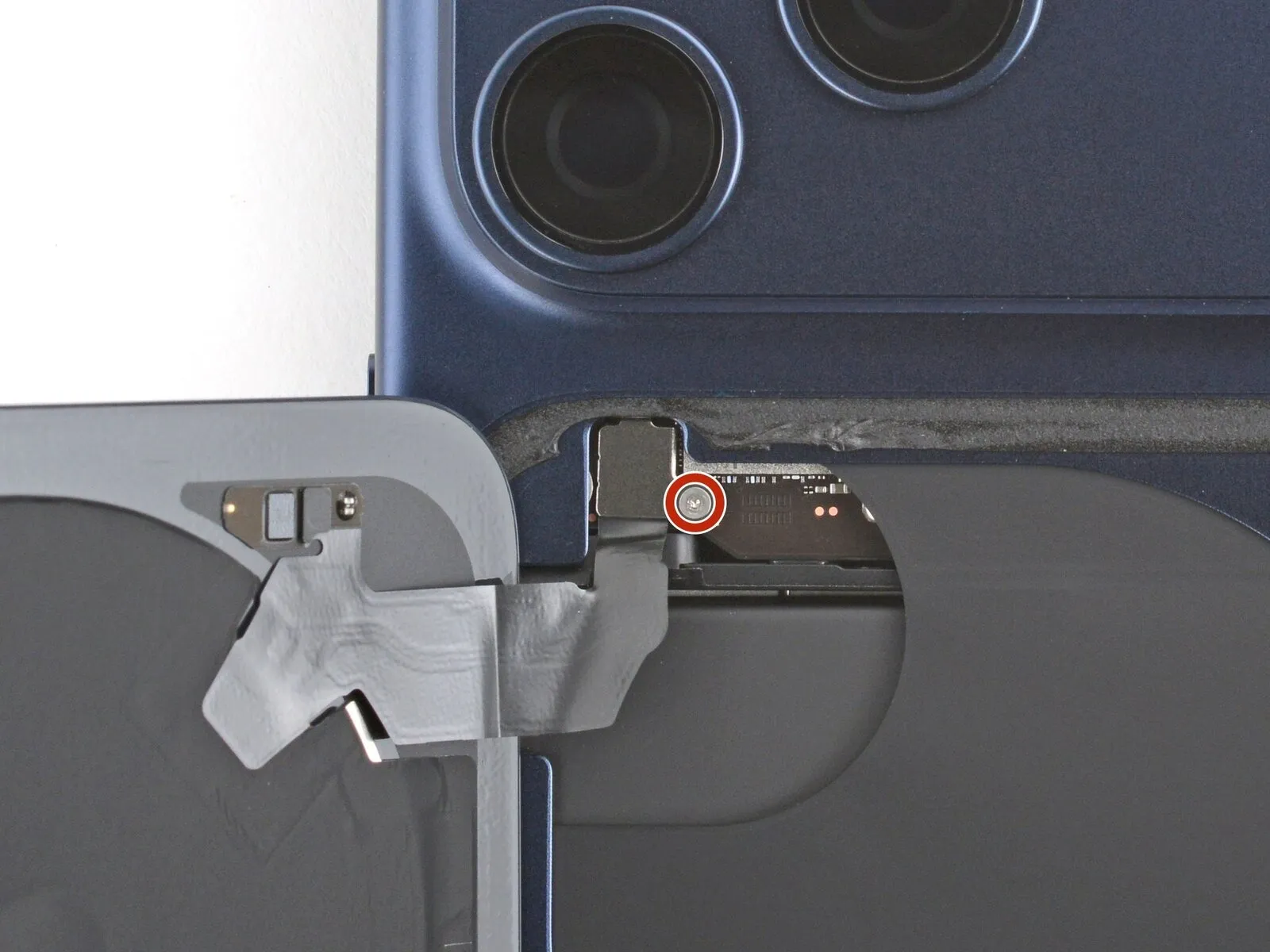
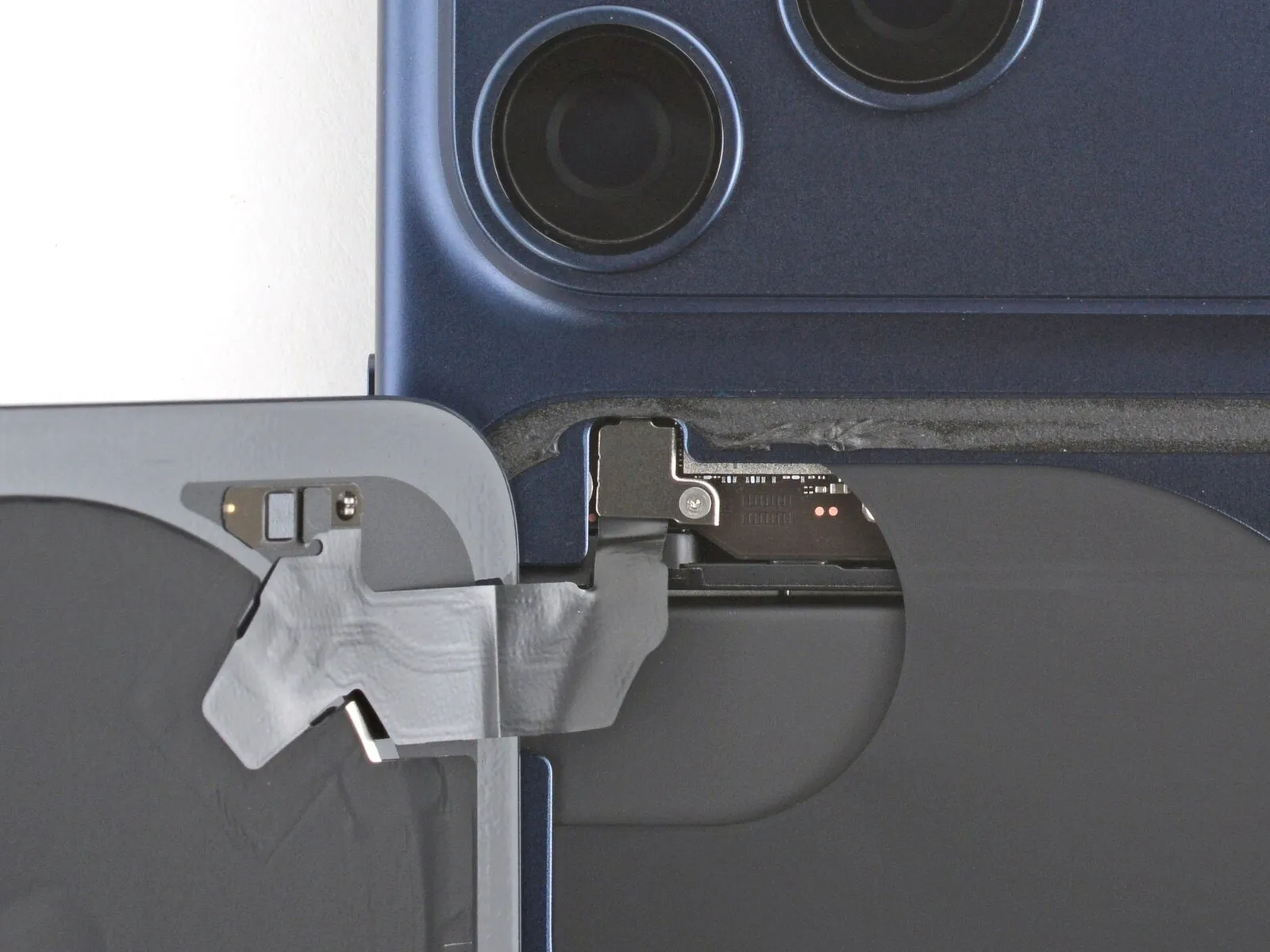
Exercise care during the subsequent procedures to prevent injury to the unprotected battery through contact with repair implements.
Employ a tri-point screwdriver, specifically a Y000 type, to detach the cover over the wireless charging connector, which is fastened by a 1.0-millimeter screw.
Step 10 | Remove the cover
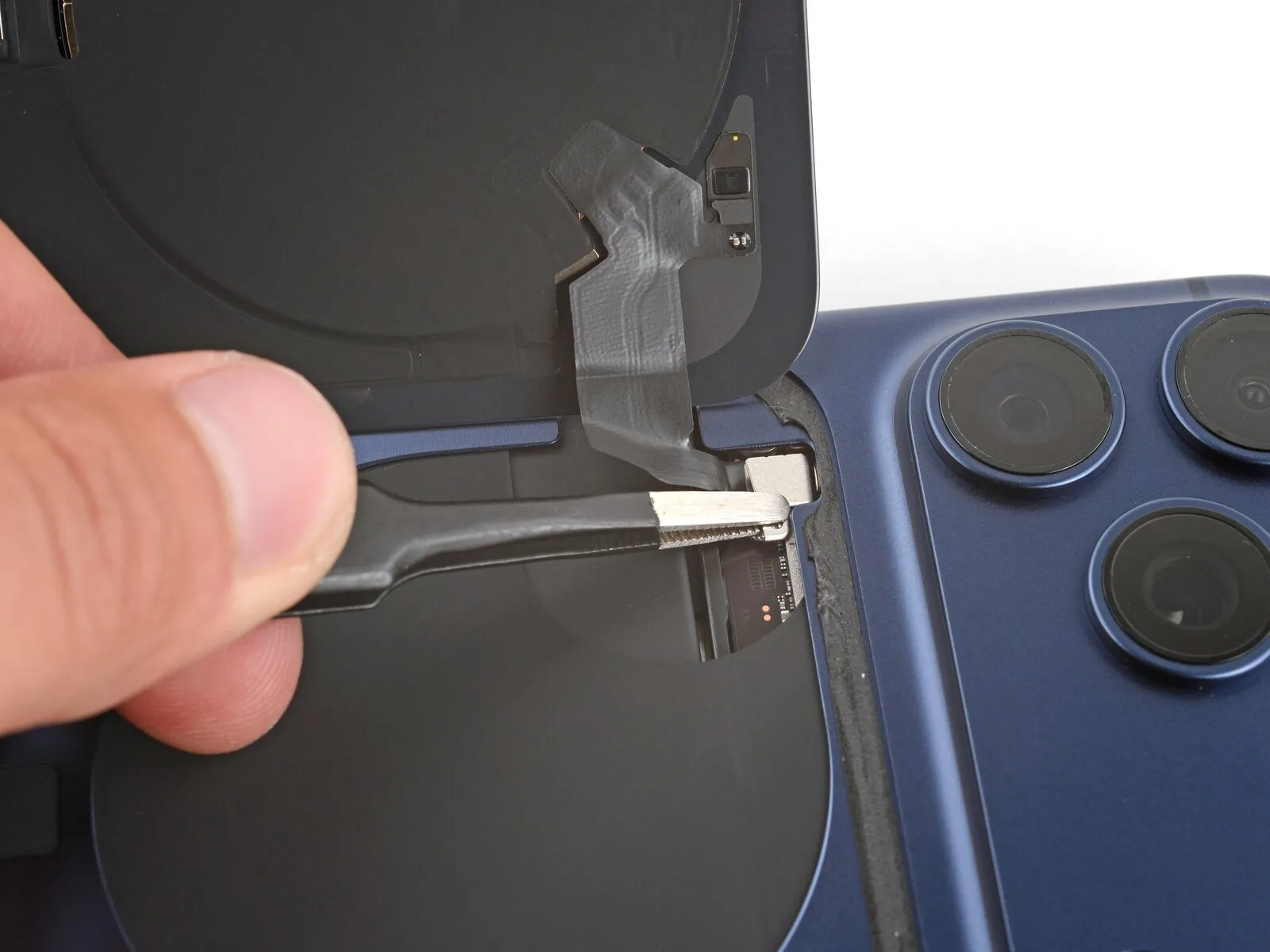

Detach the protective housing.
Step 11 | Disconnect the back glass

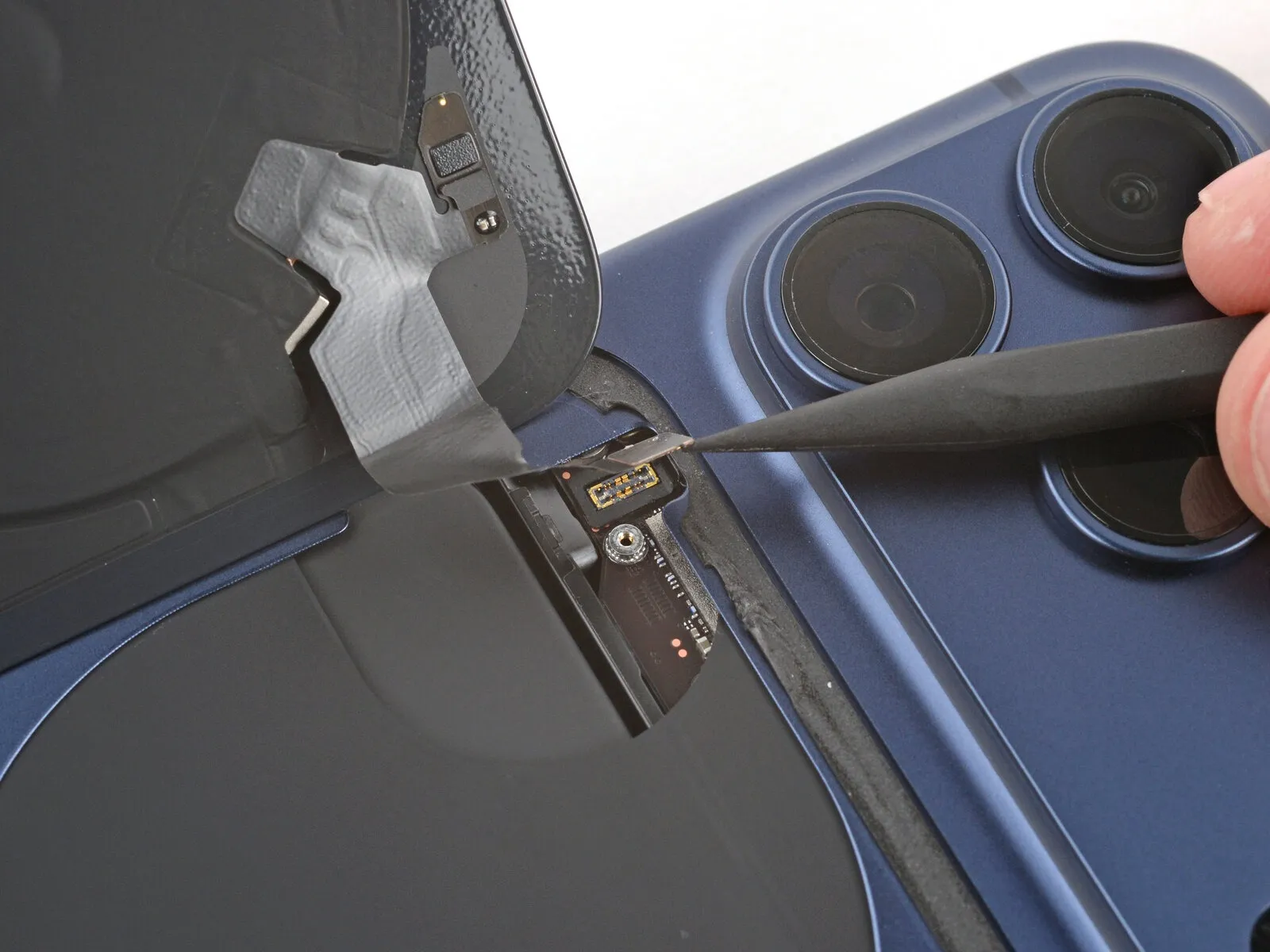
Step 12 | Remove the back glass
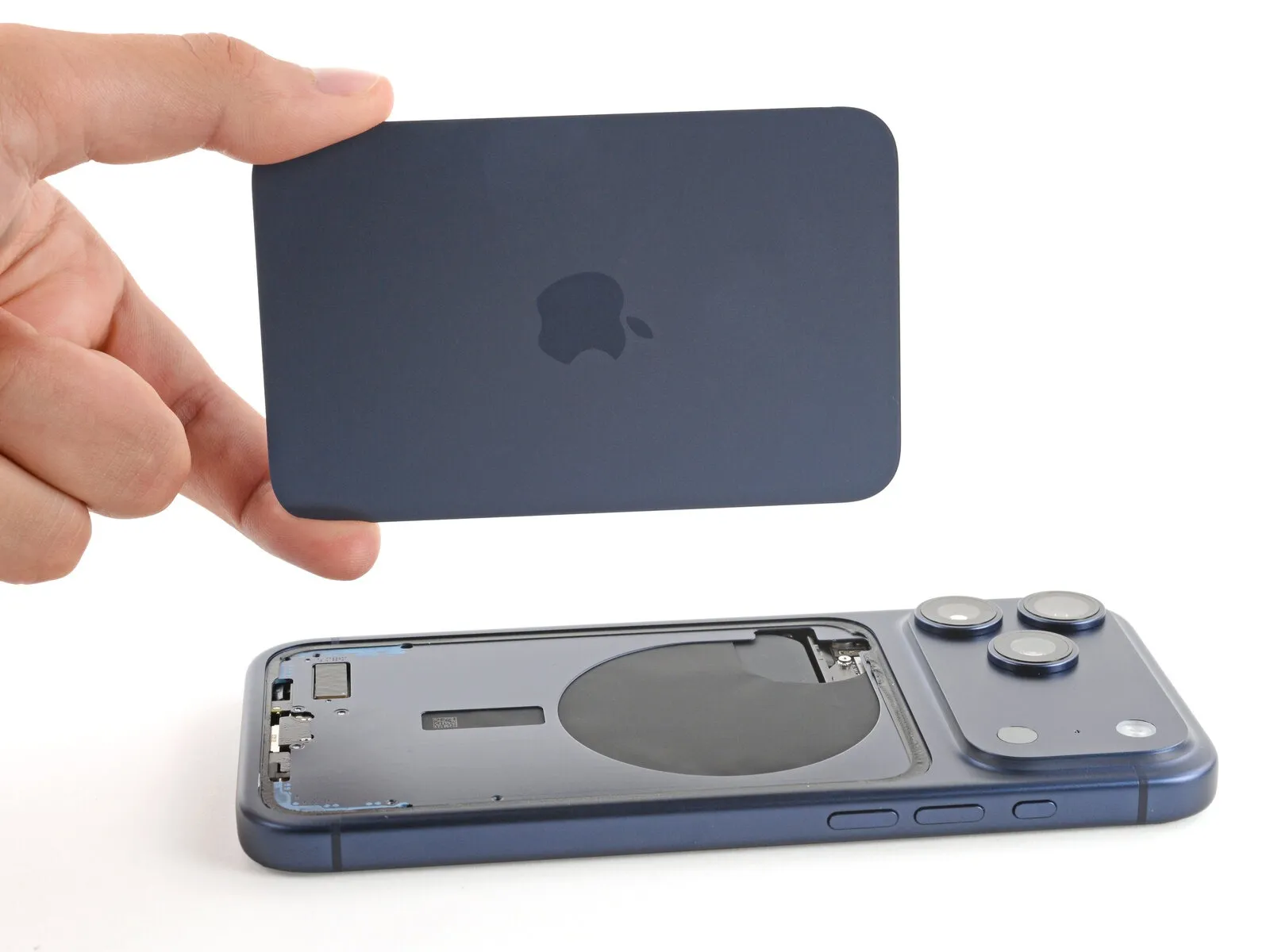
Step 13 | Disassembly complete
Slight variations in the appearance of reassembly images might occur based on the specific iPhone model being serviced; the outlined steps remain accurate for all supported iPhone versions.
Step 14 | Remove the leftover adhesive
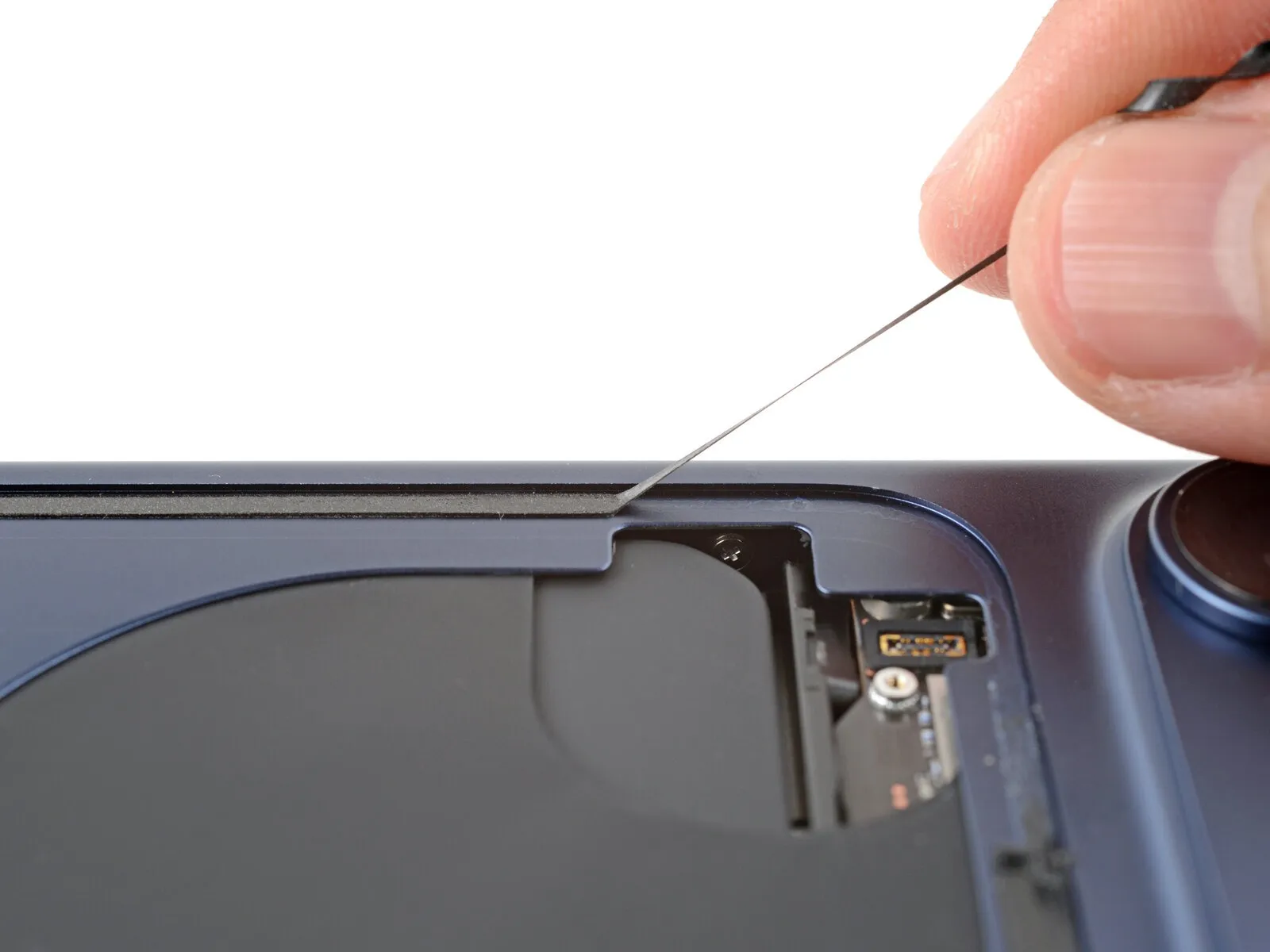
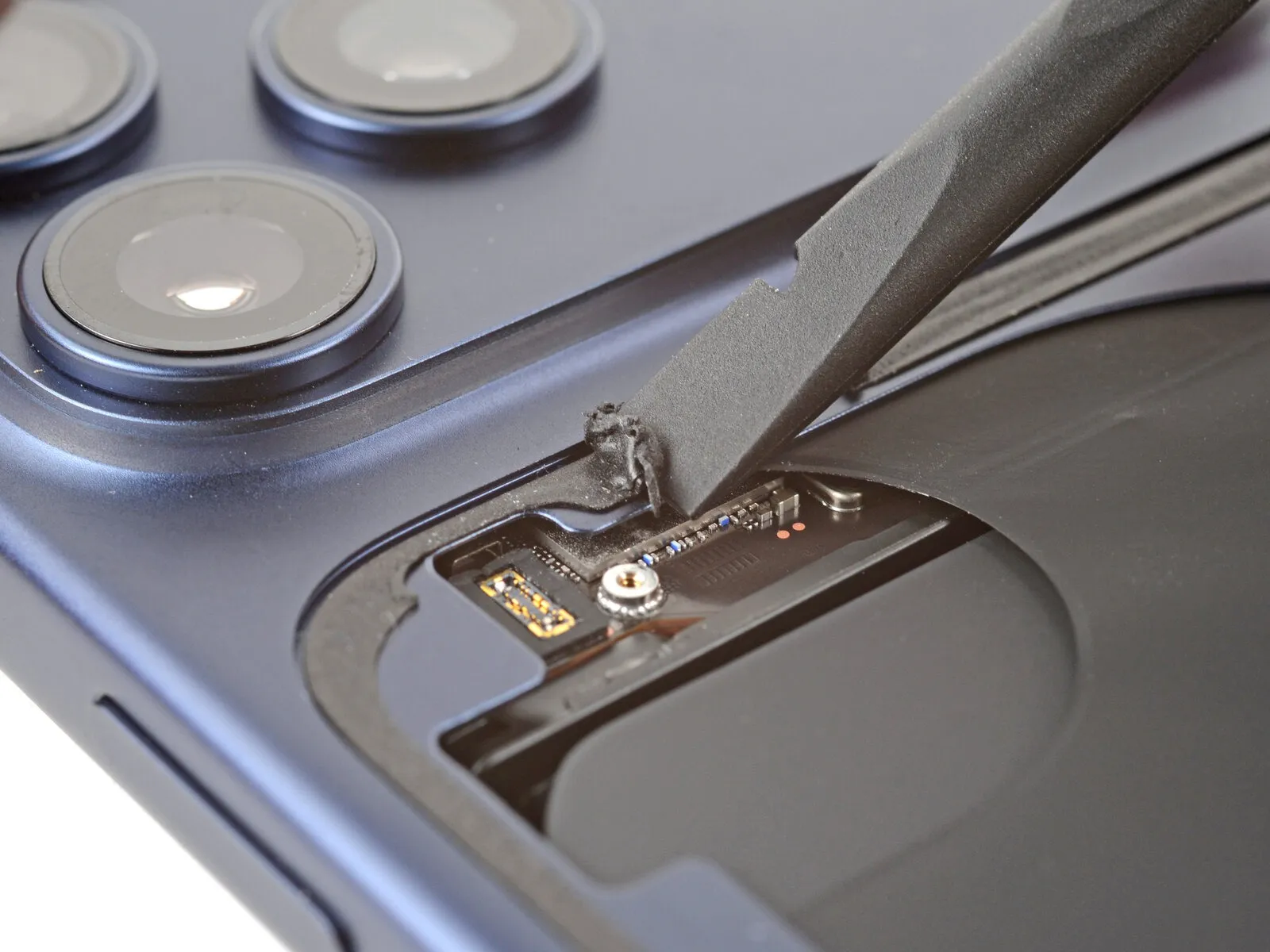
- Employ blunt-nosed tweezers or manual dexterity to detach sizable adhesive sections from the frame's surface.
- Employ a spudger tool to carefully eliminate remaining adhesive traces from the frame.
- Should the adhesive prove difficult to remove, utilize a hair dryer or heat gun to apply warmth and reattempt the removal process.
Step 15 | Orient the replacement adhesive

- To establish the correct positioning of the adhesive layer, place it onto the device frame, ensuring no protective liners are removed during this assessment.
- Employ structural elements like the rear glass connector indentation as reference points to guide the adhesive's alignment.
Step 16 | Apply the replacement adhesive
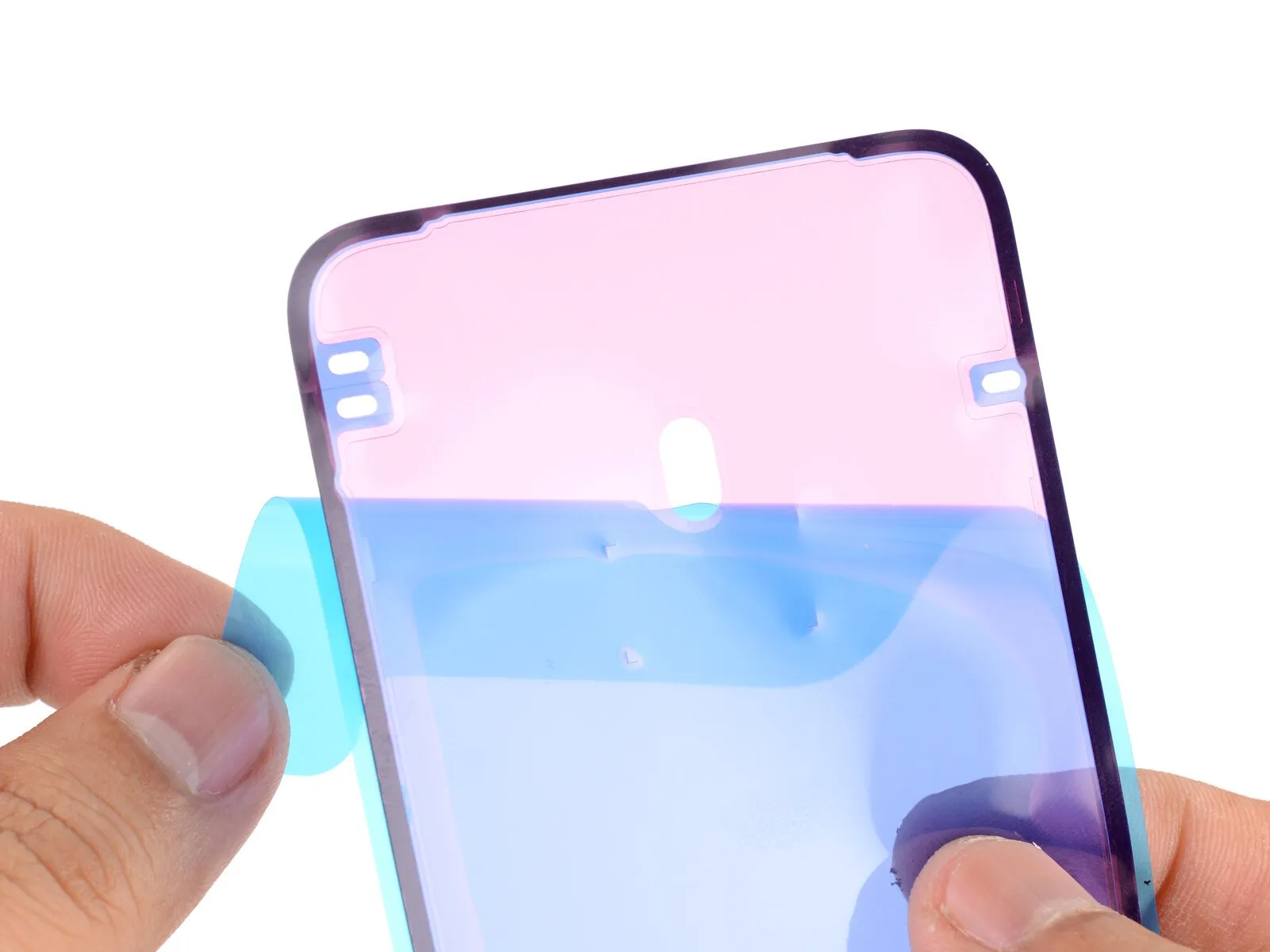
- To reveal a portion of the adhesive, carefully lift the corner tab of the liner and remove it, exposing approximately one-third of the adhesive surface.
- Due to its high tack, prevent the newly exposed adhesive from contacting any surfaces until it is properly positioned on the frame.
- Should your adhesive contain several liners, remove only the topmost liner to reveal the side intended for attachment to the frame.
Step 17

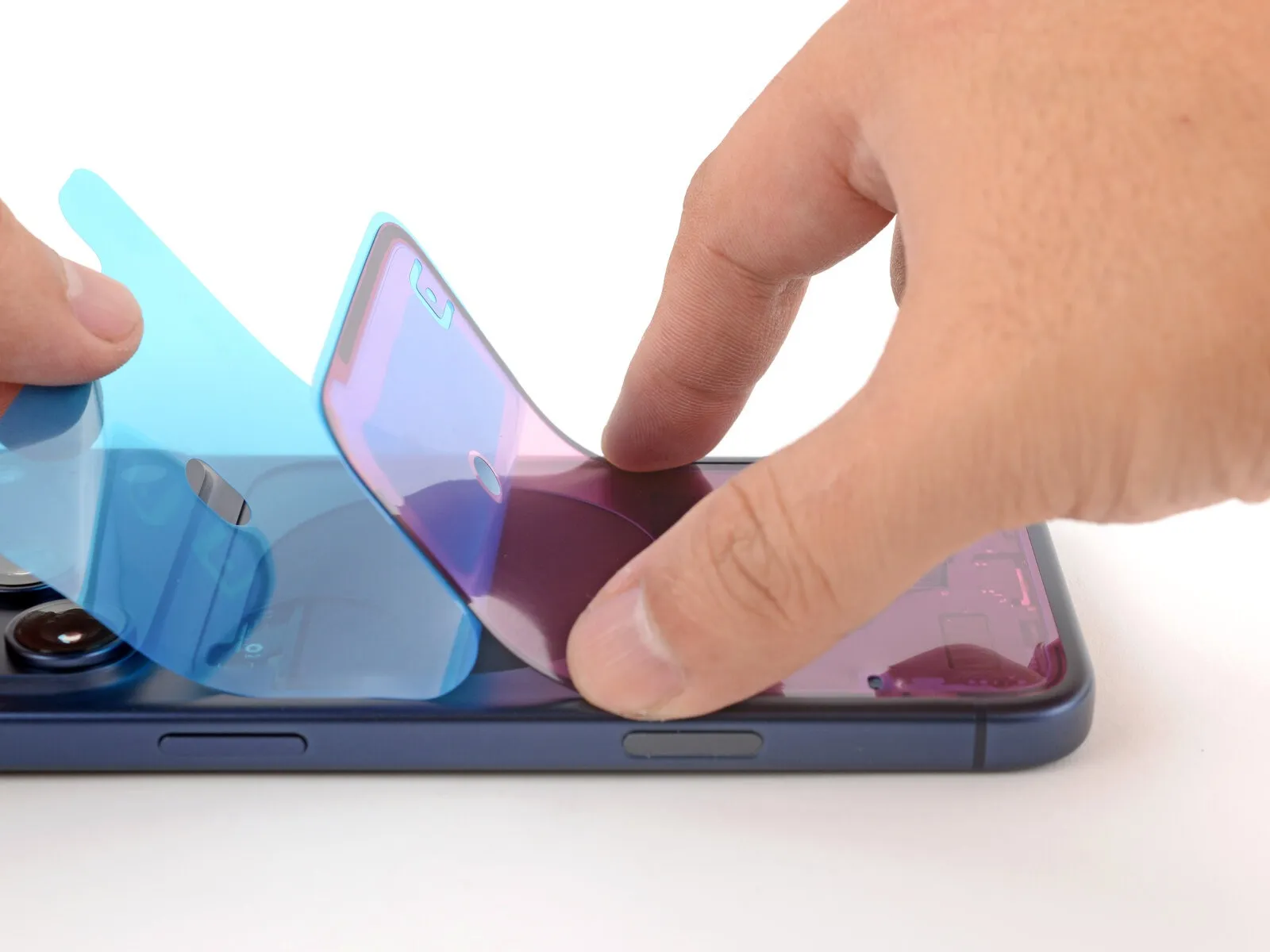

- Ensure precise positioning of the adhesive strip's visible border against the frame, then apply firm pressure.
- Because the adhesive bonds immediately upon contact, repositioning is impossible; any errors necessitate complete removal and replacement with a new strip.
- Progressively remove the adhesive liner while simultaneously applying gentle pressure to secure the adhesive.
- Proper alignment is indicated when the adhesive's borders seamlessly integrate with the frame's contours.
- To correct minor misalignments, delicately draw the extended borders toward the frame's edges.
- Should the adhesive develop folds or wrinkles, discard it and initiate the process anew with a fresh strip.
- If replacement adhesive is unavailable, the iPhone can be reassembled and used, acknowledging that its water resistance will be diminished until a new adhesive is installed.
Step 18
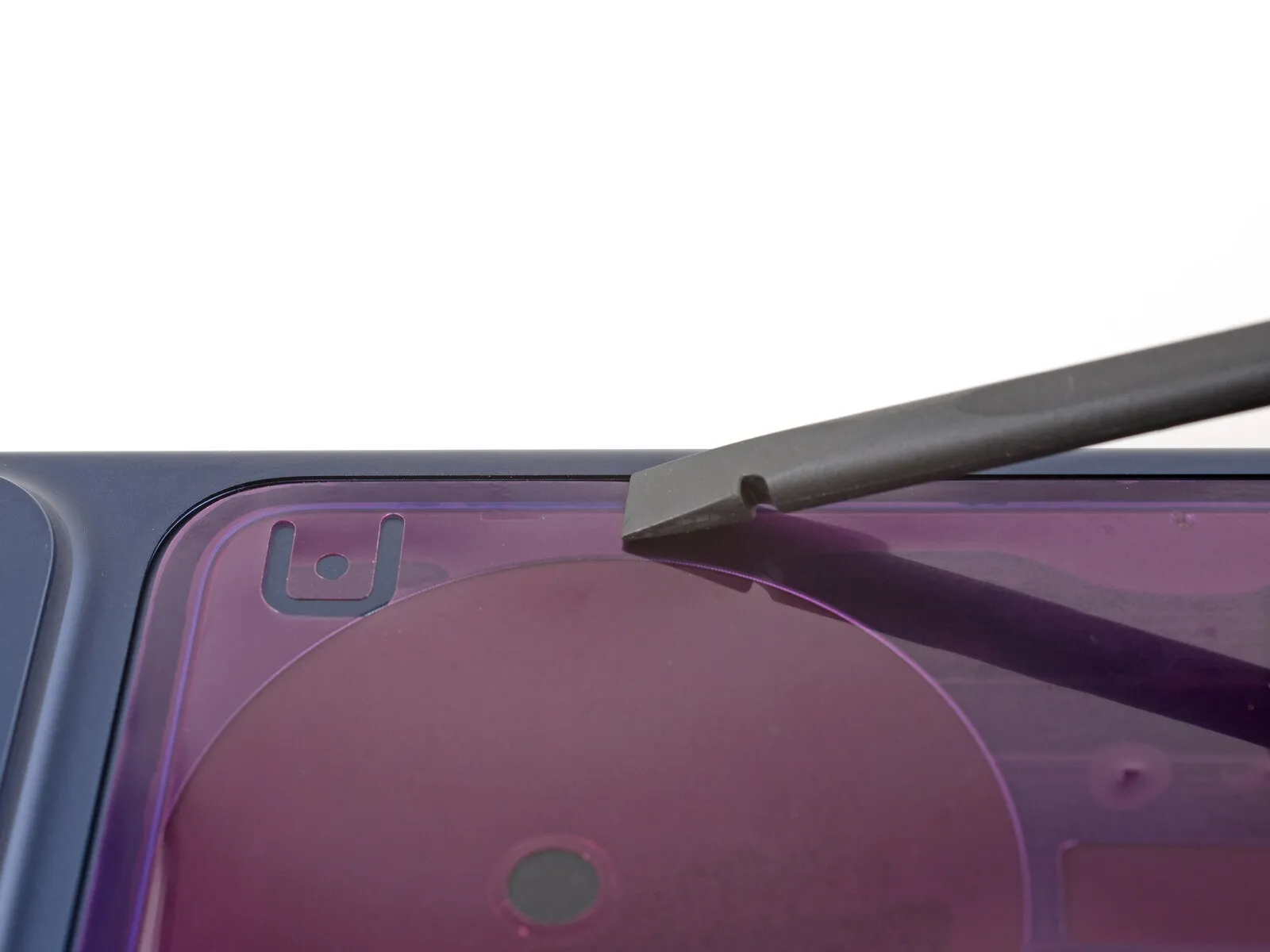
- Employ a spudger to apply pressure to the adhesive securing the device's edges.
- Exercise caution to prevent excessive force, which may result in the adhesive's distortion or extension.
Step 19

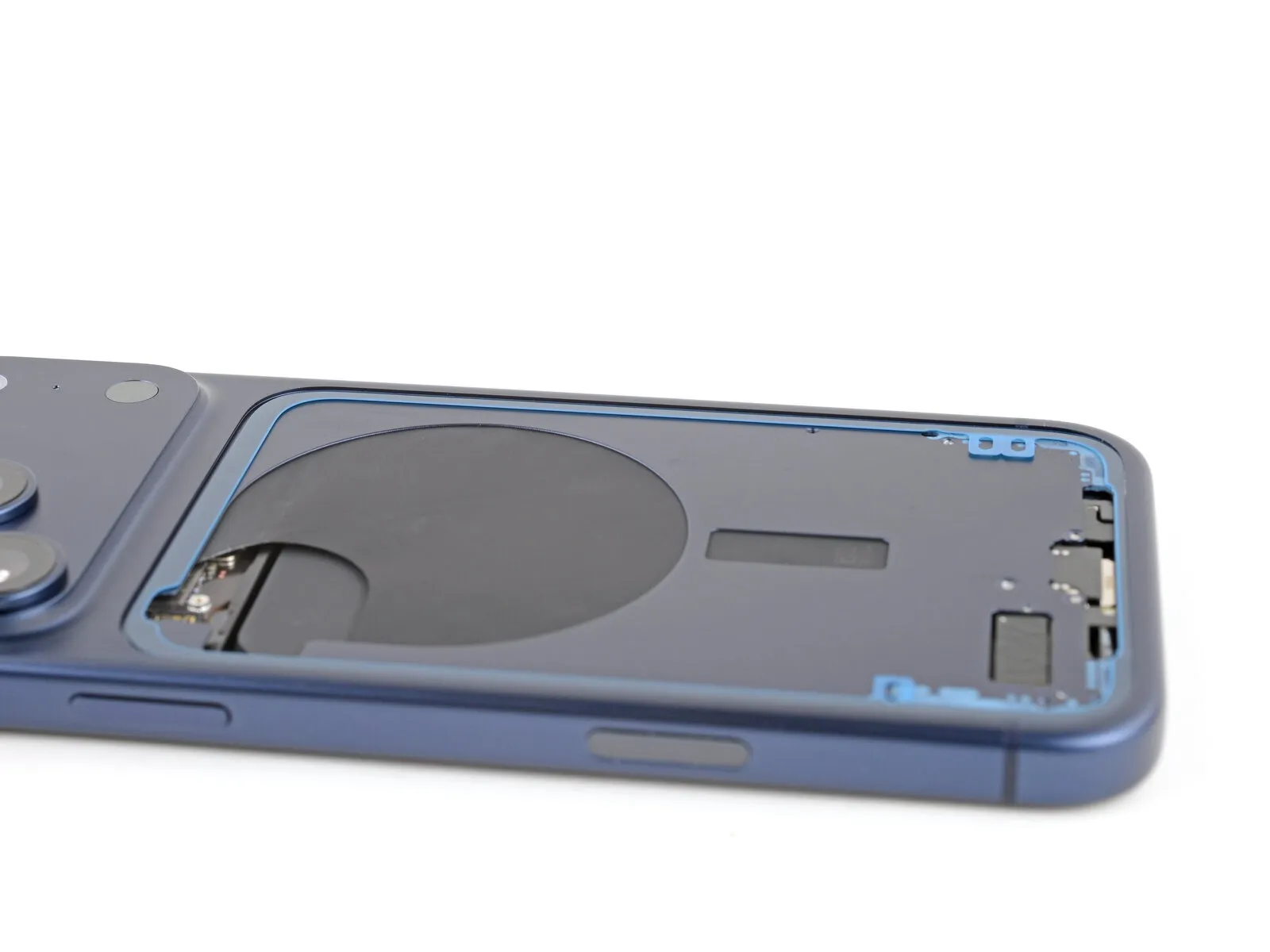
- To expose the adhesive, detach the extensive front liner using the provided pull tab, typically located in a corner.
- Should the adhesive separate from the device along with the liner, apply downward pressure with a spudger tip to secure it.
- Remaining perimeter liners safeguard the adhesive during reassembly; postpone their removal for a later step.
Step 20 | Install the back glass
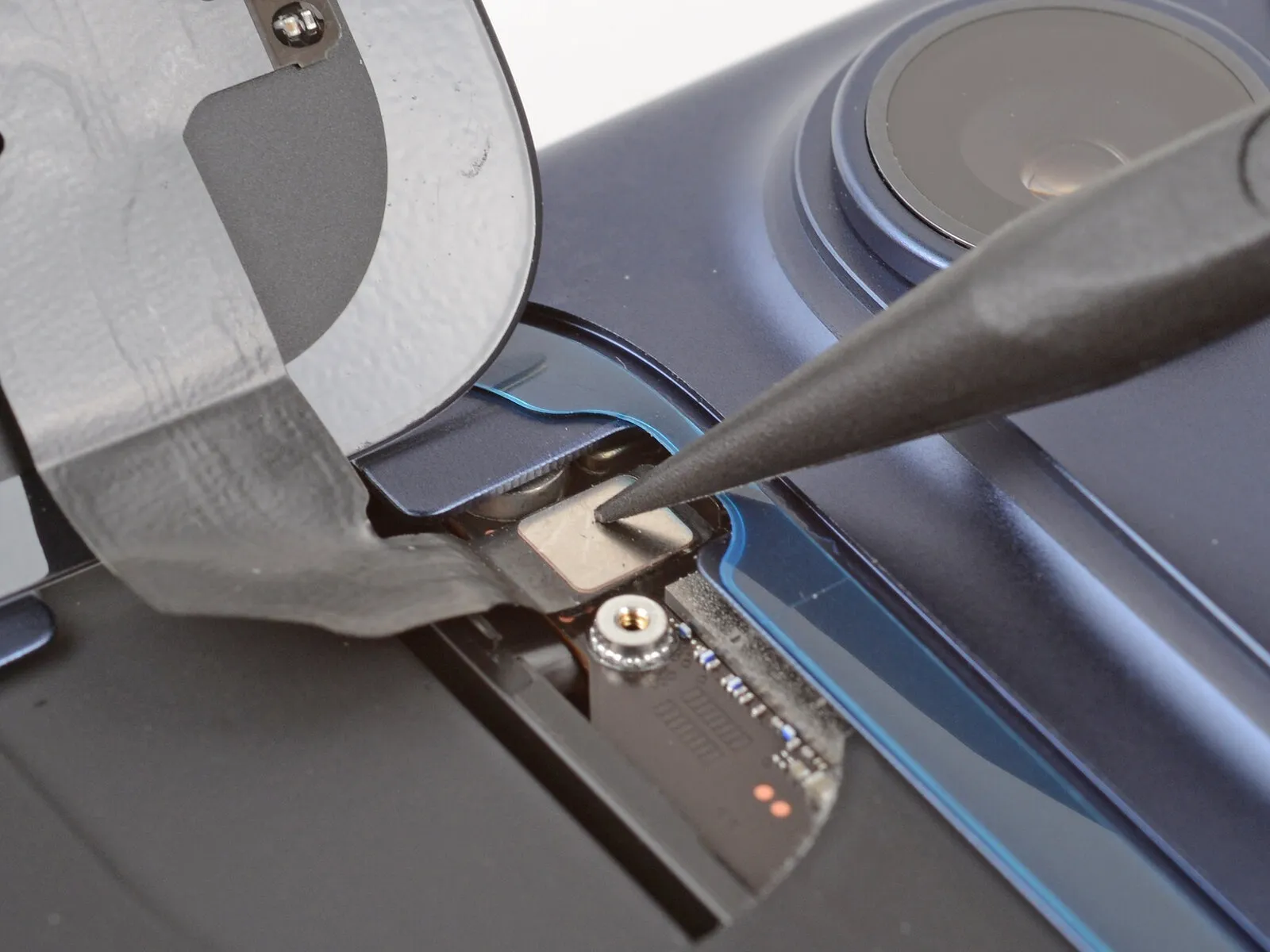
- Ensure the rear glass is situated in a manner that facilitates easy reconnection.
- Employ a finger or a specialized plastic pry tool to apply pressure and establish the electrical connection between the rear glass connector and the main circuit board.
Step 21
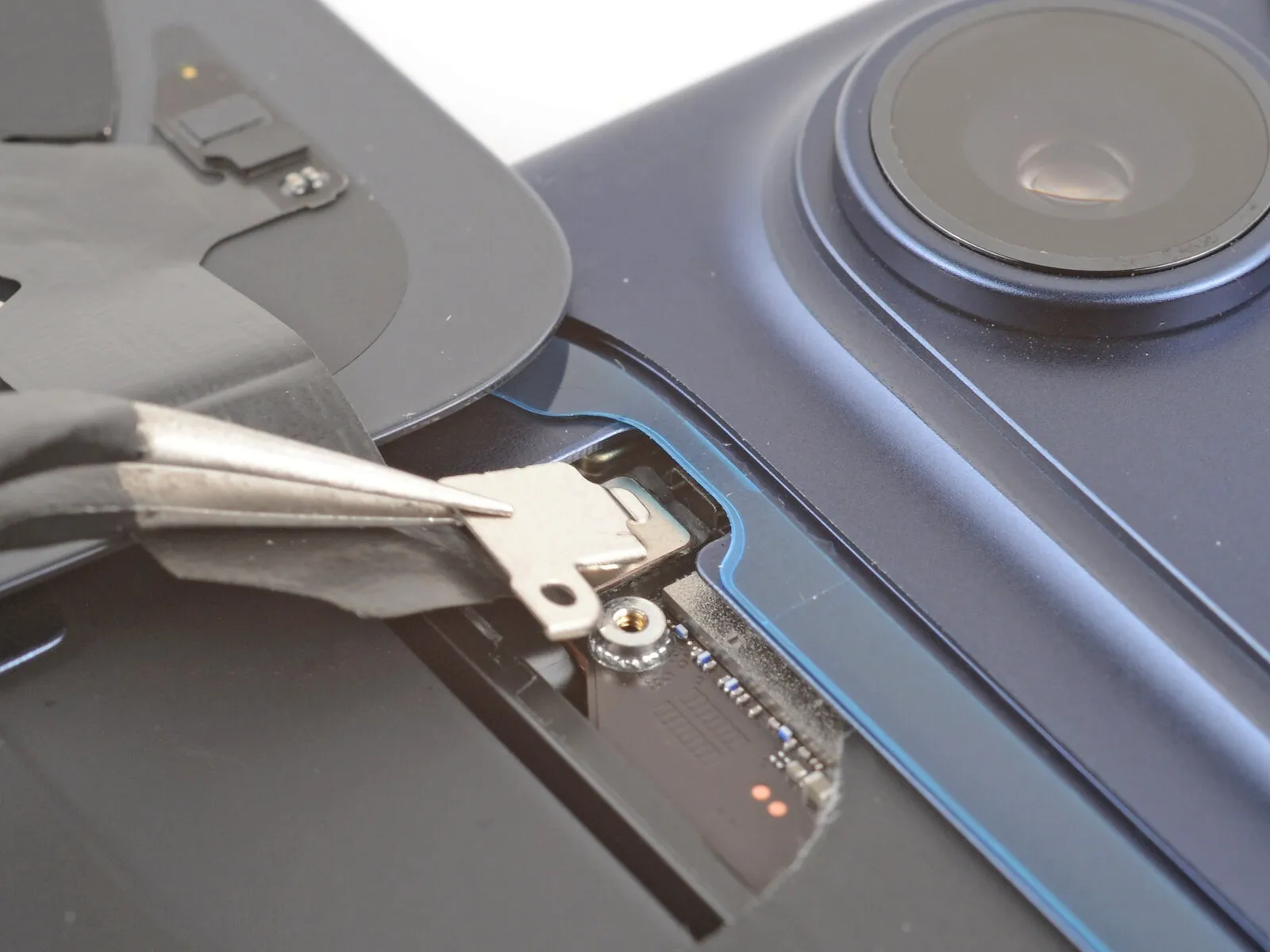
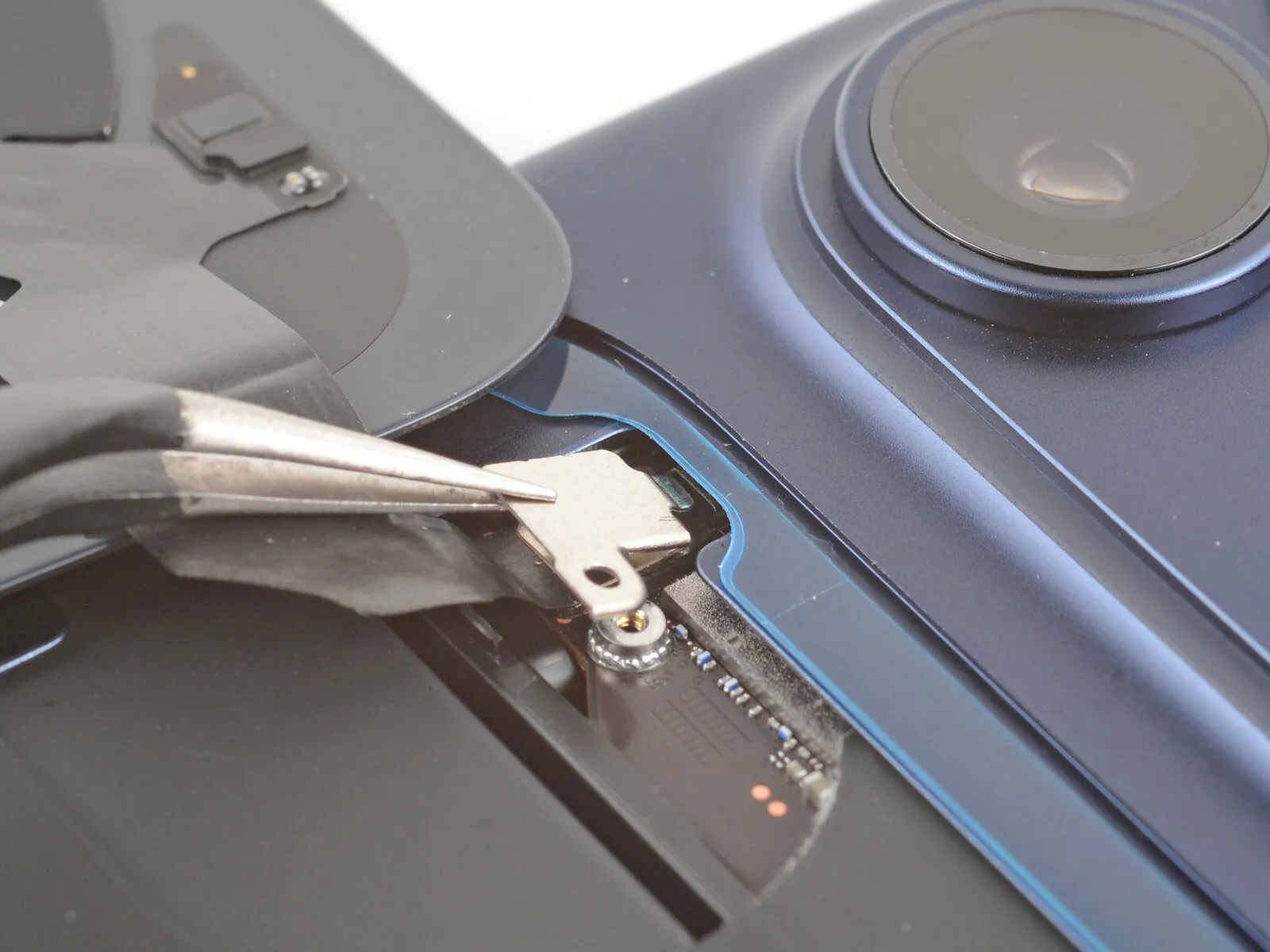
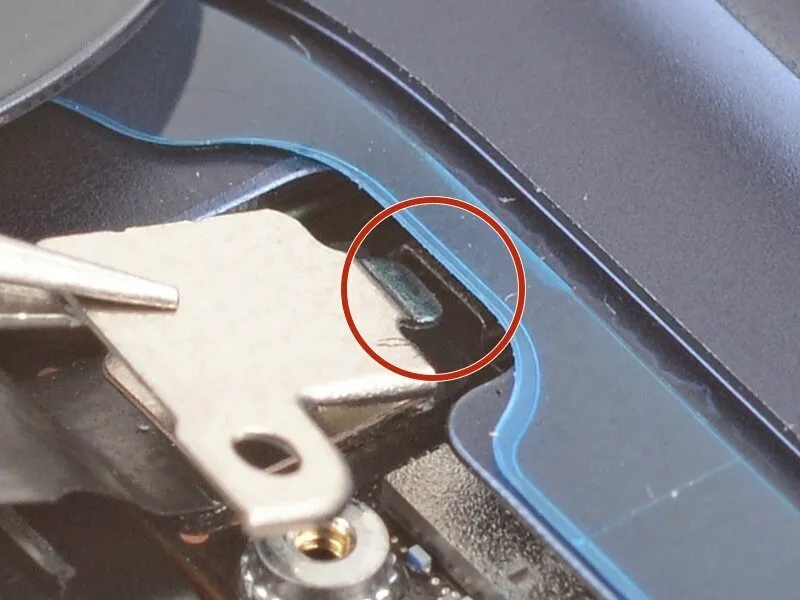
- Ensure the connector cover is positioned correctly, with the upper tab fitting securely beneath the adjacent raised edge.
Step 22
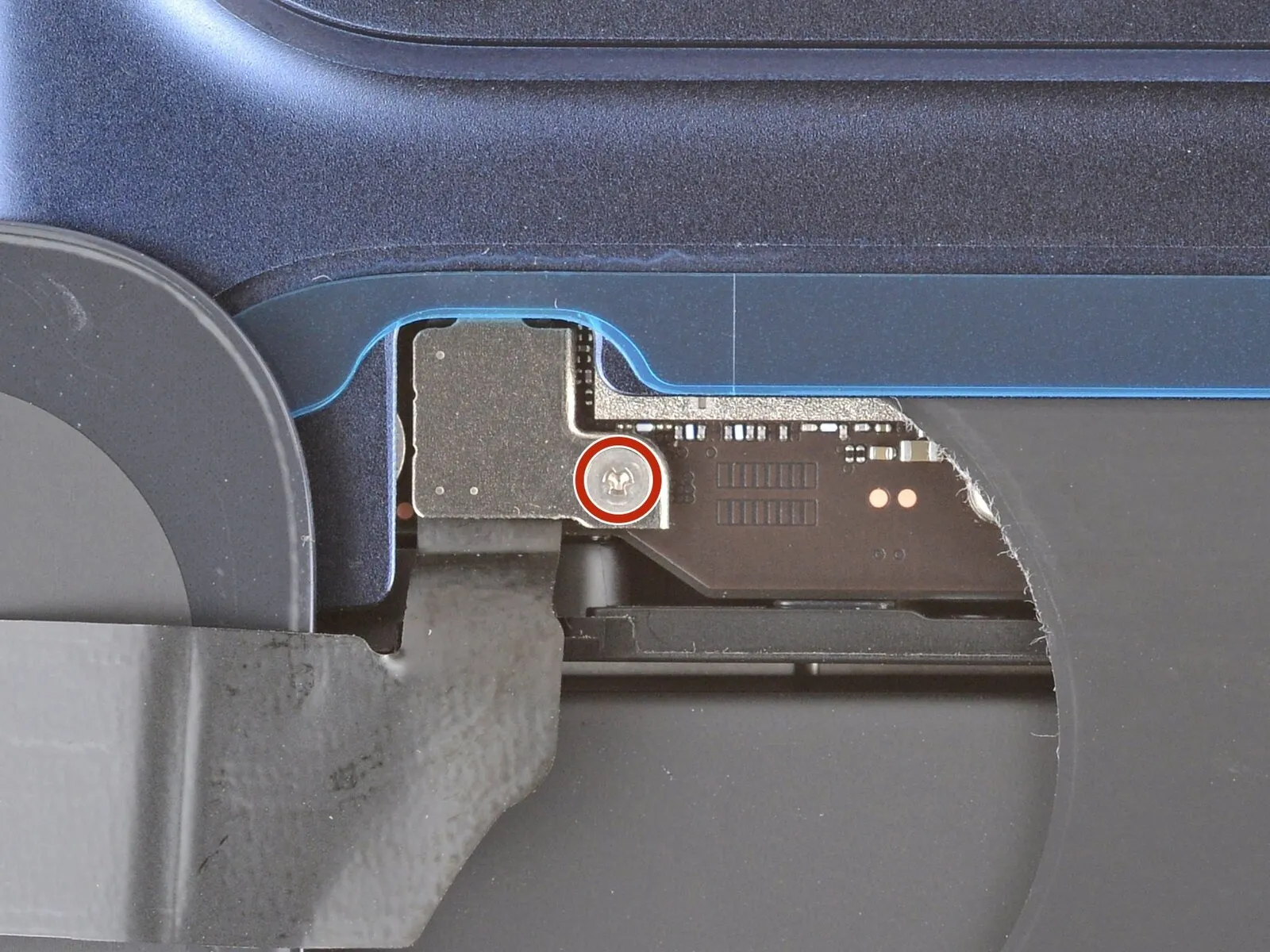
- Employ a tri-point screwdriver, specifically a Y000 type, to fasten the connector cover with a screw measuring 1.0 mm in length.
Step 23
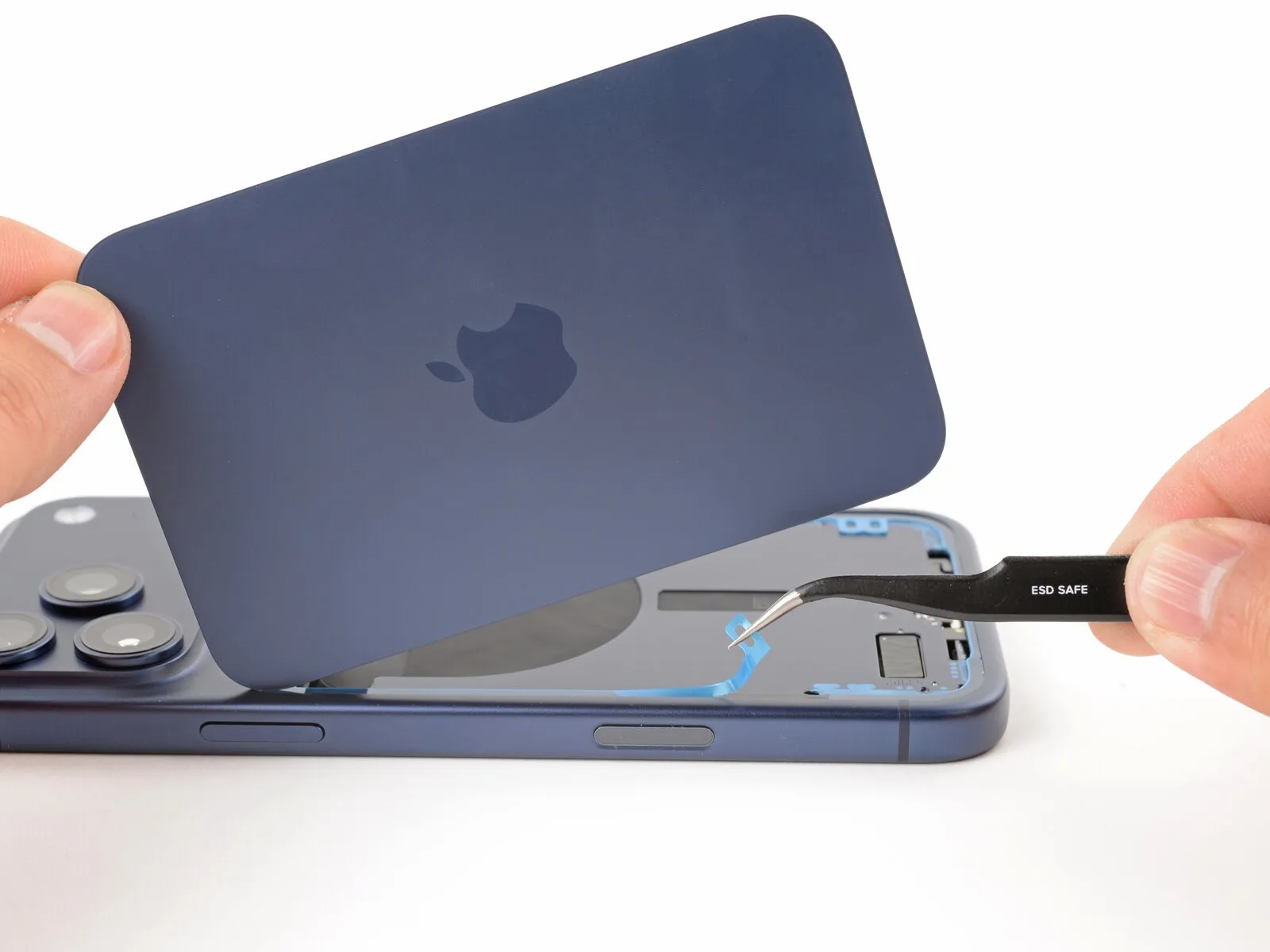
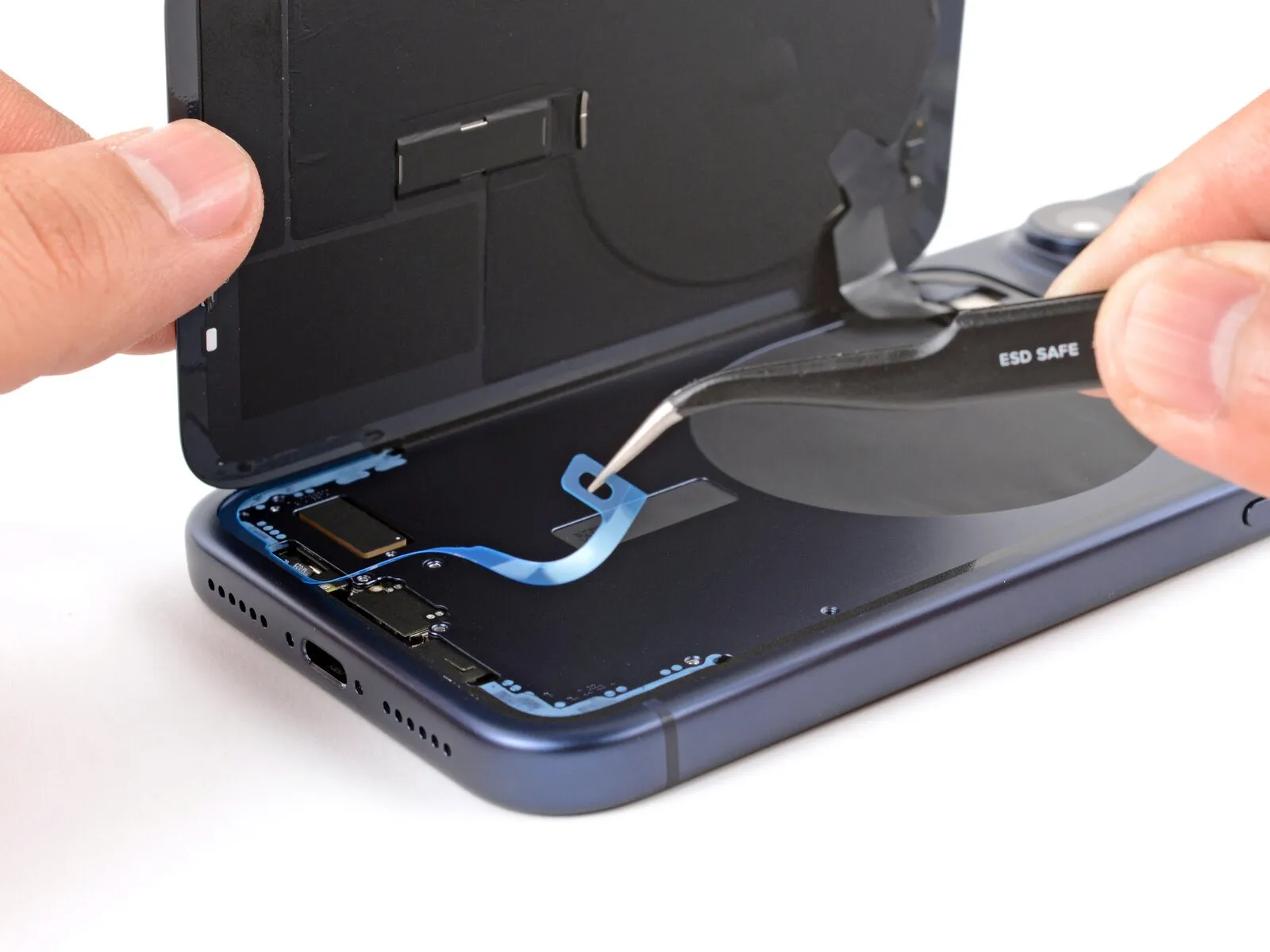
- Maintain a secure grip on the rear glass panel with one hand, exercising caution to prevent stress on the connecting cable.
Employ your fingertips or a pair of tweezers to carefully remove any residual protective liners, fully revealing the adhesive sealant around the device's edges.
Step 24
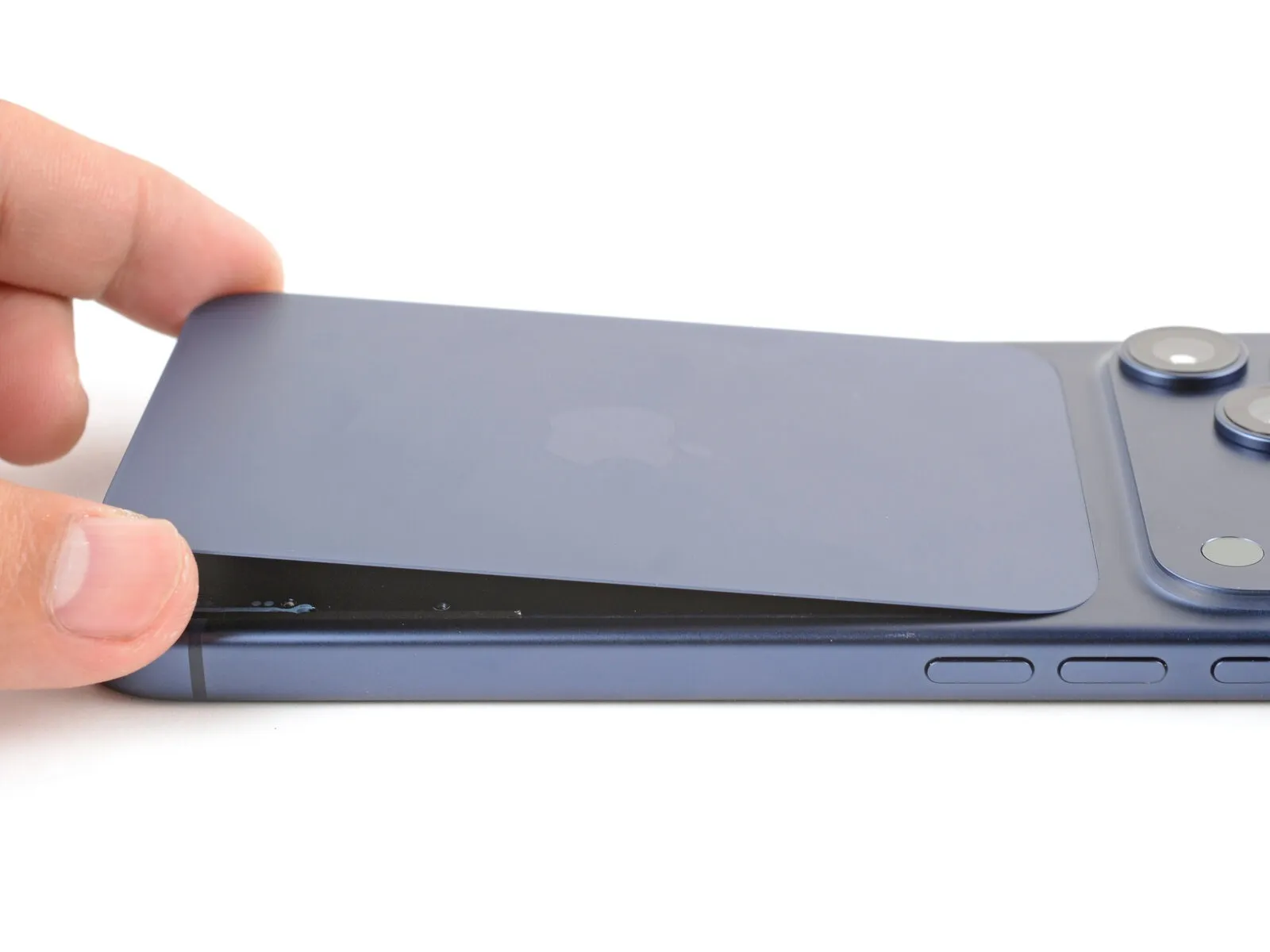

- Position the superior border of the rear glass against its designated opening, subsequently setting it into position.
Step 25
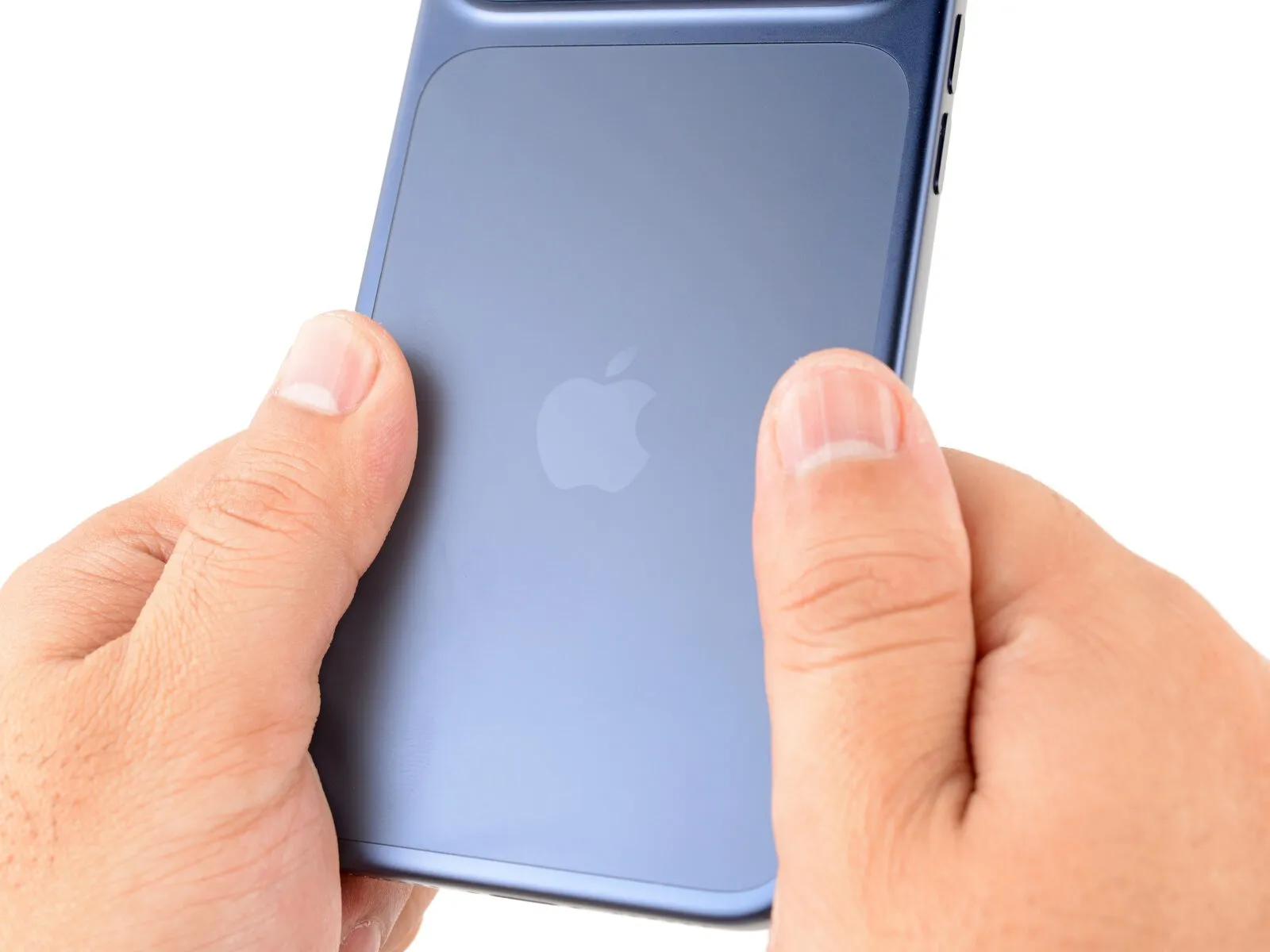
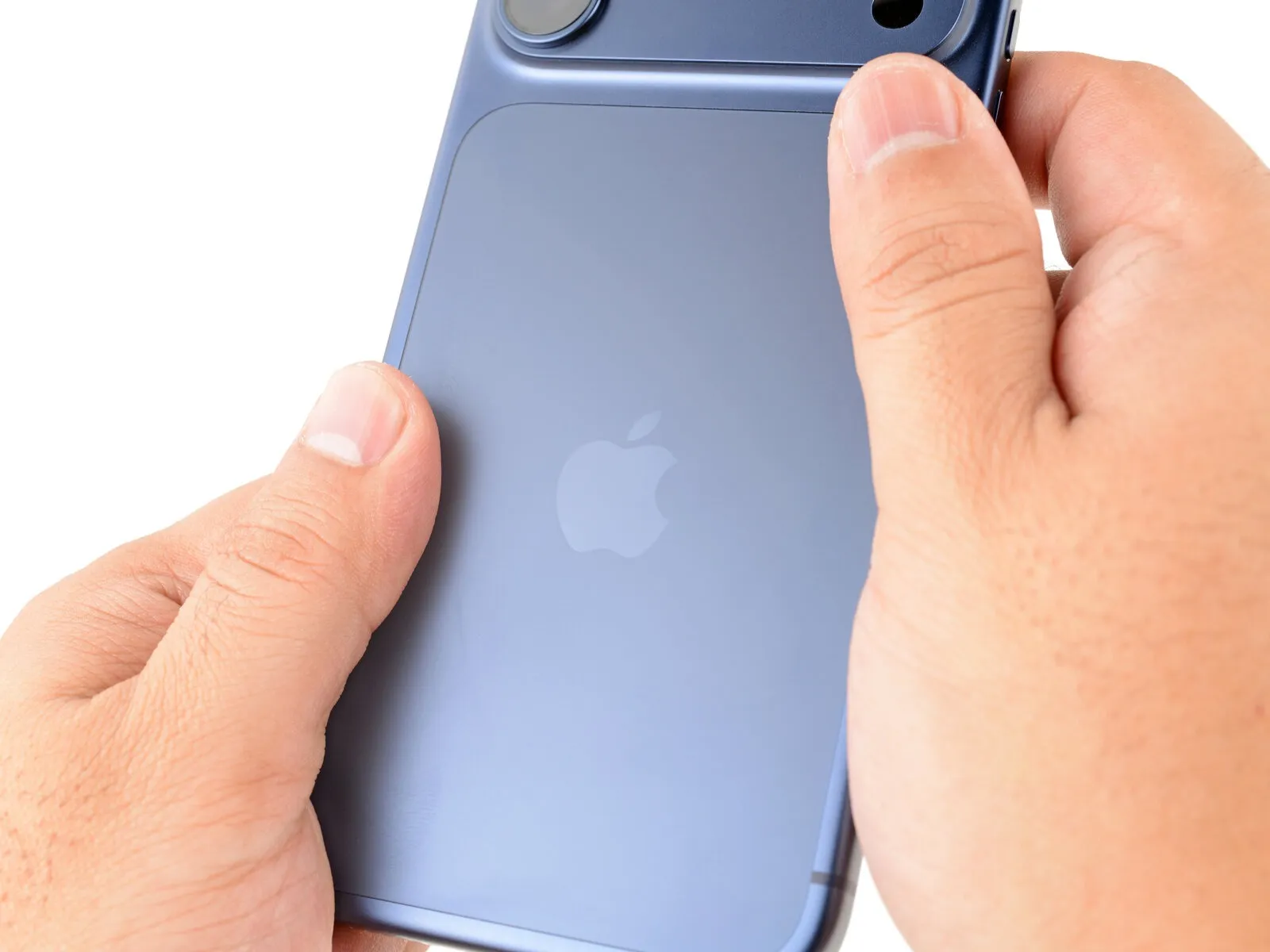

- Apply consistent, substantial pressure encompassing the complete edge of the rear glass panel using your hands.
Step 26 | Install the pentalobe screws
- Employ a P2 pentalobe screwdriver for securing the two screws, each measuring 7.5 mm in length, located on both sides of the charging port.